Visitor And Vendor Configuration
Visitor Configuration
Screen Overview
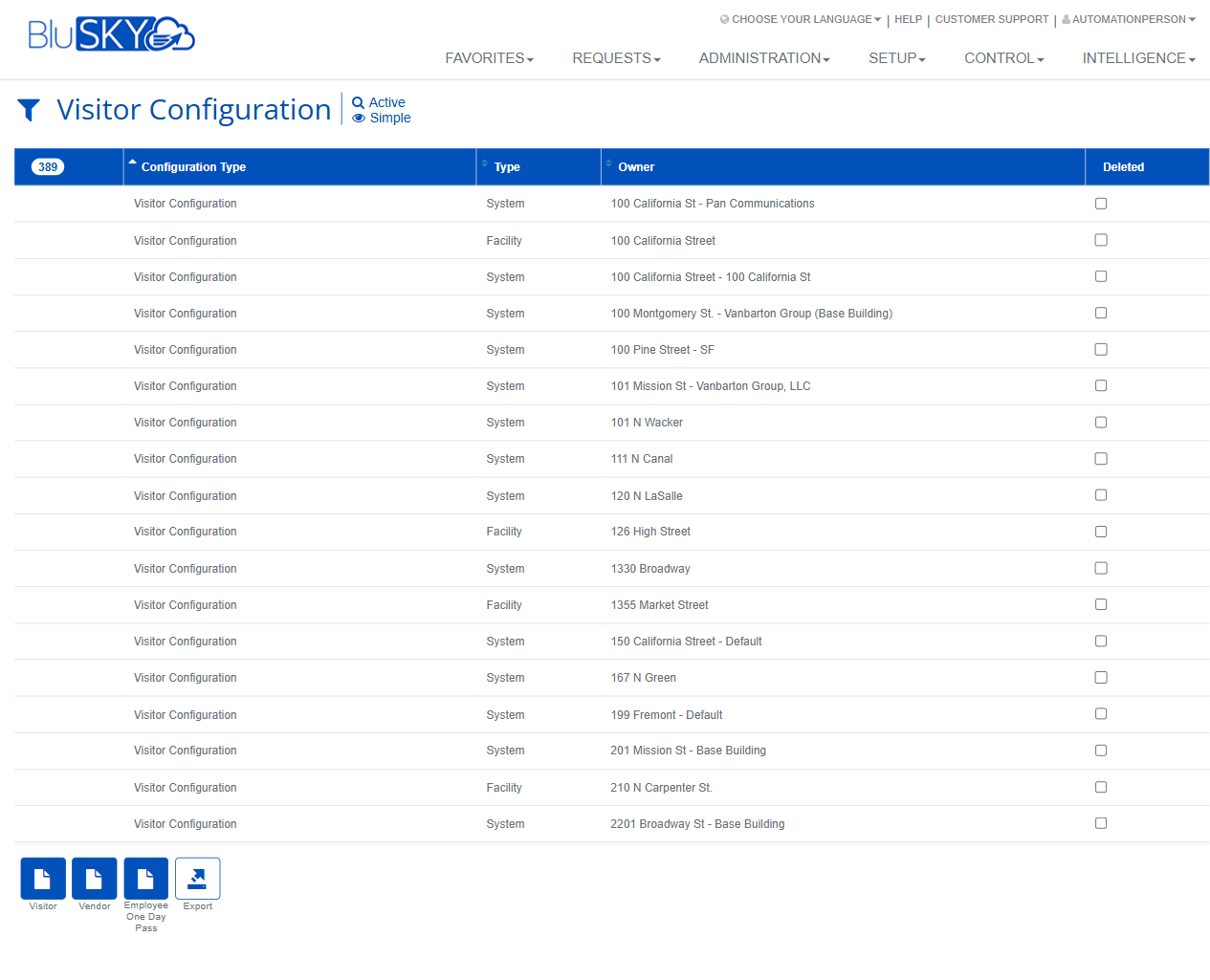
The Visitor Configuration area allows administrators to define and maintain admission rules for Visitors, Vendors, and Employee One Day Passes across systems and facilities. From the filter page, you can select the target System/Facility and load existing configurations. The list view displays all matching configurations, and creation pages (e.g., Create Vendor Admission Configuration) let you set requirements such as certificate of insurance (COI), default visit duration, and access-control integrations.
Field Definitions
| Field Label | Definition | Notes |
|---|---|---|
| System | Filter that limits results and actions to a specific BluSKY system. | “-- All --” shows configurations across all systems the user can access. |
| Facility | Filter that limits results to a single facility/building. | “-- All --” returns configurations for all facilities within the selected system(s). |
| Search | Status filter for list results. | Common options include Active, All, and Deleted. |
| View | Controls the density of filters/columns shown in the list. | Simple displays essential fields; other views may expose additional columns. |
| Configuration Type | Column showing the kind of record in the list. | Typically “Visitor Configuration.” |
| Type | Column indicating the configuration’s scope/type. | Examples seen: System, Facility. |
| Owner | Identifies or selects the owning entity for the configuration. | On create/edit, Owner is chosen via scope tabs: System, Facility, Occupancy, Vendor. In the list, it displays the owning entity’s name. |
| Deleted | Column indicating whether the configuration is soft-deleted. | Checkbox is read-only in the list; use status filter to include/exclude. |
| Require COI For Admission | Toggle that requires a Certificate of Insurance before a vendor can be admitted. | When Yes, admission is blocked until COI validation is satisfied. |
| Maximum Instances Per Vendor Request | Limits how many admissions can be created from one vendor request. | “Unlimited” removes the cap. Positive integers only when limited. |
| Integrated Access Control | Toggle to enable provisioning/validation against integrated access control. | When Yes, visitor/vendor admissions can automatically receive access privileges where configured. |
| Uses License Scanner | Toggle to enable scanning of driver’s licenses/IDs during check-in. | Requires compatible hardware and device configuration. |
| Default End Of Business Day | Default facility “end-of-day” time used to end visits. | Time picker; used when duration is based on end-of-day. Respects the facility time zone. |
| Default Visit Duration Minutes | Default length of a visit when using a minute-based duration. | If left at “Default End Of Business Day,” visits end at the configured end-of-day. Entering a number sets a fixed duration in minutes. |
Screen Actions and Functions
- Visitor – Start creating a Visitor admission configuration.
- Vendor – Start creating a Vendor admission configuration.
- Employee One Day Pass – Start creating a one-day employee pass configuration.
- Submit – Apply the selected filters and load the configuration list.
- Reset – Clear filters back to their defaults.
- Export – Export the current list to a spreadsheet (respects active filters).
- Save – Persist changes on a create/edit page.
- Back To List – Return to the list view from a create/edit page.
- Back To Filter – Return to the initial filter screen.
- Row Select – Click a list row to open a configuration for viewing/editing.
- Column Sort – Click a column header to sort results by that column.
Usage Instructions & Examples
How to find existing configurations
- Go to Setup > Visitor Configuration.
- Choose a System and Facility, set Search = Active, and keep View = Simple.
- Click Submit to load results. Click a row to open details.
How to create a Vendor Admission Configuration
- From the Visitor Configuration filter or list page, click Vendor.
- In Owner, select the scope tab (System, Facility, Occupancy, or Vendor) and choose the owner.
- Set Require COI For Admission = Yes if COI is mandatory.
- Set Maximum Instances Per Vendor Request (e.g., 5) or leave Unlimited.
- Optionally enable Integrated Access Control and/or Uses License Scanner.
- Define Default End Of Business Day (e.g., 6:00 PM).
- For minute-based durations, enter Default Visit Duration Minutes (e.g., 240). Leave it as “Default End Of Business Day” to use the end-of-day rule instead.
- Click Save. The configuration appears in the list and applies to the selected owner scope.
How to export the configuration catalog
- Filter the list as needed and click Submit.
- Click Export to download the current results.
How to adjust an existing configuration
- Load the list with your filters and click the desired row.
- Update fields (e.g., switch Require COI For Admission to No).
- Click Save to apply the changes.
System Behaviors and Edge Cases
- Status filtering:
- Search = Active hides records with Deleted checked.
- To view removed items, set Search to All or Deleted.
- Owner scope:
- The Owner scope determines where the configuration applies. When multiple configurations could apply, BluSKY generally uses the most specific scope (e.g., Vendor over Facility, Facility over System).
- Duration logic:
- If Default Visit Duration Minutes is left at “Default End Of Business Day,” visits end at the time specified in Default End Of Business Day.
- Entering a numeric value changes behavior to a fixed minute duration.
- Validation:
- Maximum Instances Per Vendor Request must be a positive integer when limited; otherwise use Unlimited.
- Visit end times cannot precede start times; invalid combinations prompt an error on save.
- Integrations:
- Integrated Access Control requires that access levels/doors exist for the Owner scope; otherwise visitors/vendors may be created without credentials.
- Uses License Scanner requires supported scanning hardware; if not deployed, enabling has no operational effect.
- Time zones:
- Default End Of Business Day follows the Facility’s time zone; exported times use the system’s standard format.
Permissions
- Access to Visitor Configuration is available to administrative roles with setup/configuration privileges.
- Creating or editing configurations requires write permissions for the selected Owner scope (System, Facility, Occupancy, or Vendor).
- Export may be limited to users with data export rights.
- Read-only users can view lists but cannot save changes.
Linked Workflows
- Visitor and Vendor Requests: Admission configurations determine check-in rules, capacity limits, and whether COI is required.
- Kiosk/Front Desk Check-In: License scanning and access-control provisioning apply at check-in based on these settings.
- Access Levels/Credentialing: If Integrated Access Control is enabled, admissions can trigger temporary credential issuance.
- Occupancy Management: Owner = Occupancy scope can enforce rules for specific tenant/space populations.
Reference Image Links