Ai Controller Diagnostics Alpha
Setup Workspace
Screen Overview
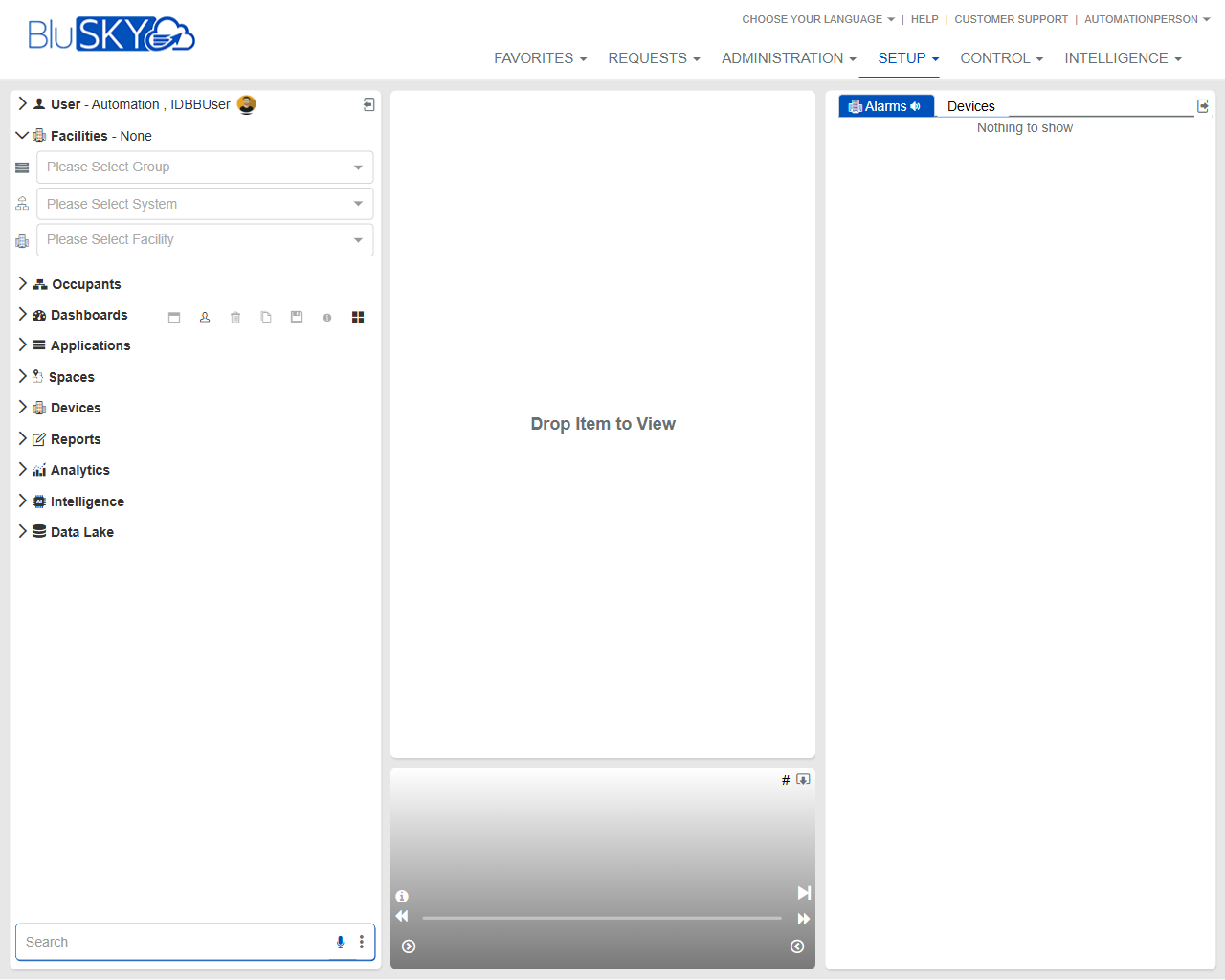
The Setup workspace is the central launchpad for configuring facilities, systems, spaces, devices, and related applications within BluSKY. Users select a Group, System, and Facility to scope the configuration context, then use the left navigation to open specific modules. Items can be dragged into the central workspace to view or edit details. A right-side Alarms panel provides a live feed for the selected category (e.g., Devices).
Field Definitions
| Field Label | Definition | Notes |
|---|---|---|
| Choose Your Language | Header control to change the interface language. | Affects menus and labels after selection. |
| Help | Opens online help resources for BluSKY. | Launches in a new tab/window. |
| Customer Support | Shortcut to customer support options. | Availability may vary by subscription. |
| Favorites | Top navigation menu for bookmarked pages. | Read-only list managed by the user. |
| Requests | Top navigation menu for workflow/request tasks. | Unrelated to Setup configuration. |
| Administration | Top navigation for administrative settings. | Requires elevated permissions. |
| Setup | Top navigation for configuration workspace (current screen). | Highlighted when active. |
| Control | Top navigation for live operations and monitoring. | Separate from configuration. |
| Intelligence | Top navigation for analytics/insights modules. | Access based on licensing. |
| User – Automation, IDBUser | Displays the signed-in user identity. | Provides access to profile/logout via user menu. |
| Facilities – None | Banner showing the current facility context. | Displays “None” until a facility is selected. |
| Please Select Group | Dropdown to choose a Facility Group to scope data. | Drives the options in System and Facility. |
| Please Select System | Dropdown to choose a System within the selected Group. | Populated after Group selection. |
| Please Select Facility | Dropdown to choose the Facility to configure. | Required to load facility-specific items. |
| Occupants | Navigation node to access occupant/people-related configuration. | Expand and drag items into the workspace. |
| Dashboards | Navigation node for dashboards. | Availability depends on role and licensing. |
| Applications | Navigation node for application integrations/configuration. | Content scoped by the selected facility. |
| Spaces | Navigation node for space and hierarchy configuration. | Drag items to open details. |
| Devices | Navigation node for hardware devices and controllers. | Drag devices or folders to the workspace. |
| Reports | Navigation node to access configuration reports. | Opens report views when selected/dragged. |
| Analytics | Navigation node for analytics features. | May be read-only from Setup. |
| Intelligence | Navigation node for intelligence/automation artifacts. | Availability varies by tenant. |
| Data Lake | Navigation node for data lake resources. | May require additional licensing. |
| Search | Text box at the bottom-left to find items in the navigation tree. | Supports partial matches; press Enter to apply. |
| Drop Item to View | Central workspace drop zone where items open. | Accepts drag-and-drop from the left navigation. |
| Alarms – Devices | Right-side panel showing alarms filtered to Devices. | Displays “Nothing to show” when no active alarms. |
Screen Actions and Functions
- Select Group/System/Facility to set the active configuration scope.
- Expand/collapse any left navigation node to reveal items.
- Drag an item from the left navigation and drop it into the central “Drop Item to View” area to open it.
- Use the Search box to quickly locate items in the left navigation tree.
- View the Alarms panel to monitor real-time device alarms relevant to the selected category.
- Use top navigation (Favorites, Requests, Administration, Control, Intelligence) to pivot to other BluSKY areas as needed.
- Access Help or Customer Support from the header for assistance.
Usage Instructions & Examples
How to set the facility context
- Open the dropdown labeled Please Select Group and choose the appropriate group.
- Open Please Select System and choose the related system.
- Open Please Select Facility and choose the target facility.
- Confirm the banner updates from “Facilities – None” to the selected facility name.
How to open a device configuration view
- Ensure a facility is selected using the Group/System/Facility dropdowns.
- Expand Devices in the left navigation.
- Drag the desired device (or device folder) into the Drop Item to View area.
- Review and edit configuration as needed, then save within the opened view.
How to monitor device alarms
- Verify the facility is selected.
- Check the Alarms – Devices panel on the right.
- Click on an alarm (if listed) to open the related item in the workspace or acknowledge per your workflow.
How to find a space or occupant record
- Type part of the name in the Search field at the bottom-left.
- Press Enter to filter the left navigation tree.
- Drag the matching item into the workspace to open it.
System Behaviors and Edge Cases
- Until a facility is selected, many module nodes will contain no items; the Alarms panel will display “Nothing to show.”
- The System and Facility dropdowns are filtered by the selected Group; invalid combinations return no results.
- Users without permissions for a module will not see that node or will see it in a disabled state.
- Drag-and-drop is the primary method to open items in the workspace; clicking may expand nodes but not open the detailed view.
- The Alarms panel updates in near real time; if filters or facility context change, the list refreshes automatically.
- Browser pop-up blockers may prevent Help/Support links from opening in a new tab.
Permissions
- Access to the Setup workspace requires Setup-level permissions granted by an administrator.
- Visibility of modules (Occupants, Devices, Spaces, etc.) is permission- and license-based.
- Alarm visibility is restricted to facilities and systems the user is authorized to view.
- Administrative actions within opened items (e.g., device edits) require module-specific edit rights.
Linked Workflows
- After selecting a facility, open Devices to configure controllers, readers, and panels.
- Use Spaces to build and maintain the location hierarchy before assigning devices.
- Manage Occupants to align people records with spaces and access configurations.
- Generate configuration Reports to validate or audit recent changes.
- Switch to Control to operate or monitor devices after configuration is complete.
Reference Image Links