Customer Support Ticket Configuration
Customer Support Ticket Configuration
Screen Overview
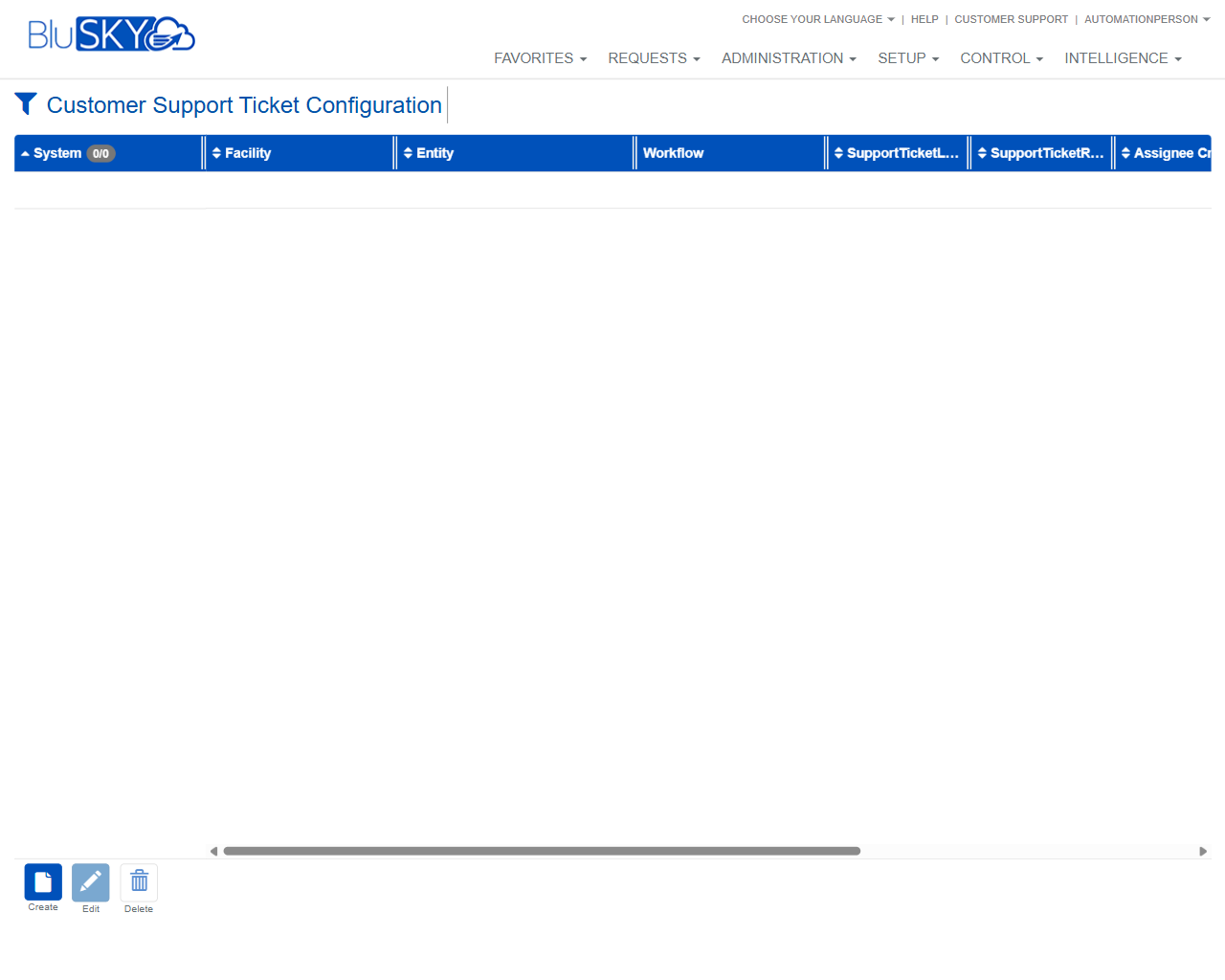
The Customer Support Ticket Configuration screen is used to define how customer support tickets are routed and processed across systems, facilities, and business entities (such as occupancies, vendors, integrators, or companies). Administrators can filter by scope, review existing configurations in a results grid, and create, edit, or delete configuration records that determine the default workflow and assignment for new support tickets in BluSKY.
Field Definitions
| Field Label | Definition | Notes |
|---|---|---|
| System | Filters the view by a specific BluSKY System. | Dropdown. Required for most targeted searches. Refresh icon reloads available values. |
| Facility | Filters by Facility within the selected system. | Dropdown. Defaults to All. Options may depend on the selected System. Refresh icon available. |
| Occupancy | Filters by Occupancy (tenant) context. | Dropdown. Defaults to All. Options are scoped by System/Facility. Refresh icon available. |
| Vendor | Filters by Vendor entity associated with support responsibilities. | Dropdown. Defaults to All. Refresh icon available. |
| Integrator | Filters by Integrator entity. | Dropdown. Defaults to All. Refresh icon available. |
| Company | Filters by Company (organization) context. | Dropdown. Defaults to All. Refresh icon available. |
| System (grid) | Column showing the System for each configuration result. | Read-only in the grid. |
| Facility (grid) | Column showing the Facility for each configuration result. | Read-only in the grid. |
| Entity | Column indicating the specific entity (e.g., Occupancy, Vendor, Integrator, or Company) that the configuration targets. | Read-only in the grid. |
| Workflow | Column showing the assigned workflow used when a ticket is created for the row’s entity/scope. | Read-only in the grid; editable within the configuration form. |
| SupportTicketL... | Column with a truncated header showing an additional Support Ticket attribute (full label visible when the column is widened). | Read-only in the grid. Drag the column edge to reveal the full name. |
| SupportTicketR... | Column with a truncated header showing a Support Ticket routing-related attribute (full label visible when the column is widened). | Read-only in the grid. Drag the column edge to reveal the full name. |
| Assignee Cr... | Column with a truncated header indicating assignee criteria or assignment details (full label visible when the column is widened). | Read-only in the grid. Drag the column edge to reveal the full name. |
Screen Actions and Functions
- Create (top of filter area) – Opens a new Customer Support Ticket Configuration form for the selected scope.
- Submit – Applies the selected filters and loads matching configuration rows into the results grid.
- Reset – Clears all filter selections back to default (e.g., All).
- Refresh icon (next to each filter) – Reloads the dropdown values based on current context and permissions.
- Create (grid footer) – Creates a new configuration from the results view.
- Edit – Opens the selected configuration row for modification.
- Delete – Removes the selected configuration (subject to permissions; typically a soft-delete or archival in audit history).
Usage Instructions & Examples
-
Filter and Review Existing Configurations
- Select a System.
- Optionally narrow by Facility, Occupancy, Vendor, Integrator, or Company.
- Click Submit to load results.
- Review the grid columns (System, Facility, Entity, Workflow, etc.). If column names are truncated, drag the column edge to expand.
-
Create a New Configuration for a Facility or Occupancy
- In the filter panel, select the System and, if applicable, the Facility and/or Occupancy you want to target.
- Click Create.
- Complete the configuration form (e.g., choose the Workflow and assignment/assignee details).
- Save. The new configuration appears in the grid after Submit.
-
Modify an Existing Configuration
- Use the filters and click Submit to find the target row.
- Select the row and click Edit.
- Update fields such as Workflow or assignment criteria.
- Save and verify the changes in the grid.
-
Remove a Configuration
- Locate the configuration via filters and Submit.
- Select the row and click Delete.
- Confirm the deletion when prompted.
System Behaviors and Edge Cases
- Dropdown lists are context-sensitive; available Facility/Entity options update based on the selected System.
- If no results match the filters, the grid will display an empty result set.
- Column headers may appear truncated on smaller screens; widen the column to view the full label.
- Edit and Delete actions require a single row selection; they are disabled until a row is highlighted.
- Reset reverts all filters to defaults (e.g., All), but does not automatically reload the grid until Submit is clicked.
- Refresh icons next to filters repopulate choices without altering current selections in other filters.
Permissions
- Access is typically limited to administrative roles with rights to Setup > Customer Support Ticket Configuration.
- Create/Edit/Delete actions require write permissions for support ticket configuration within the selected System/Facility scope.
- Users without edit permissions can filter and view configurations but cannot modify them.
Linked Workflows
- Customer Support ticket creation (e.g., via Requests > Customer Support) uses the configuration defined here to select the appropriate Workflow and assignment.
- Workflow definitions referenced in this screen are maintained in the Workflows module; ensure workflows are published/active before assigning them here.
- Entity administration (Systems, Facilities, Occupancies, Vendors, Integrators, Companies) is managed in their respective setup screens and feeds the filter lists used here.
Reference Image Links