Servers
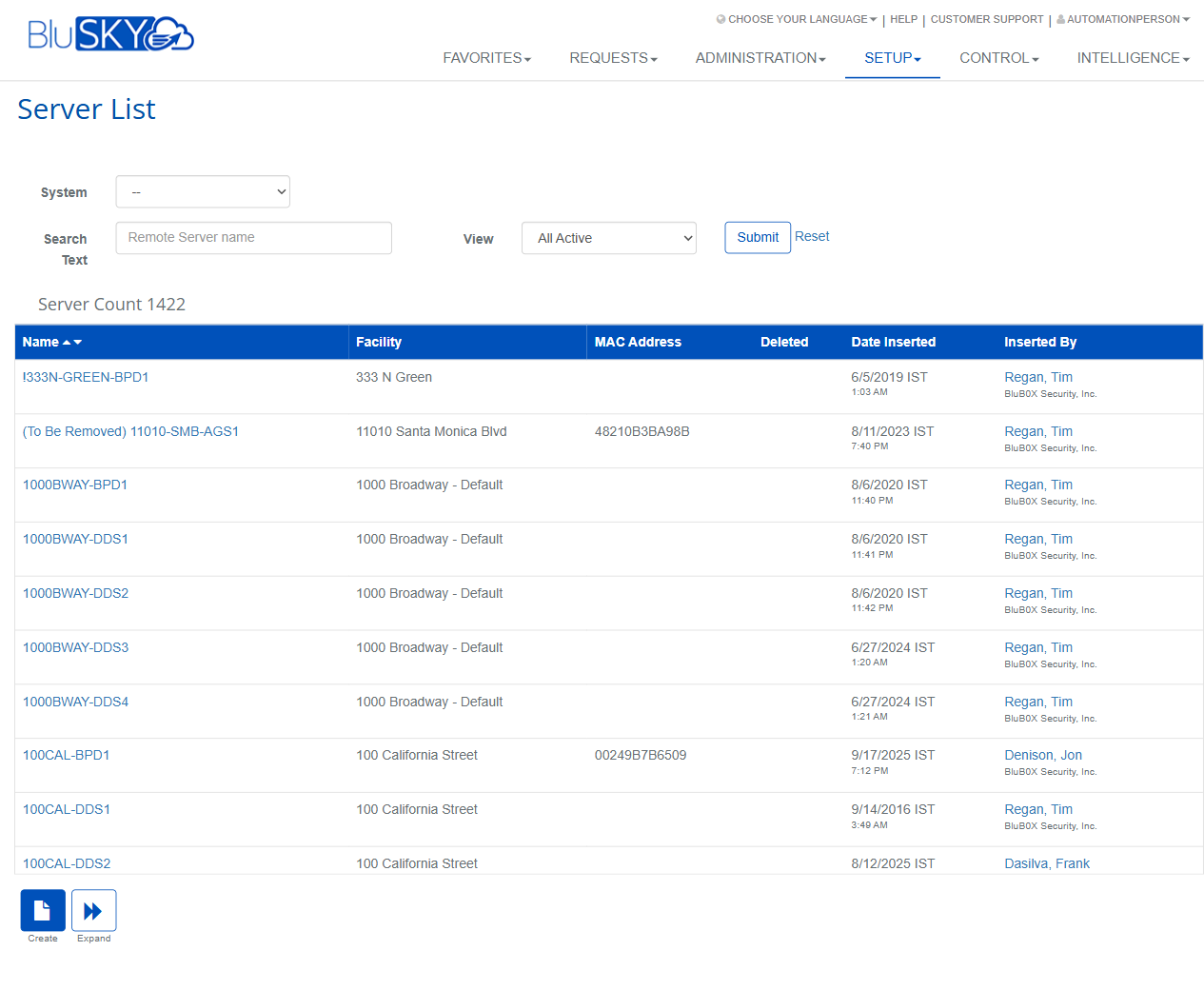
Server List Screen
Screen Overview
The Server List screen provides a centralized view of all remote servers registered in BluSKY across facilities. It allows administrators to search, filter, review, create, edit, and delete server records. Use this page to locate servers by name or MAC address, verify assignment to facilities, and perform bulk maintenance actions.
Field Definitions
| Field Label | Definition | Notes |
|---|---|---|
| System | Dropdown to filter servers by a specific System. | Optional filter. Default is “--” (all systems). |
| Search Text | Free-text search against the remote server name. | Supports partial matches; case-insensitive. Press Enter or click Submit to run. |
| View | Filter for record status (e.g., All Active). | Available options vary by configuration/role. |
| Submit | Executes the current filters and refreshes the results grid. | Keyboard Enter in Search Text also submits. |
| Reset | Clears all filters and restores default results. | Useful to remove prior filters quickly. |
| Server Count | Displays the number of server records returned by the current filter set. | Updates after each Submit. |
| Name | The server’s display name. | Clickable to open details; column is sortable. |
| Facility | The facility to which the server is assigned. | Read-only in the list; edit from the server record. |
| MAC Address | Hardware MAC address registered to the server. | Must be unique per server; used for validation/registration. |
| Deleted | Indicates whether the server has been flagged as deleted. | Read-only. Delete action sets this flag. |
| Date Inserted | Timestamp when the server record was created. | Shown in the user’s time zone. Read-only. |
| Inserted By | The user account that created the record. | Hyperlink to the user/person record (view-permission required). |
Screen Actions and Functions
- Create – Opens the new server form.
- View – Opens the selected server in read-only mode. Appears when exactly one row is selected.
- Edit – Opens the selected server for editing. Appears when exactly one row is selected and you have edit permission.
- Delete – Soft-deletes selected servers (sets Deleted flag). Appears when one or more rows are selected and you have delete permission.
- Expand – Toggles the list to an expanded view to maximize workspace and reveal any additional filters (when available).
- Submit – Runs the current search/filter.
- Reset – Clears all filters back to defaults.
- Row Selection – Click to select a row; Ctrl/Cmd-click for multi-select; Shift-click to select a range. Selection indicator shows “(n/50 selected)”.
- Column Sorting – Click a column header (e.g., Name) to sort ascending/descending.
- Hyperlinks – Click Name or Inserted By to navigate to related records (permissions required).
Usage Instructions & Examples
-
Find a server by name
- (Optional) Choose a System from the dropdown.
- Enter part of the server name in Search Text.
- Ensure View = All Active (or desired status) and click Submit.
- Review results; click a Name to open details.
-
Create a new server
- Click Create.
- Enter required details (e.g., Name, Facility, MAC Address).
- Save. The new server appears in the list and Server Count updates.
-
View server details
- Select exactly one row.
- Click View to open the read-only record.
-
Edit a server
- Select exactly one row.
- Click Edit, make changes, and Save.
-
Delete multiple servers
- Select two or more rows (Ctrl/Cmd-click or Shift-click).
- Click Delete and confirm. The Deleted column will reflect the change.
- To review deleted items later, set View to include deleted records and Submit.
System Behaviors and Edge Cases
- Action availability depends on selection count:
- No selection: Only Create and Expand are shown.
- One selection: View, Edit, and Delete are available.
- Multiple selections: Delete is available; View/Edit are hidden.
- A maximum of 50 rows can be selected at once; the title shows “(n/50 selected)”.
- Delete is a soft-delete; records remain in the system and can be viewed by changing the View filter.
- MAC Address must be unique; duplicates are blocked during save.
- Inserted By is a hyperlink; access requires appropriate view permissions to the user/person record.
- Date/times display in the user’s time zone.
- Sorting persists until changed or filters are reset.
- If you lack permission for an action (e.g., Delete), the button is hidden or disabled, and attempts to perform the action will display an error or access-denied message.
Permissions
- Accessible to users with Servers - View permission (commonly Global Administrators, System/Facility Administrators).
- Create requires Servers - Create permission.
- Edit requires Servers - Edit permission.
- Delete requires Servers - Delete permission.
- Navigation via Inserted By requires permission to view user/person records.
Linked Workflows
- After creating a server, assign or verify its Facility and related communication settings in the server record.
- Link controllers/devices to the server from the appropriate setup screens.
- Use monitoring/diagnostics pages to confirm the server is online after registration.
- For decommissioning, soft-delete the server here, then remove or reassign any linked controllers.
Reference Image Links