Power Modules
Power Module Screens
Screen Overview
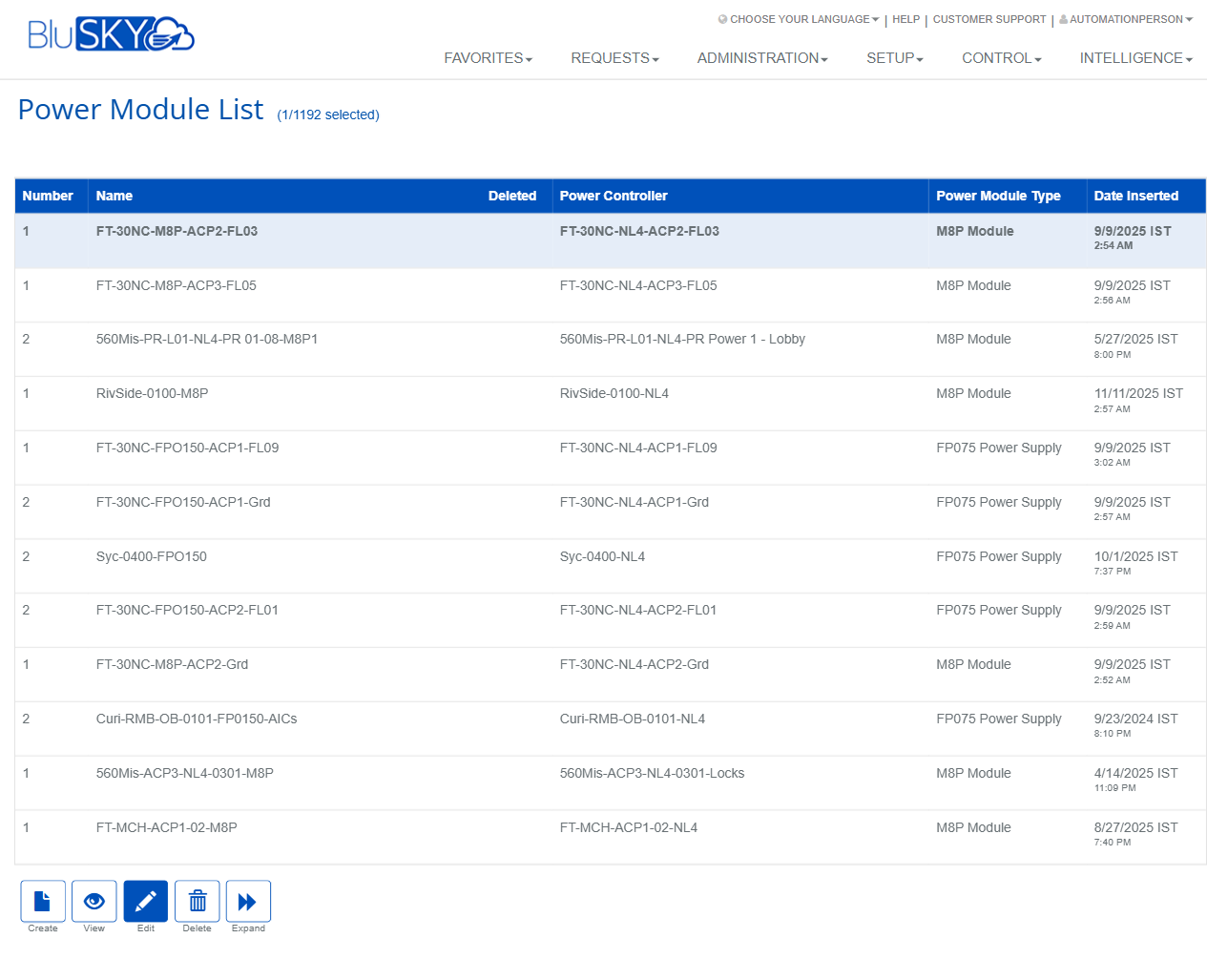
The Power Module screens allow administrators to create and manage power modules associated with a Power Controller. The List view displays all configured modules with key attributes, while the Create view is used to add a new module by selecting a controller, choosing a module type, and assigning a module number and name. These screens are part of hardware setup in BluSKY and support inventory, addressing, and lifecycle management of power modules (e.g., M8P Modules, FP075 Power Supplies).
Field Definitions
| Field Label | Definition | Notes |
|---|---|---|
| Power Controller | The controller/panel that the power module is associated with. | Required. Choose from existing Power Controllers. |
| Module Type (Power Module Type) | The specific type/model of the power module (e.g., M8P Module, FP075 Power Supply). | Required. Determines available capabilities for the module. |
| Number | The module’s address or slot number on the selected Power Controller. | Required. Integer; must be unique per Power Controller. Defaults to 1 on Create. |
| Name | A user-friendly name for the module used throughout the system. | Optional but recommended for quick identification. |
| Deleted | Indicates whether the module has been soft-deleted (no longer active). | Read-only in List. Used for audit/history. |
| Date Inserted | Timestamp when the module record was created. | Read-only; system-generated, shown in the user’s time zone. |
Screen Actions and Functions
- Create (List) – Opens the Create Power Module form.
- View – Opens a read-only view of the selected module.
- Edit – Opens the edit form for the selected module.
- Delete – Soft-deletes the selected module(s); the record remains for audit and can be referenced in history.
- Expand – Toggles an expanded grid layout to reveal additional columns/space.
- Create (Form) – Saves the new module and returns to the list.
- Back To List – Cancels creation and returns to the list without saving.
Usage Instructions & Examples
How to Create a Power Module
- Open the Power Module List (Setup menu).
- Click Create.
- Select a Power Controller.
- Select a Module Type.
- Enter a unique Number for that controller.
- Provide a descriptive Name.
- Click Create. The new module appears in the list.
How to Edit an Existing Module
- In the Power Module List, select one module.
- Click Edit.
- Update Module Type, Name, or other editable fields as needed.
- Save changes.
How to Soft-Delete a Module
- In the Power Module List, select one or more modules.
- Click Delete.
- Confirm the action. The Deleted column will reflect the change.
How to Quickly Inspect Details
- Select a module.
- Click View to open a read-only summary including the associated Power Controller and module attributes.
System Behaviors and Edge Cases
- The Number must be unique per Power Controller; duplicate numbers on the same controller will be blocked.
- Delete performs a soft-delete. The record remains visible (via the Deleted column) for audit and reporting.
- Date Inserted is system-generated and shown in the signed-in user’s time zone.
- Some actions require a single selection (View, Edit). Delete can support multiple selections.
- Expand affects layout only; no data is modified.
- If the selected Module Type has constraints on addressing or dependencies, validation will prevent saving invalid combinations.
- Attempting to delete a module referenced by downstream configurations may be blocked until dependencies are removed or reassigned.
Permissions
- Accessible to users with hardware setup privileges, such as:
- System Administrators / Integrator Administrators (full access).
- Site or Building Administrators with “Power Modules – Create/Edit/Delete” rights.
- Users with view-only permissions can access the list and View, but cannot Create, Edit, or Delete.
- Delete permission may be restricted to elevated roles due to audit implications.
Linked Workflows
- Power Controllers – Power Modules must be associated with an existing Power Controller.
- Device/Output Mapping – After creating a module, map its outputs or circuits within related setup screens as required by the module type.
- Monitoring – Modules may surface in operational or diagnostic views for health/status under Control/monitoring pages.
Reference Image Links