Alarm Predefined Comment
Alarm Predefined Comment Screen
Screen Overview
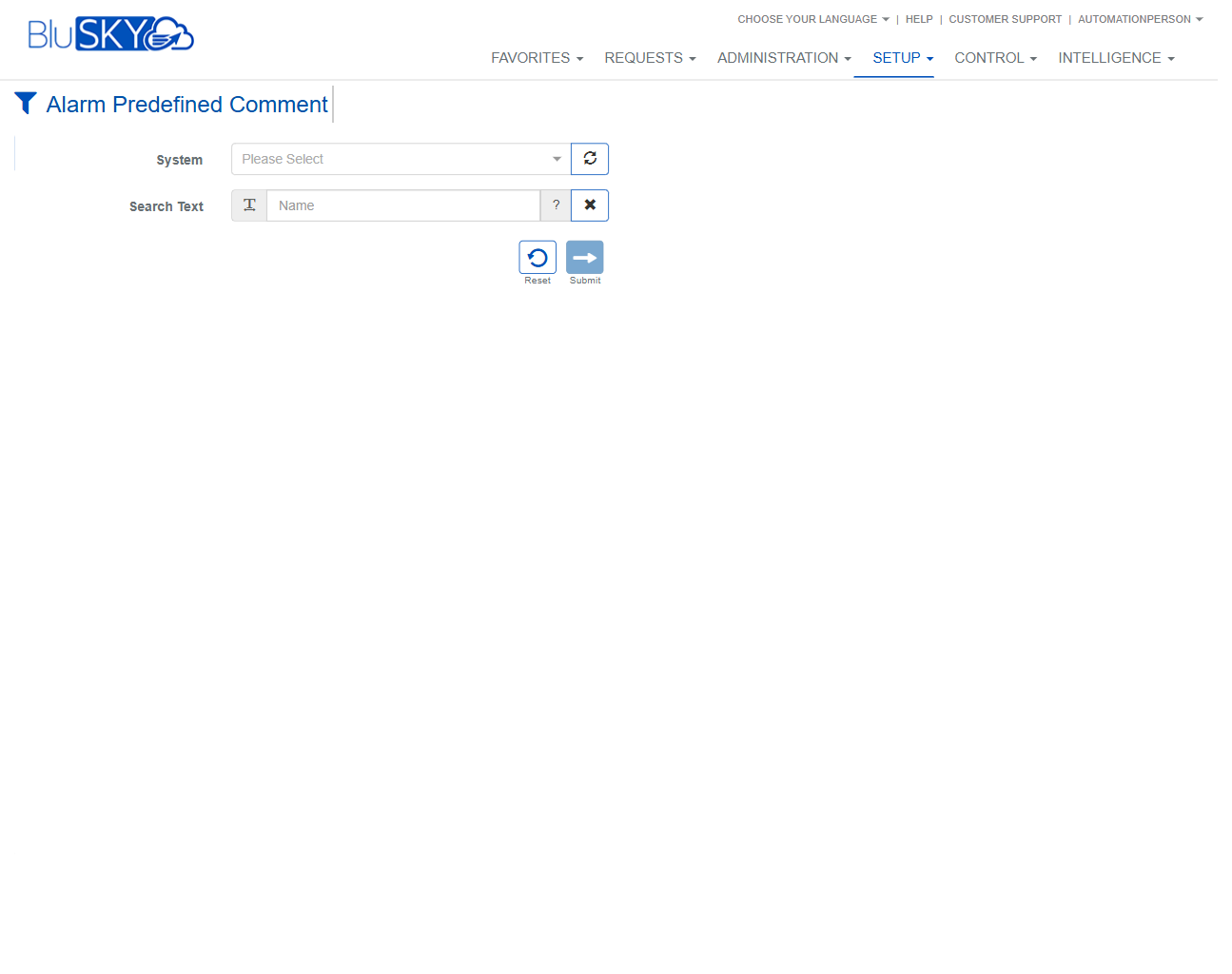
The Alarm Predefined Comment screen lets administrators define and manage canned comments that operators can quickly apply when acknowledging or resolving alarms. It provides filtering by System, search tools, and actions to create, view, or delete predefined comments.
Field Definitions
| Field Label | Definition | Notes |
|---|---|---|
| Name | The display name of the predefined alarm comment. | Required. Recommended to be short and operator-friendly. Must be unique within a System. |
| Description | Additional detail or guidance associated with the comment. | Optional. Helps operators choose the correct comment. |
| System | The BluSKY System context in which the comments exist. | Required to search or create records. Only one System can be selected at a time. |
| Search Text | Free-text filter used to find comments. | Supports partial matches. Defaults to search by Name; may include a selector to change the target field. |
| System Filter Chip (#SystemName) | Visual indicator of the currently selected System at the top of the list. | Appears after a System is chosen. Clearing filters removes the chip. |
Screen Actions and Functions
- Open Filters – Click the funnel icon to show the filter panel.
- Submit – Runs the search with the current filters.
- Reset – Clears all filters and results.
- Create – Opens the form to add a new predefined comment.
- View – Opens the selected comment for review (and edit if permitted).
- Delete – Removes the selected predefined comment.
- Refresh Systems – Reloads the System dropdown choices.
- Clear Search – X button clears the Search Text.
- Sort – Click column headers (Name, Description) to toggle ascending/descending.
Usage Instructions & Examples
How to Find an Existing Comment
- Click the filter icon to open the filter panel.
- Select a System from the System dropdown.
- Enter a keyword in Search Text (for example, “Door Forced”).
- Click Submit. Use the column headers to sort if needed.
- Select a row and click View to review details.
How to Create a New Predefined Comment
- Click Create.
- Enter a unique Name and, optionally, a Description.
- Ensure the correct System is selected or assigned on the form.
- Save. The new comment appears in the results for that System.
How to Edit an Existing Comment
- Select a comment in the list and click View.
- Modify Name and/or Description as needed.
- Save the changes.
How to Delete a Comment
- Select the comment to remove.
- Click Delete and confirm the prompt.
- Refresh or re-run the search to verify it no longer appears.
System Behaviors and Edge Cases
- Results are typically empty until a System is selected and a search is submitted.
- Names must be unique within the same System; duplicate names are blocked.
- Deleting a predefined comment removes it from operator picklists going forward; alarm history that already contains the comment remains unchanged.
- Filter selections (System and Search Text) persist for the current session until Reset is used.
- Sorting is applied per column and toggles between ascending and descending order.
- If the System list is recently updated by another administrator, use Refresh Systems to reload the dropdown.
Permissions
- Accessible to Global Administrators and Tenant Administrators with Setup privileges.
- Create, Edit (via View), and Delete require appropriate setup-management permissions for the selected System.
- Users without edit rights can search and view but cannot create or delete.
Linked Workflows
- Alarm Console / Acknowledge Alarm – Predefined comments appear as quick-pick options for operators.
- Alarm Activity Reports – Stored comments appear in historical alarm records and reports.
- Operator Training and Playbooks – Descriptions can guide consistent responses during alarm handling.
Reference Image Links