Object Category
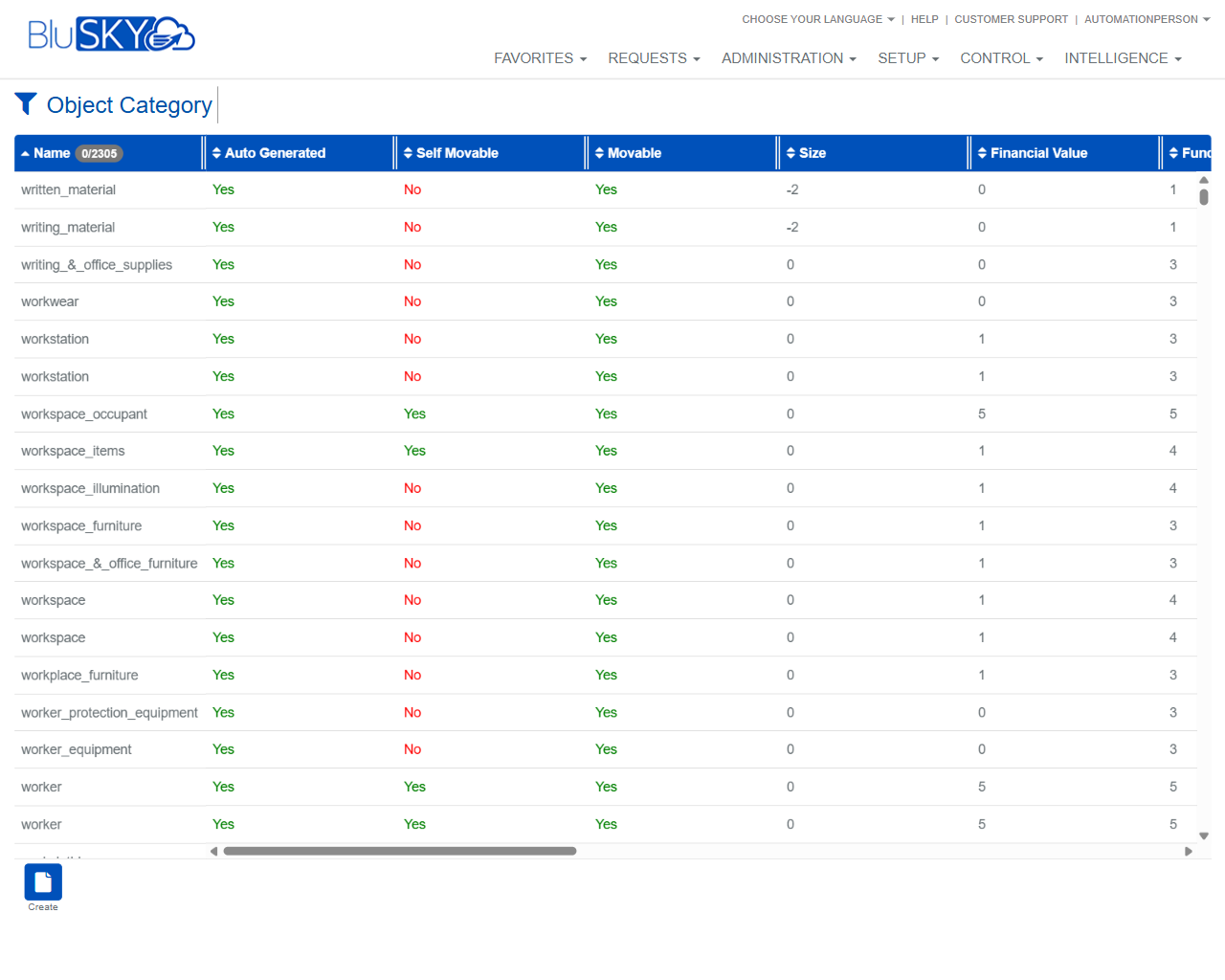
Object Category Screen
Screen Overview
The Object Category screen lets administrators browse, filter, and maintain the master list of categories used to classify objects and assets in BluSKY. Use the filter panel to narrow results, then open a row to view or edit a category. A floating Create action allows adding new categories when permitted.
Field Definitions
| Field Label | Definition | Notes |
|---|---|---|
| Search | Status filter for the category list. | Options commonly include Active, Inactive, and All. Defaults to Active. |
| Self Movable (Filter) | Filter to show categories whose instances can move themselves (e.g., people, robots). | Values: Yes, No, Either (no filter). |
| Movable (Filter) | Filter to show categories whose instances can be moved by other means. | Values: Yes, No, Either (no filter). |
| Type to search | Free-text search against category names. | Supports partial text. Use Submit to run the search. |
| Name (Result Column) | Category name. | Clicking a name opens the category record. Column supports sorting. |
| Auto Generated (Result Column) | Indicates if the category was preloaded or created by the system. | Auto-generated categories are typically read-only and may not be deletable. |
| Self Movable (Result Column) | Displays whether instances of this category can move on their own. | Values: Yes/No. |
| Movable (Result Column) | Displays whether instances of this category can be moved. | Values: Yes/No. |
| Size (Result Column) | Relative size index associated with the category. | Integer; may include negative values. Used for visualization or planning. |
| Financial Value (Result Column) | Default financial value weighting for this category. | Integer; used by reporting or cost models. |
| Function (Result Column) | Functional classification code/level linked to the category. | Integer; used for grouping and analytics. |
Screen Actions and Functions
- Submit – Executes the search with the current filters.
- Reset – Returns all filters to their defaults and refreshes the list.
- Create – Opens the form to add a new object category.
- Help (?) – Opens inline help for search usage.
- Clear (x) – Clears the Type to search field.
- Sort Columns – Click any column header to toggle ascending/descending order.
- Open Record – Click a row (typically the Name) to view or edit the category details.
Usage Instructions & Examples
-
Find a Category by Name
- In Type to search, enter part of the name (e.g., “workstation”).
- Leave other filters as needed (e.g., Search = Active).
- Click Submit. Click the desired Name to open the record.
-
Filter for Categories That Are Movable but Not Self Movable
- Set Movable (Filter) = Yes.
- Set Self Movable (Filter) = No.
- Click Submit to refresh the results.
-
Create a New Object Category
- Click Create.
- Enter a unique Name and configure attributes such as Movable, Self Movable, Size, Financial Value, and Function.
- Save. The new category appears in the list according to the current filters.
-
Reset Your Filters
- Click Reset.
- Verify that Search reverts to Active and both Movable filters return to Either.
- Click Submit if the list does not auto-refresh.
System Behaviors and Edge Cases
- “Either” in filter dropdowns disables that filter and returns all matching records for other criteria.
- The list header may display a counter next to Name (e.g., 0/2305), indicating selected versus total records.
- Auto Generated = Yes categories are system-managed; edit and delete may be limited or disabled based on permissions.
- Free-text search is typically case-insensitive and matches partial strings.
- Numeric columns (Size, Financial Value, Function) sort numerically; Yes/No columns sort alphabetically.
- When no records match the filters, the grid returns an empty result set.
- Wide datasets may require horizontal scrolling to view all columns.
Permissions
- Access typically requires Setup privileges (e.g., Global Administrator or Tenant Administrator roles).
- Creating or editing categories requires an Object Category Create/Edit permission.
- Deleting or modifying Auto Generated categories may be restricted to system administrators or entirely disallowed.
- Users without edit rights can search and view but cannot create or modify categories.
Linked Workflows
- Object/Asset creation: categories selected here appear as options when creating objects or assets.
- Import tools: bulk imports can map incoming records to existing object categories.
- Reporting and analytics: category attributes (Movable, Size, Financial Value, Function) drive dashboards and cost/impact calculations.
Reference Image Links