Special Situation Commands
Setup Screen
Screen Overview
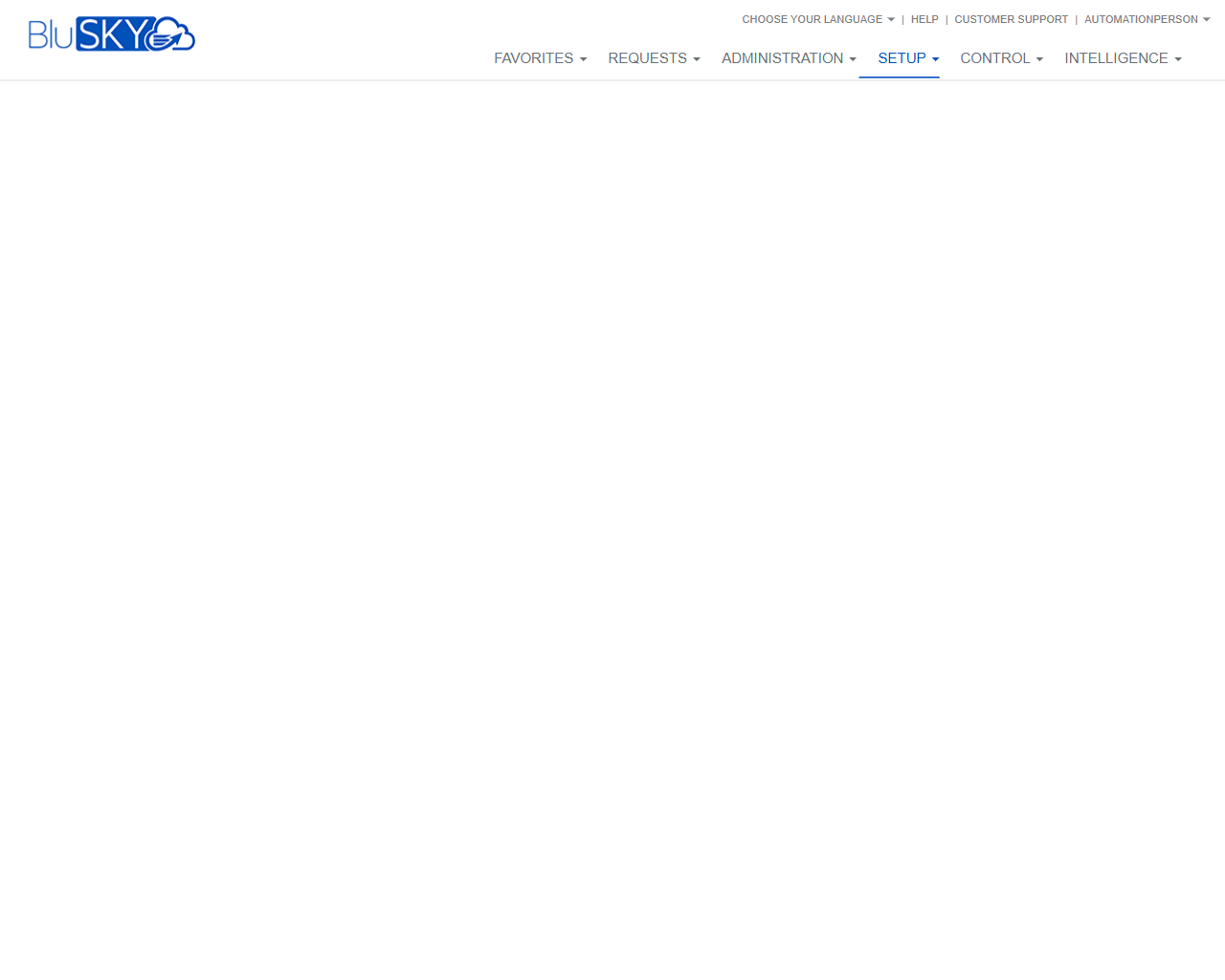
The Setup screen is the entry point for configuring BluSKY. From the global header, administrators can open Setup sub-pages (e.g., system configuration areas) and access common utilities such as language selection, help, and customer support. In this view, no content is shown until a specific Setup module is selected from the top navigation.
Field Definitions
| Field Label | Definition | Notes |
|---|---|---|
| Favorites | Dropdown to access pages saved as favorites. | Visibility and items depend on user permissions and saved preferences. |
| Requests | Dropdown for request-related pages (service or operational requests). | May be hidden if the user has no related permissions. |
| Administration | Navigation to administrative pages (people, roles, etc.). | Not part of Setup but available from the same header for quick switching. |
| Setup (active) | The configuration area selector; currently active. | Click or hover to reveal Setup sub-pages; the main canvas remains empty until chosen. |
| Control | Opens real-time monitoring and control pages. | Useful after configuration to validate device status. |
| Intelligence | Opens reporting and analytics. | Often used to verify outcomes after Setup changes. |
| Choose Your Language | Opens a language selector for the BluSKY UI. | Changes apply to menus and labels after selection; may trigger a page refresh. |
| Help | Opens BluSKY help resources in a new tab or panel. | Context may be generic when no specific page is open. |
| Customer Support | Opens customer support/contact options. | Typically launches a ticket form or support portal in a new tab. |
| User Menu (username) | Access to user profile, preferences, and sign-out. | The displayed name reflects the logged-in account. |
| Main Work Area | Central canvas where the selected Setup sub-page loads. | Empty until a Setup module is selected; content varies by chosen page and permissions. |
Screen Actions and Functions
- Open Setup sub-pages by clicking or hovering over Setup in the header and selecting a module.
- Add a page to Favorites from within that page (when available) to access it quickly from the Favorites menu.
- Switch UI language via Choose Your Language; confirm if prompted.
- Open Help to view product documentation.
- Contact Customer Support to create a support ticket or access assistance.
- Use the User Menu to view profile settings or sign out.
Usage Instructions & Examples
-
Navigate to a Setup module
- Click Setup in the header.
- Select the desired module from the dropdown.
- The module loads in the Main Work Area.
-
Pin a commonly used Setup page to Favorites
- Open the desired Setup page.
- Use the page’s Add to Favorites option (star/Save to Favorites).
- Access it later from the Favorites menu.
-
Change the interface language
- Click Choose Your Language.
- Select the preferred language.
- If prompted, allow the page to refresh; verify menus display in the selected language.
-
Get help or contact support
- Click Help to open documentation in a new tab.
- Click Customer Support to open the support portal and submit a ticket with relevant details.
System Behaviors and Edge Cases
- If no Setup module is selected, the Main Work Area remains blank.
- Users without appropriate permissions will not see certain modules in the Setup dropdown or may see an empty canvas after selection.
- Changing language may cause a brief refresh; unsaved work on an open page could be lost if you confirm a refresh.
- Help and Customer Support typically open in a new browser tab/window.
- Session timeouts can return the user to the login page; unsaved changes are lost.
Permissions
- Access to Setup modules generally requires roles such as Global Administrator, Tenant Administrator, or Installer (exact names vary by deployment).
- Visibility of individual Setup modules is permission-scoped; users only see modules they are allowed to access.
- Favorites are user-specific; adding a page to Favorites does not grant access if the user lacks permission.
- Help and Customer Support links are available to authenticated users, but support portal capabilities can vary by account.
Linked Workflows
- Configure components in Setup, then:
- Use Administration to manage people, roles, or assignments that depend on your configuration.
- Use Control to monitor live status of configured devices or features.
- Use Intelligence to report on results of configuration changes.
- Language selection in the header influences labels across all workflows after refresh.
Reference Image Links