Systems
System List
Screen Overview
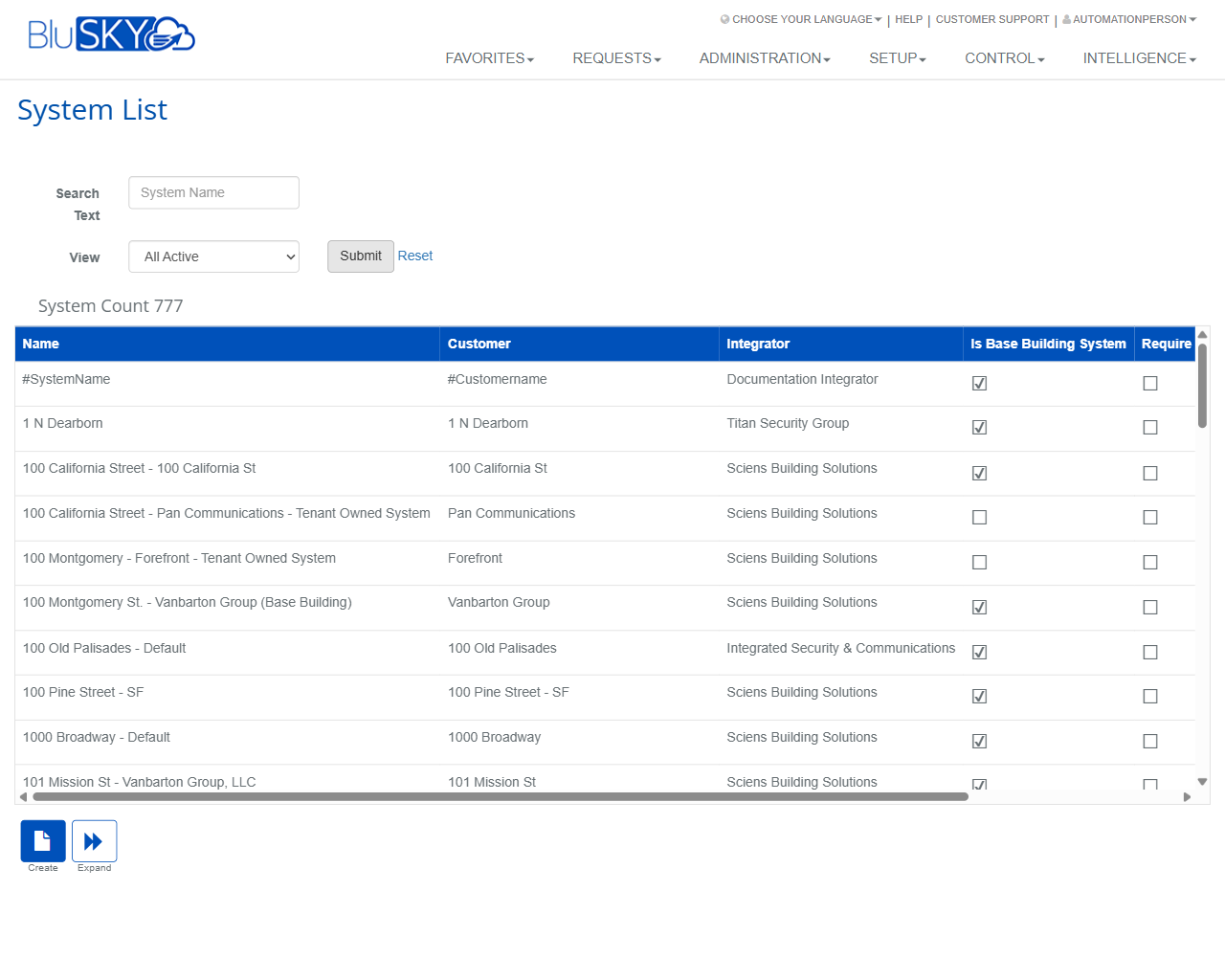
The System List screen provides a searchable, filterable list of all BluSKY systems configured in your environment. It is used by administrators and integrators to locate systems, review key attributes (customer, integrator, base-building flag, and PIN policies), and perform actions such as create, view, edit, delete, and request synchronization status. The screen supports single- and multi-selection to enable context-sensitive actions.
Field Definitions
| Field Label | Definition | Notes |
|---|---|---|
| Search Text | Free-text search box to find systems by name. | Partial matches supported. Leave blank to return all systems (subject to View filter). |
| View | Dropdown to filter by status. | Options include All Active and other lifecycle states depending on your tenant settings. |
| Submit | Applies the current Search Text and View filters. | Refreshes the grid with matching results. |
| Reset | Clears all filters and restores default results. | Also resets paging/selection. |
| System Count | Displays the total number of systems matching the current filter set. | Read-only. Updates after each search. |
| Selection Count | Indicator in the screen title showing how many rows are selected, e.g., “(1/50 selected)”. | Appears only after at least one row is selected. |
| Name | The system’s display name. | Click a row to select it; actions enable based on selection. |
| Customer | The customer/tenant that owns the system. | Read-only in the list; editable within the system record. |
| Integrator | Service provider responsible for the system. | Read-only in the list; editable within the system record. |
| Is Base Building System | Indicates whether the system is designated as a base building system. | Checkbox; read-only in the grid. |
| Require Pin To Be Unique | Enforces uniqueness of PIN codes across the system. | Checkbox; read-only in the grid. |
| Required PIN Length | Number of digits required for PINs in the system. | 0 means no PIN is required. |
Screen Actions and Functions
- Create – Opens the form to add a new system.
- View – Opens the selected system in read-only mode. Requires exactly one selection.
- Edit – Opens the selected system for modification. Requires exactly one selection.
- Delete – Removes/deactivates the selected system(s), subject to dependencies and permissions.
- Sync Status – Requests a status/synchronization check for the selected system(s).
- Expand – Expands the grid area to maximize visible rows/columns.
- Row Select – Click a row to select it; use Ctrl/Cmd or Shift for multi-select (where supported).
- Submit – Executes the current search/filter.
- Reset – Clears filters and selections.
Usage Instructions & Examples
How to find a system
- Enter all or part of the system name in Search Text.
- Choose a status from View (e.g., All Active).
- Click Submit to refresh results.
- Click a row to select it for actions.
How to create a new system
- Click Create.
- Complete required fields in the system form (e.g., Name, Customer, Integrator).
- If applicable, set Is Base Building System and PIN policy values.
- Save. The new system appears in the list.
How to edit an existing system
- Select exactly one system from the grid.
- Click Edit.
- Update fields as needed (e.g., Integrator, PIN settings).
- Save to apply changes.
How to request Sync Status
- Select one or more systems.
- Click Sync Status.
- Monitor system/job logs (if available) to confirm status refresh.
How to clear filters and maximize view
- Click Reset to clear Search Text and View filters.
- Click Expand to increase the grid viewing area.
System Behaviors and Edge Cases
- Actions enable/disable dynamically based on selection:
- View/Edit require exactly one selected row.
- Delete and Sync Status support multi-selection (subject to permissions).
- 0 in Required PIN Length means no PIN requirement is enforced for that system.
- Base Building systems may have restricted edits or additional approval requirements depending on tenant policy.
- Deleting a system can be blocked if it has dependent objects (controllers, doors, access levels, etc.).
- Filters and sort order may persist during the session; Reset restores defaults.
- Large result sets may require scrolling. Some columns may be off-screen until horizontally scrolled.
- If no matches are found, the grid displays zero results and System Count reflects 0.
Permissions
- Access controlled by role-based permissions:
- View System List: users with system read permissions (e.g., Global Administrators, Integrator Administrators, Customer/Tenant Administrators with System access).
- Create: users with create permissions for Systems.
- Edit: users with modify permissions for Systems.
- Delete: users with delete/deactivate permissions for Systems.
- Sync Status: users with system synchronization/monitoring permissions.
- Certain columns and actions may be hidden if the user lacks the corresponding permission.
Linked Workflows
- From a selected system, proceed to configure:
- Controllers and Panels
- Doors/Readers and Elevator devices
- Access Levels and Schedules
- People provisioning and credential/PIN assignment
- System PIN policies influence credential setup and reader mode configuration.
Reference Image Links