System Configuration
System List
Screen Overview
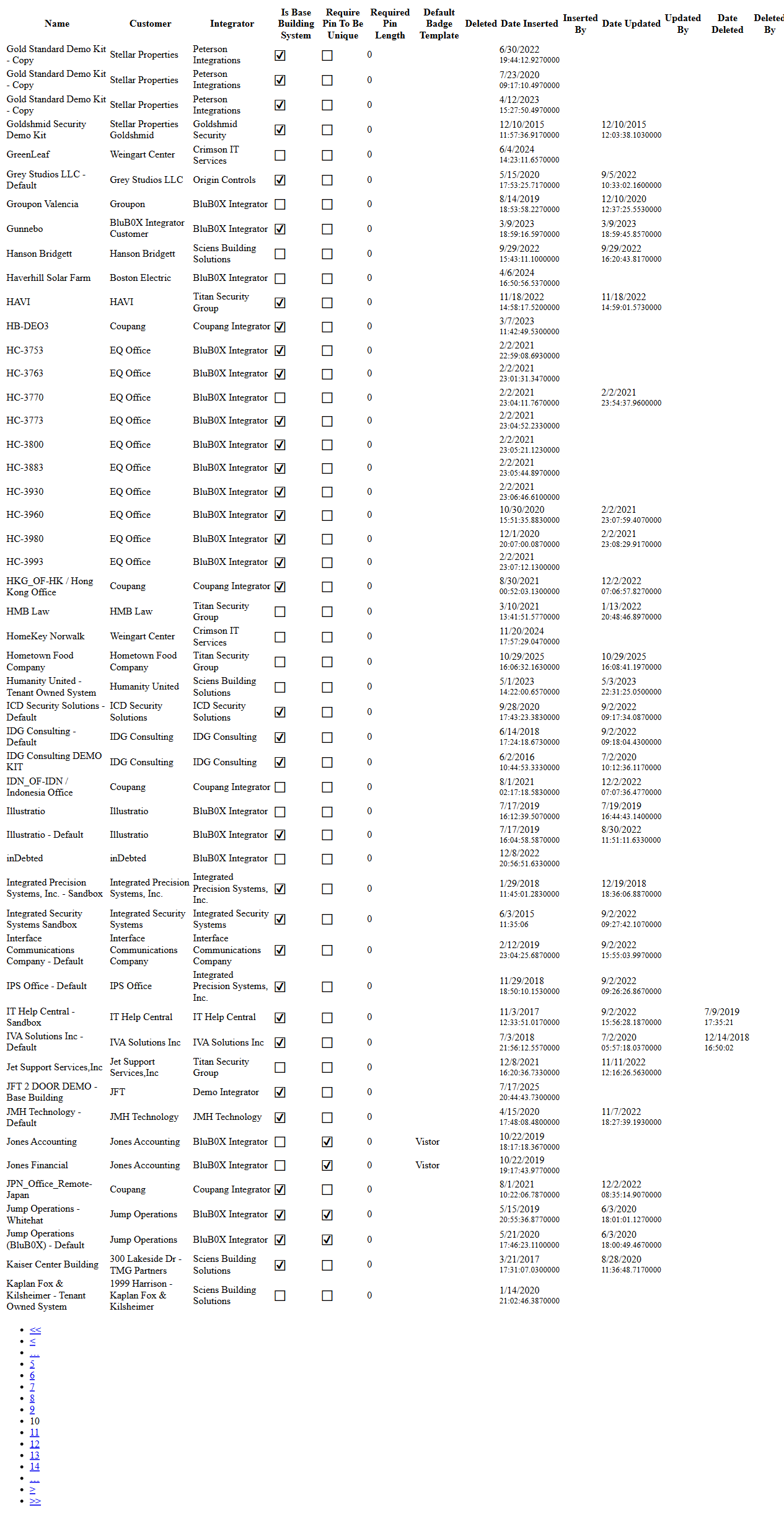
The System List screen provides a centralized directory of all BluSKY systems. It allows users to search, filter, and review high‑level attributes for each system (e.g., Customer, Integrator, PIN policy, base building designation). From this list you can create new systems, open an existing system for editing, or initiate a sync status check for selected systems.
Field Definitions
| Field Label | Definition | Notes |
|---|---|---|
| Search Text | Free-text search input to find systems by name. | Placeholder shows “System Name.” Supports partial text. |
| View | Drop-down filter that limits which records appear. | Defaults to “All Active.” Available options may vary by tenant/policy. |
| Submit | Applies the current Search Text and View filters to the grid. | Triggers a refresh of the list and System Count. |
| Reset | Clears Search Text and restores default filters. | Useful to remove all filters quickly. |
| System Count | Displays the number of systems returned by the current filter. | Read-only; updates after each Submit/Reset. |
| Name | The configured name of the system. | Primary identifier; selecting a row enables actions. |
| Customer | The customer/organization the system belongs to. | Read-only in the grid. |
| Integrator | The service provider/integrator responsible for the system. | Read-only in the grid. |
| Is Base Building System | Indicates the system is designated as the base building system. | Checkbox indicator only in the grid. |
| Require Pin To Be Unique | Indicates whether user PINs must be unique across the system. | Checkbox indicator. |
| Required Pin Length | The enforced length for user PINs. | “0” indicates no specific length requirement set. |
| Default Badge Template | The badge template applied by default to this system. | If blank, the platform’s or customer’s default may apply. |
| Deleted | Marks whether the record is soft-deleted. | Only visible/returned when your View includes deleted records. |
| Date Inserted | Timestamp when the system record was created. | System-generated; read-only. |
| Inserted By | The user who created the system record. | Audit field; read-only. |
| Date Updated | Timestamp of the most recent update. | System-generated; read-only. |
| Updated By | The user who last updated the record. | Audit field; read-only. |
| Date Deleted | Timestamp when the record was soft-deleted. | Populated only for deleted records. |
| Deleted By | The user who performed the delete action. | Audit field; read-only. |
| Selection Counter | Shows how many rows are selected (e.g., “1/50 selected”). | Appears near the page title when rows are selected. |
Screen Actions and Functions
- Create – Opens the new System form to add a system.
- Edit – Opens the selected system for editing. Enabled when exactly one row is selected.
- Sync Status – Initiates a synchronization/status check for the selected system(s).
- Submit – Applies search/filter criteria to refresh the grid.
- Reset – Clears all filters and restores defaults.
- Row Select – Click a row to select/deselect it; multiple selection is supported for Sync Status.
Usage Instructions & Examples
How to find a system
- Enter all or part of the name in Search Text.
- (Optional) Choose a View, such as All Active.
- Click Submit. Review results and System Count.
How to create a new system
- Click Create.
- Complete the required details in the System form.
- Save. The new system appears in the list after refresh.
How to edit an existing system
- Click the row of the target system to select it.
- Verify the Selection Counter shows “1 selected.”
- Click Edit to open the System details and make changes.
- Save to return to the list.
How to run Sync Status on multiple systems
- Select one or more rows.
- Click Sync Status.
- Monitor the status feedback per your organization’s procedures.
System Behaviors and Edge Cases
- Filters update the grid and System Count; no data is changed by filtering.
- Edit is disabled unless exactly one system is selected.
- Sync Status is disabled when no rows are selected; it supports multiple selections.
- The Deleted column and deletion audit fields are only visible/returned when the current View includes deleted records.
- Required Pin Length displays 0 when no explicit length is enforced.
- The base building designation is an indicator used for policy/reporting; it does not by itself change list behavior.
- Partial text search is supported in Search Text; results are case-insensitive in most deployments.
Permissions
- View access requires Systems-Read.
- Create requires Systems-Create.
- Edit requires Systems-Edit.
- Initiating Sync Status requires Systems-Sync or equivalent operational permission.
- Visibility of deleted records in the View selector may require Systems-Admin or Audit-View permissions.
- Exact permission names/roles can differ by tenant configuration.
Linked Workflows
- Open a system (Edit) to configure hardware, doors/readers, schedules, and credentials.
- Manage badge designs for the system via the Badge Templates workflow.
- Review operational health via System Status/Sync workflows after configuration changes.
- Coordinate Customer and Integrator records from their respective directories when assigning ownership or service responsibility.
Reference Image Links