Space Beta
Space Screen
Screen Overview
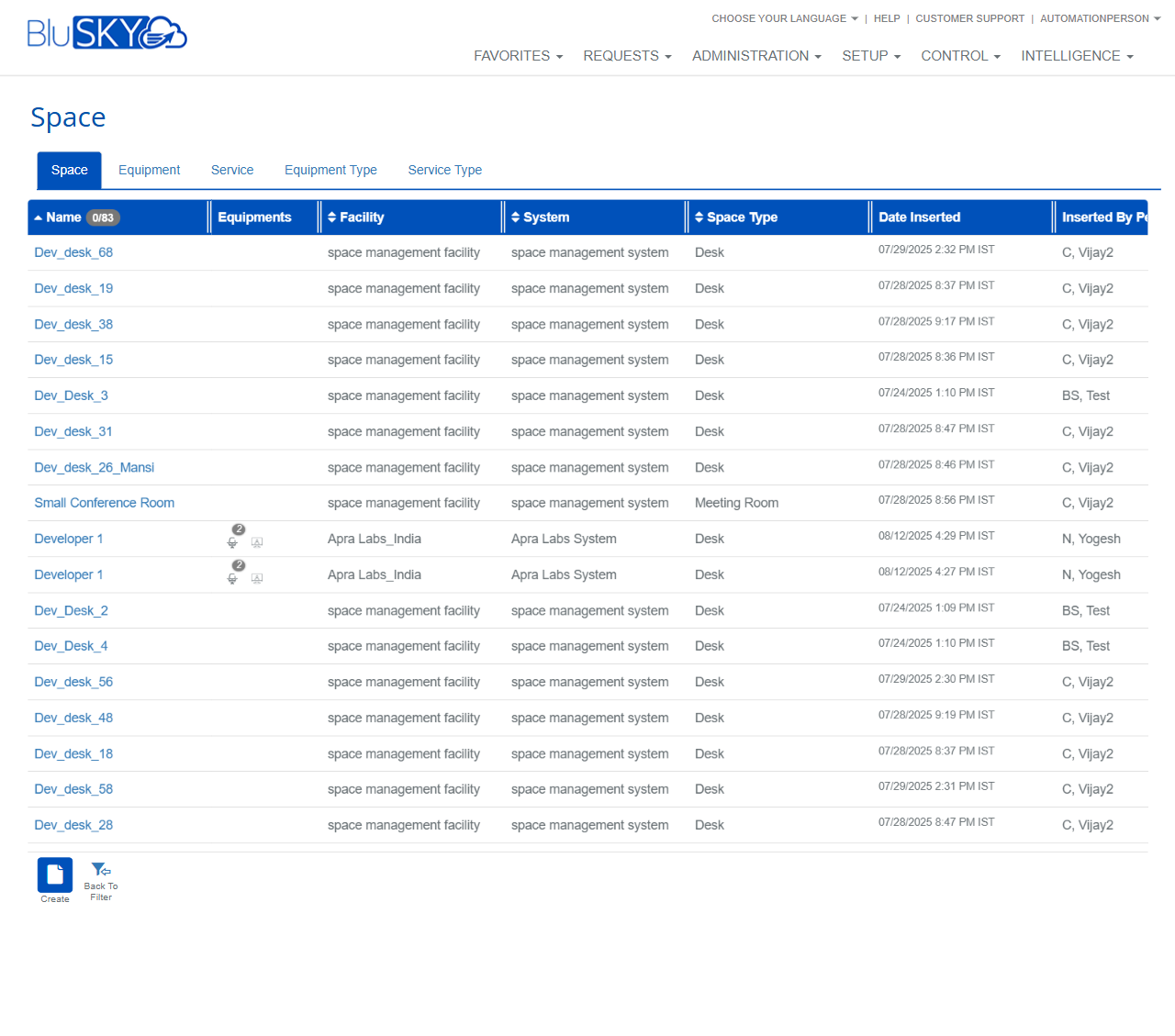
The Space screen in Setup enables administrators to search, view, and create space records (e.g., desks, rooms, work areas) within a selected system and facility. It provides filter-based search, a results grid with key attributes, and navigation to related Equipment and Service configurations.
Field Definitions
| Field Label | Definition | Notes |
|---|---|---|
| System Group | Filters spaces by the parent system group. | Dropdown. Use the refresh icon to reload available groups based on permissions. |
| System | Filters spaces by the specific system within the selected group. | Dropdown. List updates after System Group selection; refresh to sync with latest systems. |
| Facility | Filters spaces by facility/site. | Dropdown. Options depend on selected System; refresh to re-query facilities. |
| Name (Search) | Text field to search for a space by name. | The ? icon opens search tips/help. The X icon clears only this field. Partial matches supported. |
| Search | Status filter for records to include in results (e.g., Active). | Default shown as Active. Other statuses may be available depending on system configuration. |
| Name (Grid) | The space record’s name; opens the space detail when clicked. | The header may display a count indicator (e.g., 0/83). |
| Equipments | Indicates or links to equipment associated with the space. | Icons provide quick access to view or manage equipment for that row. |
| Facility (Grid) | Facility to which the space belongs. | Read-only in list view. |
| System (Grid) | System that manages the space. | Read-only in list view. |
| Space Type | Classification of the space (e.g., Desk, Meeting Room). | Defined in Equipment Type/Service Type setup; read-only in list view. |
| Date Inserted | Timestamp when the space was created. | System-generated; read-only. |
| Inserted By | User account that created the space. | Read-only; for audit tracking. |
Screen Actions and Functions
- Create – Opens the Space creation form.
- Submit – Runs the search using the current filters and loads the results grid.
- Reset – Clears all filters back to their defaults.
- Back To Filter – Returns from the results grid to the filter panel without losing current criteria.
- Column Sort – Click a column header to sort results by that column.
- Row Open – Click a space name to open its detail record.
- Refresh icons next to System Group/System/Facility – Re-query and repopulate those dropdowns.
- Name field Clear (X) – Clears the Name search text only.
- Help (?) – Opens search tips for the Name field.
- Tab Navigation – Switch between Space, Equipment, Service, Equipment Type, and Service Type.
Usage Instructions & Examples
-
Search for Spaces
- Select a System Group and System.
- Optionally choose a Facility.
- Enter part or all of the space name in Name (Search), or leave blank to list all.
- Ensure Search is set to the desired status (e.g., Active).
- Click Submit to load results.
-
Create a New Space
- Click Create from either the filter panel or the results grid.
- Complete required fields on the creation form (e.g., Name, Facility, Space Type).
- Save. The new space appears in the results after you click Submit.
-
View Equipment Linked to a Space
- Run a search and locate the desired space.
- In the Equipments column, click the icon to open associated equipment.
- Add, remove, or review equipment as permitted, then return to the grid.
System Behaviors and Edge Cases
- The Search filter defaults to Active, limiting results to active spaces unless changed.
- Dropdown refresh icons resync options when new systems/facilities are added or when permissions change.
- If no System Group/System is available to the user, the dropdowns will be empty and Submit will return no results.
- Clicking a space name opens its detail in the same tab; use browser navigation to return, or Back To Filter to modify search criteria.
- If filters yield no matches, the grid displays no rows; adjust filters and resubmit.
- Timestamps reflect the tenant or user time zone configuration, if enabled.
- Sorting is applied per column and persists until another sort is chosen or Reset is used.
Permissions
- Access to the Space screen requires a role with view rights to Setup > Space.
- Creating or editing spaces requires CreateSpace/EditSpace permissions.
- Deleting or deactivating spaces (if available in detail view) requires DeleteSpace or equivalent.
- Visible Systems and Facilities are scoped to the user’s assigned system group/facility permissions.
Linked Workflows
- After creating a space, assign related equipment via the Equipment tab.
- Define or maintain Space Type options in Equipment Type and Service Type tabs.
- Use the Service tab to associate services or service categories that apply to spaces.
Reference Image Links