Sound Library
Sound Library
Screen Overview
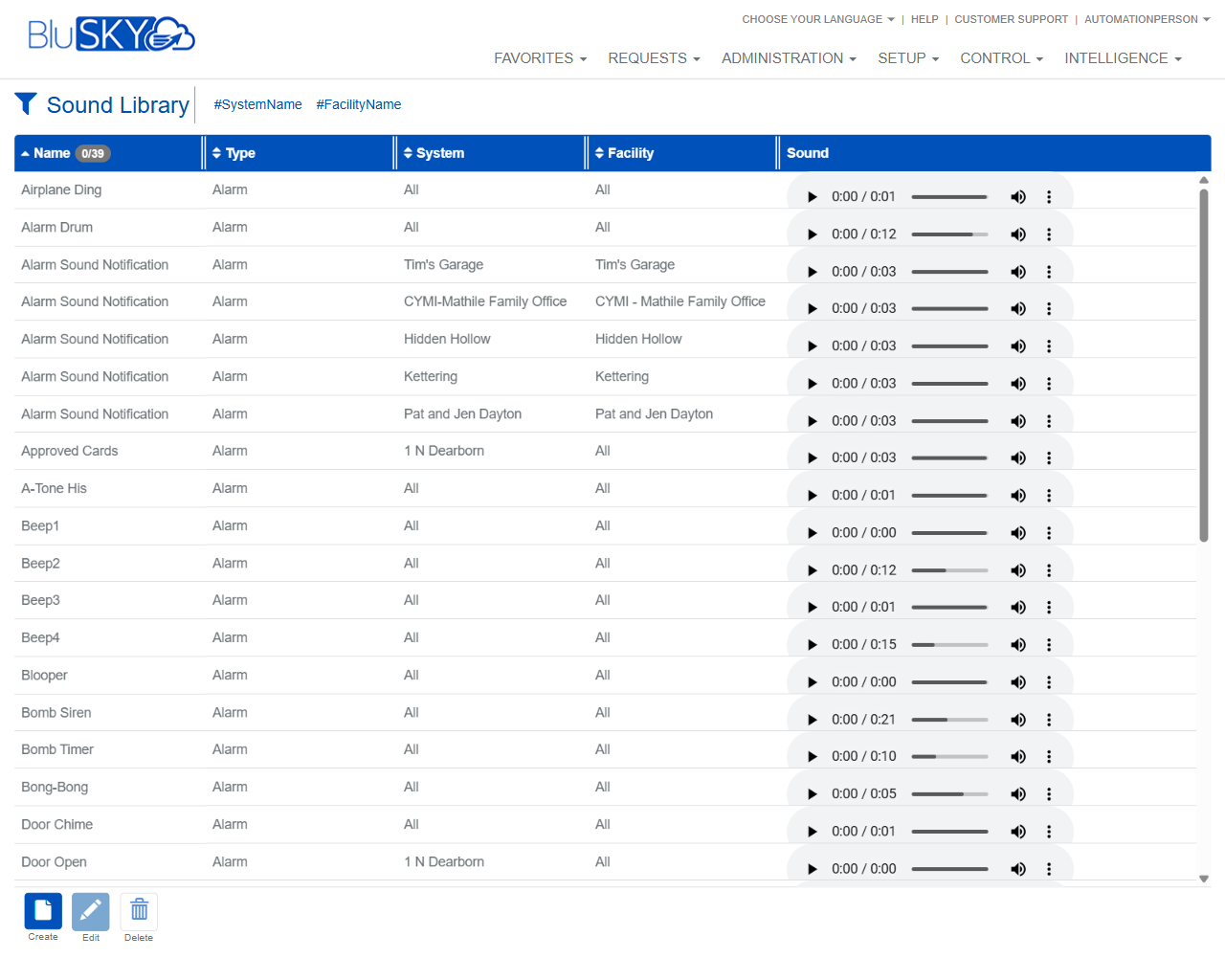
The Sound Library screen allows administrators to search, preview, create, edit, and delete audio assets used across BluSKY (e.g., alarms, chimes, and notifications). Use the System and Facility filters to scope results and the search box to quickly locate a sound. The list view provides inline playback controls to audition each file before selection or editing.
Field Definitions
| Field Label | Definition | Notes |
|---|---|---|
| System (filter) | Limits search results to sounds associated with a specific System. | Dropdown. Default is “Please Select.” The circular arrow refreshes the list of available Systems. |
| Facility (filter) | Limits search results to sounds within a selected Facility. | Dropdown. Defaults to “All.” Options are constrained by the selected System. The circular arrow refreshes Facilities. |
| Search Text | Free-text search for sounds. | Defaults to Name search. “?” opens help; “x” clears the text. |
| Name | The display name of the sound asset. | Appears as the first column in the results grid. |
| Type | Functional category of the sound (e.g., Alarm). | Read-only in the grid. Used for organization and downstream selection. |
| System (column) | The System scope the sound belongs to. | “All” indicates the sound is available across Systems the user can access. |
| Facility (column) | The Facility scope the sound belongs to. | “All” indicates the sound is available to all Facilities under the scoped System. |
| Sound (preview) | Inline media controls to play/pause and scrub the sound file; displays elapsed/total time. | Includes volume control and an options menu (ellipsis) when available. |
| Active Filter Tags | Hashtag labels that summarize applied filters above the grid (e.g., #SystemName, #FacilityName). | Display-only indicators of the current filter context. |
| Record Counter | Indicator next to the Name header showing selected/total records (e.g., 0/39). | Updates as filters change and when rows are selected. |
Screen Actions and Functions
- Submit – Executes the search with the current filters.
- Reset – Clears System, Facility, and Search Text to defaults.
- Create – Opens the form to add a new sound to the library.
- Edit – Opens the selected sound for modification (metadata and/or file).
- Delete – Removes the selected sound from the library (subject to permissions).
- Preview – Use the Play button in the Sound column to audition audio; drag the scrub bar or adjust volume as needed.
- Sort – Click a column header to sort ascending/descending.
- Refresh Lookups – Use the circular arrows next to System and Facility to reload dropdown values.
Usage Instructions & Examples
How to find and preview a sound
- In System, choose the relevant System (or leave unselected for all).
- In Facility, choose a Facility or leave as All.
- Enter a keyword in Search Text (for example, “Beep”) and click Submit.
- In the results, click Play in the Sound column to preview and use the scrub/volume controls as needed.
How to create a new sound
- Click Create.
- Enter a Name and select a Type.
- Choose the intended System and Facility scope.
- Upload or select the audio file as prompted.
- Save. The new sound appears in the grid; preview it from the Sound column to verify.
How to edit or replace an existing sound
- Select a single row in the grid and click Edit.
- Update the Name, Type, System/Facility scope, or replace the audio file.
- Save and use the inline preview to confirm the change.
How to delete a sound
- Select the sound in the grid.
- Click Delete and confirm when prompted.
System Behaviors and Edge Cases
- Facility options are filtered by the selected System; changing System will update the Facility list.
- Reset restores filters to defaults (System: unselected, Facility: All, Search Text: cleared).
- Audio preview uses the browser’s media player; if your browser blocks autoplay, click Play to start playback.
- Large or unsupported audio files will be rejected on Create/Edit per system configuration (file type/size limits may apply).
- Sorting or changing filters refreshes the list and updates the record counter.
- Only one row can be edited or deleted at a time; multi-select is not supported for these actions.
- The options menu (ellipsis) in the Sound column may expose additional actions when enabled by your organization.
Permissions
- Visible under Setup to users with access to sound library management.
- Create, Edit, and Delete require a role with Manage Sound Library (or equivalent) permissions.
- Users with view-only rights can search and preview sounds but cannot modify or delete them.
- Access to Systems/Facilities is constrained by the user’s scope; users only see and manage sounds within their permission boundaries.
Linked Workflows
- Assign sounds to alarm/notification configurations to control audible alerts.
- Use sounds for door chimes or event-based annunciation in device or rules setup.
- Reference the Sound Library when configuring automated rules that trigger “Play Sound” actions.
Reference Image Links