Cards
Card Screen
Screen Overview
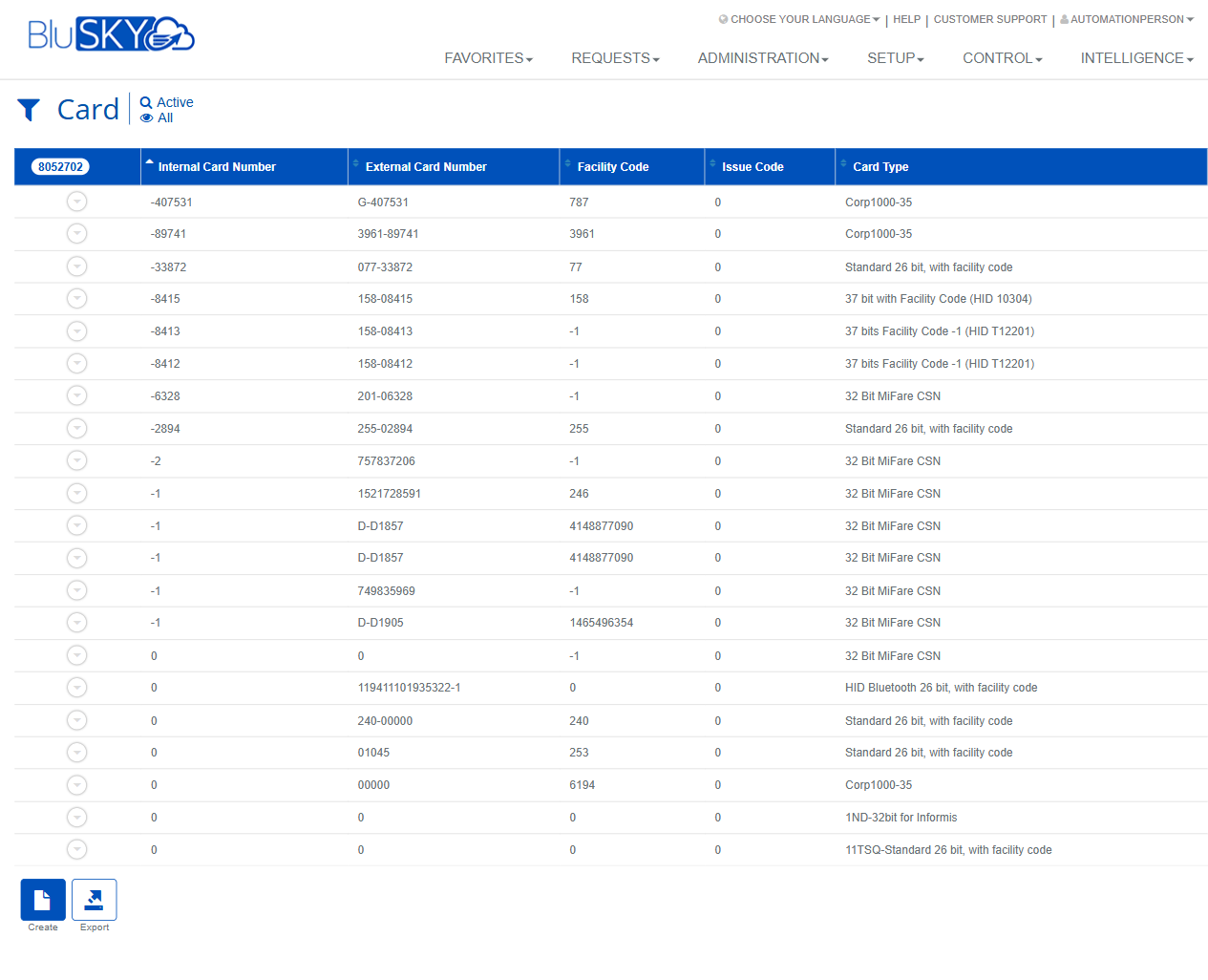
The Card screen in BluSKY is used to search, create, view, edit, and manage physical and virtual credentials (cards) for an access control system. It provides filter controls to find cards by number or status, a results grid listing key card attributes, and a create form for adding new cards.
Field Definitions
| Field Label | Definition | Notes |
|---|---|---|
| System | Specifies the access control system context for searching or creating a card. | Appears on the filter panel and on the Create Card form. Determines which system the card belongs to. |
| Occupancy | Limits the search scope to a specific building/tenant (occupancy). | Filter-only. Options depend on your organization’s hierarchy. |
| Search | Status filter used in the filter panel (e.g., Active). | Used to quickly view cards by status; default is Active. |
| View | Subset selector for which cards to display. | Default is All. Options vary by configuration. |
| Search Text | Free-text search for an internal or external card number. | Accepts full or partial values; supports prefixes and hyphens as shown in examples. |
| Card Type | The card technology/format (e.g., Standard 26 bit, 32 Bit MIFARE CSN). | Required on create. Also displayed as a column in the results grid. Determines validation of facility/issue codes. |
| Internal Card Number | The controller-facing number used internally by the system. | Optional on create. Leave as 0 to allow auto-assignment where supported. Also shown in the grid. |
| External Card Number | The printed/encoded number visible to users or provided by the issuer. | Required on create (marked with an asterisk). Must be unique per system. Also shown in the grid. |
| Facility Code | Facility/site code associated with certain card formats. | Often required for 26/37-bit formats; ignored for CSN types. Shown in the grid. |
| Issue Code | Issue/activation iteration used by some formats to distinguish re-issues. | Typically 0 unless your format requires a specific value. Shown in the grid. |
| Status (Active/All) | Quick toggle in the page header to limit results to Active or show All. | Works in tandem with the Search dropdown. |
Screen Actions and Functions
- Create – Opens the Create Card form.
- Submit – Applies the selected filters and runs the search.
- Reset – Clears all filters back to defaults.
- Save – Saves a new card on the Create Card form.
- Back To List – Returns from the Create/View/Edit pages to the results list.
- Back To Filter – Returns from the Create/View/Edit pages to the filter panel.
- View – Opens the selected card in read-only mode (from the results grid).
- Edit – Opens the selected card for modification (from the results grid).
- Delete – Removes the selected card from active use (soft delete; remains in history).
- Export – Exports the current results to a spreadsheet (respects current filters and sort).
- Filter Toggle (funnel icon) – Shows/hides the filter panel above the results grid.
Usage Instructions & Examples
How to search for a card by number
- Click the funnel icon if the filter panel is hidden.
- In Search Text, enter all or part of the internal or external card number.
- Optionally set System, Occupancy, Search (status), and View.
- Click Submit to display matching results.
How to create a new card
- On the filter panel or results grid, click Create.
- Select Card Type and System.
- Enter External Card Number (required). If applicable, enter Facility Code and Issue Code.
- Leave Internal Card Number at 0 to auto-assign, or enter a specific value if required.
- Click Save. Use Back To List to confirm the card appears in the results.
How to edit or delete a card
- From the results grid, select the desired record.
- Click Edit to modify fields, then Save; or click Delete to remove it from active use.
- If the card disappears after deletion, switch the header toggle to All to view inactive records.
How to export card data
- Apply filters to narrow the dataset (e.g., System = your site, Search = Active).
- Click Export to download a file containing the visible results.
System Behaviors and Edge Cases
- External Card Number is required and must be unique within the selected System; duplicates are blocked with an error.
- Card Type governs validation rules:
- 26/37-bit formats typically require a valid Facility Code (and sometimes Issue Code).
- CSN-based formats generally ignore Facility/Issue Codes.
- Internal Card Number:
- Leaving it as 0 may trigger auto-assignment where supported by the system.
- Some imports or systems may display negative values; these are valid and should not be altered unless directed.
- Search Text supports partial matches and non-numeric characters (e.g., hyphens or prefixes like D-); input is trimmed of leading/trailing spaces.
- Delete performs a soft delete; records will be hidden when the status filter is Active but remain visible under All for auditing.
- Export includes only the currently filtered and sorted result set.
- Changing System may alter available options in Occupancy and Card Type due to system-specific configurations.
Permissions
- Access to the Card screen is available to Global Administrators and authorized Property/Tenant Administrators.
- Create requires the CreateCard permission (or equivalent role capability).
- Edit requires the EditCard permission.
- Delete requires the DeleteCard permission and may be restricted to specific roles.
- Export requires the Export permission.
- Users without setup privileges may have view-only access and will not see Edit/Delete buttons.
- Visibility of cards can be restricted by Occupancy and System scoping defined in the user’s role.
Linked Workflows
- Assign the created card to a person from the People/Person record (credentials/identifiers section).
- Ensure the person has appropriate Access Levels after the card is assigned.
- Card Type and format options are maintained in system configuration; coordinate with system setup when introducing new formats.
- For large imports, use bulk card import tools (if enabled) and then manage assignments.
Reference Image Links