Timestamps
Error Page – Resource Not Found (HTTP 404)
Screen Overview
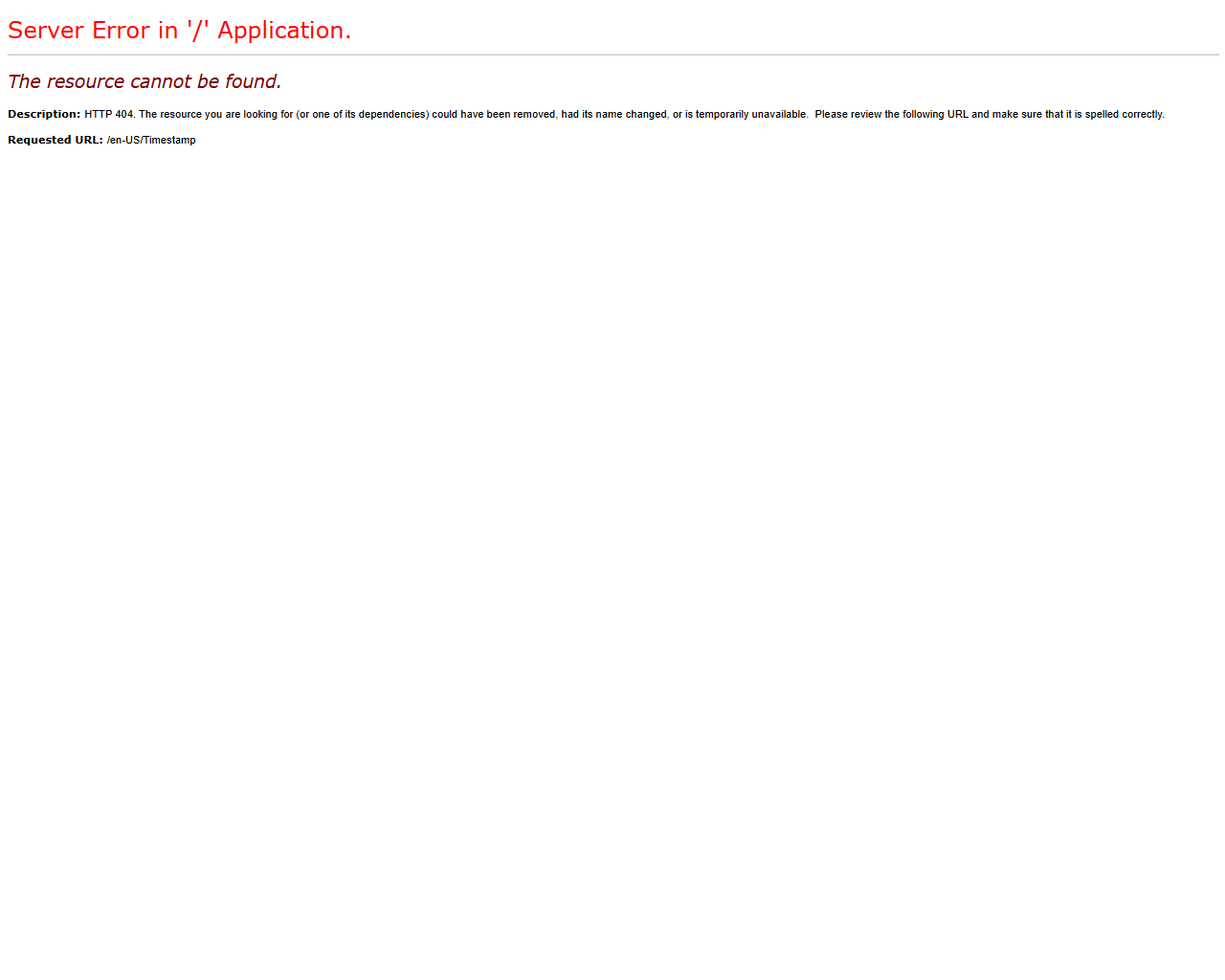
The Error page indicates that the requested BluSKY resource could not be located by the application. This is typically shown when a bookmarked or shared link is invalid, a feature route has changed, or the target item no longer exists. The screenshot displays a 404 response for the path “/en-US/Timestamp.”
Field Definitions
| Field Label | Definition | Notes |
|---|---|---|
| Error Title | Top-line header of the page. In this case: “Server Error in ‘/’ Application.” | Read-only, system-generated. |
| Error Summary | Short message explaining the problem. In this case: “The resource cannot be found.” | Intended to quickly inform users that the target page is unavailable. |
| Description | Expanded explanation of possible causes and corrective guidance. | Mentions dependency removal, name change, or temporary unavailability. |
| HTTP Status | The HTTP response code returned by the server. Here: 404. | Indicates “Not Found.” Useful for support and troubleshooting. |
| Requested URL | The route that produced the error. Shown as “/en-US/Timestamp.” | Helps identify broken bookmarks, incorrect locales, or outdated deep links. |
Screen Actions and Functions
- Refresh – Reloads the page to verify whether the resource becomes available.
- Check/Correct URL – Edit the browser address bar to fix typos or remove incorrect segments (e.g., locale).
- Navigate via Menu – Use BluSKY’s in-app navigation instead of deep links to reach the intended screen.
- Report Broken Link – Copy the Requested URL and send it to your BluSKY administrator or support.
Usage Instructions & Examples
How to recover from a 404 after clicking a saved bookmark
- Copy the Requested URL for reference.
- Clear the address bar back to the BluSKY home/root URL and press Enter to load the application.
- Use the in-application navigation to reach the desired module.
- Update your bookmark with the new, working URL.
How to verify whether the link’s locale or path is the issue
- In the address bar, remove the locale segment (e.g., change /en-US/Timestamp to /Timestamp) or vice versa.
- Press Enter to reload.
- If the page still does not load, navigate through the menu to locate the feature and then compare the working URL to the failing one.
How to report the error to support
- Capture the full Requested URL and the date/time of the attempt.
- Describe how you arrived at the link (bookmark, email, in-app link).
- Provide your tenant/building context and your user role.
- Submit the details to your BluSKY administrator or BluSKY Support.
System Behaviors and Edge Cases
- The page returns HTTP 404 when a route is missing, renamed, or the target object has been deleted.
- Deep links from older releases may become invalid after feature renames or route restructuring.
- Some deployments may return 404 when a module is disabled for a tenant or building.
- Locale segments (e.g., en-US) in the URL must match available language routes; incorrect locales can produce 404.
- Browser refresh does not change state; if the route is invalid it will continue to return 404 until corrected.
Permissions
- No special permission is required to see this error page.
- Resolution actions may require:
- Tenant Administrators to validate module availability for the tenant/building.
- Global Administrators or Support to restore or remap routes, or to re-enable disabled modules.
Linked Workflows
- Open a Support Ticket – Include the Requested URL, time of occurrence, and reproduction steps.
- Validate Tenant/Building Configuration – Admins confirm the intended module is enabled and accessible.
- Update Bookmarks and Shared Links – Replace obsolete deep links after route changes or upgrades.
Reference Image Links