Floor Stops
Floor Stop List & Validate Sequence
Screen Overview
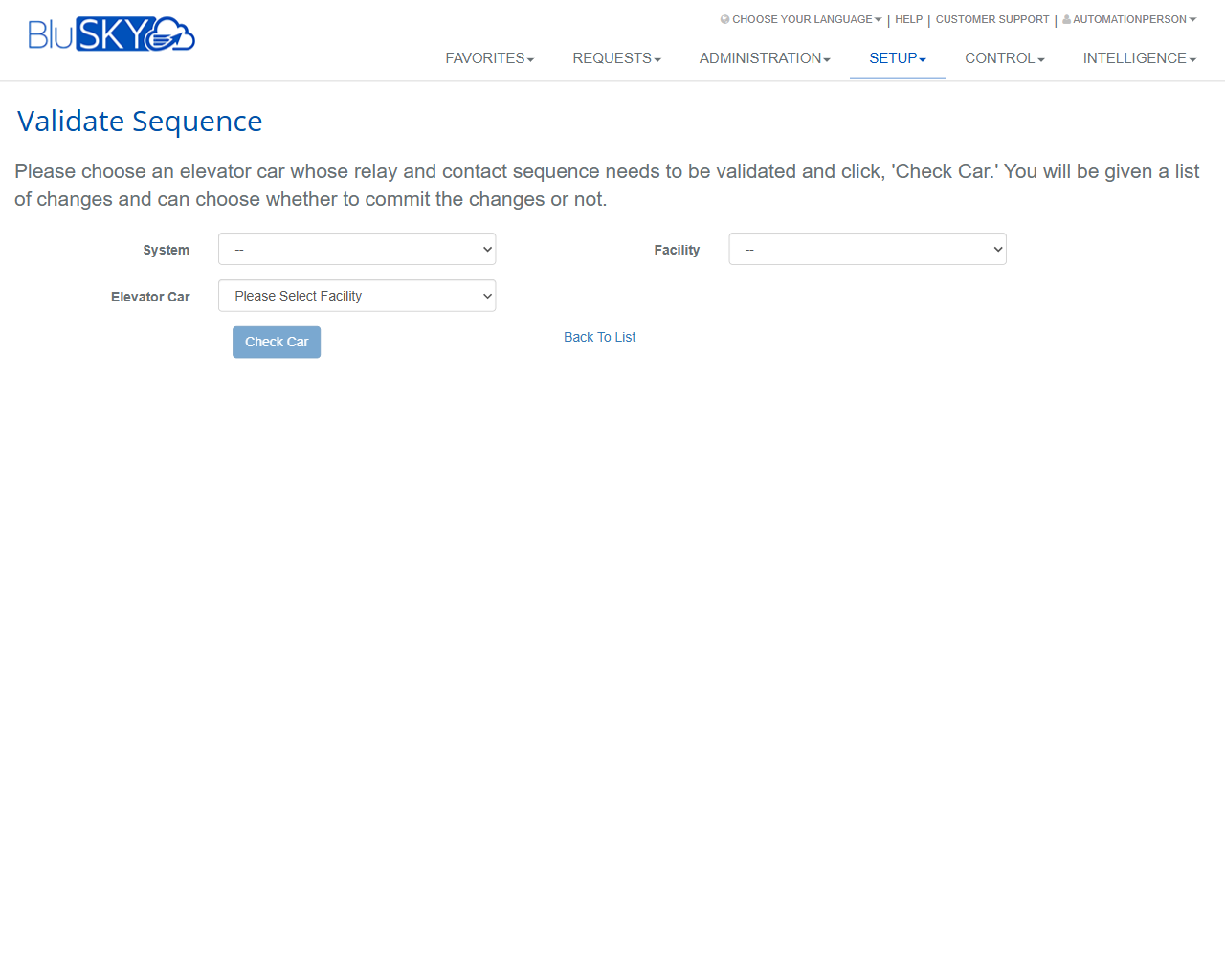
The Floor Stop List screen in BluSKY is used to manage elevator floor stop configuration and to validate relay/contact sequences for elevator cars. From this page you can create new floor stop entries, launch a validation check for a specific car, and expand the list view. The Validate Sequence page guides you through selecting a System, Facility, and Elevator Car, then checks the car’s relay/contact sequence and presents proposed changes to commit or discard.
Field Definitions
| Field Label | Definition | Notes |
|---|---|---|
| System | Dropdown to select the elevator control system to work with. | Required before running sequence validation. Filters available Facilities and Cars. |
| Facility | Dropdown to choose the building/facility within the selected System. | Required before Elevator Car can be selected. |
| Elevator Car | Dropdown to select the specific elevator car to validate. | Becomes selectable after Facility is chosen; list is filtered to the chosen Facility. |
| Floor Stops Count | Read-only indicator showing the number of floor stop records in the list. | Appears on the Floor Stop List page; updates as criteria/filters change. |
| Criteria | Toggle to show/hide list filtering options. | Exact filters vary by deployment; used to refine Floor Stop List results. |
Screen Actions and Functions
- Create – Opens the form to add a new floor stop entry.
- Validate Sequence – Opens the Validate Sequence page to check a car’s relay/contact sequence and optionally commit suggested changes.
- Expand – Expands the Floor Stop List view to maximize workspace.
- Check Car – Runs validation for the selected System, Facility, and Elevator Car; displays a list of proposed changes.
- Back To List – Returns from Validate Sequence to the Floor Stop List.
Usage Instructions & Examples
How to validate an elevator car’s sequence
- On the Floor Stop List, click Validate Sequence.
- Select a System.
- Select a Facility.
- Select an Elevator Car.
- Click Check Car.
- Review the list of proposed changes and choose to commit or cancel them.
How to create a new floor stop
- On the Floor Stop List, click Create.
- Complete the required fields presented in the form (fields vary by configuration).
- Save. The new floor stop appears in the list and the Floor Stops Count updates.
How to view more records
- On the Floor Stop List, click Expand.
- Scroll or page through the enlarged list as needed.
- Click Expand again (or the standard view control) to return to normal view.
System Behaviors and Edge Cases
- The Elevator Car dropdown remains unavailable until a Facility is selected.
- Clicking Check Car without all required selections results in no action or a validation prompt.
- The validation process may take time; a loading indicator (“Stand by…”) appears while results are prepared.
- After validation, the system presents a summarized list of proposed relay/contact sequence changes; the user can commit all, commit some (if supported), or cancel.
- Filters opened via Criteria immediately affect the Floor Stops Count and list results once applied.
- Navigation via Back To List preserves prior list context (where supported by the browser/session).
Permissions
- Access typically limited to users with Setup permissions for Elevator configuration.
- Create (floor stops) requires a role with add/update rights for Floor Stops.
- Validate Sequence requires elevated privileges to inspect and modify relay/contact sequencing.
- Read-only users can view the Floor Stop List but cannot create or validate.
Linked Workflows
- Elevator System setup – defines Systems and Facilities used by this screen.
- Elevator Car configuration – maintains cars available for validation.
- Floor access/authorization workflows – may reference configured floor stops for access control.
- Change management/audit logs – record committed sequence changes after validation.
Reference Image Links