Beacons
Beacon Screen
Screen Overview
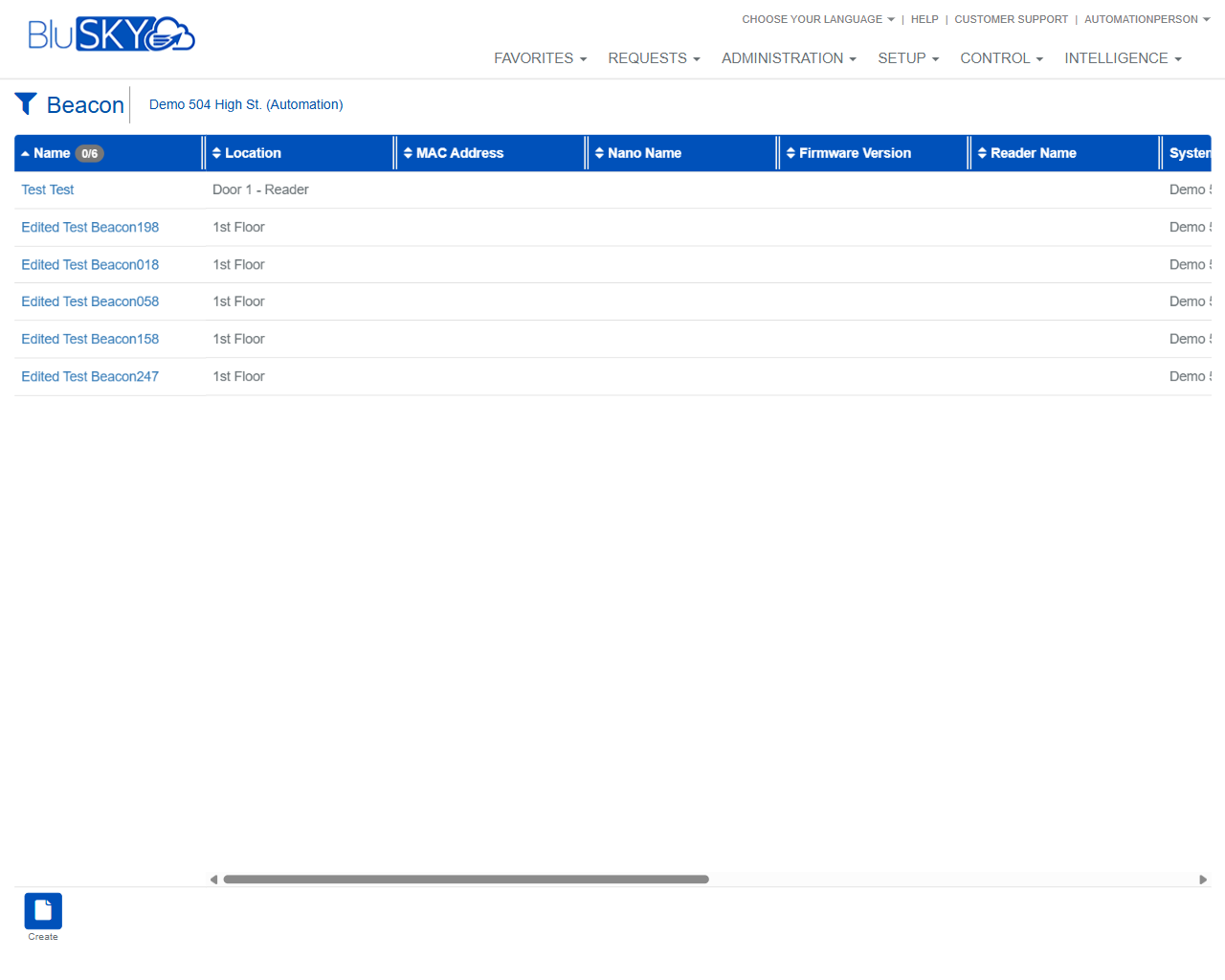
The Beacon screen enables administrators to search, view, and create Bluetooth/Nano beacons associated with facilities, readers, and nanos in BluSKY. Use the filters to narrow results by enterprise context (System Group, System, Facility, and Location) and to search active or inactive beacons. The results grid displays key device identifiers (e.g., MAC Address, Firmware Version) and supports drill‑through to a beacon’s detail page.
Field Definitions
| Field Label | Definition | Notes |
|---|---|---|
| System Group | Filters beacons by the top-level grouping of systems. | Defaults to All. Use the refresh icon to reload available options. |
| System | Filters beacons by a specific system within the selected System Group. | Options depend on the selected System Group. Refresh icon reloads the list. |
| Facility | Filters beacons to one or more facilities. | Multi-select supported. Required by most organizations for accurate scoping. |
| Location | Filters by the physical location within the selected facility. | Populated based on Facility; includes floors, doors, and areas. |
| Name | Text search for beacon name. | “?” opens help (if available). “X” clears the text. |
| Search | Status filter for results (e.g., Active). | Defaults to Active. Use the refresh icon to reapply current filters. |
| Name (grid) | The configured name of the beacon. | Click a row to open the beacon record. Supports column sorting. |
| Location (grid) | Displays where the beacon is installed (e.g., floor, door, reader). | Read-only in the list. |
| MAC Address | Hardware MAC address of the beacon. | Must be unique in the system. |
| Nano Name | The Nano controller associated with the beacon. | Shown if linked. |
| Firmware Version | Current firmware running on the beacon. | Useful for troubleshooting and upgrade planning. |
| Reader Name | The reader linked to the beacon, if applicable. | May be blank if not associated. |
| System (grid) | The system to which the beacon belongs. | Helpful when viewing multi-system environments. |
Screen Actions and Functions
- Create – Opens the form to add a new beacon.
- Submit – Executes the search using the current filter selections.
- Reset – Clears all filters back to their defaults.
- Refresh icons next to filters – Reload available values for that specific filter based on prior selections.
- Clear (X) in Name – Clears the Name search field.
- Column sort – Click a column header to sort ascending/descending.
- Row open – Click any result row to view or edit the beacon (permissions required).
- Horizontal scroll – Use the bottom scrollbar to view columns that extend off-screen.
Usage Instructions & Examples
How to find an existing beacon
- Select a Facility (and optionally System Group and System).
- Optionally choose a Location and set Search = Active or Inactive.
- Enter part of the beacon Name and click Submit.
- Click the beacon row to open details.
How to create a new beacon
- Set the appropriate System, Facility, and Location filters to the target site.
- Click Create.
- Enter required properties on the beacon form (e.g., Name, MAC Address, Location).
- Save. The new beacon appears in the results grid when Search is submitted.
How to check firmware versions across a site
- Select the target Facility (and Location if needed).
- Ensure Search = Active and click Submit.
- Scroll right to the Firmware Version column to review current versions.
- Click a row to view details or start an update workflow (if enabled in your environment).
System Behaviors and Edge Cases
- Filter hierarchy applies: System Group limits System options; System and Facility selections influence available Locations.
- Default status is Active; switching to Inactive or All broadens results but may slow queries in large environments.
- If no Facility is selected, results may return none or be limited depending on tenant configuration.
- MAC Address values are expected to be unique; duplicates are blocked on save.
- Some columns may be hidden on smaller screens; use horizontal scrolling to see all columns.
- If filters return no matches, the grid displays no rows; adjust filters and Submit again.
- Refresh icons only reload the option list for the associated filter; they do not execute a search.
Permissions
- View access: Users with rights to the selected Facility/System and the ViewBeacons permission.
- Create/Edit access: Users with ManageBeacons (or equivalent device management) permission.
- Some tenants may restrict cross-system visibility; users only see beacons within their authorized scope.
Linked Workflows
- Reader association – From a beacon record, link the beacon to a Reader for location-aware features.
- Nano association – Associate a beacon to a Nano controller for management and monitoring.
- Firmware management – Initiate or schedule firmware updates where supported.
- Location management – Navigate to Location or Facility pages to adjust placement metadata after installation.
Reference Image Links