Controllers
Controller List Screen
Screen Overview
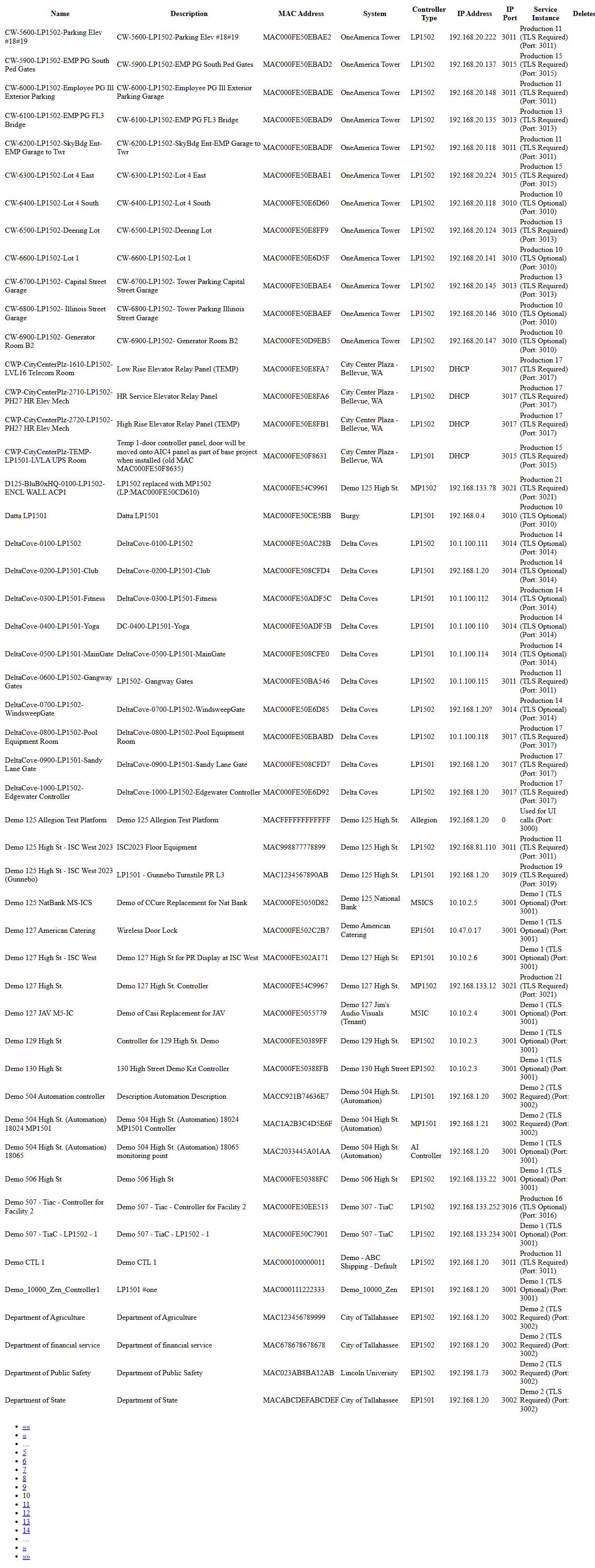
The Controller List screen displays all physical access control controllers registered in BluSKY. It provides a searchable, paginated grid for viewing controller identity, network identifiers, and system association. From this screen you can create new controllers, view or edit existing ones, remove decommissioned devices, and switch to an expanded view that exposes additional network-related columns.
Field Definitions
| Field Label | Definition | Notes |
|---|---|---|
| Name | Human-readable name of the controller. | Appears as the primary identifier in the list. |
| Description | Free-text description of the controller or its location/function. | Optional; useful for operational context. |
| MAC Address | Hardware MAC address of the controller. | Displayed with “MAC” prefix followed by hexadecimal characters. Must be unique. |
| System | The site/building or system to which the controller belongs. | Determines administrative scope and permissions. |
| Controller Type | The controller model/type (e.g., EP1501, LP1502, MP1502, Allegion). | Labeled “Controller” in some views. |
| IP Address | The current or configured IP address of the controller. | Visible in the Expanded view. May show DHCP. |
| IP Port | Network port used for controller-to-cloud communications. | Visible in the Expanded view (e.g., 3001, 3015). |
| Service Instance | BluSKY service endpoint the controller connects to, including TLS requirement and port reference. | Visible in the Expanded view (e.g., “Production 15 (TLS Required) (Port: 3015)”). |
| Delete | Action column shown in the Expanded view to remove a controller. | Availability depends on permissions and controller dependencies. |
| Controller Count | Total number of controllers returned by the current criteria. | Shown above the grid (e.g., “Controller Count 1342”). |
| Selection Status | Displays the number of rows currently selected. | Shown when rows are selected (e.g., “1/50 selected”). |
| Criteria | Filter bar toggle for showing/hiding search criteria. | Appears as “Criteria” with a caret icon above the grid. |
Screen Actions and Functions
- Create – Opens the new controller form.
- View – Opens a read-only view of the selected controller.
- Edit – Opens the selected controller for modification.
- Delete – Removes the selected controller from BluSKY (subject to permissions and dependencies).
- Expand – Opens an expanded list view with additional columns (IP Address, IP Port, Service Instance, Delete) for review or printing.
- Row Select – Select one or multiple controllers for actions; selection counter shows up to “x/50”.
- Pagination – Navigate through results using first/previous/numbered/next/last controls.
- Horizontal Scroll – Scroll to see additional columns where present.
Usage Instructions & Examples
How to find a controller
- Click Criteria to reveal filters (if hidden).
- Enter part of the Name, Description, MAC Address, or System.
- Press Enter or apply the filter to update the list.
- Use pagination or horizontal scroll to navigate results.
How to create a new controller
- Click Create.
- Enter required details such as Name, MAC Address, System, and Controller Type.
- (If available) Assign Service Instance and network parameters.
- Save. The controller appears in the list and Controller Count updates.
How to view or edit a controller
- Click a row to select it (selection status appears above the grid).
- Click View for read-only review, or Edit to modify fields.
- Make changes as needed and Save.
How to use the Expanded view
- Click Expand.
- Review additional columns (IP Address, IP Port, Service Instance).
- Print or capture the view as needed, then close to return to the main grid.
How to delete a controller
- Select the target controller.
- Click Delete (available either on the main grid toolbar or in the Delete column within Expanded view).
- Confirm the prompt to remove the controller.
System Behaviors and Edge Cases
- Selection is limited to a maximum of 50 rows at a time; the counter shows “x/50 selected.”
- Expanded view exposes network and service details not visible in the compact grid.
- MAC Address must be unique; duplicates are not allowed.
- Delete may be unavailable if you lack permission or if the controller has dependent objects. In such cases, contact an administrator or remove dependencies first.
- Very large sites use server-side paging; only the current page is loaded for performance.
- If columns are wider than the viewport, a horizontal scrollbar appears to access hidden fields.
Permissions
- Access typically granted to Global Administrators and Tenant/Facility Administrators responsible for system setup.
- Create, Edit, and Delete actions require controller management permissions (e.g., ManageControllers/DeleteControllers).
- Users without edit rights can view the list and open records in read-only mode.
Linked Workflows
- After creating a controller, proceed to configure connected devices (doors, reader interfaces, inputs/outputs) under related setup screens.
- Assign or verify the Service Instance to ensure the controller is pointed to the correct BluSKY environment.
- Use monitoring/diagnostics tools under Control/Intelligence to verify controller connectivity after setup.
Reference Image Links