Analytics Cube Diagnostics
Analytics Cube Diagnostics
Screen Overview
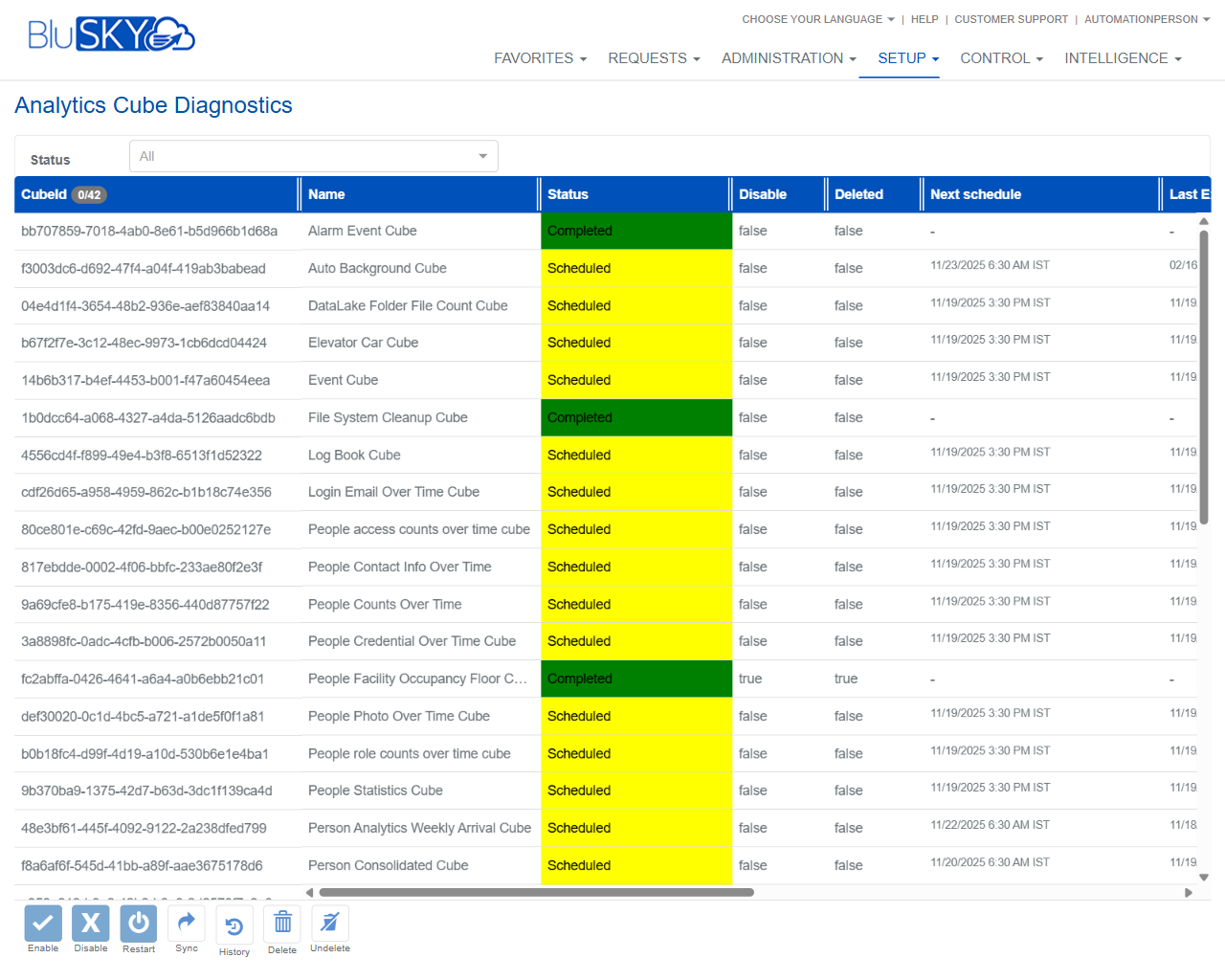
The Analytics Cube Diagnostics screen provides administrators with a consolidated view of all BluSKY analytics cubes and their operational status. Use this screen to verify schedules, monitor last/next executions, and perform administrative actions such as enable/disable, restart, sync, delete, or undelete cube jobs.
Field Definitions
| Field Label | Definition | Notes |
|---|---|---|
| Status (filter) | Dropdown used to filter the grid by cube status (e.g., All, Scheduled, Completed). | Filter applies to the results list immediately after selection. |
| Cube ID | System-generated unique identifier for the cube. | Read-only. Useful for support and API/reference lookups. |
| Name | Human-readable name of the analytics cube. | Examples: Alarm Event Cube, People Counts Over Time, Person Consolidated Cube. |
| Status | Current state of the cube job. | Color-coded: green typically indicates Completed; yellow indicates Scheduled (queued). |
| Disable | Indicates whether the cube’s schedule is disabled. | true = scheduling is off; the cube will not run on its schedule. |
| Deleted | Indicates whether the cube has been soft-deleted. | true = hidden from normal processing; can be restored with Undelete. |
| Next schedule | The next date/time when the cube is planned to execute. | Blank or “-” if no schedule exists or the cube is disabled/deleted. |
| Last Executed | The most recent date the cube successfully ran. | Read-only. Displays date (and time where available). |
Screen Actions and Functions
- Enable – Turns scheduling back on for the selected cube(s).
- Disable – Turns scheduling off for the selected cube(s); they will not run until re-enabled.
- Restart – Immediately re-queues the selected cube(s) for the next run.
- Sync – Forces a metadata/configuration sync for the selected cube(s).
- History – Opens the execution history for the selected cube(s).
- Delete – Soft-deletes the selected cube(s); does not permanently remove historical data.
- Undelete – Restores previously deleted cube(s) to an active state.
Usage Instructions & Examples
How to review cube health
- Use the Status filter to select Scheduled or Completed.
- Scan the Status column colors and values to confirm cubes are running as expected.
- Check Next schedule to ensure future runs are planned; review Last Executed for recent activity.
How to disable a cube’s schedule
- Select the row for the desired cube.
- Click Disable.
- Confirm the action. The Disable column will show true and Next schedule will be blank or “-”.
How to restart a cube that is stuck or behind
- Select the cube row.
- Click Restart.
- Monitor Status; when queued and executed, Last Executed will update after completion.
How to restore a deleted cube
- Set the filter to All (if not already).
- Select the cube with Deleted = true.
- Click Undelete, then click Enable if you want the schedule to resume.
How to view run history
- Select one or more cubes.
- Click History to open execution details, timestamps, and outcomes.
System Behaviors and Edge Cases
- The first column header may display a selection counter (e.g., 0/42) indicating selected/total rows.
- Status coloring provides at-a-glance health:
- Green = Completed (last run successful).
- Yellow = Scheduled (waiting for next run or currently queued).
- When Disable = true, the system will not schedule future executions; Next schedule will be blank or “-”.
- If Deleted = true, the cube is excluded from normal scheduling and must be Undeleted before it can be Enabled.
- Bulk actions (Enable, Disable, Restart, Sync, Delete, Undelete) apply to all selected rows.
- Some cubes may not display a Next schedule if they are event-driven or run on demand.
- History is read-only and may include both successful and failed attempts with timestamps.
Permissions
- Accessible to Global Administrators and Tenant Administrators.
- Performing Enable, Disable, Restart, Sync, Delete, or Undelete requires manage-level permissions for Analytics Cubes.
- Users with view-only access can filter and review cube statuses but cannot perform actions.
Linked Workflows
- Intelligence dashboards – Validate that cube updates are reflected in analytics and reports after runs complete.
- Scheduler/Jobs monitoring – Review broader job queues if cubes do not start as expected.
- System Logs – Investigate errors when cube Status does not progress or History shows failures.
Reference Image Links