Server Management
Server Management Screen
Screen Overview
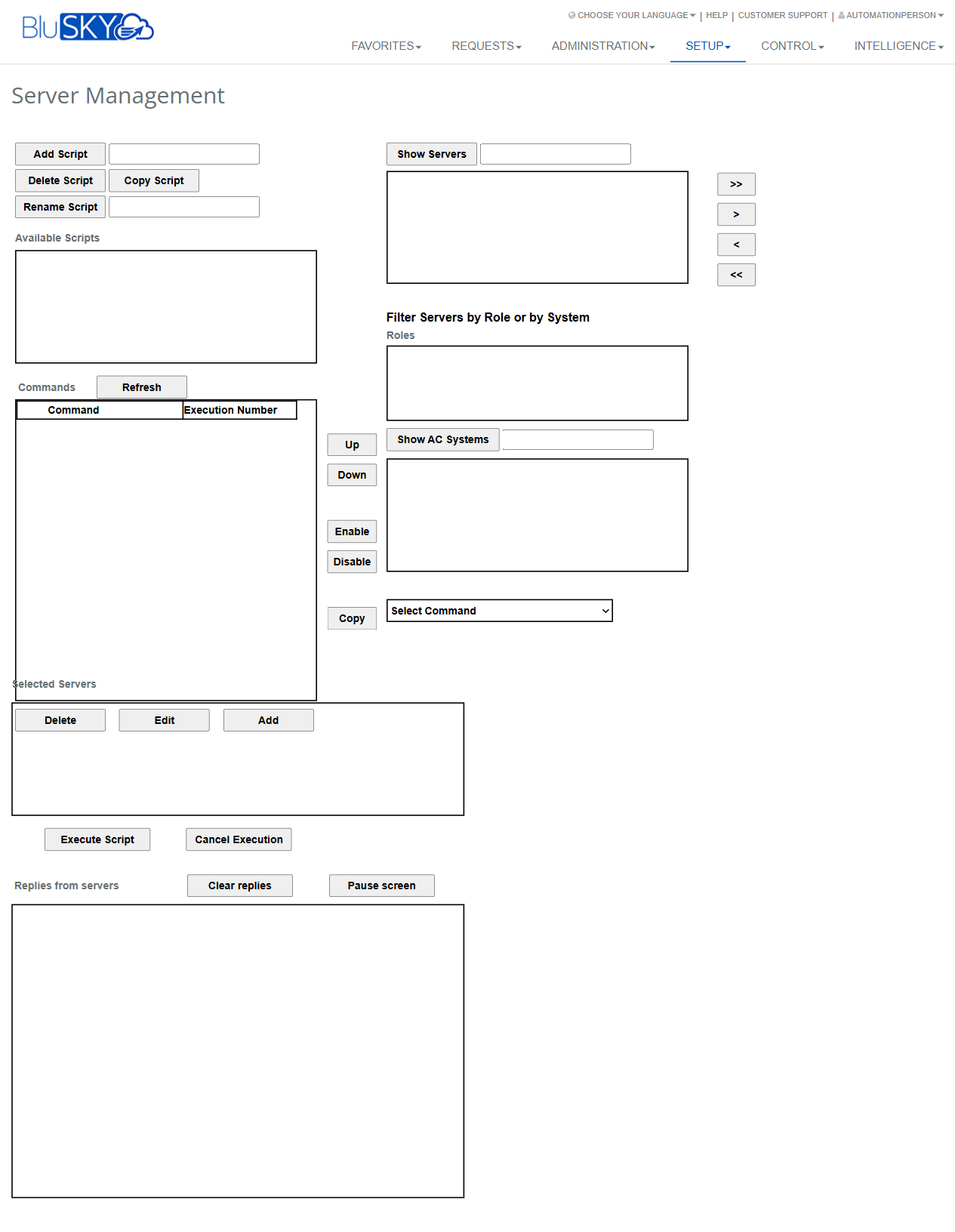
The Server Management screen is used to create, organize, and execute automation scripts against one or more BluSKY-connected servers. Administrators can assemble command sequences, filter and select target servers by role or access control (AC) system, dispatch scripts, and monitor server replies in real time.
Field Definitions
| Field Label | Definition | Notes |
|---|---|---|
| Available Scripts | List of saved server-automation scripts available to load or edit. | Select a script here to display its commands. |
| Commands | Grid of commands that make up the currently selected script. | Includes columns Command and Execution Number. |
| Command | The specific operation to be performed when the script runs. | Read-only within the grid; added via Select Command. |
| Execution Number | The order in which the command runs within the script. | Lower numbers execute first; can be adjusted with Up/Down. |
| Show Servers | List of servers returned by the current filters. | Use arrow buttons to move servers to Selected Servers. |
| Roles | Filter box used to show servers by role (e.g., DB, Application, Video). | Type a role, then refresh/show servers to update the list. |
| AC Systems | List of Access Control systems for filtering servers by system. | Populated with Show AC Systems. |
| Selected Servers | The servers chosen as execution targets for the current operation. | Use Add/Edit/Delete to manage this list. |
| Select Command | Dropdown of available command types/templates to insert into the script. | Use with the Copy button to add to the Commands grid. |
| Replies from servers | Live log area showing responses from each server during execution. | Can be cleared with Clear replies; supports Pause screen. |
Screen Actions and Functions
- Add Script – Create a new script record.
- Delete Script – Permanently remove the selected script.
- Copy Script – Duplicate the selected script, including its commands.
- Rename Script – Change the name of the selected script.
- Show Servers – Populate the Show Servers list based on current filters.
- Show AC Systems – Load AC Systems to enable system-based server filtering.
- >> – Move all servers from Show Servers to Selected Servers.
- > – Move highlighted servers from Show Servers to Selected Servers.
- < – Remove highlighted servers from Selected Servers back to Show Servers.
- << – Remove all servers from Selected Servers back to Show Servers.
- Refresh (Commands) – Reload the Commands grid for the selected script.
- Up / Down – Change the Execution Number order of the selected command.
- Enable / Disable – Toggle whether the highlighted command will run.
- Select Command – Choose a command template to add to the script.
- Copy (next to Select Command) – Insert the selected command template into Commands.
- Add (Selected Servers) – Manually add a server entry to Selected Servers.
- Edit (Selected Servers) – Modify the highlighted server entry.
- Delete (Selected Servers) – Remove the highlighted server from Selected Servers.
- Execute Script – Run the command list against all servers in Selected Servers.
- Cancel Execution – Attempt to stop a running execution.
- Clear replies – Clear the Replies from servers pane only (does not delete audit logs).
- Pause screen – Temporarily stop the replies pane from updating/auto-scrolling.
Usage Instructions & Examples
How to build a new script
- Click Add Script and provide a name when prompted.
- In Select Command, choose the first command you need, then click Copy to add it.
- Repeat step 2 for each additional command.
- Use Up/Down to order commands; use Enable/Disable to control which commands will run.
- Optionally rename the script with Rename Script for clarity.
How to select target servers
- (Optional) In Roles, enter a role to filter; click Show Servers to refresh the list.
- (Optional) Click Show AC Systems, select a system to filter the server list.
- In Show Servers, highlight one or more servers and click > to add them to Selected Servers. Use >> to add all.
- To remove servers from the target list, highlight them in Selected Servers and click < or <<.
How to execute a script and monitor results
- In Available Scripts, select the script you want to run and verify its Commands.
- Ensure at least one server is listed in Selected Servers.
- Click Execute Script.
- Observe progress and results in Replies from servers.
- If necessary, click Cancel Execution to stop further steps.
- Click Clear replies to reset the pane once you have reviewed output.
How to modify an existing script
- Select it from Available Scripts.
- Use Select Command + Copy to add new steps.
- Reorder with Up/Down; toggle any steps with Enable/Disable.
- Use Delete Script to remove the entire script if it is no longer needed.
System Behaviors and Edge Cases
- A script requires at least one enabled command and at least one server in Selected Servers to execute; otherwise Execute Script may be disabled or will return a validation error.
- Execution Number determines sequence; when ordering changes, numbers reflow to preserve order.
- Enable/Disable affects execution only; disabled commands remain saved with the script.
- > and >> add servers to Selected Servers; < and << remove them. If no items are highlighted, single-arrow buttons have no effect.
- Cancel Execution stops dispatching remaining steps; steps already sent to servers are not rolled back.
- Pause screen halts live updates to the replies pane but does not pause the actual execution.
- Clear replies removes visible logs from the pane only; historical logs remain available in system audit/diagnostics (if enabled by your tenant).
- If filters return no servers, Show Servers will list empty; remove filters or change Roles/AC Systems criteria.
- Deleting a script is permanent and cannot be undone.
- Network or server outages may produce timeout or connectivity errors in Replies from servers; rerun after connectivity is restored.
Permissions
- Access is typically restricted to Global Administrators, System Administrators, or Integrators with server-scripting privileges.
- Creating, renaming, copying, and deleting scripts requires a ManageServerScripts-type permission.
- Executing scripts requires an ExecuteServerScripts/ServerControl-type permission.
- Users without edit rights can view scripts and replies but cannot modify commands or run executions.
Linked Workflows
- AC Systems – Use to maintain systems that appear in the AC Systems filter.
- Roles/Server Roles – Define and manage server role tags used by the Roles filter.
- Audit/Job Monitor – Review historical execution logs and outcomes.
- Notifications/Alerts – Configure alerting for failures reported in Replies from servers.
Reference Image Links