Symmetry Diagnostics
Symmetry Diagnostics
Screen Overview
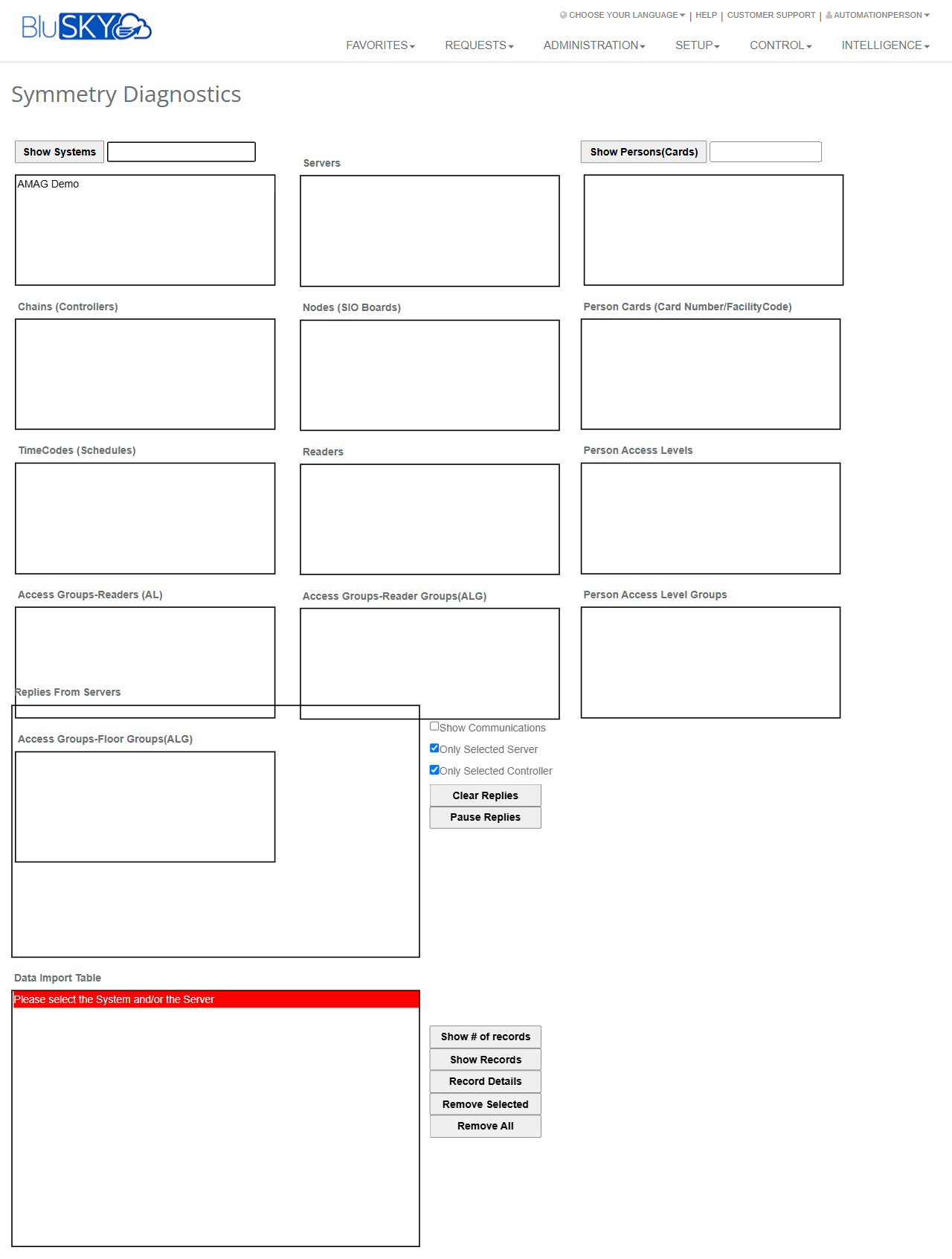
The Symmetry Diagnostics screen provides real-time visibility into the AMAG Symmetry integration within BluSKY. It is used to inspect systems, servers, controllers, SIO boards, readers, schedules, access groups, and person/card data. The screen also includes a communications reply window and a Data Import Table to review and manage queued integration records. Use this page to troubleshoot synchronization issues, verify topology, and validate person access assignments coming from Symmetry.
Field Definitions
| Field Label | Definition | Notes |
|---|---|---|
| Show Systems | Retrieves and displays available Symmetry systems. | Click to refresh the Systems list. |
| System Filter (textbox) | Optional text used to filter systems before loading. | Leave blank to load all systems. |
| Systems | List of Symmetry systems discovered (e.g., “AMAG Demo”). | Select a system to enable downstream selections. |
| Servers | Servers associated to the selected system. | Selecting a server populates controller and node lists. |
| Chains (Controllers) | Controller list for the selected server. | Used to scope replies and reader/group data. |
| Nodes (SIO Boards) | SIO/IO board list beneath the selected controller. | Read-only list for diagnostics. |
| TimeCodes (Schedules) | Symmetry schedules available on the selected server. | Read-only; used for reference. |
| Readers | Readers connected to the selected controller/server. | Reader selection helps validate ALG/AL mapping. |
| Access Groups-Readers (AL) | Mapping of Access Levels to Readers. | Read-only; shows which readers belong to which AL. |
| Access Groups-Reader Groups (ALG) | Mapping of Access Levels to Reader Groups. | Read-only. |
| Access Groups-Floor Groups (ALG) | Mapping of Access Levels to Floor Groups. | Read-only; useful for elevator control diagnostics. |
| Show Persons(Cards) | Runs a person/card query to populate right-side person panels. | Works with the Person/Card Filter input. |
| Person/Card Filter (textbox) | Accepts a person identifier or card number/facility code. | Use exact values for best results. |
| Person Cards (Card Number/FacilityCode) | List of matching cards for the queried person/filter. | Selecting a card drives Access Level panes. |
| Person Access Levels | Access Levels assigned to the selected person/card. | Read-only. |
| Person Access Level Groups | ALG membership for the selected person/card. | Read-only. |
| Replies From Servers | Streaming reply/log window from Symmetry servers. | Auto-updates; can be cleared or paused. |
| Show Communications (checkbox) | When checked, includes low-level communications in Replies. | Off by default. |
| Only Selected Server (checkbox) | Limits Replies to the server currently selected. | On by default. |
| Only Selected Controller (checkbox) | Limits Replies to the controller currently selected. | On by default. |
| Clear Replies | Clears all messages in Replies From Servers. | Does not affect integration processes. |
| Pause Replies | Temporarily stops the reply window from auto-updating. | Toggle again to resume. |
| Data Import Table | Displays queued or processed integration records related to the selected scope. | Shows status messages if prerequisites are not met. |
| Show # of records | Displays a count of records available for the current scope in the Data Import Table. | Useful before loading large queues. |
| Show Records | Loads records into the Data Import Table for review. | Performance depends on queue size. |
| Record Details | Opens a detail view for the selected record(s). | Read-only. |
| Remove Selected | Removes highlighted record(s) from the Data Import Table. | Use with caution; action cannot be undone from the UI. |
| Remove All | Removes all records currently shown in the Data Import Table. | Restricted by permissions; irreversible from the UI. |
Screen Actions and Functions
- Show Systems: Discover and load Symmetry systems into the Systems list.
- Select System > Server > Controller: Drill down to populate related nodes, readers, schedules, and access group mappings.
- Show Persons(Cards): Search by person or card to view card assignments and access memberships.
- Toggle Show Communications: Include or hide verbose communications in the Replies window.
- Filter Replies: Use Only Selected Server and Only Selected Controller to scope log messages.
- Clear Replies / Pause Replies: Manage the reply feed for focused troubleshooting.
- Data Import Table controls:
- Show # of records to preview counts.
- Show Records to load queue items.
- Record Details to inspect a specific item.
- Remove Selected / Remove All to clear items from the queue.
Usage Instructions & Examples
How to load a system and review device topology
- Click Show Systems.
- Select a system in the Systems pane.
- Select a Server to populate Chains (Controllers), Nodes (SIO Boards), Readers, and TimeCodes (Schedules).
- Click a controller to focus downstream data such as reader and access group mappings.
How to diagnose a person’s access
- In Person/Card Filter, enter a card number or person identifier.
- Click Show Persons(Cards).
- Select a card in Person Cards.
- Review Person Access Levels and Person Access Level Groups to confirm expected assignments.
How to analyze communications replies
- Check Show Communications to include detailed logs.
- Ensure Only Selected Server/Only Selected Controller are set as needed.
- Use Clear Replies to start a fresh capture, then reproduce the issue on devices.
- Click Pause Replies to freeze the log and review specific messages.
How to review and clean the Data Import Table
- Select a System and a Server.
- Click Show # of records to gauge queue size.
- Click Show Records to load items into Data Import Table.
- Select a record and click Record Details to inspect; use Remove Selected (or Remove All) to clear items as permitted.
System Behaviors and Edge Cases
- Dependent loading: Device and access-group panes remain empty until a System and Server are selected; person panes remain empty until a person/card query is executed.
- Reply filtering: With Only Selected Server/Controller enabled, Replies From Servers will omit messages outside the current selection.
- Streaming behavior: Replies auto-append and may auto-scroll; Pause Replies freezes the view without stopping background communications.
- Status messages: The Data Import Table shows a red banner such as “Please select the System and/or the Server” or “Please select the Server and/or the requested DataImport Record” when prerequisites are missing.
- Large queues: Show Records on very large import queues may take additional time to display.
- Removal actions: Remove Selected and Remove All delete items from the Data Import Table view and cannot be recovered from the UI.
- Read-only topology: Lists for Systems, Servers, Controllers, Nodes, Readers, and Access Groups are informational; editing is performed in source systems or dedicated setup pages.
Permissions
- Accessible from Setup > Symmetry Diagnostics to users with integration administration privileges.
- Typically restricted to Global Administrators, Site/Integration Administrators, or Support personnel.
- Remove Selected and Remove All require elevated rights to manage the integration queue.
- The page is visible only when the AMAG Symmetry integration is enabled for the tenant/site.
Linked Workflows
- Integration Setup: Configure AMAG Symmetry connection and mapping under Setup > Integrations (Symmetry).
- People: After diagnosing person data, update identities on the People screen if changes are needed in BluSKY.
- Access Levels and Reader Groups: Review or adjust definitions under Setup > Access Levels and Setup > Reader Groups.
- Device Management: Investigate reader/controller configuration under Setup > Readers and Setup > Controllers.
- Support Operations: Use this diagnostics page alongside event logs and system health dashboards under Control/Intelligence menus.
Reference Image Links