Alarm Diagnostics
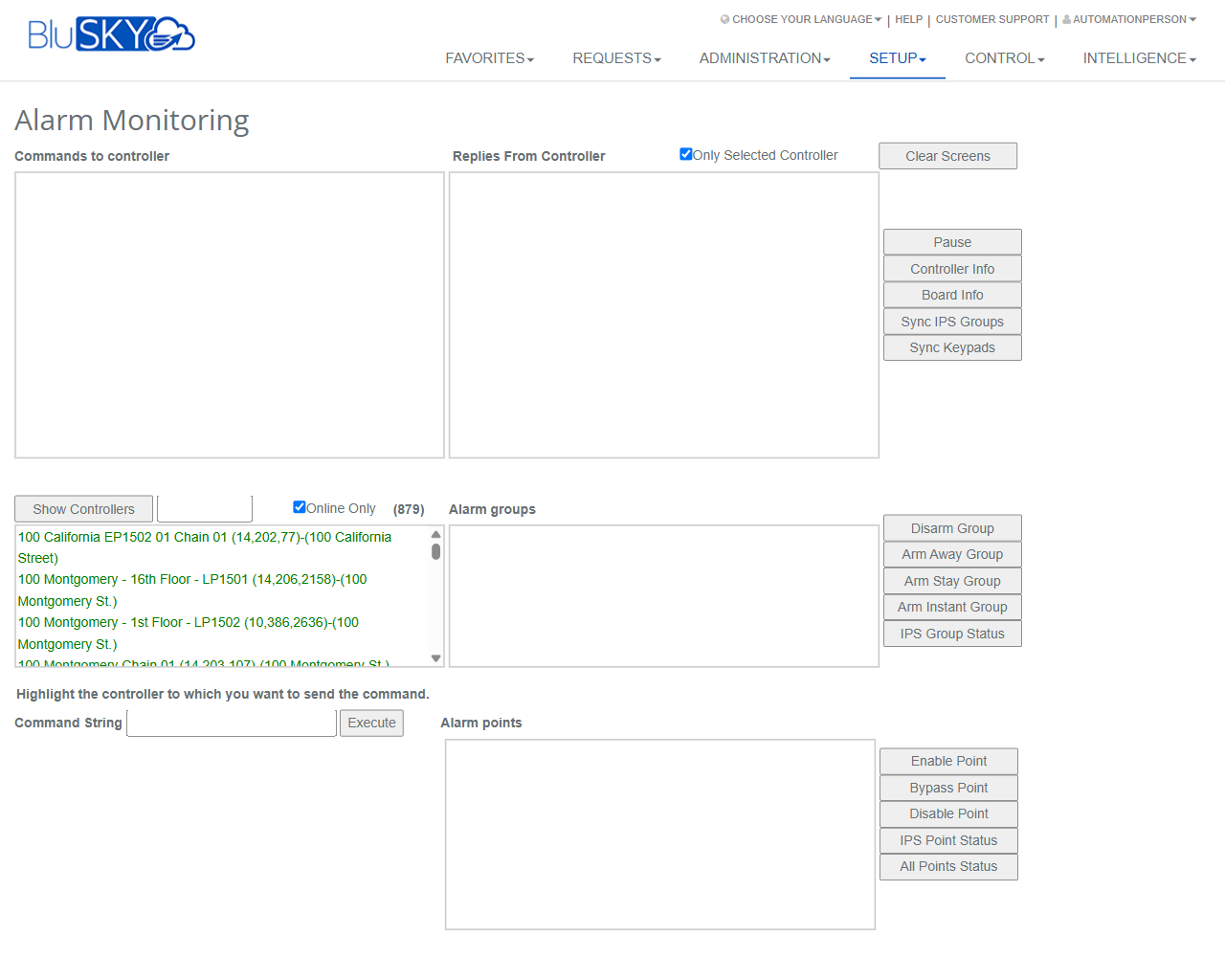
Alarm Monitoring Screen
Screen Overview
The Alarm Monitoring screen provides real-time interaction with intrusion/IPS controllers from within BluSKY. Operators can view command/reply logs, filter available controllers, send manual commands, and perform group and point operations such as arming, disarming, enabling, disabling, and bypassing. The page is intended for live operations and troubleshooting of alarm hardware.
Field Definitions
| Field Label | Definition | Notes |
|---|---|---|
| Commands to controller | Live console showing commands issued from BluSKY to controllers. | Read-only. Cleared with Clear Screens. Useful for audit/troubleshooting. |
| Replies From Controller | Live console showing responses returned by controllers. | Read-only. Affected by Only Selected Controller. |
| Only Selected Controller | Checkbox to limit the Replies console to the currently highlighted controller. | When unchecked, replies from all connected controllers are shown. |
| Controllers | Scrollable list of available IPS/alarm controllers. | Highlight one to target commands and to load related groups/points. |
| Online Only | Checkbox that filters the Controllers list to only those currently online. | The number in parentheses shows the count of online controllers. |
| Alarm groups | List of alarm/partition groups for the highlighted controller. | Use with group action buttons (Arm/Disarm/Status). Supports multi-select. |
| Command String | Free-text input for sending a raw/manual command to the selected controller. | Click Execute to send. Syntax is controller-specific and intended for advanced users. |
| Alarm points | List of individual alarm points/zones for the highlighted controller. | Use with point action buttons (Enable/Bypass/Disable/Status). Supports multi-select. |
Screen Actions and Functions
- Show Controllers – Loads or refreshes the Controllers list based on the Online Only filter.
- Clear Screens – Clears both the Commands to controller and Replies From Controller consoles locally.
- Pause – Temporarily stops new messages from auto-appending to the consoles.
- Controller Info – Opens details for the highlighted controller.
- Board Info – Opens hardware board/module details for the highlighted controller.
- Sync IPS Groups – Pushes current group definitions from BluSKY to the highlighted controller.
- Sync Keypads – Pushes keypad definitions/configuration to the highlighted controller.
- Disarm Group – Disarms the selected Alarm groups on the highlighted controller.
- Arm Away Group – Arms the selected groups in Away mode.
- Arm Stay Group – Arms the selected groups in Stay mode.
- Arm Instant Group – Arms the selected groups in Instant mode.
- IPS Group Status – Requests status for the selected groups.
- Enable Point – Enables the selected alarm points.
- Bypass Point – Bypasses the selected points (temporarily excludes them from arming).
- Disable Point – Disables the selected points.
- IPS Point Status – Requests status for the selected points.
- All Points Status – Requests status for all points on the highlighted controller.
- Execute – Sends the text entered in Command String to the highlighted controller.
Usage Instructions & Examples
- View live controller activity
- Click Show Controllers. Optionally check Online Only.
- Highlight the controller you want to observe.
- Check Only Selected Controller to limit replies to that controller.
- Watch Replies From Controller. Use Pause if the output scrolls quickly.
- Arm or disarm a group
- Highlight the target controller in Controllers.
- In Alarm groups, select one or more groups.
- Click Arm Away Group, Arm Stay Group, Arm Instant Group, or Disarm Group.
- Confirm any prompts. Verify results in Replies From Controller.
- Enable, bypass, or disable points
- Highlight the controller.
- In Alarm points, multi-select the desired points (Ctrl/Shift for bulk).
- Click Enable Point, Bypass Point, or Disable Point.
- Click IPS Point Status (or All Points Status) to confirm current state.
- Request status
- Select the controller.
- Choose groups in Alarm groups and click IPS Group Status, or click All Points Status for a full point summary.
- Review responses in Replies From Controller.
- Send a manual command
- Highlight the controller.
- Enter the raw command in Command String.
- Click Execute.
- Confirm that the command and the panel’s reply appear in the respective consoles.
- Synchronize configuration to a controller
- Highlight the controller.
- Click Sync IPS Groups and/or Sync Keypads.
- Monitor progress and confirmation in the consoles.
System Behaviors and Edge Cases
- A controller must be highlighted before Execute, group actions, or point actions will run; otherwise the action is blocked or ignored.
- Only Selected Controller filters the Replies console output; it does not restrict which controller receives commands (selection does).
- Online Only affects only the Controllers list; unchecking it shows offline controllers for reference.
- Clear Screens removes local console text only; it does not erase system logs or panel history.
- Pause stops appending new lines to the consoles; when resumed, only new incoming data is shown (paused data is not backfilled).
- If the highlighted controller is offline, commands generally fail; replies may not be received until the controller reconnects.
- Group/point commands may be rejected by the panel due to panel rules (e.g., arming with faults, disarming permissions); such errors appear in Replies From Controller.
- Multi-select is supported for groups and points; if none are selected, related action buttons will have no effect.
- Sync actions push current BluSKY configuration to the panel; they do not modify BluSKY data and can overwrite panel-side edits.
- All Points Status can be verbose on large systems; use Pause/Resume to manage readability.
- Manual commands are not syntax-validated by BluSKY; invalid commands return an error or no reply depending on the panel.
Permissions
- Page access typically requires Global Administrator, Site/Tenant Administrator, or Security Operator roles with IPS monitoring rights.
- Performing control actions (arming/disarming, enable/disable/bypass, Execute) requires elevated permissions such as Operate IPS/Alarm Controls.
- Users with view-only permissions can see controllers and consoles but cannot send commands or sync configuration.
Linked Workflows
- From Controller Info or Board Info, navigate to controller and board configuration pages for maintenance.
- Configure Alarm Groups on the IPS Groups administration page; then use this screen to operate them.
- Configure Alarm Points on the IPS Points page; then monitor and control them here.
- Use Event/Alarm Monitoring screens to review historical and real-time events generated by these actions.
- Manage Keypads on the IPS Keypads page; use Sync Keypads here to deploy changes to panels.
Reference Image Links