Logs
Log List and Create Log
Screen Overview
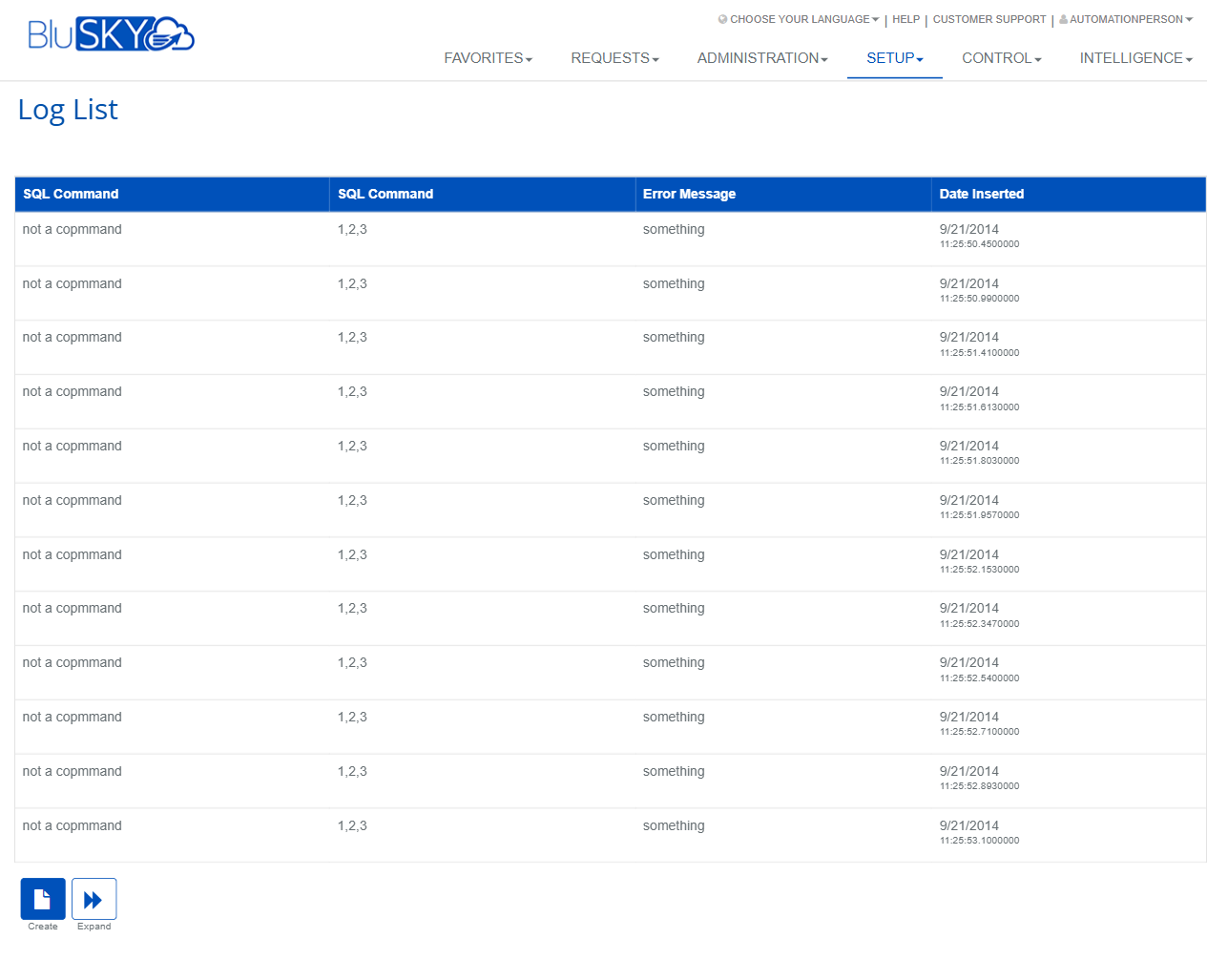
The Log screens allow administrators and support staff to record and review diagnostic log entries. Each entry can capture the command text, related parameters, an error message, and the date the entry was inserted. Use these screens to investigate issues and document troubleshooting details within BluSKY.
Field Definitions
| Field Label | Definition | Notes |
|---|---|---|
| MercuryLogId | Internal identifier for the log entry or associated upstream event. | Numeric. Defaults to 0 on Create. Leave as-is unless instructed to link to a specific source. |
| SQL Command (first) | Primary command or statement text captured for the event. | Appears as the first “SQL Command” column in the list. Free-text. |
| SQL Command (second) | Related values, parameters, or auxiliary command information. | Appears as the second “SQL Command” column in the list. Label is intentionally duplicated. |
| Error Message | Error details returned when the command was processed. | Optional but recommended for troubleshooting. |
| Date Inserted | Timestamp when the log entry was created. | Read-only and system-generated; visible on the list/detail views. |
Screen Actions and Functions
- Create (list) – Opens the Create Log form.
- View – Opens the selected log in read-only mode.
- Edit – Opens the selected log for modification.
- Delete – Removes the selected log entry or entries.
- Expand – Expands the grid to a full working area for easier review.
- Create (form) – Saves a new log entry from the Create Log page.
- Back To List – Returns from the Create Log form to the Log List.
Usage Instructions & Examples
How to Review a Log Entry
- Open the Log List.
- Click a row to select it. The header will show “(1/x selected).”
- Click View to open the entry and read full details.
How to Create a Log Entry Manually
- On the Log List, click Create.
- (Optional) Enter a MercuryLogId if you need to link this entry to a specific source.
- Enter the primary SQL Command (first) text.
- Enter any related parameters in SQL Command (second).
- Add an Error Message if applicable.
- Click Create. You will be returned to the list and the new entry will display with a Date Inserted timestamp.
How to Edit or Delete an Entry
- From the Log List, select one entry.
- Click Edit to update fields and save, or click Delete to remove it.
- For bulk deletion, select multiple rows (title will show “(n/x selected)”) and click Delete.
How to Use Expand for Review
- On the Log List, click Expand.
- Review entries in the enlarged grid area.
- Click Expand again (or navigate away) to return to the standard view.
System Behaviors and Edge Cases
- Action availability is selection-based: View/Edit/Delete are enabled only when at least one row is selected. With no selection, only Create and Expand are shown.
- The list header shows the selection state as “(n/total selected).”
- Two fields/columns are labeled “SQL Command.” The first typically contains the command text; the second commonly shows parameters or related values. Labels are duplicated by design.
- Date Inserted is set automatically by the system and is not editable.
- MercuryLogId accepts numeric values only; invalid input may prevent saving.
- If required information is missing, Create/Edit will fail and the page will display validation messages.
- Permissions may restrict editing or deleting logs; users without privileges will not see those actions.
Permissions
- Available to administrative roles such as Global Administrators and designated Support/Integrator roles.
- Viewing logs requires a View Logs permission.
- Creating, editing, and deleting logs require a Manage Logs (or equivalent) permission.
- Access and exact permission names may vary by tenant configuration.
Linked Workflows
- Use alongside device/integration setup workflows to capture errors encountered during configuration.
- Reference logs when troubleshooting sync jobs or controller communications to provide context for support tickets.
Reference Image Links