Outputs
Output List
Screen Overview
The Output List screen provides a searchable, filterable list of all hardware outputs configured in BluSKY (e.g., relay channels used for locks, horns, elevator relays). Use this page to locate outputs by system, controller, or SIO board, review their online/offline modes, and create, view, edit, or delete output records. An Expand view exposes additional audit and type information.
Field Definitions
| Field Label | Definition | Notes |
|---|---|---|
| System | Filters outputs to a specific BluSKY system/site. | Optional. Selecting a system narrows the Controller and SIO Boards lists. |
| Controller | Filters outputs to a specific controller under the chosen system. | Dependent on System. Leave blank to see outputs across available controllers (as permitted). |
| SIO Boards | Filters by a specific SIO (Mercury I/O) board. | Dependent on Controller. Shows only boards available on the selected controller. |
| Search Text | Free‑text search across output names. | Partial matches supported. Placeholder shows “Mercury output name.” |
| View | Filter for record status/visibility (e.g., All Active). | Default is All Active. Change to include other states as configured by your instance. |
| Output Count | Displays the number of outputs returned by the current filters. | Read‑only. Updates after Submit. |
| Name | The configured name of the output. | Click a row to select it for actions. |
| Output Number | Channel/index number of the output on its SIO board. | Read‑only; unique per SIO board. |
| Deleted | Indicates whether the record is marked as deleted. | Appears as blank/flag depending on state and view filter. |
| SIO Board | The SIO board to which the output belongs. | Shows board label and model (e.g., MR52). |
| Online Output Mode (Active State) | The relay state when the controller is online. | Examples: Relay Energized, Relay De‑Energized. |
| Offline Output Mode | The relay state to apply when the controller is offline. | Examples: No Change, Relay Energized/De‑Energized. |
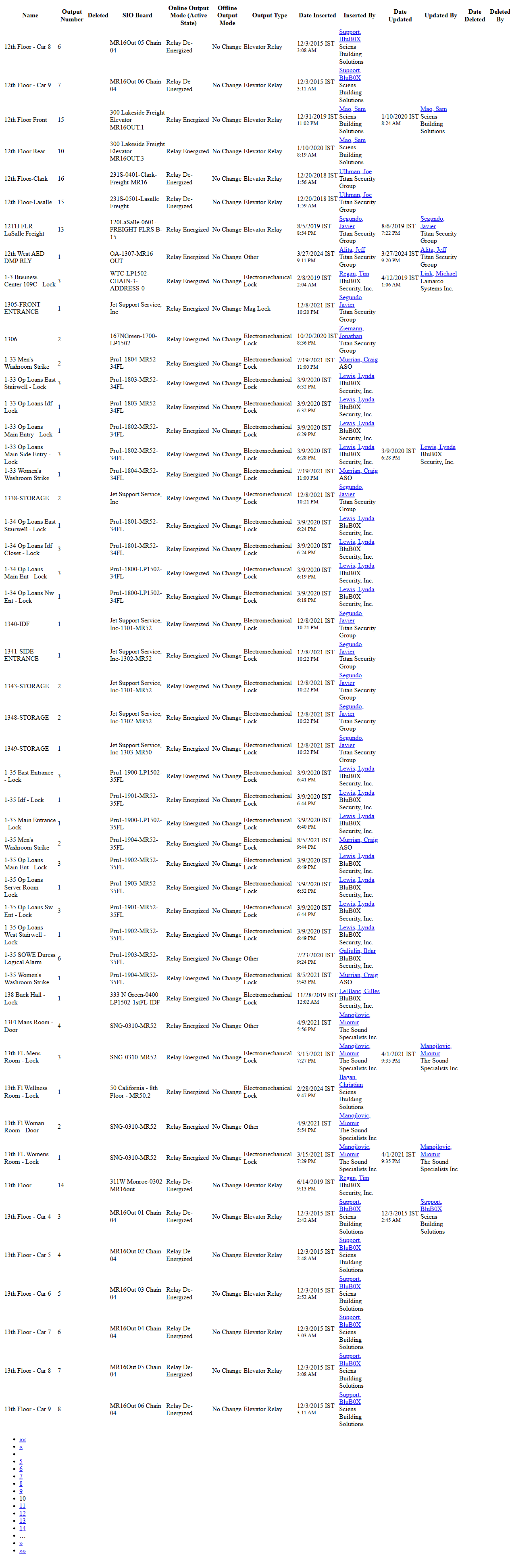
| Output Type (Expand view) | Hardware function/type of the output. | Examples seen: Electromechanical Lock, Elevator Relay, Horn, Mag Lock. |
| Date Inserted (Expand view) | Timestamp when the output record was created. | Read‑only; system-generated. |
| Inserted By (Expand view) | User who created the record. | Appears as a link to the user profile/history. |
| Date Updated (Expand view) | Timestamp of the most recent update. | Read‑only; system-generated. |
| Updated By (Expand view) | User who last updated the record. | Appears as a link. |
| Date Deleted (Expand view) | Timestamp when the record was deleted (soft-delete). | Populated only for deleted records. |
| Deleted By (Expand view) | User who deleted the record. | Populated only for deleted records. |
Screen Actions and Functions
- Submit – Applies the selected filters and refreshes the list.
- Reset – Clears all filters back to defaults.
- Create – Opens the form to define a new output.
- View – Opens a read-only detail view for the selected output. Enabled when a row is selected.
- Edit – Opens the selected output for editing. Enabled when a row is selected.
- Delete – Soft‑deletes the selected output. Enabled when a row is selected and the user has delete rights.
- Expand – Switches to an expanded, plain-list view with additional columns (type and audit details) and simple pagination.
- Row Select – Click a row to select it. Multi‑selection is supported; the selection counter appears in the header (e.g., “(1/50 selected)”).
- Pagination – Use the numbered controls at the bottom to navigate pages of results.
Usage Instructions & Examples
How to find an output
- Select a System (optional) to narrow scope.
- Optionally select a Controller and/or SIO Boards to further filter.
- Enter part of the output name in Search Text.
- Choose a View (e.g., All Active).
- Click Submit. Review results and Output Count.
How to create a new output
- Click Create.
- Complete required fields in the output form (e.g., Name, SIO Board, Output Number, Online/Offline modes, Output Type).
- Save. The new output appears in the list after Submit.
How to edit an output
- Locate the output using the filters and click the row to select it.
- Click Edit.
- Update fields such as Online/Offline modes or Name.
- Save. Verify changes via the list or Expand view.
How to delete (soft‑delete) an output
- Select the target output.
- Click Delete and confirm.
- To verify, change View if necessary to include deleted records, then Submit.
How to use Expand view
- Click Expand to open the expanded list.
- Review additional columns (Output Type, audit trail).
- Use the page links at the top/bottom to navigate.
- Use the browser Back button or the page breadcrumb to return to the standard grid.
System Behaviors and Edge Cases
- Dependent filters: Controller and SIO Boards lists are constrained by the selected System and Controller, respectively.
- Initial loading shows a “Stand by…” indicator until results are returned.
- Actions (View, Edit, Delete) remain disabled until at least one row is selected; some actions may require a single selection.
- Delete is a soft‑delete; records persist for audit and appear when the View filter includes deleted items.
- Very large datasets are paginated; Output Count reflects the total for the current filter set, not just the visible page.
- Search Text performs partial name matching; leaving it blank returns all records matching other filters.
- Online/Offline modes are displayed in the grid and are enforced by the controller; if modes are not supported by specific hardware, options may be limited by configuration.
Permissions
- View access requires a role with permission to read hardware setup (Outputs).
- Create/Edit requires a role with manage permissions for Outputs.
- Delete requires a role with the DeleteOutputs permission (or equivalent).
- Access to specific Systems/Controllers/SIO Boards is additionally limited by the user’s tenant/site scope.
Linked Workflows
- Configure or review SIO Boards and Controllers before creating outputs.
- Map outputs to doors, elevator interfaces, or auxiliary devices as part of door/elevator setup.
- Use rules/automation (e.g., Triggers & Actions) to drive outputs based on events and schedules.
- Operational control of outputs (temporary activation) may be available under Control menus depending on deployment.
Reference Image Links