Ai Pipelines
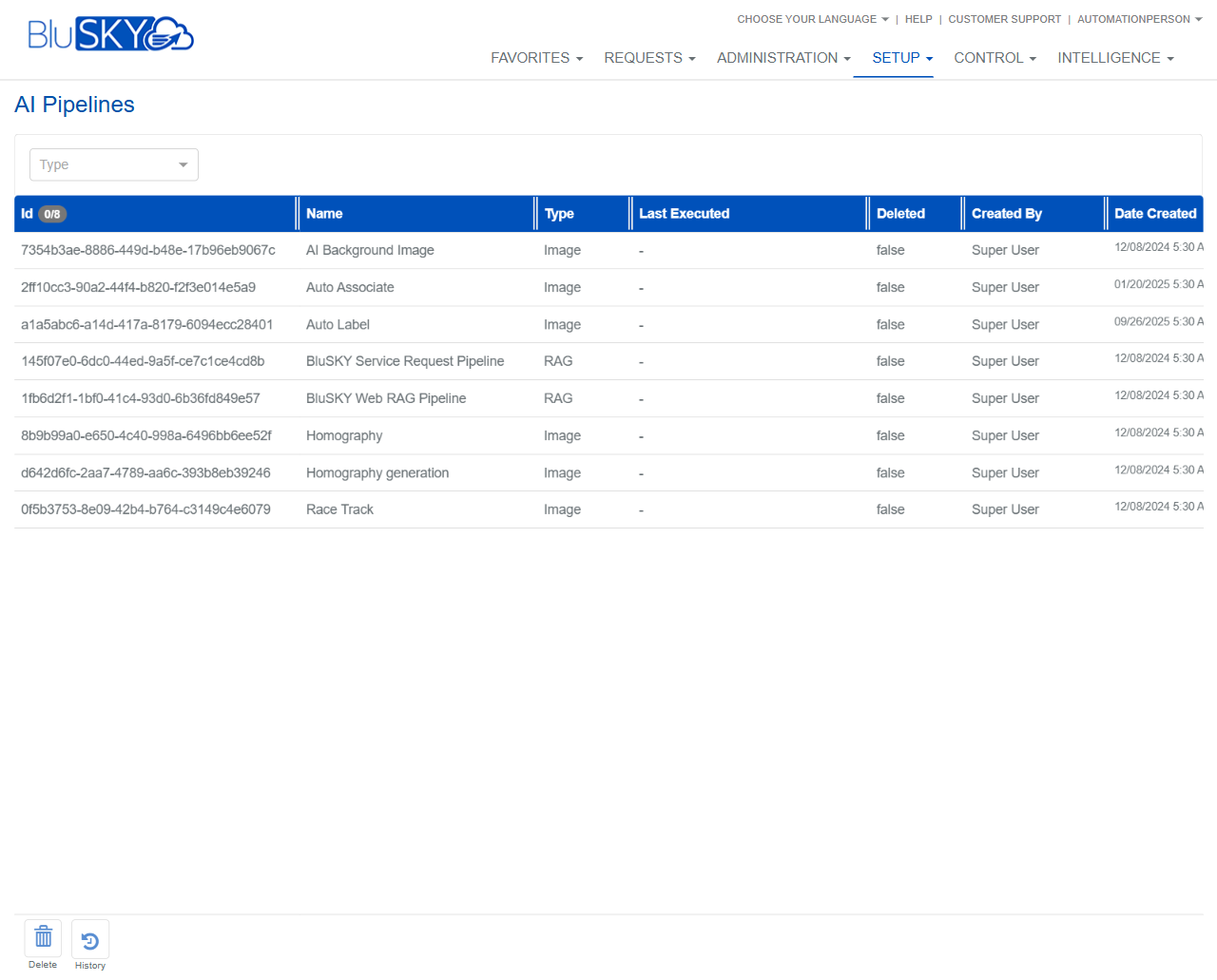
AI Pipelines Screen
Screen Overview
The AI Pipelines screen (Setup > AI Pipelines) lists all configured AI processing pipelines in BluSKY. It provides a filter to narrow by pipeline type and a grid showing key metadata such as creator, creation date, and last execution status. From this screen you can review history and delete pipelines.
Field Definitions
| Field Label | Definition | Notes |
|---|---|---|
| Type | Drop-down filter to display pipelines of a selected type. | Common values shown include Image and RAG. Clearing the filter shows all pipelines. |
| Id | System-generated unique identifier for the pipeline. | The “Id 0/8” indicator shows selected/total rows in the current view. |
| Name | The display name of the pipeline. | Read-only in the list; used to identify the pipeline. |
| Type | The pipeline’s category as stored with the record. | Examples in the list: Image, RAG. |
| Last Executed | The most recent time the pipeline was run. | A hyphen (-) indicates the pipeline has never been executed. |
| Deleted | Shows whether the record is soft-deleted. | false = active; true = soft-deleted (retained for audit). |
| Created By | The user who created the pipeline. | Read-only, system-tracked. |
| Date Created | Timestamp when the pipeline was created. | Displayed in the tenant/system time zone configuration. |
Screen Actions and Functions
- Filter by Type – Use the Type drop-down above the grid to narrow results.
- Delete – Soft-deletes the selected pipeline record(s).
- History – Opens the audit trail for the selected pipeline(s), including changes and events.
- Row selection – Select one or more rows to enable actions like Delete and History.
- Column sort – Click a column header to sort the grid by that column (ascending/descending).
Usage Instructions & Examples
How to filter pipelines by type
- Click the Type drop-down above the grid.
- Choose a type (e.g., Image or RAG).
- Review the filtered list; clear the filter to return to all pipelines.
How to view a pipeline’s history
- Select a single pipeline row.
- Click History.
- Review changes, events, and execution-related entries (if any), then close the history view.
How to delete pipelines
- Select one or more pipeline rows.
- Click Delete.
- Confirm the action. The Deleted column will change to true for those records.
How to identify pipelines that have never run
- Scan the Last Executed column.
- Any pipeline showing a hyphen (-) has not yet executed.
System Behaviors and Edge Cases
- Actions (Delete, History) remain disabled until at least one row is selected.
- Delete performs a soft-delete; the record remains available for audit and may still appear in lists depending on system configuration.
- A hyphen (-) in Last Executed indicates no prior execution.
- Sorting is applied per column and persists until changed or the page is refreshed.
- Deletion of pipelines that are referenced by other processes may be blocked by system rules, returning an error or warning.
Permissions
- Screen access is typically granted to Global Administrators and Tenant Administrators.
- Delete requires a role with permission to manage or delete AI pipelines.
- History requires permission to view audit history for setup records.
Linked Workflows
- Pipelines are consumed by AI-enabled features (e.g., image analysis flows, retrieval-augmented generation [RAG] services).
- Service Request and Web/RAG workflows may reference defined pipelines for processing.
- Pipeline execution and results may appear in related AI job/result screens, if enabled.
Reference Image Links