Server Diagnostics
Server Diagnostics
Screen Overview
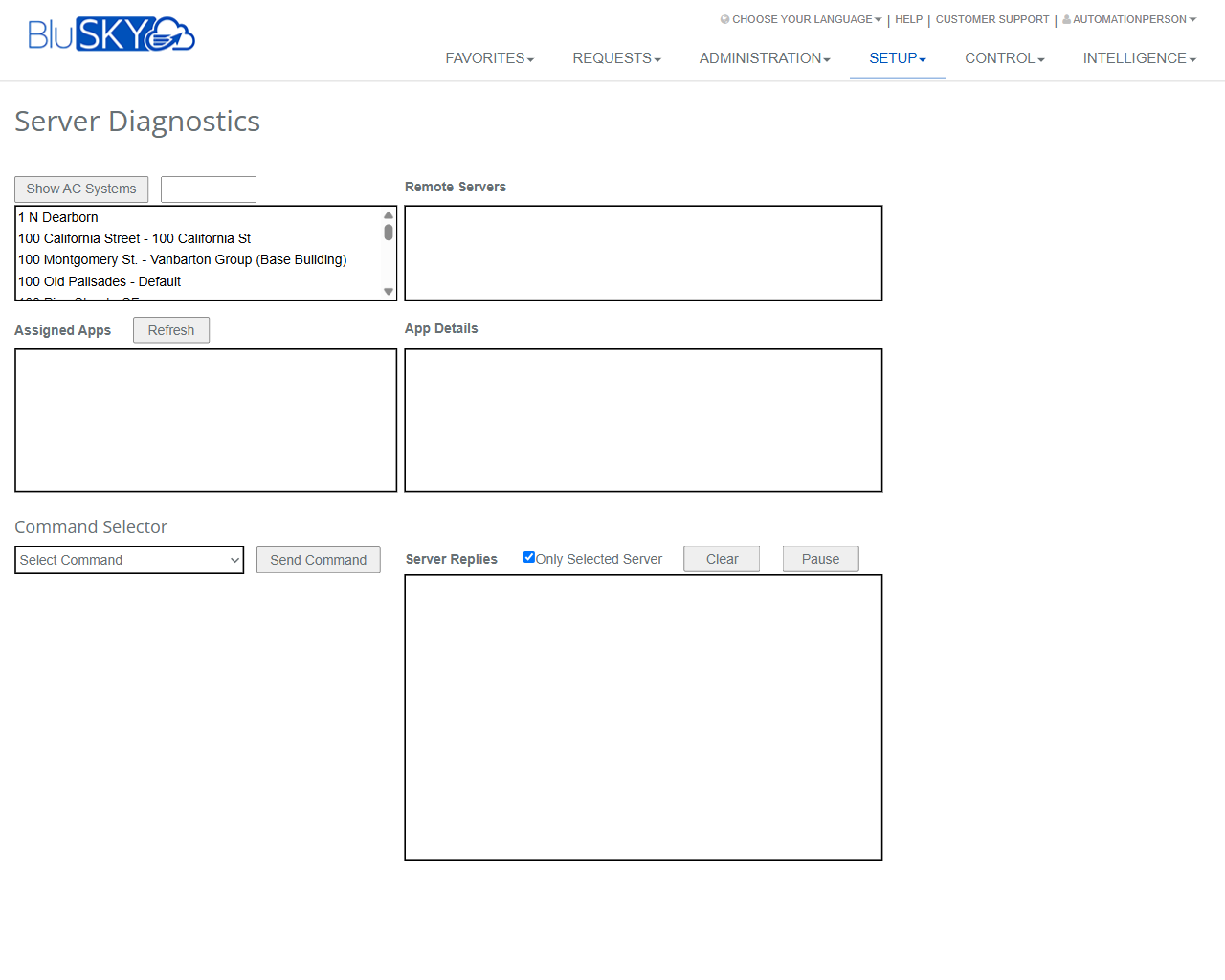
The Server Diagnostics screen provides real-time tools to inspect and interact with remote BluSKY server components assigned to an Access Control (AC) System. Administrators can view available remote servers, inspect assigned apps, review app details, and send diagnostic commands. A live Server Replies pane displays command results and streaming status messages.
Field Definitions
| Field Label | Definition | Notes |
|---|---|---|
| Show AC Systems | Button that reveals or refreshes the AC Systems list. | Use to load or reload available systems. |
| AC Systems | List of available Access Control systems (sites) to diagnose. | Select one system to populate Remote Servers. |
| Remote Servers | List of remote server instances associated with the selected AC System. | Select a server to view apps, details, and to target commands. |
| Assigned Apps | Panel listing applications/services assigned to the selected remote server. | Click an app to display its details. |
| Refresh | Reloads the Assigned Apps list for the selected server. | Useful after deployments or config changes. |
| App Details | Read-only panel showing properties and status of the selected app. | Content updates with each app selection. |
| Command Selector | Section header containing tools to send diagnostics commands. | — |
| Select Command | Drop-down to choose a diagnostic command to execute. | Examples include status, restart, sync (exact options depend on environment). |
| Send Command | Executes the selected command against the chosen remote server(s). | Requires a server selection; results appear in Server Replies. |
| Server Replies | Heading for the live log/output area. | — |
| Only Selected Server | When checked, limits displayed replies to the currently selected server. | Uncheck to view messages from all responding servers. |
| Clear | Clears the Server Replies log display. | Does not affect server-side logs. |
| Pause | Temporarily stops appending new messages to the Server Replies log. | Click again to resume streaming. |
| Server Replies Log | Large output pane showing command responses and status messages. | Read-only; supports streaming updates. |
Screen Actions and Functions
- Select an AC System to load related Remote Servers.
- Select a Remote Server to populate Assigned Apps and enable command targeting.
- Click Refresh to reload the Assigned Apps list for the selected server.
- Choose a command from Select Command and click Send Command to execute it.
- Toggle Only Selected Server to filter the log output by the chosen server.
- Use Clear to wipe the visible log area.
- Use Pause to halt/resume live streaming of replies.
- Use Show AC Systems if the AC Systems list is hidden or needs to be reloaded.
Usage Instructions & Examples
How to check the status of a remote server
- Click Show AC Systems (if needed) and select the desired AC System.
- In Remote Servers, select the target server.
- In Command Selector, open Select Command and choose a status-related command (e.g., Get Status).
- Click Send Command.
- Review results in the Server Replies Log. Enable Only Selected Server to focus messages on your selection.
How to inspect an app assigned to a server
- Select an AC System, then select a Remote Server.
- In Assigned Apps, click an app.
- Read the App Details panel for version, configuration, or state information.
- Click Refresh after any deployment to ensure the list and details are current.
How to restart or resync a service (example)
- Select the appropriate AC System and Remote Server.
- From Select Command, choose a maintenance command such as Restart App or Resync (as available).
- Click Send Command.
- Monitor the Server Replies Log for confirmation and any warnings.
- If output is busy, click Pause to review, then click Pause again to resume streaming.
How to focus log output
- Check Only Selected Server to show messages only from the highlighted server.
- Click Clear to start with a clean log view before sending a new command.
System Behaviors and Edge Cases
- Remote Servers and Assigned Apps populate contextually based on the currently selected AC System and server.
- If no server is selected when you click Send Command, the command is not executed and the system may prompt you to select a server.
- The Pause button stops new messages from appearing but does not stop the running command; messages resume when unpaused.
- Clear removes only the on-screen log text; it does not delete server-side or audit logs.
- Command availability in Select Command can vary by environment, server role, or user permissions.
- If network latency is high, Server Replies may stream in multiple bursts; allow time for completion before sending another command.
- If permissions are insufficient, lists may appear empty or commands may be unavailable.
- Navigating away from the page clears the current context and the Server Replies Log on return.
Permissions
- Access typically restricted to users with elevated operational roles such as System Administrator, Integrator, or Support.
- Viewing AC Systems and Remote Servers requires permissions scoped to those systems.
- Executing commands (Send Command) requires a diagnostics or server-control permission.
- Some commands may require higher privileges than others (e.g., restart vs. read-only status).
Linked Workflows
- AC Systems: Manage system-level configuration that determines which servers appear here.
- Remote App/Service Deployment: After deploying or updating services, use Server Diagnostics to verify app assignment and health.
- Audit Logs/Activity Streams: Review historical records of commands sent and responses.
- Alerts and Notifications: Use diagnostics findings to tune alerting thresholds or investigate incidents.
Reference Image Links