Person Reader
Person Reader Screen
Screen Overview
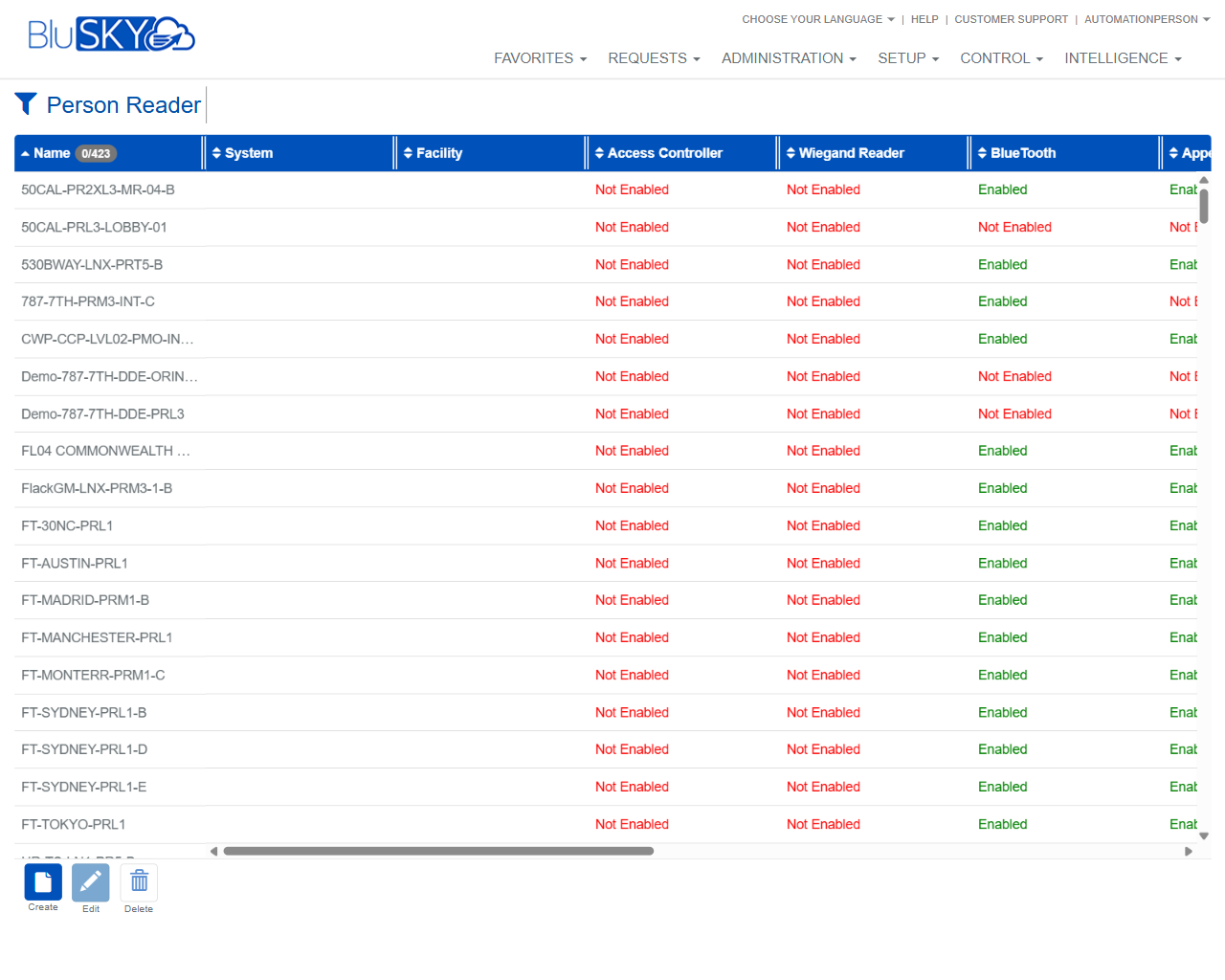
The Person Reader screen lists and manages Person Reader devices and their capabilities. It provides filters for system hierarchy and device features (e.g., Wiegand Reader, Bluetooth, Voice/Appearance Recognition) and a results grid showing whether each capability is enabled per device. From this screen, users can create, edit, or delete Person Reader records.
Field Definitions
| Field Label | Definition | Notes |
|---|---|---|
| System Group | Dropdown to limit results to a specific System Group. | Defaults to All. Use the adjacent refresh icon to reload available groups. |
| System | Dropdown to filter by System within the selected group. | Defaults to All. Use the adjacent refresh icon to reload systems. |
| Facility | Dropdown to filter by Facility within the selected system. | Defaults to All. Use the adjacent refresh icon to reload facilities. |
| Access Control | Tri-state filter for Access Control capability (Either/No/Yes). | Either = no filter; Yes = show devices with capability enabled; No = show devices without it enabled. |
| Wiegand Reader | Tri-state filter for Wiegand Reader capability. | Same tri-state behavior as above. |
| Beacon | Tri-state filter for Beacon capability. | Same tri-state behavior as above. |
| DDE Keypad | Tri-state filter for DDE Keypad capability. | Same tri-state behavior as above. |
| Visitor Access Control | Tri-state filter for Visitor Access Control capability. | Same tri-state behavior as above. |
| Voice Recognition | Tri-state filter for Voice Recognition capability. | Same tri-state behavior as above. |
| Appearance Recognition | Tri-state filter for Appearance Recognition capability. | Same tri-state behavior as above. |
| BlueTooth | Tri-state filter for Bluetooth capability. | Same tri-state behavior as above. |
| Surveillance Camera | Tri-state filter for Surveillance Camera integration. | Same tri-state behavior as above. |
| DDE Server | Tri-state filter for DDE Server association. | Same tri-state behavior as above. |
| Intercom | Tri-state filter for Intercom integration. | Same tri-state behavior as above. |
| Video Recorder | Tri-state filter for Video Recorder integration. | Same tri-state behavior as above. |
| Type to search | Free-text search field to find devices by name or keywords. | Use the X icon to clear the query. A help icon (?) may provide search tips. |
| Name (grid) | The Person Reader device name. | Click column headers to sort. |
| System (grid) | System associated with the device. | Read-only in the list. |
| Facility (grid) | Facility associated with the device. | Read-only in the list. |
| Access Controller (grid) | Shows whether an Access Controller association is enabled. | Displays Enabled (green) or Not Enabled (red). |
| Wiegand Reader (grid) | Shows if Wiegand Reader capability is enabled. | Enabled/Not Enabled. |
| BlueTooth (grid) | Shows if Bluetooth is enabled. | Enabled/Not Enabled. |
| Appearance Recognition (grid) | Shows if Appearance Recognition is enabled. | Enabled/Not Enabled. Other capability columns may also appear depending on screen width. |
Screen Actions and Functions
- Submit – Applies all selected filters and search criteria to refresh the results grid.
- Reset – Clears all filters and the search field back to defaults.
- Create – Opens the form to add a new Person Reader.
- Edit – Opens the selected Person Reader for modification.
- Delete – Removes the selected Person Reader record (subject to permissions).
- Refresh icons next to System Group/System/Facility – Reload the latest options from the hierarchy.
- Column sort – Click any column header in the grid to sort ascending/descending.
- Row selection – Select a single row to enable Edit and Delete.
- Search help (?) – Displays guidance for using the search field (when available).
- Clear search (X) – Clears the current search query.
Usage Instructions & Examples
How to filter Person Readers by capability within a facility
- Choose the appropriate System Group, System, and Facility.
- Set BlueTooth to Yes (leave other capability filters at Either).
- Click Submit to view all Bluetooth-enabled Person Readers at that facility.
How to find devices that do not have a Wiegand Reader
- Optionally choose System Group/System/Facility to scope results.
- Set Wiegand Reader to No.
- Click Submit.
How to search by name
- Enter part of the device name (e.g., “PRL1”) in Type to search.
- Click Submit to return matching devices.
How to create a new Person Reader
- Click Create.
- Complete the required fields in the creation form (e.g., name, system/facility, and any capabilities).
- Save. The new device will appear in the grid after you click Submit or the list refreshes.
How to edit an existing Person Reader
- Select a device row in the grid.
- Click Edit, adjust details, and Save.
How to delete a Person Reader
- Select the device row.
- Click Delete and confirm the action.
System Behaviors and Edge Cases
- Capability filters are tri-state: Either applies no filter; Yes returns devices with the feature enabled; No returns devices where the feature is not enabled.
- The results grid will not update until you click Submit after changing filters or search text.
- Enabled/Not Enabled states are color-coded (green/red) for quick scanning.
- If no records meet the criteria, the grid will display no rows.
- Edit and Delete actions remain disabled until exactly one row is selected.
- The refresh icons next to hierarchy dropdowns pull the latest System/Facility lists without reloading the page.
- Horizontal scrolling may appear to reveal additional capability columns on smaller screens.
Permissions
- Viewing the Person Reader screen requires access to Setup modules for hardware/devices.
- Create, Edit, and Delete actions require elevated permissions to manage devices (typically administrator-level roles).
- Users scoped to specific System Groups/Facilities will only see devices within their scope.
- Some tenants may grant view-only access; in that case, Create/Edit/Delete buttons are hidden or disabled.
Linked Workflows
- Access Controller configuration – associate Person Readers with controllers and Wiegand interfaces.
- Visitor Access Control – include Person Readers in visitor flows when that capability is enabled.
- Recognition services – enroll or manage Voice/Appearance Recognition where supported.
- Intercom and Surveillance – link devices to Intercoms, Video Recorders, or Surveillance Cameras when those integrations are required.
- System/Facility administration – ensure the System and Facility records exist and are accurate before creating Person Readers.
Reference Image Links