Elevator Sio Board
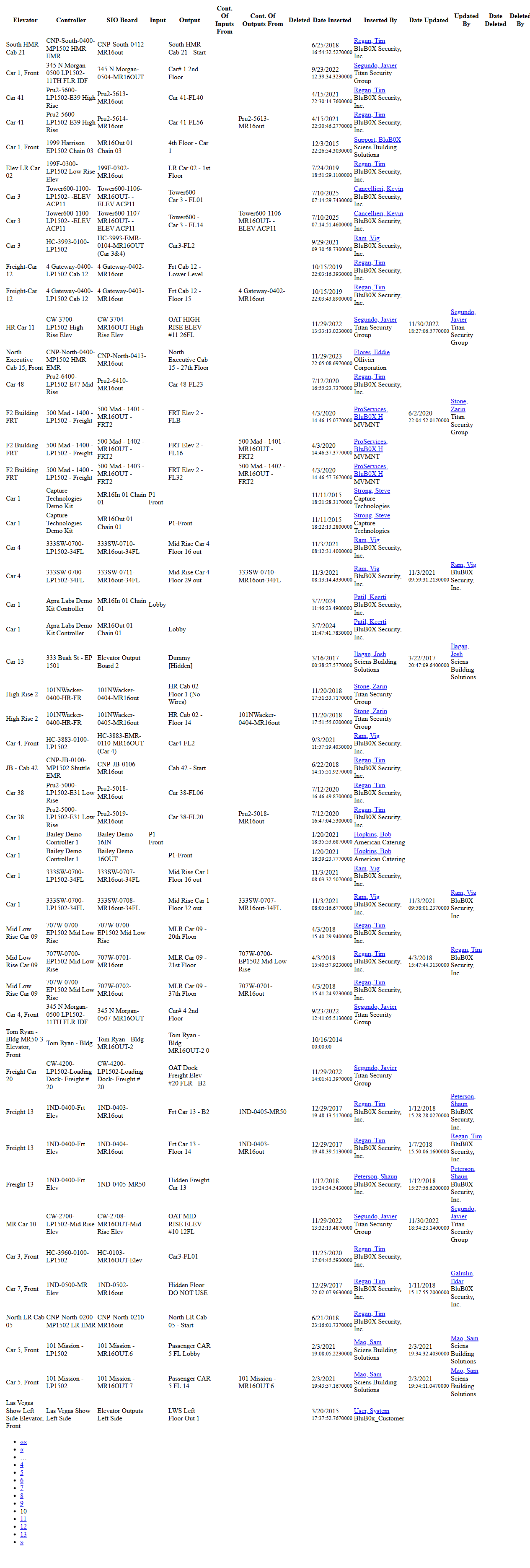
Elevator SIO Board List
Screen Overview
The Elevator SIO Board List screen provides a searchable list of elevator Serial I/O (SIO) boards configured in BluSKY. It is used to locate SIO boards by system and controller, review mapped inputs/outputs, and open records for view, edit, or deletion. Administrators use this screen during elevator hardware setup and troubleshooting.
Field Definitions
| Field Label | Definition | Notes |
|---|---|---|
| System | Filters results to SIO boards within a specific access control system. | Dropdown; optional. |
| Controller | Filters results to boards connected to a specific elevator or Mercury controller. | Dropdown; values are constrained by System (if selected). |
| Search Text | Free-text search against the SIO board dataset. | Placeholder shows “Name”; accepts partial matches. |
| View | Status filter for the result set. | Default = All Active; other statuses may include Inactive or Deleted (if permitted). |
| Submit | Executes the search with the selected criteria. | Required to refresh results after changing criteria. |
| Reset | Clears all criteria and restores default filters. | Returns the page to initial state. |
| Record Count | Displays the number of records returned by the current filter. | Shown as a badge above the grid (e.g., “643”). Read-only. |
| Row Selector | Radio button used to select a single record in the grid. | Required before using View, Edit, or Delete. Single-select. |
| Elevator | Name/identifier of the elevator car or group associated with the SIO board. | Grid column; clickable on View/Edit. |
| Controller (grid) | The controller to which the SIO board is connected. | Read-only in list; editable inside the record. |
| SIO Board | The specific SIO board (e.g., MR16OUT chain reference). | Identifies board model/chain or logical name. |
| Input | The input point or source linked to the SIO board. | May be blank if not configured. |
| Output | The output point mapped from the SIO board. | Column appears when data exists; may be empty for input-only mappings. |
| Pagination | Navigation to move through result pages. | Includes first/prev/numbered/next/last controls at the bottom of the grid. |
Screen Actions and Functions
- Create – Opens a form to add a new Elevator SIO Board configuration.
- View – Opens the selected SIO board in read-only mode.
- Edit – Opens the selected SIO board for modification.
- Delete – Soft-deletes the selected SIO board (remains available in audit history).
- Expand – Shows an expanded audit/detail view with additional columns (e.g., Output, Count of Inputs/Outputs, Inserted/Updated/Deleted By and Dates).
- Submit – Runs the search using current criteria.
- Reset – Clears filters and reloads defaults.
- Row click – Highlights a record and enables record-level actions.
Usage Instructions & Examples
How to find an SIO board
- Choose a System (optional) and Controller (optional).
- Enter a keyword in Search Text (e.g., “MR16out” or an elevator car name).
- Set View to All Active (or another status as needed).
- Click Submit. Use Pagination to navigate large result sets.
How to view or edit an SIO board
- Run a search and locate the desired row.
- Select the Row Selector for that record.
- Click View to review details or Edit to modify mappings and properties.
- Save changes in the edit form to apply updates.
How to add a new SIO board
- Click Create.
- Complete required fields such as System, Controller, SIO Board identifier, and any Input/Output mappings.
- Save. The new board appears in the list when the filter is re-submitted.
How to review audit history and technical details
- After searching, click Expand.
- Review additional columns including Output, Counts of Inputs/Outputs, and audit fields (Inserted/Updated/Deleted By and Dates).
- Use browser back or the standard list navigation to return to the main grid.
How to remove an SIO board
- Search and select the target record with the Row Selector.
- Click Delete and confirm. The board becomes soft-deleted.
- To verify, change View to include Deleted (if available) and Submit.
System Behaviors and Edge Cases
- The grid defaults to All Active; records with other statuses are hidden until View is changed and the query is re-submitted.
- A row must be selected before View, Edit, or Delete becomes actionable.
- Expand displays additional operational and audit columns; performance may be slower for very large datasets.
- Input or Output columns may be empty if a board is partially configured (e.g., inputs only).
- Reset restores default criteria and clears the current result set until Submit is clicked again.
- Delete is a soft-delete; records remain in the database for audit and can be surfaced when viewing non-active statuses (if your role allows).
- Pagination appears automatically when results exceed one page; the current page is highlighted.
- If no criteria are entered and Submit is not clicked, the page displays guidance text indicating that search criteria must be selected.
Permissions
- Access typically limited to Global Administrators, Integrators, and Tenant Administrators with hardware setup permissions.
- Create/Edit/Delete require elevated rights specific to Elevator hardware configuration (e.g., “Manage Elevator Hardware” or equivalent).
- Users without edit rights can search and View but cannot modify or Delete.
- Visibility of Deleted records and audit columns in Expand may be restricted by role.
Linked Workflows
- After creating an SIO board, map elevator inputs and outputs used for car calls, floor relays, and interlocks.
- Associate boards to the correct Elevator Controller during system commissioning.
- Test input/output activity via Control tools (e.g., device status/monitoring) after configuration.
- Use Intelligence/Reports to audit SIO board changes and troubleshooting history.
Reference Image Links