Elevator Car Beta
Elevator Car Screen
Screen Overview
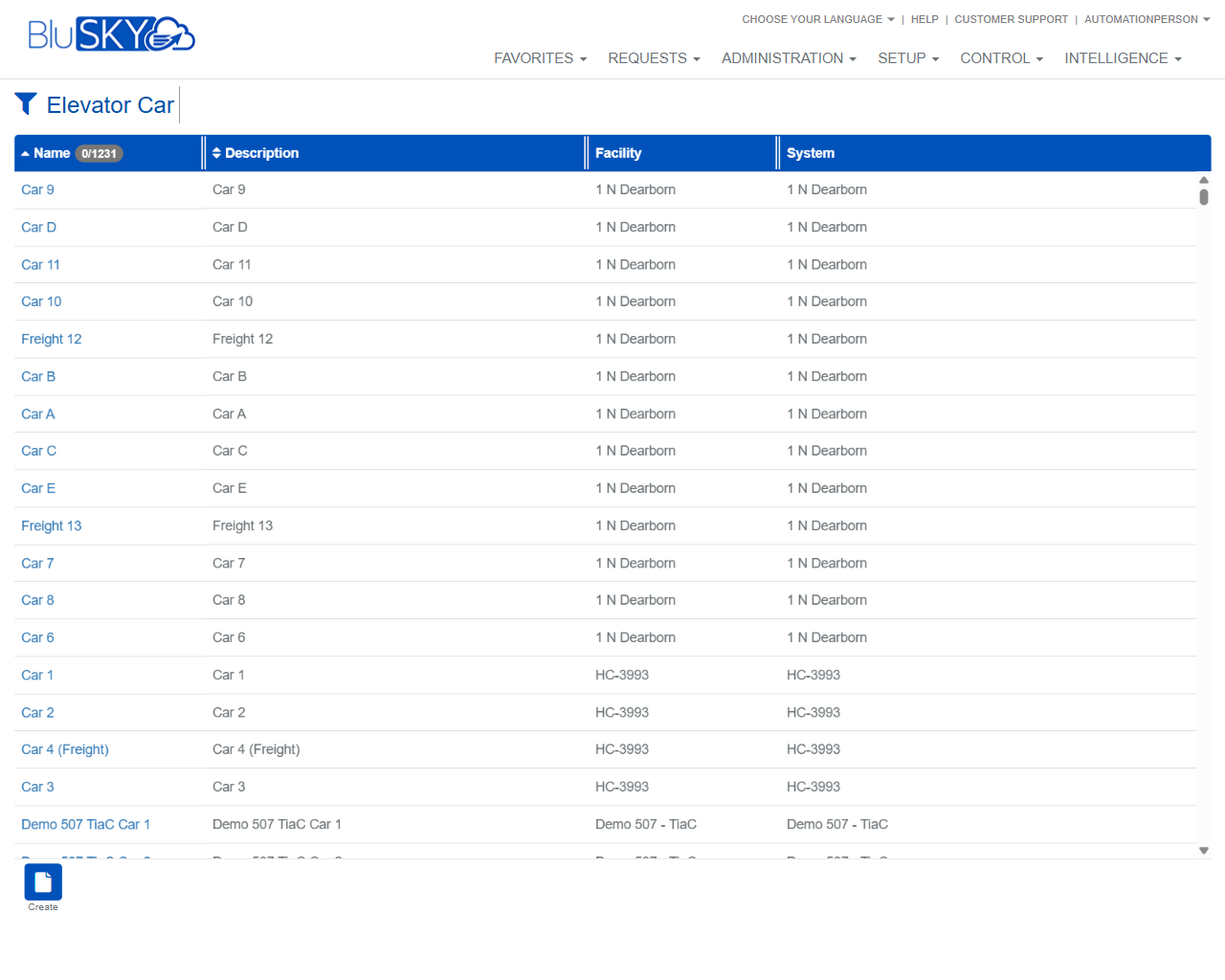
The Elevator Car screen allows administrators to search, review, and create elevator car records within BluSKY. It provides scoped filters by System Group, System, and Facility, along with text-based search options. Results are displayed in a sortable grid with links to open individual elevator car records.
Field Definitions
| Field Label | Definition | Notes |
|---|---|---|
| System Group | Limits results to elevator cars within the selected system group. | Dropdown. Refresh icon reloads available groups based on user scope. |
| System | Filters by a specific connected system. | Dropdown. Options are constrained by the selected System Group; refresh icon repopulates. |
| Facility | Filters elevator cars to a single facility/site. | Dropdown. Options reflect the selected System; refresh icon repopulates. |
| Search Text | Free-text search across elevator car Name or Elevator Car ID. | Supports partial matches. Clear (X) removes the entry. Help (?) shows tips. |
| Device Name | Filters by associated device name. | Text field with Help (?) and Clear (X). Optional. |
| Search | Status filter to include Active, Inactive, or All records. | Defaults to Active. Dropdown with refresh icon. |
| Name | The elevator car’s display name. | Grid column. Click the name to open the record. Sortable. |
| Description | Additional descriptive text for the car. | Grid column. Sortable. |
| Facility (Column) | The facility where the elevator car resides. | Grid column. Sortable. |
| System (Column) | The system the elevator car belongs to. | Grid column. Sortable. |
Screen Actions and Functions
- Create – Opens the form to add a new elevator car record.
- Submit – Executes the search using the selected filters and displays results.
- Reset – Clears all filters to their default values.
- Field Refresh (circular arrow) – Reloads the choices for the adjacent dropdown.
- Help (?) – Displays guidance for the adjacent field.
- Clear (X) – Clears the adjacent text field.
- Sort Grid – Click any column header to sort ascending/descending.
- Open Record – Click a Name link to view or edit the elevator car.
Usage Instructions & Examples
How to find an elevator car by name or ID
- In Search Text, enter part of the car’s name or its Elevator Car ID.
- Optionally choose System Group, System, and Facility to narrow results.
- Ensure Search is set appropriately (e.g., Active).
- Click Submit to view matching records. Click the Name to open details.
How to filter by device name
- Enter a value in Device Name.
- Select System and Facility if known.
- Click Submit to return cars associated with that device context.
How to reset and start a new search
- Click Reset to clear all filters to defaults.
- Re-enter filters and click Submit.
How to create a new elevator car
- Click Create.
- Complete required fields on the creation form (name, associations, etc.).
- Save. You will return to the list where the new car appears.
System Behaviors and Edge Cases
- Cascading filters: System options depend on System Group; Facility options depend on System.
- Default status: Search defaults to Active to optimize performance.
- Text search is case-insensitive and supports partial matches.
- If filters are changed, click Submit to refresh results; field-level refresh only reloads dropdown options.
- Large result sets load in a scrollable grid; sorting re-queries the list.
- If a user lacks scope to a System/Facility, it will not appear in dropdowns or results.
- Clearing all filters and setting Search to All may return a large dataset and take longer to load.
Permissions
- Screen access requires a role with elevator configuration privileges (e.g., Manage Elevator Cars).
- Create is available only to users with create permissions for elevator configuration.
- Users with read-only permissions can search and view results but cannot create or edit.
- Visible Systems and Facilities are restricted by the user’s assigned scope.
Linked Workflows
- After creating an elevator car, proceed to configure car details (e.g., served floors, associations) in the car’s detail view.
- Tie elevator cars to schedules and access rules as part of elevator access control configuration.
- Use related setup pages (Systems, Facilities, Devices) to manage dependencies that appear in the dropdown filters.
Reference Image Links