Companies
Company List
Screen Overview
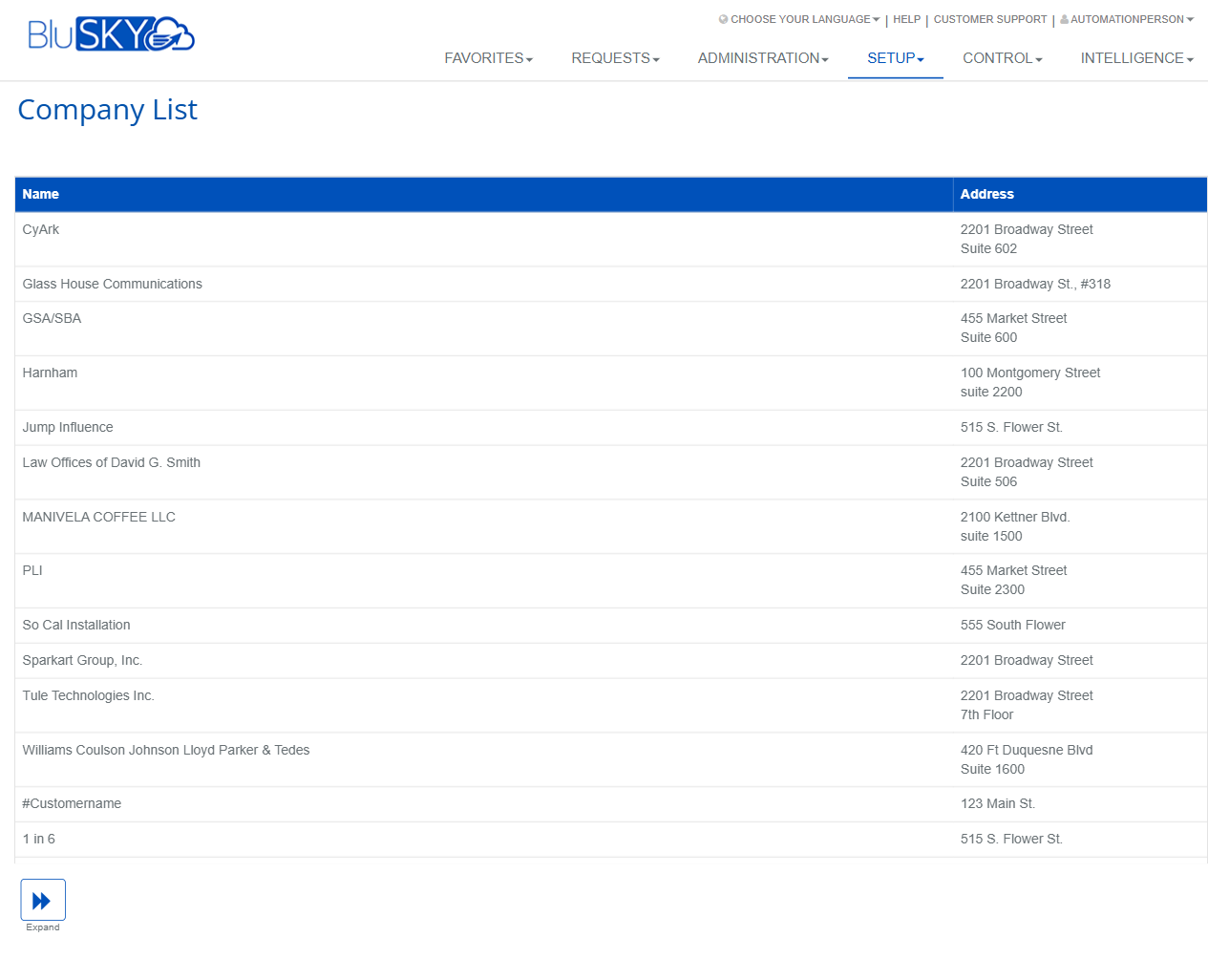
The Company List screen provides a searchable list of all company records configured in BluSKY. It displays each company’s name and primary address and offers actions to view, edit, or delete a selected company. Administrators use this screen to maintain tenant, vendor, or internal company profiles that other BluSKY features reference.
Field Definitions
| Field Label | Definition | Notes |
|---|---|---|
| Name | The display/legal name of the company as stored in BluSKY. | Click a row to select the company. Selected rows are highlighted. |
| Address | The company’s primary address shown in multi-line format (street, suite, etc.). | Read-only on the list; editable within the Edit action. |
| Selected Count (header) | Indicator in the page title showing how many records are currently selected out of the total results (e.g., “1/14817 selected”). | Updates dynamically as you select/deselect rows; actions enable based on selection. |
Screen Actions and Functions
- Select Row – Click a company row to select or deselect it. The Selected Count updates.
- View – Opens the selected company in read-only mode to review full details.
- Edit – Opens an edit form for the selected company to update fields such as Name or Address.
- Delete – Removes the selected company record from active use. May be blocked if the company is referenced elsewhere.
- Expand – Loads additional records into the list (progressive pagination).
- Action Availability – View/Edit require exactly one selected row; Delete may allow one or more (based on permissions); Expand is always available.
Usage Instructions & Examples
How to View a Company
- Click a row in the list to select a company.
- Confirm the header shows “1 selected.”
- Click View to open the company details.
How to Edit a Company’s Address
- Select the target company row.
- Click Edit.
- Update the Address fields as needed.
- Save. Return to the list to confirm the new address appears.
How to Delete a Company
- Select the company (or companies, if permitted).
- Click Delete.
- Confirm the deletion in the prompt. If deletion is blocked, review the message and resolve dependencies (e.g., people or credentials tied to the company).
How to Load More Results
- Scroll to the bottom of the list.
- Click Expand to append the next set of companies.
- Repeat until you reach the desired record set.
System Behaviors and Edge Cases
- Actions remain hidden or disabled until a valid selection is made.
- In environments with limited permissions, only the Expand button may be visible; View/Edit/Delete will be hidden.
- Selected Count in the header reflects current selection and total results returned to the page.
- Multi-line addresses increase the row height; data remains read-only in the list.
- Delete may be prevented if the company is referenced by people, credentials, access levels, or other dependencies; the system displays a blocking message.
- When additional rows are loaded via Expand, existing selections persist until the page is refreshed or navigated away from.
- If no records match current filters (if applied elsewhere), the list renders empty but Expand remains available to fetch more.
Permissions
- Access typically granted to Global Administrators, Property/Building Administrators, and Tenant Administrators with Manage Companies permission.
- View requires Read permission on Companies.
- Edit requires Write permission on Companies.
- Delete requires Delete permission on Companies; action may be hidden or disabled if not granted.
- Expand is available to all users who can access the list.
Linked Workflows
- People – Create and manage person records associated with the selected company.
- Credentials/Badging – Issue and manage credentials for people within the company.
- Access Levels – Assign access levels to company personnel.
- Reporting (Intelligence) – Run activity and inventory reports filtered by company.
- Visitor Management – Configure visitor hosts and company details used during check-in.
Reference Image Links