Camera Mapping
Camera Mapping
Screen Overview
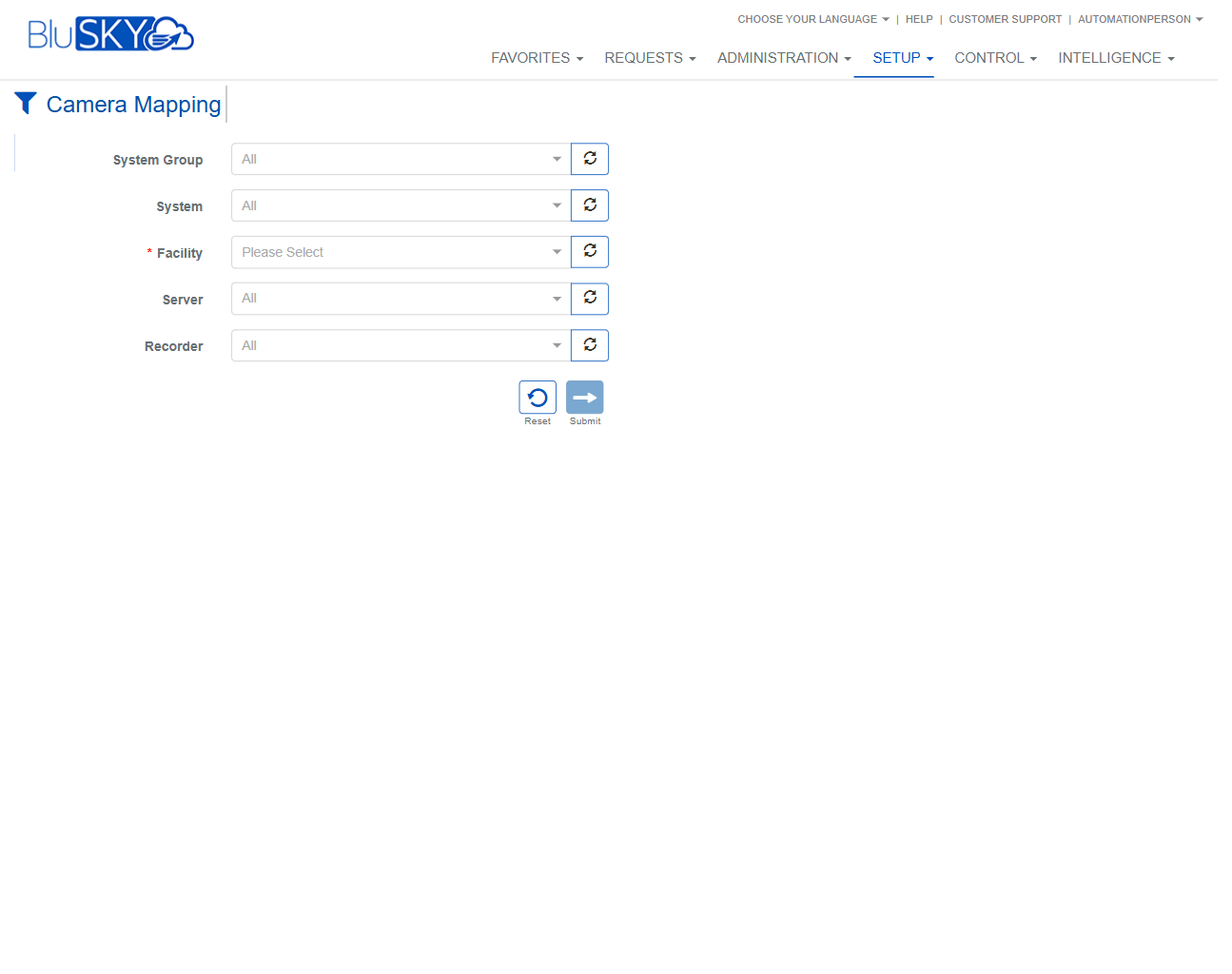
The Camera Mapping screen is used to load the camera-mapping workspace for a selected site. It provides hierarchical filters (System Group → System → Facility → Server → Recorder) so you can narrow the scope before proceeding to map cameras.
Field Definitions
| Field Label | Definition | Notes |
|---|---|---|
| System Group | High-level grouping of systems within the tenant used to filter Systems. | Optional. Default = All. Changing this repopulates the System list. |
| System | The specific system within the selected System Group. | Optional. Default = All. Filters available Facilities. |
| Facility | The site whose cameras will be mapped. | Required (red asterisk). Must be selected before submitting. |
| Server | Video server in the selected Facility that hosts recorders/cameras. | Optional. Filters the Recorder list. |
| Recorder | Specific recorder/NVR/DVR whose cameras you intend to map. | Optional. Further narrows results to one recorder. |
Screen Actions and Functions
- Submit – Applies the selected filters and opens the camera mapping results for the chosen scope.
- Reset – Clears all filters back to their defaults.
- Refresh (circular arrow next to each filter) – Reloads the picklist for that field based on any upstream changes.
Usage Instructions & Examples
How to open the Camera Mapping workspace for a site
- Choose a System Group (or leave as All).
- Choose a System (or leave as All).
- Select a Facility (required).
- Optionally select a Server and/or Recorder to narrow the scope.
- Click Submit to load the mapping results for the selected context.
How to refresh device lists after configuration changes
- If you have just added/changed a System, Facility, Server, or Recorder elsewhere, return to this screen.
- Click the Refresh icon beside the relevant field to reload its available options.
- Re-select values as needed and click Submit.
System Behaviors and Edge Cases
- Facility is required; attempting to submit without a Facility will block submission and prompt for selection.
- Filters are hierarchical. Changing an upper-level filter (e.g., System Group) clears and repopulates dependent fields below it.
- The All option includes every available item for that level and is useful for broad searches.
- Refresh only repopulates the targeted field and its dependents; if a previous selection is no longer valid, it will be cleared.
- If no Servers or Recorders are available for the selected Facility, those lists will appear empty (or show only All).
Permissions
- Access typically limited to users with Setup privileges for video configuration (e.g., administrators or operators authorized for Camera Mapping).
- Some tenants may restrict Submit to users with configuration rights while allowing view access to others.
- Visibility of Systems/Facilities is subject to the user’s tenant and scope assignments.
Linked Workflows
- Prerequisite: Configure Systems, Facilities, Servers, and Recorders before using Camera Mapping.
- After Submit: Continue in the Camera Mapping results/editor to associate cameras to entities (e.g., doors, areas, or other objects).
- Related setup: Video Server/Recorder configuration and device discovery workflows.
Reference Image Links