Triggers
Trigger List Screen
Screen Overview
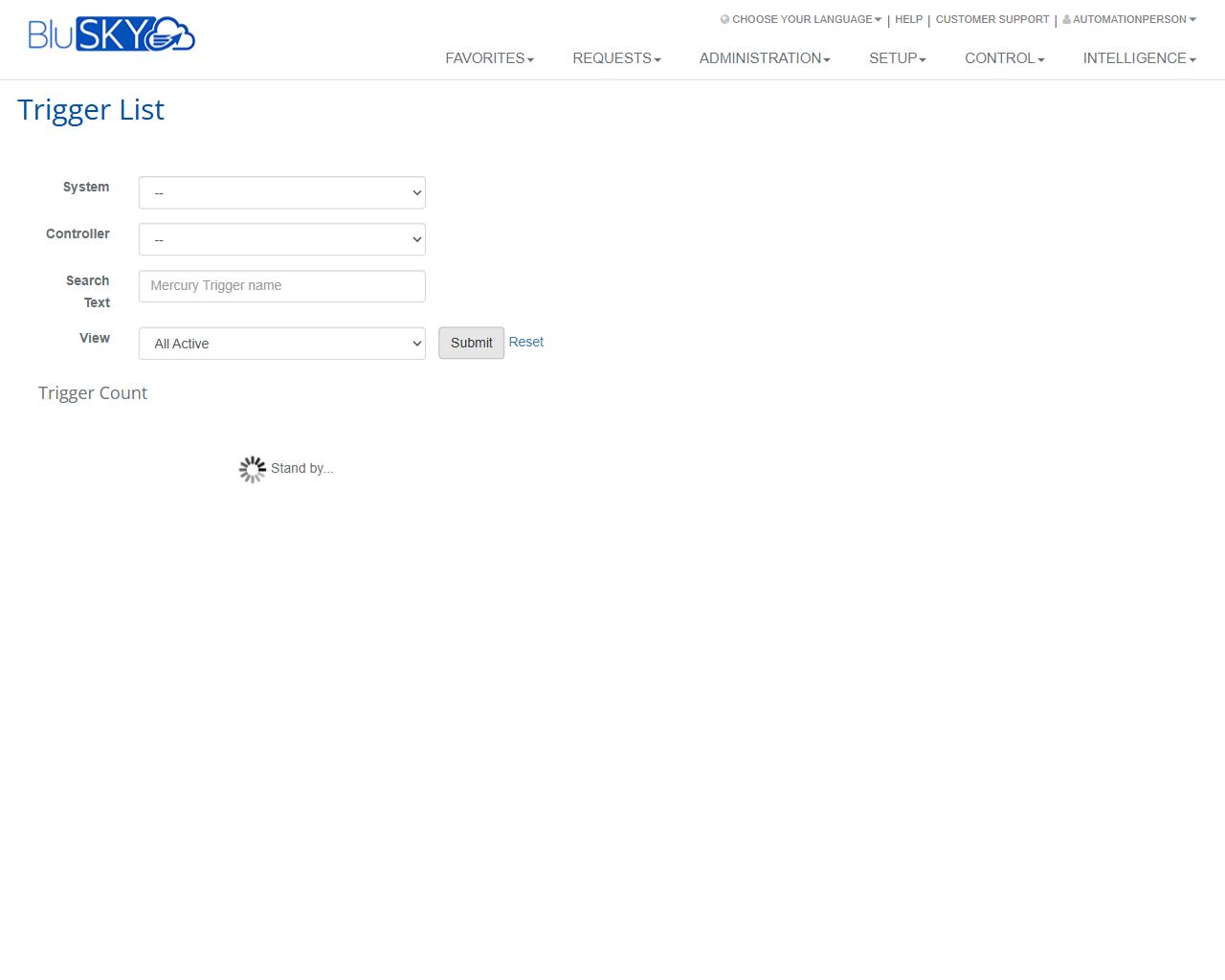
The Trigger List screen allows administrators to search and review controller trigger definitions within a selected BluSKY System. Use the filters to narrow results by System, Controller, trigger name, and status, then run the query to display matching triggers.
Field Definitions
| Field Label | Definition | Notes |
|---|---|---|
| System | Dropdown to choose the BluSKY System whose triggers you want to view. | Required to populate Controller choices and return results. |
| Controller | Dropdown to limit results to a specific controller within the selected System. | Options are dependent on the selected System. May be left blank to include all controllers. |
| Search Text | Free-text filter for trigger names. | Placeholder indicates “Mercury Trigger name.” Supports partial, case-insensitive matches. |
| View | Status filter for the list of triggers. | Default is “All Active.” Available options depend on configuration. |
| Submit | Executes the search using the selected filters. | Pressing Enter in Search Text also submits (if enabled by browser). |
| Reset | Clears all filters to their defaults and removes the current result set. | Use to start a new search quickly. |
| Trigger Count | Displays the number of triggers returned by the last query. | Updates after Submit; shows 0 when no matches are found. |
| Results Area | The section where matching triggers are listed after a search. | Shows a loading indicator (“Stand by…”) while results are retrieved. |
Screen Actions and Functions
- Submit – Run the query and display matching triggers.
- Reset – Clear all filters and return to default values.
- Open Trigger – In the results list, click a row to view or edit that trigger (when available based on permissions).
Usage Instructions & Examples
-
Filter all active triggers for a specific System
- Select the desired System.
- Leave Controller blank to include all controllers.
- Ensure View = All Active.
- Click Submit to display results and review the Trigger Count.
-
Find a trigger by name on a controller
- Select the System.
- Select the relevant Controller.
- Enter a full or partial name in Search Text.
- Click Submit, then select a trigger from the results to open it.
-
Clear filters and start a new search
- Click Reset.
- Re-enter the desired filters.
- Click Submit.
System Behaviors and Edge Cases
- The Controller list is not populated until a System is selected.
- Leaving Search Text blank returns all triggers that match System/Controller/View filters.
- While fetching data, a “Stand by…” spinner appears in the results area.
- If no records match, the results area is empty and Trigger Count shows 0.
- Large result sets may take longer to load; do not navigate away until loading completes.
- If your account lacks access to the selected System, the lists may appear empty even when data exists.
Permissions
- Accessible to users with Setup privileges for the selected System (e.g., Global Administrators or Tenant Administrators with appropriate rights).
- Ability to open and edit individual triggers depends on trigger-level permissions and role assignments.
- Read-only users can search and view results but cannot modify trigger definitions.
Linked Workflows
- From a trigger’s detail page, configure trigger conditions and outputs associated with the selected controller.
- Triggers may be referenced by related controller features such as I/O, door control, elevator control, or alarm actions.
- Audit and reporting workflows can reference trigger activity and status.
Reference Image Links