Manage BluPOINT Firmwares
Manage BluPOINT Firmwares Screen
Screen Overview
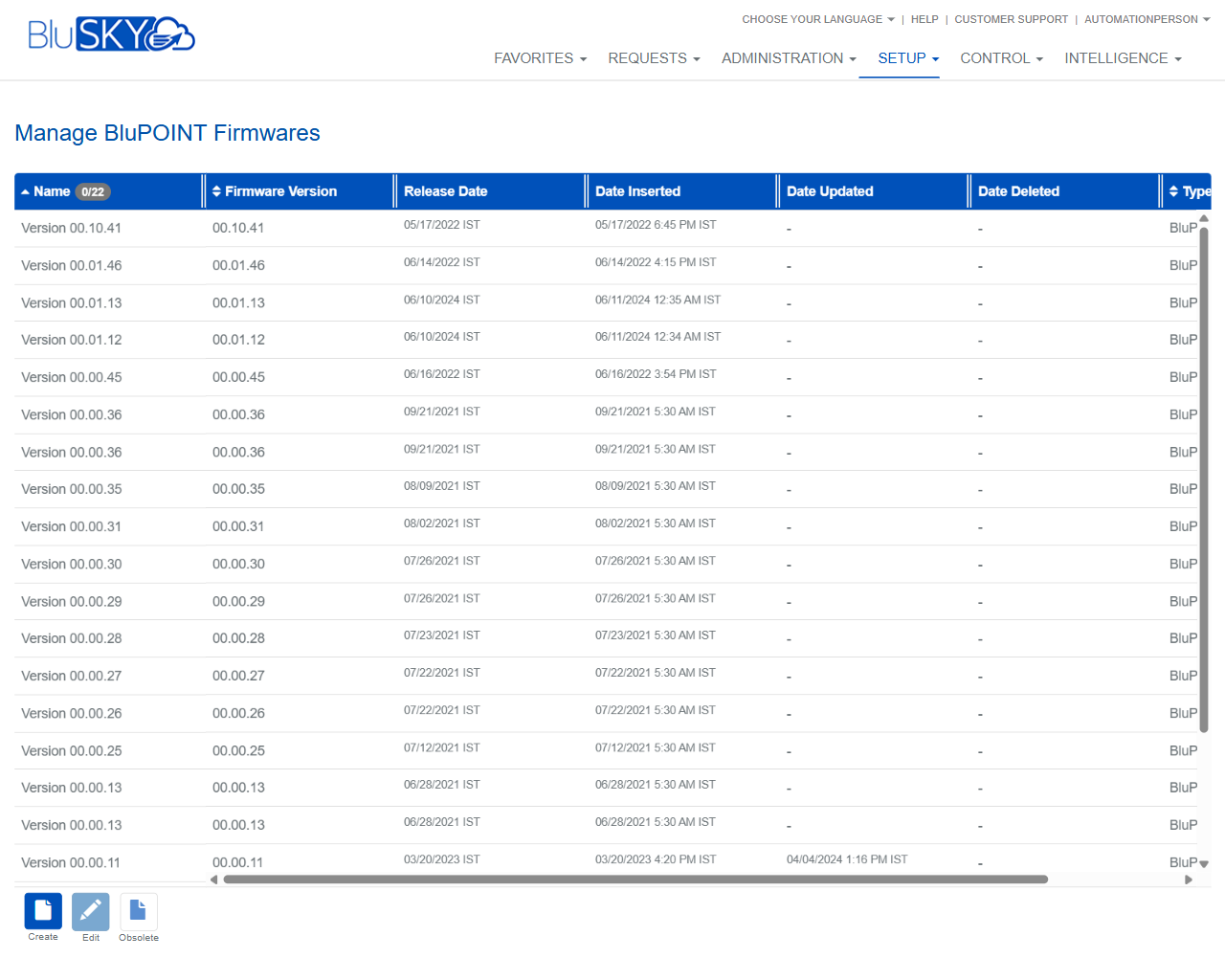
The Manage BluPOINT Firmwares screen lists all firmware versions available for BluPOINT devices. Administrators can create new firmware records, edit metadata, and mark older firmware as obsolete. The grid displays version identifiers, release timing, and system audit dates to support deployment planning and compliance tracking.
Field Definitions
| Field Label | Definition | Notes |
|---|---|---|
| Name | Display name of the firmware package (e.g., “Version 00.10.41”). | Should clearly identify the build; commonly mirrors the firmware version. |
| Firmware Version | The exact firmware version string used by devices for comparison. | Must be unique; used to determine upgrade eligibility. |
| Release Date | Date/time the version was released for use. | Shown in the user’s time zone (e.g., IST). |
| Date Inserted | System timestamp when the firmware record was created. | Read-only; system-generated. |
| Date Updated | System timestamp of the most recent modification to the record. | Read-only; updates on save. |
| Date Deleted | Timestamp populated when the firmware is marked obsolete. | Read-only; indicates soft-delete/retirement. |
| Type | Product line or package type associated with the firmware (e.g., BluPOINT). | Usually fixed to BluPOINT for this screen. |
| Selection Count | Indicator showing number of selected rows vs. total (e.g., “0/22” in header). | Read-only; helps confirm multi-select actions. |
Screen Actions and Functions
- Create – Opens a form to add a new BluPOINT firmware record.
- Edit – Allows modification of the selected firmware’s metadata.
- Obsolete – Retires the selected firmware; sets Date Deleted and hides it from active picklists.
- Row Select – Click a row to select; actions apply to selected rows. Multi-select is supported where permitted.
- Column Sort – Click any column header to sort ascending/descending.
Usage Instructions & Examples
How to Add a New Firmware Version
- Click Create.
- Enter Name and Firmware Version.
- Set Release Date and confirm Type = BluPOINT.
- Save. The new version appears in the grid with Date Inserted populated.
How to Update Metadata for an Existing Version
- Select the desired firmware row.
- Click Edit.
- Modify allowed fields (e.g., Name or Release Date).
- Save. Date Updated reflects the change.
How to Retire an Outdated Firmware
- Select one or more firmware rows to retire.
- Click Obsolete.
- Confirm the prompt. The records remain listed with Date Deleted populated and are excluded from active deployment lists.
How to Quickly Find the Latest Version
- Click the Firmware Version column header to sort descending.
- Verify the topmost entry is the highest version before scheduling device updates.
System Behaviors and Edge Cases
- Firmware Version must be unique; duplicates are blocked.
- Obsolete performs a soft-delete: Date Deleted is set; the record remains for audit/history.
- Obsolete is typically irreversible in the UI; create a new record if a version needs to be reinstated.
- If a firmware is referenced by pending deployments, some fields may be locked until the deployment completes or is canceled.
- Times display in the user’s configured time zone (e.g., IST in the screenshot).
- Edit and Obsolete actions are disabled when no rows are selected; Edit usually requires exactly one selection.
- Sorting does not change data; it only affects display order.
Permissions
- Accessible to Global Administrators and Integrators with Firmware Management permission.
- Create, Edit, and Obsolete require the ManageBluPOINTFirmware (or equivalent) privilege.
- Users without management rights may have read-only access to view versions.
Linked Workflows
- After adding a firmware version, schedule device upgrades from the BluPOINT Devices/Controllers management screens.
- Obsoleted versions no longer appear in firmware selection lists for new upgrade jobs.
- Audit reports can reference Date Inserted/Updated/Deleted to verify deployment governance.
Reference Image Links