Facilities
Facility List Screen
Screen Overview
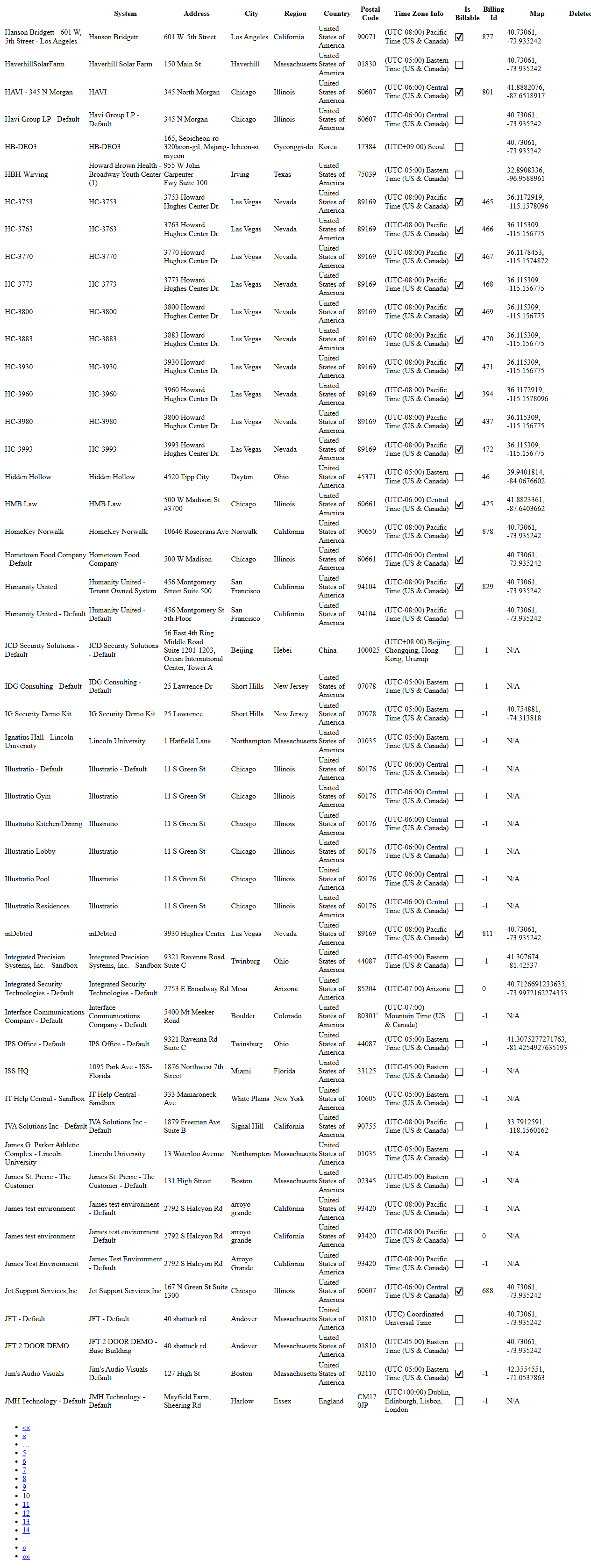
The Facility List screen provides a searchable, paginated list of all facilities configured in BluSKY. It displays key location and system details and offers actions to create, view, edit, delete, check sync status, generate a narrative report, and toggle an expanded view that reveals additional facility attributes. This screen is typically used by administrators and integrators to manage the facility catalog and quickly navigate to detailed setup.
Field Definitions
| Field Label | Definition | Notes |
|---|---|---|
| Facility | Name of the facility. | Click to select the row. Acts as the primary identifier in the list. |
| System | The BluSKY system associated with the facility. | Displays the top-level system name mapped to the facility. |
| Address | Street address for the facility. | May include suite or floor information. |
| City | City where the facility is located. | Read-only in the list. |
| Region | State, province, or administrative region. | Labeled as Region in the grid. |
| Country | Country of the facility. | Visible in Expanded view. |
| Postal Code | Postal or ZIP code. | Visible in Expanded view. |
| Time Zone Info | Facility time zone with GMT offset and region label. | Visible in Expanded view; read-only. |
| Is Billable | Indicates if the facility is billable. | Checkbox shown in Expanded view; set from the Edit form. |
| Billing Id | Internal billing identifier for the facility. | Numeric; visible in Expanded view. |
| Map | Stored map coordinates for the facility (latitude, longitude). | Visible in Expanded view; read-only. |
| Delete | Inline selector used to mark a row for deletion in printed/expanded listings. | Final deletion is performed with the Delete action. |
| Facility Count | Total number of facilities returned by the current criteria. | Appears above the grid (e.g., “Facility Count 1048”). |
| Selection Status | Displays how many rows are currently selected. | Shows when items are selected (e.g., “(1/50 selected)”). |
| Criteria | Collapsible filter panel for narrowing results. | Closed by default in screenshots; use to filter the list. |
| Pagination | Page navigation controls below the grid. | Includes page numbers and next/previous/last controls. |
| Sortable Column Headers | Clickable headers used to sort the list by a column. | Sort applies to current criteria across pages. |
| Row Selection | Highlight/selection of a row for actions. | Supports multi-select up to the limit shown near Selection Status. |
Screen Actions and Functions
- Create – Opens the form to add a new facility.
- View – Opens a read-only view of the selected facility’s details.
- Edit – Opens the selected facility for modification.
- Delete – Removes the selected facility records after confirmation (subject to dependency checks).
- Sync Status – Checks and displays synchronization status between BluSKY and the underlying system for the selected facility.
- Generate Essay – Produces a narrative summary report for the selected facility.
- Expand – Toggles an expanded list view that shows additional columns (Country, Postal Code, Time Zone Info, Is Billable, Billing Id, Map, Delete).
- Pagination controls – Navigate between pages of results.
Usage Instructions & Examples
How to find and open a facility
- (Optional) Click Criteria and enter filters such as City or Region; apply the criteria.
- Use the column headers to sort by Facility or City as needed.
- Click a facility row to select it, then click View to open the details.
How to create a new facility
- Click Create.
- Complete required fields such as Facility, Address, City, Region, and assign the System.
- Set optional fields (e.g., Time Zone, Billing Id).
- Save. The new facility appears in the list and is included in the Facility Count.
How to edit an existing facility
- Select a single facility row.
- Click Edit.
- Update the necessary fields (e.g., Address, Time Zone Info, Is Billable).
- Save to apply changes.
How to delete facilities
- Select one or more facility rows.
- Click Delete.
- Confirm the deletion in the prompt. Records that have dependent data will be blocked with an error.
How to use expanded view
- Click Expand to switch to the Expanded view.
- Review additional columns (Country, Postal Code, Time Zone Info, Is Billable, Billing Id, Map).
- Click Expand again to return to the standard view.
How to check sync status
- Select a facility.
- Click Sync Status to retrieve the latest integration status for that facility’s system.
How to generate a narrative report
- Select a facility.
- Click Generate Essay to produce the narrative summary. Follow on-screen prompts to view or download.
System Behaviors and Edge Cases
- Selection limit is displayed next to the title (e.g., up to 50); actions that require a single row (View, Edit) are disabled when multiple rows are selected.
- Sorting by a new column clears the current selection.
- Facility Count reflects the number of records after filters are applied.
- Delete is blocked if the facility has dependent objects (e.g., active controllers, devices, or billing ties); an error message explains the constraint.
- Expanded view adds read-only informational columns; changes to those attributes must be made via Edit.
- Pagination preserves applied criteria but not unsaved row selections across pages.
- Time Zone Info is standardized to display the UTC offset and friendly name; it may differ from controller-local time settings until synchronization completes.
- Sync Status may temporarily show stale information if a background sync is still in progress; refresh to update.
Permissions
- Accessible to users with Facility Management rights, typically Global Administrators and Tenant Administrators.
- Create, Edit, and Delete require corresponding permissions (e.g., CreateFacility, EditFacility, DeleteFacility).
- Sync Status is available to administrators and integrators with system integration privileges.
- Generate Essay availability may be limited by role or tenant configuration.
- Read-only users can view the list but cannot execute mutating actions.
Linked Workflows
- From a facility, navigate to System setup to manage connected hardware and configuration.
- After creating a facility, proceed to assign Time Zone and Billing attributes in Edit.
- Use Sync Status as part of post-configuration validation after system changes.
- Deleting a facility should be preceded by removing or reassigning dependent devices and billing references.
Reference Image Links