Floor Stop Schedules
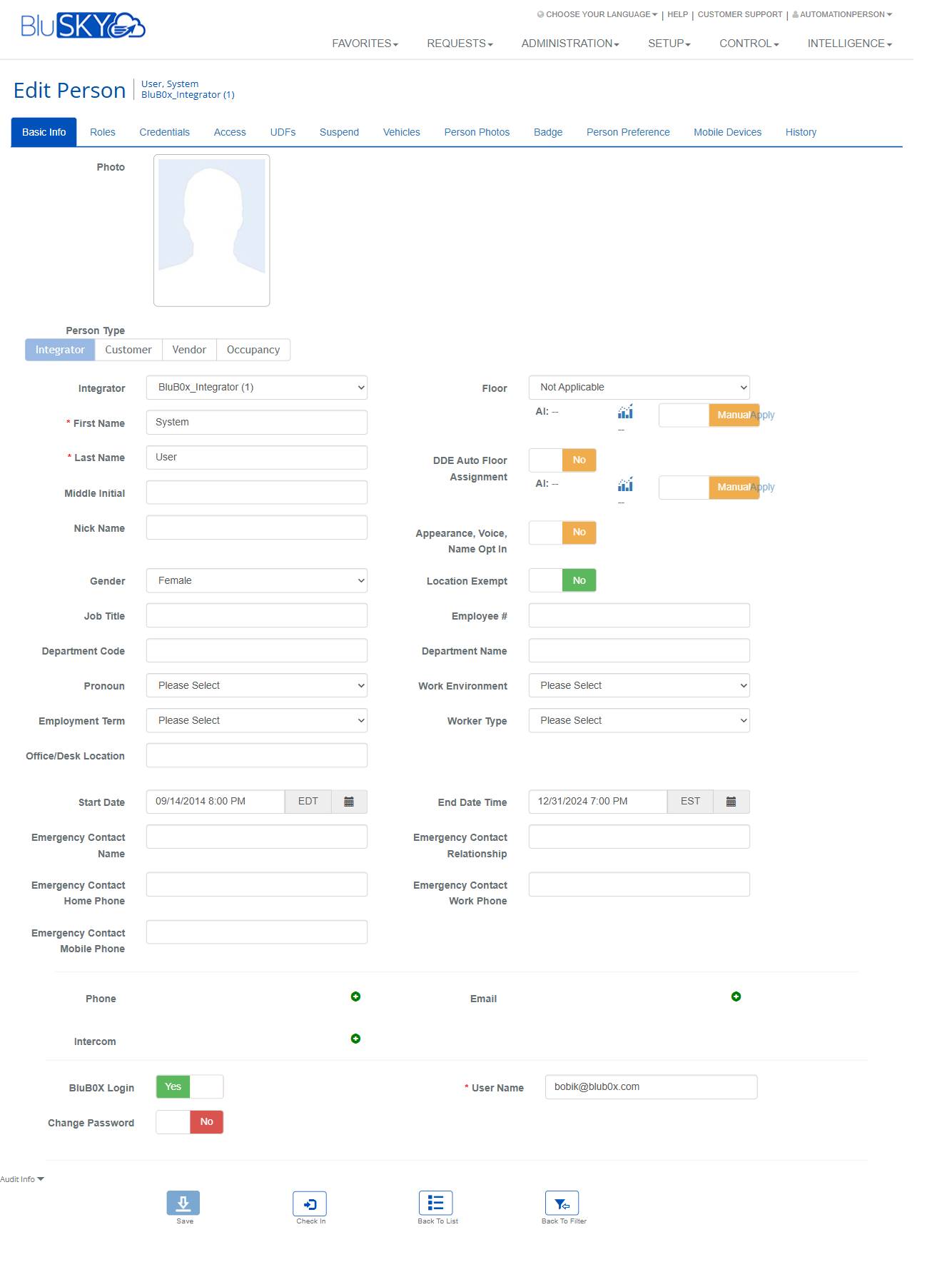
Edit Person
Screen Overview
The Edit Person workspace centralizes all tasks for creating, editing, and managing a single person record in BluSKY. It is organized into tabs (Basic Info, Roles, Credentials, Access, UDFs, Suspend, Vehicles, Person Photos, Badge, Person Preference, Mobile Devices, History) to manage identity data, roles and scope, photos and badges, preferences, temporary suspensions, and audit history.
Field Definitions
| Field Label | Definition | Notes |
|---|---|---|
| Photo | The person’s profile photo shown in lists, badges, and intercoms. | Uploaded in Person Photos or set by template. |
| Person Type | Category tabs that define the context for the person (Integrator, Customer, Vendor, Occupancy). | Determines available picklists and defaults. |
| Integrator | Organization record the person belongs to (when Person Type = Integrator). | Dropdown. |
| First Name | Person’s given name. | Required. |
| Last Name | Person’s family name. | Required. |
| Middle Initial | Optional middle initial. | Optional. |
| Nick Name | Preferred or alternate name. | Optional. |
| Gender | Gender selection. | Dropdown. |
| Job Title | The person’s title or role description. | Optional. |
| Department Code | Code identifier for the department. | Optional; may be used for reporting. |
| Pronoun | Preferred pronouns. | Dropdown. |
| Employment Term | Employment status/term. | Dropdown. |
| Office/Desk Location | Free‑form location detail (e.g., room or cube). | Optional. |
| Start Date Time | Date/time the person’s association begins. | Time zone selector next to field. |
| End Date Time | Date/time the person’s association ends. | Time zone selector next to field. |
| Emergency Contact Name | Primary emergency contact. | Optional. |
| Emergency Contact Relationship | Relationship to the person. | Optional. |
| Emergency Contact Home Phone | Home phone for emergency contact. | Optional. |
| Emergency Contact Work Phone | Work phone for emergency contact. | Optional. |
| Emergency Contact Mobile Phone | Mobile phone for emergency contact. | Optional. |
| Floor | Default floor assigned to the person. | “Not Applicable” available; may be overridden by DDE Auto Floor Assignment. |
| DDE Auto Floor Assignment | Enables automatic default-floor assignment. | Toggle Yes/No; Manual/Auto controls and Apply button available in Preferences. |
| Appearance, Voice, Name Opt In | Consent to use appearance/voice/name in BluSKY features. | Toggle Yes/No. |
| Location Exempt | Excludes the person from location-based features. | Toggle Yes/No. |
| Employee # | Internal employee identifier. | Optional. |
| Department Name | Friendly department name. | Optional. |
| Work Environment | Work environment classification. | Dropdown. |
| Worker Type | Worker classification. | Dropdown. |
| Phone (indicator) | Communication availability/status indicator for phone. | Read-only icon. |
| Email (indicator) | Communication availability/status indicator for email. | Read-only icon. |
| Intercom (indicator) | Availability/status indicator for intercom features. | Read-only icon. |
| BluB0X Login | Enables/Disables this person’s BluSKY web login. | Toggle Yes/No. |
| User Name | Web login user name. | Required when BluB0X Login = Yes. |
| Change Password | Flags the account to change password at next login. | Toggle. |
| Role | Security/tenant role assigned to the person. | Roles tab; supports multiple. |
| Role Scope | Scope at which the role applies (e.g., System). | Dropdown on Roles tab. |
| Available Photos | List of previously uploaded photos. | Person Photos tab; shows “None” if empty. |
| Upload New Photo | Selects source for a new photo (Upload Via File / Upload Via Camera). | Radio options. Browser permission required for camera. |
| File | File picker for photo upload. | Enabled when Upload Via File is selected. |
| Auto ID | System-generated face template identifier (if used). | Read-only. |
| MFA ID | System-generated multi-factor identifier (if used). | Read-only. |
| Badge Design | Badge layout used to render the person’s badge. | Dropdown; preview shown. |
| Time Zone | Preferred time zone for the person. | Preferences tab. |
| AI (DDE) Controls | Auto/Manual selection for DDE Auto Floor Assignment with Apply. | Preferences tab; “AI:” and “Alt:” context shown. |
| Inactivity seconds after video switches to live | Timeout in seconds used by video/live view features. | Numeric. |
| Picture (Preferences) | Quick link for managing picture within Preferences. | Mirrors Photo. |
| Default Floor (Preferences) | Default floor quick setting within Preferences. | Mirrors Floor. |
| Suspend Access Rights - Start Date Time | Start of physical access suspension. | Suspend tab; has time zone button (ET). |
| Suspend Access Rights - End Date Time | End of physical access suspension. | Suspend tab; has time zone button (ET). |
| Suspend BluB0X Website Access - Start Date Time | Start of website (account) suspension. | Suspend tab. |
| Suspend BluB0X Website Access - End Date Time | End of website (account) suspension. | Suspend tab. |
| Device Model | Model of a registered mobile device. | Mobile Devices tab; read-only. |
| Bluetooth MAC Address | Device Bluetooth MAC address. | Read-only. |
| Bluetooth Version | Bluetooth stack version. | Read-only. |
| Mobile OS | Mobile operating system. | Read-only. |
| OS Version | Version of the mobile OS. | Read-only. |
| Date Inserted | When the device record was added. | Read-only. |
| Date Updated | When the device record was last modified. | Read-only. |
| History Entry Type | Filter to show a subset of history entries. | History tab filter. |
| Action (History) | Logged action performed on this person. | Read-only list column. |
| Description (History) | Details about the action. | Read-only list column. |
| Action Performed By Person | Who performed the change. | Read-only list column. |
| Deleted | Indicates the person record is flagged as deleted. | Read-only on View. |
| Company | Company associated to the person. | Read-only on View. |
| Default Floor (View) | The current default floor shown on View. | Read-only on View. |
| Access Suspended | Flag indicating access suspension is active. | Read-only on View. |
| Login Suspended | Flag indicating website access suspension is active. | Read-only on View. |
| Web Suspension Start | Start date/time of web suspension. | Read-only on View. |
| Web Suspension End | End date/time of web suspension. | Read-only on View. |
| Date Inserted (Audit) | When the person record was created. | Audit Info section on View. |
| InsertPerson | User that created the record. | Audit Info section on View. |
| UpdatePerson | User that last updated the record. | Audit Info section on View. |
| Date Updated (Audit) | Last update timestamp. | Audit Info section on View. |
| Date Deleted | When the record was deleted. | Audit Info section on View. |
| DeletePerson | User that deleted the record. | Audit Info section on View. |
Screen Actions and Functions
- Save – Persists all changes on the active tab.
- Cancel – Discards unsaved changes on the active tab.
- Check In – Performs an immediate check-in for the person (Basic Info).
- Add Role – Adds a new role row to the Roles grid.
- Remove Role – Deletes the selected role from the person.
- Upload – Uploads the selected photo file or camera capture (Person Photos).
- Send To Printer – Prints the badge using the selected Badge Design (Badge).
- Set Badge Template – Applies a stored template to the current design (Badge).
- Back To List – Returns to the People list.
- Back To Filter – Returns to the previous filter/search view.
- Delete (Mobile Devices) – Removes the highlighted mobile device association.
- Create / Delete / Edit (History) – Manage or review history items where applicable.
- Time Zone buttons (EDT/EST/ET) – Set the time zone for date/time fields.
- Calendar pickers – Choose dates for Start/End-related fields.
Usage Instructions & Examples
- Create or Edit a Person
- Go to Basic Info.
- Complete required fields: First Name, Last Name, and (if BluB0X Login = Yes) User Name.
- Set Start/End Date Time and, if needed, the Default Floor.
- Click Save.
- Assign a Role with Scope
- Open the Roles tab.
- Click Add Role.
- Choose a Role and set Role Scope.
- Click Save.
- Upload a Profile Photo
- Open Person Photos.
- Choose Upload Via File or Upload Via Camera.
- If via file, select File and click Upload. If via camera, allow browser access and capture, then Upload.
- Configure Preferences and Auto Floor Assignment
- Open Person Preference.
- Select Time Zone.
- Under DDE Auto Floor Assignment, choose Auto or Manual, then click Apply.
- Set Inactivity seconds after video switches to live if used.
- Click Back To List or continue editing.
- Temporarily Suspend Access
- Open Suspend.
- In Suspend Access Rights, set Start Date Time and End Date Time.
- To suspend website access, set dates under Suspend BluB0X Website Access.
- Click Save.
- Print a Badge
- Open Badge.
- Choose a Badge Design and, if needed, click Set Badge Template.
- Review the preview, then click Send To Printer.
- Review History
- Open History.
- Optionally filter by History Entry Type.
- Review Action, Description, and who performed the change.
System Behaviors and Edge Cases
- Fields marked with an asterisk are required; saving without them displays validation errors.
- If BluB0X Login = Yes, User Name is mandatory. If set to No, sign-in is disabled but the person record remains active.
- Change Password, when enabled, forces a password change at next sign-in.
- DDE Auto Floor Assignment:
- Auto attempts to set a default floor automatically; Manual allows explicit selection; Apply commits the choice.
- Default Floor shown in Preferences mirrors the Floor in Basic Info.
- Photo capture requires browser camera permissions; denied permissions prevent Upload Via Camera.
- Badge preview reflects the selected Badge Design and current person fields.
- Suspension:
- Access Suspended and Login Suspended flags on the View screen reflect active date ranges defined on Suspend.
- Overlapping or open-ended suspensions may keep the person disabled until cleared.
- Known error pages observed:
- EditVehicles, EditCards, and EditAccess may show “Nullable object must have a value” or “cast to value type ‘System.Guid’ failed” when prerequisite data is missing (e.g., no site/context/ID). Ensure the person is fully created and associated to a valid company/site, then retry. If errors persist, capture the Controller/Action from the error page and contact Support.
- Mobile Devices list is read-only until a device registers through the mobile app. Deleting an entry removes the association but does not delete the person.
- History is system-generated and time-stamped; some entries may be read-only and cannot be edited.
Permissions
- Access to Edit Person is typically limited to Global Administrators and Tenant/Property Administrators.
- Assign/Remove Role requires role-management permissions.
- Printing a badge requires badge printing permissions and a configured printer.
- Uploading photos requires permission to modify person records.
- Suspending access or website login requires suspension/privilege management rights.
- Viewing audit History is available to administrators and auditors; modification may be restricted.
- Deleting Mobile Devices requires device-management permissions.
Linked Workflows
- After creating a person, issue physical or mobile credentials from the Credentials tab and assign Access on the Access tab.
- Default Floor and DDE Auto Floor Assignment relate to elevator dispatching; see Floor Stop scheduling for building configuration.
- Badge Design uses shared badge templates; maintain templates in the Badge Template administration area.
- Person photos are reused on badges, directories, and intercom/video features.
- Suspensions integrate with security operations to immediately revoke physical or web access.
- History entries support compliance/audit workflows.
Reference Image Links