Prompt
Prompt Screen
Screen Overview
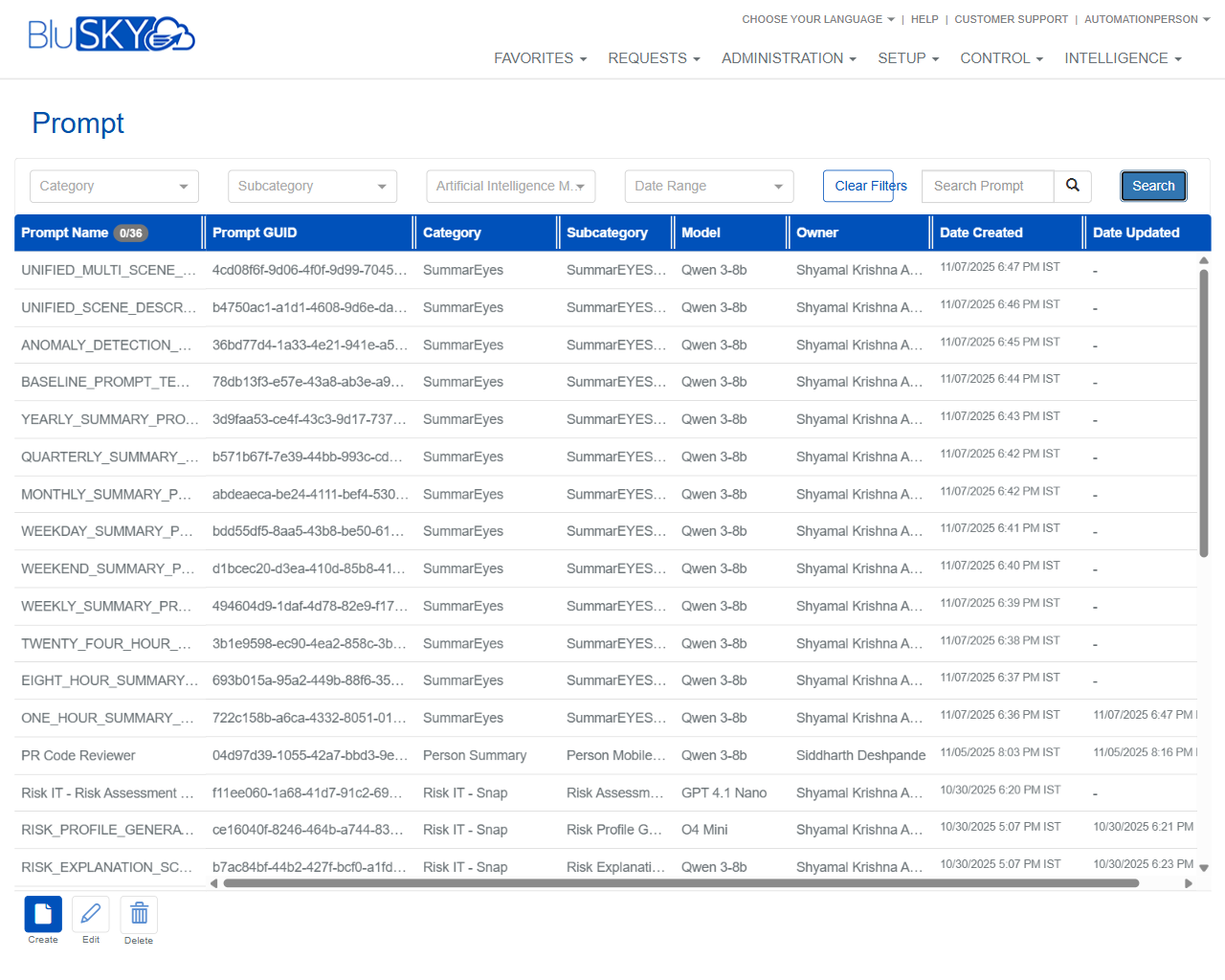
The Prompt screen allows administrators to manage reusable AI prompt templates used across BluSKY (e.g., Intelligence and automation features). It provides filters for Category, Subcategory, AI Model, and Date Range, as well as keyword search. From this screen you can create, edit, or delete prompt records and review system metadata such as owner and timestamps.
Field Definitions
| Field Label | Definition | Notes |
|---|---|---|
| Category | Filter drop-down to limit the grid to prompts in a specific category. | Also displayed as a column in the grid. |
| Subcategory | Filter drop-down to narrow results within the selected Category. | Also displayed as a column in the grid. |
| Artificial Intelligence Model | Filter drop-down to show prompts intended for a specific AI model. | Filter only; the grid column is labeled Model. |
| Date Range | Filter to return prompts created or updated within the selected dates. | Supports start and end dates. |
| Clear Filters | Control that resets Category, Subcategory, Model, Date Range, and search. | Immediate action; no confirmation. |
| Search Prompt | Text field to search by prompt name keyword. | Partial matches supported. |
| Search | Button to execute the current filters and keyword search. | Pressing Enter in Search Prompt performs the same action. |
| Prompt Name | Name of the prompt template. | The badge (e.g., 0/36) shows selected/total rows in the grid. |
| Prompt GUID | System-generated unique identifier for the prompt. | Read-only and immutable. |
| Category | Grid column showing the prompt’s category. | Mirrors the Category filter value per record. |
| Subcategory | Grid column showing the prompt’s subcategory. | Mirrors the Subcategory filter value per record. |
| Model | Grid column indicating the target AI model for the prompt. | Read-only in the list; editable in the prompt editor. |
| Owner | Person who created or owns the prompt record. | Read-only in the list. |
| Date Created | Timestamp when the prompt was first created. | System-generated; read-only. |
| Date Updated | Timestamp of the most recent modification. | May be blank if never updated after creation. |
Screen Actions and Functions
- Create – Opens a form to define a new prompt template.
- Edit – Opens the selected prompt for modification.
- Delete – Removes the selected prompt from the system after confirmation.
- Search – Executes the current filters and keyword criteria.
- Clear Filters – Resets all filters and search text to show the full list.
- Row Select – Click a row to select it; required to enable Edit and Delete.
Usage Instructions & Examples
How to find prompts by model and date
- Open the Artificial Intelligence Model drop-down and choose a model.
- Set a Date Range for your desired window.
- Optionally enter a keyword in Search Prompt.
- Click Search. Review the filtered results.
How to create a new prompt
- Click Create.
- Enter a Prompt Name and select Category/Subcategory.
- Choose the intended Model.
- Add the prompt text and any required parameters in the editor.
- Save. The new prompt appears in the grid with a new Prompt GUID.
How to edit an existing prompt
- Click the desired row to select it.
- Click Edit.
- Update fields (e.g., text, category, model) as needed.
- Save to commit changes; the Date Updated column refreshes.
How to delete a prompt
- Select the row you want to remove.
- Click Delete.
- Confirm the deletion when prompted.
How to reset your view
- Click Clear Filters to remove all filters and search terms.
- Click Search (if required) to repopulate the full list.
System Behaviors and Edge Cases
- Edit and Delete are disabled until exactly one row is selected.
- Clear Filters immediately clears all drop-downs and the Search Prompt text.
- The Prompt GUID is auto-generated by the system and cannot be changed.
- Date Created and Date Updated are system-managed and read-only in the list.
- If filters return no results, the grid displays an empty list; use Clear Filters to recover.
- The grid supports horizontal scrolling when columns exceed the viewport.
- The count beside Prompt Name (e.g., 0/36) indicates selected versus total rows currently loaded.
Permissions
- Screen access is available to roles with Prompt Management rights (e.g., Global Administrators, Tenant Administrators).
- Create requires the CreatePrompts permission.
- Edit requires the EditPrompts permission.
- Delete requires the DeletePrompts permission.
- Users with view-only access can search and filter but cannot create, edit, or delete.
Linked Workflows
- Prompts can be referenced by Intelligence features and automation jobs that call AI models.
- After creating a prompt, assign or reference it in modules that support AI-driven summaries or risk analysis.
- Changes to a prompt take effect the next time dependent workflows invoke that prompt.
Reference Image Links