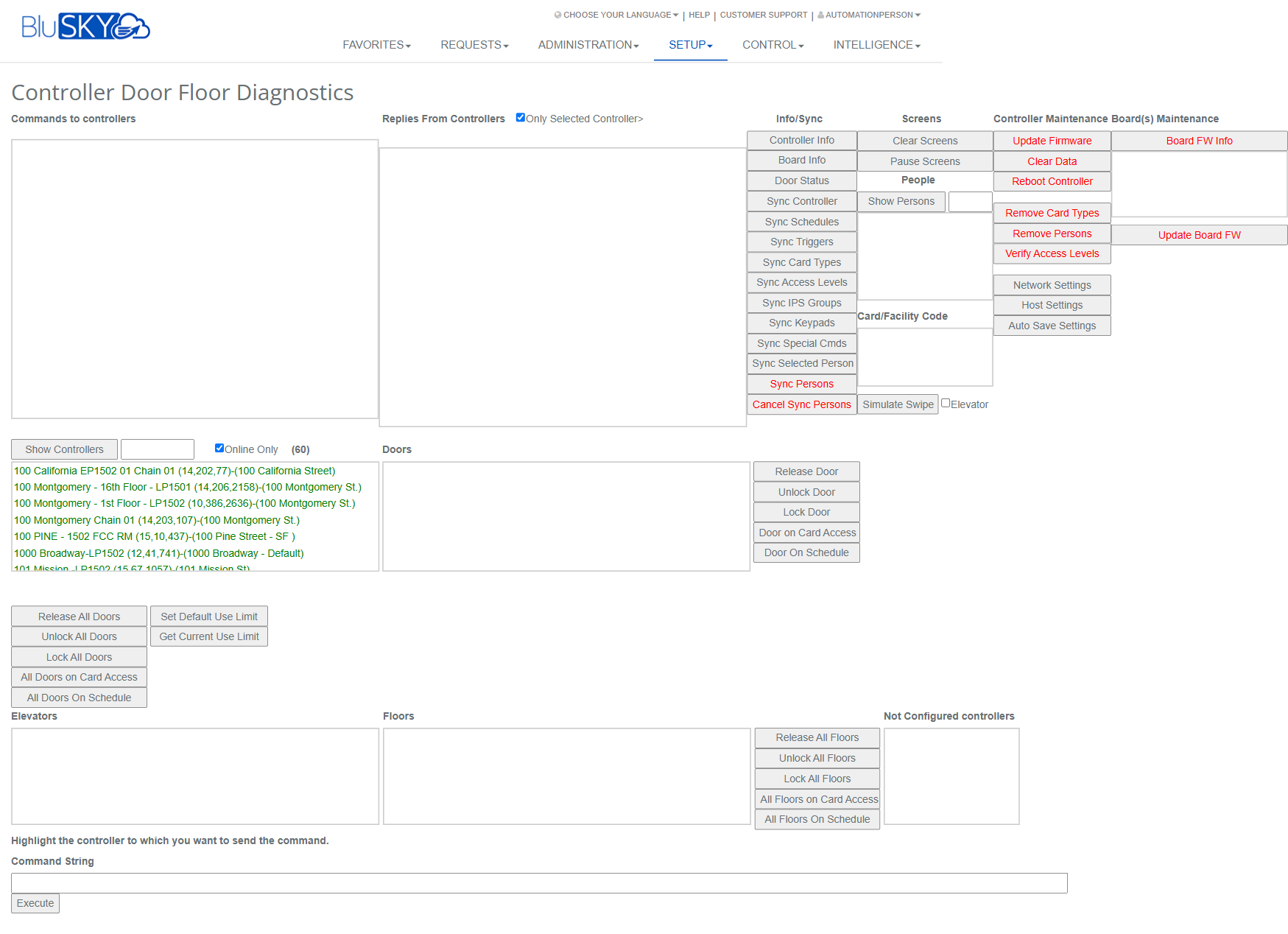
Controller Door Floor Diagnostics
Controller Door Floor Diagnostics
Screen Overview
The Controller Door Floor Diagnostics screen provides real-time tools to diagnose and control field hardware. From this screen you can:
- Select one or more controllers, view their replies, and send live commands.
- Operate doors and elevator floors (release, lock, schedule/card access modes).
- Synchronize data (persons, access levels, schedules, card types) to controllers.
- Perform controller and board maintenance (reboot, firmware updates, clear data).
- Simulate card swipes for troubleshooting.
This screen is intended for advanced operators and administrators performing site commissioning, maintenance, or incident response.
Field Definitions
| Field Label | Definition | Notes |
|---|---|---|
| Commands to controllers | Live console showing outgoing commands queued to selected controller(s). | Read-only viewer; auto-scrolls as commands are sent. |
| Replies From Controllers | Console showing responses/acknowledgments from controllers. | Use to validate success/failure and timings. |
| Only Selected Controller | Restricts actions to the highlighted controller only. | When unchecked, actions may apply to all listed/eligible controllers. |
| Show Controllers | Refreshes and displays the controller list panel. | Use after network changes or filters. |
| Online Only (count) | Filters controller list to devices currently online. | Count shows how many are online; offline controllers may queue commands. |
| Controllers list | List of available controllers with site/location details. | Click to highlight the target controller for commands. |
| Doors | List of doors connected to the highlighted controller. | Select a door before issuing per-door commands. |
| Elevators | List of elevators associated with the highlighted controller. | Used with floor operations and Simulate Swipe (Elevator). |
| Floors | List of floors available for elevator control on the selected controller. | Requires elevator selection when applicable. |
| Not Configured controllers | Displays controllers lacking floor configuration. | Floor commands are disabled for these entries. |
| Release Door | Sends a momentary release to the selected door. | Door must be chosen in the Doors list. |
| Unlock Door | Forces the selected door unlocked. | Persists until changed or schedule applies. |
| Lock Door | Forces the selected door locked. | Overrides card access until changed. |
| Door on Card Access | Places selected door in card-required mode. | Respects access levels and schedules. |
| Door On Schedule | Applies the configured door schedule. | Door behavior follows its defined schedule. |
| Release All Doors | Momentarily releases all doors on the selected controller. | Use cautiously during emergencies or testing. |
| Unlock All Doors | Forces all doors unlocked on the selected controller. | Security impact is high; ensure proper authorization. |
| Lock All Doors | Forces all doors locked on the selected controller. | May block normal access until cleared. |
| All Doors on Card Access | Sets all doors to card-required mode. | Overrides forced lock/unlock states. |
| All Doors On Schedule | Returns all doors to follow their schedules. | Restores standard operation. |
| Set Default Use Limit | Applies the default reader use limit to door(s). | Site-specific feature; may not be enabled on all systems. |
| Get Current Use Limit | Retrieves current reader use limit values. | Output appears in Replies panel. |
| Release All Floors | Momentarily releases all configured floors. | Elevator required; affects all floors on the controller. |
| Unlock All Floors | Forces all configured floors unlocked. | Security sensitive; revert when testing complete. |
| Lock All Floors | Forces all configured floors locked. | Prevents normal floor selection. |
| All Floors on Card Access | Places all floors in card-required mode. | Requires valid access levels. |
| All Floors On Schedule | Returns all floors to their schedules. | Restores configured timing. |
| Card/Facility Code | Input for testing card numbers and facility codes. | Used with Simulate Swipe; format depends on reader configuration. |
| Simulate Swipe | Sends a simulated credential read to the controller. | Requires Card/Facility Code; use for troubleshooting. |
| Elevator | Applies the simulated swipe to elevator context. | Check when testing elevator access. |
| Command String | Displays the compiled low-level command to be sent. | Advanced use; some buttons auto-populate this field. |
| Execute | Sends the command shown in Command String to the targeted device(s). | Monitor results in Replies From Controllers. |
Screen Actions and Functions
-
Controller information and status
- Controller Info – Displays controller details and health.
- Board Info – Shows board-level hardware info.
- Door Status – Lists door states and alarms.
- Clear Screens – Clears both console panes.
- Pause Screens – Temporarily stops console auto-update.
- People / Show Persons – Opens person views associated with the controller.
-
Data synchronization
- Sync Controller – Pushes all relevant configuration to the controller.
- Sync Schedules – Sends schedule definitions.
- Sync Triggers – Sends trigger/automation rules.
- Sync Card Types – Sends defined card/credential formats.
- Sync Access Levels – Sends access level assignments.
- Sync IPS Groups – Sends input/point/segment groupings (site-specific).
- Sync Keypads – Sends keypad/reader settings.
- Sync Special Cmds – Sends special command definitions.
- Sync Selected Person – Pushes the currently selected person to the controller.
- Sync Persons – Pushes all person records to the controller(s).
- Cancel Sync Persons – Stops an in-progress person sync.
-
Maintenance (use with caution)
- Update Firmware – Updates controller firmware.
- Clear Data – Clears local controller data store.
- Reboot Controller – Performs a soft reboot.
- Remove Card Types – Deletes card type definitions from controller.
- Remove Persons – Deletes person data from controller.
- Verify Access Levels – Compares controller data to cloud configuration.
- Board FW Info – Displays board firmware information.
- Update Board FW – Updates board firmware.
- Network Settings – Opens network configuration.
- Host Settings – Opens host/communication settings.
- Auto Save Settings – Toggles or applies auto-save configuration.
Usage Instructions & Examples
- Operate a single door (unlock temporarily)
- Ensure Only Selected Controller is checked.
- Click a controller in the Controllers list.
- In Doors, select the specific door.
- Click Unlock Door.
- Observe Replies From Controllers to confirm success.
- Return all doors on a controller to scheduled operation
- Select the target controller.
- Click All Doors On Schedule.
- Confirm in Replies From Controllers that schedules were applied.
- Sync all persons to a controller
- Select the controller; check Only Selected Controller if needed.
- Click Sync Persons.
- Monitor progress in Replies From Controllers.
- If needed, click Cancel Sync Persons to stop the process.
- Simulate a credential swipe for troubleshooting
- Select the controller (and check Elevator if testing elevator access).
- Enter the Card/Facility Code in the input.
- Check Simulate Swipe.
- Review the Command String and click Execute.
- Verify access decision in Replies From Controllers.
- Reboot a controller
- Select the controller.
- Click Reboot Controller.
- Wait for the controller to come back online; use Show Controllers and Replies From Controllers to confirm.
System Behaviors and Edge Cases
- Online Only filter hides offline controllers; commands to offline devices may queue or fail depending on site configuration.
- Only Selected Controller strictly targets the highlighted controller; leaving it unchecked can affect multiple controllers.
- Some actions immediately send commands; others build the Command String and require clicking Execute. Always watch Replies From Controllers to confirm results.
- Cancel Sync Persons stops pending person transfers but does not roll back already-sent records.
- Clear Data, Remove Persons, and Remove Card Types are destructive at the device level; cloud data remains intact but must be re-synced to restore.
- Verify Access Levels reports mismatches; large sites may require several minutes to complete.
- Firmware updates and reboots cause temporary loss of control/monitoring; door states follow controller failsafe configuration during downtime.
- Simulate Swipe requires correctly formatted Card/Facility Code; invalid formats are rejected with an error in the Replies panel.
- Floor operations are disabled for Not Configured controllers.
- Use Limit functions are site-specific; if unsupported, the Replies panel returns a not-supported message.
Permissions
- Access limited to users with diagnostic and device control roles, typically:
- Global Administrator or Tenant Administrator.
- ControllerDiagnostics or ControllerMaintenance permission to view and send commands.
- DoorControl permission for door/floor operations.
- PersonSync permission for Sync Persons/Sync Selected Person.
- FirmwareUpdate permission for Update Firmware/Update Board FW.
- NetworkAdmin permission for Network/Host/Auto Save Settings.
- Destructive actions (Clear Data, Remove Persons/Card Types) may require elevated approval or dual-control depending on policy.
Linked Workflows
- People: Create or edit persons, then return here to Sync Selected Person or Sync Persons.
- Access Levels: Adjust level assignments before running Verify Access Levels or Sync Access Levels.
- Schedules: Modify door/elevator schedules, then Sync Schedules.
- Controllers/Boards inventory: Review hardware details (Controller Info, Board Info) before maintenance.
- Events & Reports: Validate outcomes post-action (e.g., verify unlocks or sync completions).
Reference Image Links