Dsr Diagnostics
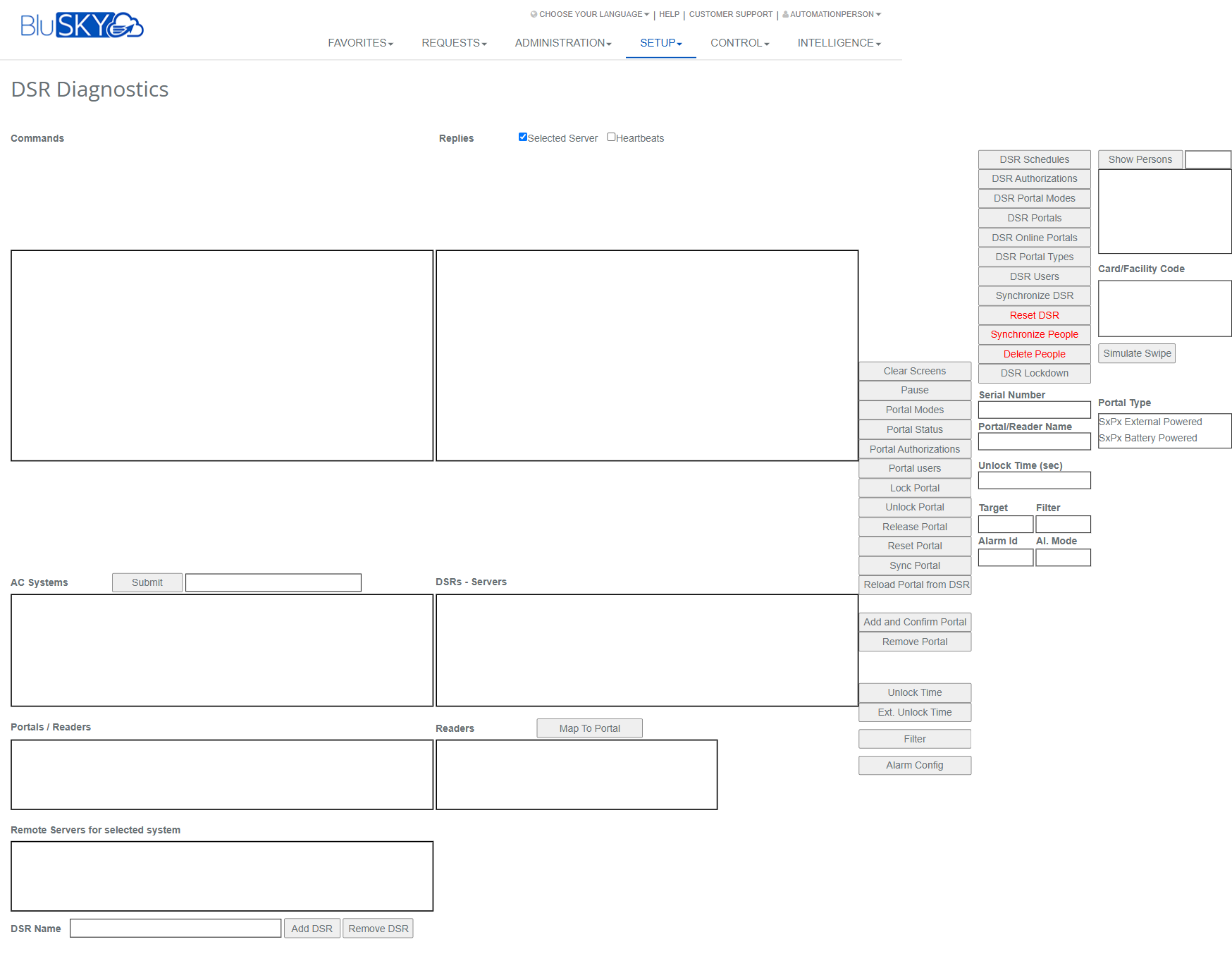
DSR Diagnostics Screen
Screen Overview
The DSR Diagnostics screen provides real-time troubleshooting and control tools for Downstream Servers (DSRs) and connected portals/readers. Use this screen to view command/reply logs, issue portal and reader commands, synchronize people and authorizations, simulate swipes, manage portal mappings, and add or remove DSRs. It is intended for administrators and integrators responsible for field diagnostics and data synchronization.
Field Definitions
| Field Label | Definition | Notes |
|---|---|---|
| Commands | Left-hand console that lists commands sent from BluSKY to the selected DSR/portal/reader. | Read-only log. Cleared with Clear Screens. |
| Replies | Right-hand console that displays responses from devices/DSRs. | Read-only log. Can be filtered with the Replies options. |
| Selected Server (checkbox) | Limits the Replies console to messages from the currently selected DSR. | When unchecked, replies from all responding DSRs may appear. |
| Heartbeats (checkbox) | Toggles display of heartbeat/status pings in Replies. | Useful to reduce noise during troubleshooting. |
| Card/Facility Code | Input for manual test credential values used with Simulate Swipe. | Enter facility code and card number in the format used by your system. |
| Serial Number | Displays or accepts the device serial number context for certain commands. | Usually auto-filled when a portal/reader is selected; read-only in most cases. |
| Portal/Reader Name | Displays the selected portal or reader name. | Auto-filled when a device is selected from the lists below. |
| Unlock Time (sec) | Number of seconds for a timed unlock operation. | Used by Unlock Portal and related actions. |
| Target | Optional command qualifier used by certain queries/updates (e.g., alarm configuration, filters). | Leave blank unless a command specifically requires it. |
| Filter | Optional text filter associated with the Target context to narrow results. | Not the same as the Filter action button near Readers. |
| Alarm Id | Identifier used with alarm-related diagnostics and configuration. | Required for some Alarm Config operations. |
| Al. Mode | Alarm mode value used with alarm diagnostics/configuration. | Accepts valid alarm mode codes for the selected system. |
| Portal Type | Indicates the portal hardware power type. | Options shown: “SxP External Powered” and “SxP Battery Powered”. Select the correct type before portal operations. |
| AC Systems | List of access control systems available to your tenant. | Select to load related DSRs and hardware. |
| [Unlabeled text box next to Submit] | Quick search/filter for the AC Systems list. | Appears immediately to the right of Submit. |
| DSRs - Servers | List of DSRs for the selected AC System. | Select one DSR to enable device commands. |
| Portals / Readers | List of portals assigned to the selected DSR. | Selecting a portal sets the context for portal-level commands. |
| Readers | List of readers discovered/available for mapping. | Use with Map To Portal to link a reader to a portal. |
| Remote Servers for selected system | List of remote servers available for the chosen AC System. | Used in distributed deployments. |
| DSR Name | Text field used when adding a new DSR to the selected AC System. | Provide a unique, descriptive name. |
Screen Actions and Functions
- Clear Screens – Empties the Commands and Replies consoles.
- Pause – Pauses auto-scrolling/log updates in the consoles.
- Show Persons – Displays persons known to the selected DSR.
- DSR Schedules – Queries or pushes active schedules to the DSR.
- DSR Authorizations – Queries or pushes access authorizations to the DSR.
- DSR Portal Modes – Views or sets portal operating modes on the DSR.
- DSR Portals – Retrieves portal inventory from the DSR.
- DSR Online Portals – Shows portals currently online per the DSR.
- DSR Portal Types – Retrieves or sets portal type information.
- DSR Users – Retrieves users/persons present on the DSR.
- Synchronize DSR – Pushes a full configuration (portals, readers, authorizations, schedules) to the selected DSR.
- Reset DSR – Clears and reloads the DSR’s working configuration from BluSKY.
- Synchronize People – Pushes current people/credential data to the DSR.
- Delete People – Removes people records from the selected DSR only (does not delete in BluSKY).
- DSR Lockdown – Places all portals on the selected DSR into lockdown mode.
- Simulate Swipe – Sends the credential entered in Card/Facility Code to the selected device for testing.
- Portal Modes – Queries/sets the current portal mode for the selected portal.
- Portal Status – Retrieves the live status of the selected portal.
- Portal Authorizations – Displays authorizations affecting the selected portal.
- Portal users – Displays users associated with the selected portal.
- Lock Portal – Issues a lock command to the selected portal.
- Unlock Portal – Unlocks the selected portal for the duration in Unlock Time (sec).
- Release Portal – Cancels a maintained lock/unlock state if supported.
- Reset Portal – Resets the portal controller context on the DSR.
- Sync Portal – Synchronizes only the selected portal’s data.
- Reload Portal from DSR – Refreshes portal information in BluSKY from the DSR.
- Add and Confirm Portal – Creates and confirms a new portal on the DSR/BluSKY.
- Remove Portal – Deletes the selected portal from the DSR/BluSKY configuration.
- Map To Portal – Maps the selected reader to the selected portal.
- Unlock Time – Reads or applies the standard unlock time setting for the selected portal.
- Ext. Unlock Time – Reads or applies the extended unlock time for the selected portal.
- Filter (button near Readers) – Filters the Readers list based on entered criteria.
- Alarm Config – Opens alarm configuration/actions for the selected target.
- Submit – Applies the AC Systems selection/search.
- Add DSR – Adds a DSR with the name provided in DSR Name to the selected AC System.
- Remove DSR – Removes the selected DSR from the AC System.
Usage Instructions & Examples
How to prepare a diagnostic session
- In AC Systems, select the desired system and click Submit (use the search box if needed).
- In DSRs - Servers, select the DSR you will diagnose.
- In Portals / Readers, select a portal (and optionally select a reader in Readers).
- Confirm the Replies options (Selected Server, Heartbeats) to control log verbosity.
How to unlock a portal for a timed interval
- Select a portal in Portals / Readers.
- In Unlock Time (sec), enter the desired duration (e.g., 10).
- Click Unlock Portal.
- Observe command and reply outcomes in the consoles.
How to simulate a credential swipe
- Select the target portal or reader.
- In Card/Facility Code, enter the test credential in the format used onsite.
- Verify Serial Number and Portal/Reader Name are populated.
- Click Simulate Swipe and review access result in Replies.
How to synchronize people and authorizations to a DSR
- Select the DSR in DSRs - Servers.
- Click Synchronize People to update only user/credential data; or click Synchronize DSR for a full configuration push.
- Monitor Replies for completion or errors.
How to add a DSR and map a reader to a portal
- Select an AC System and click Submit.
- In DSR Name, type a unique name and click Add DSR.
- Select the new DSR in DSRs - Servers.
- In Readers, select a reader; in Portals / Readers, select the target portal.
- Click Map To Portal and verify success in Replies.
How to place a site into lockdown
- Select the DSR to be locked down.
- Confirm operational impact with stakeholders.
- Click DSR Lockdown and verify confirmations in Replies.
- Use Unlock Portal or mode commands to restore normal operation as required.
System Behaviors and Edge Cases
- Device/DSR selection gating: Most actions remain disabled or have no effect until an AC System, a DSR, and (where applicable) a portal/reader are selected.
- Replies filtering: With Selected Server checked, only the active DSR’s messages display; unchecking can make logs noisy in multi-DSR environments.
- Heartbeats: When enabled, heartbeat messages may rapidly scroll; use Pause to analyze specific replies.
- Simulate Swipe requires a valid format; invalid or empty Card/Facility Code values will return an error or a denied result.
- Unlock Portal honors the value in Unlock Time (sec). Non-numeric or out-of-range values are rejected and the prior value may be used.
- Synchronize/Reset operations may temporarily increase DSR load; large datasets can cause delayed replies.
- Delete People removes cached people from the selected DSR only; records remain intact in BluSKY and will repopulate on the next sync.
- DSR Lockdown overrides normal access rules; ensure a recovery plan before issuing. Some portals may require explicit mode reset afterward.
- Map To Portal requires a single selection in Readers and a single selection in Portals / Readers; mismatched selections will block the action.
- Remove DSR and Remove Portal are destructive to configuration on that DSR; data may not be recoverable without a full Synchronize DSR.
Permissions
- Access limited to users with administrative or integrator roles such as Global Administrator, Tenant Administrator (with hardware control enabled), or Support/Partner roles.
- High-impact actions (Delete People, DSR Lockdown, Remove DSR/Portal, Reset DSR) typically require elevated permissions and may be audited.
- Read-only access can be granted to operations staff for viewing status and replies without command privileges.
Linked Workflows
- People and Credentials: Manage persons and badges, then use Synchronize People to push updates to DSRs.
- Portals and Readers Setup: Create portals/readers under hardware setup, then use Map To Portal and Sync Portal to finalize mappings.
- Access Levels/Authorizations: After defining authorizations, use DSR Authorizations or Synchronize DSR to deploy them.
- Schedules Management: Maintain schedules and push with DSR Schedules during commissioning or changes.
- Alarm Configuration: Use Alarm Config with Alarm Id and Al. Mode for site-specific alarm workflows.
Reference Image Links