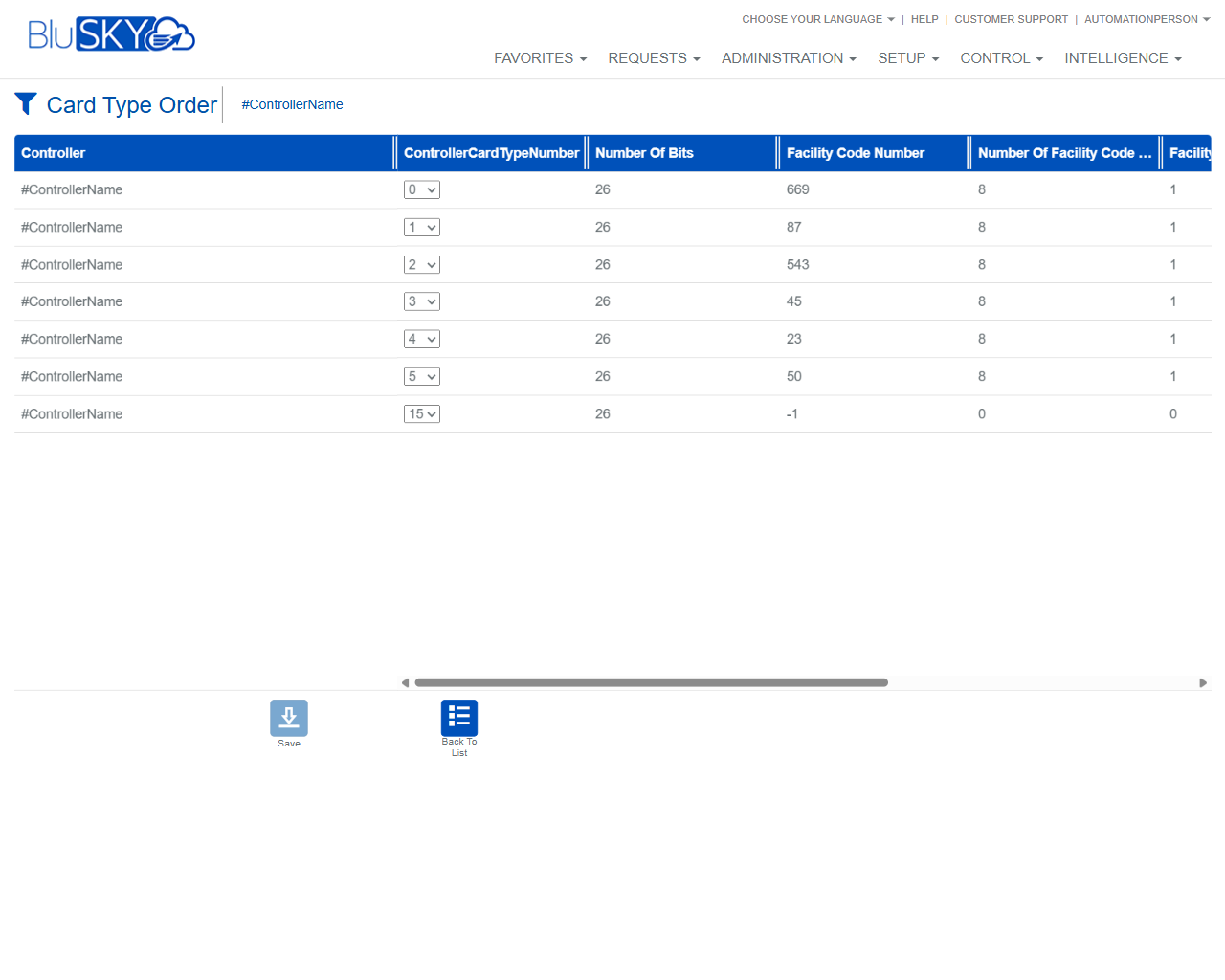
Controller Card Types Order
Card Type Order Screen
Screen Overview
The Card Type Order screen is used to define the evaluation priority of credential formats (card types) on a per-controller basis. Administrators select a System and Controller, then assign each card format a Controller Card Type Number (priority slot) so the controller knows which formats to try first when decoding reads. Proper ordering improves read reliability and ensures the intended format is recognized.
Field Definitions
| Field Label | Definition | Notes |
|---|---|---|
| System | Limits the page to controllers within the selected System. | Select “All” to show controllers from every system you can access. |
| Controller | The specific controller whose card type order you want to manage. | Must be selected before submitting to view or edit the grid. |
| Controller (grid column) | Displays the controller name for each listed card type row. | Read-only. Useful when viewing multiple controllers. |
| ControllerCardTypeNumber | The priority slot assigned to the card format on the controller. | Integer dropdown (typically 0–15). 0 is highest priority. Each number should be unique per controller. |
| Number Of Bits | Total number of bits in the card format. | Read-only reference. Helps identify the format (e.g., 26-bit). |
| Facility Code Number | The facility (site) code value associated with the format, if applicable. | -1 indicates not used or not applicable for the format. |
Screen Actions and Functions
- Reset – Clears System/Controller selections back to defaults.
- Submit – Loads the card type order grid for the selected controller.
- Refresh (circular arrows beside System/Controller) – Reloads the dropdown lists to reflect the latest available systems and controllers.
- Save – Commits any priority changes (ControllerCardTypeNumber) to the controller configuration.
- Back To List – Returns to the selection view without saving pending edits.
Usage Instructions & Examples
How to view a controller’s card type order
- In System, choose the applicable system (or All).
- In Controller, select the controller you want to configure.
- Click Submit to load the card type order grid.
How to change the card type priority for a controller
- Open the grid as above.
- For each row, use the ControllerCardTypeNumber dropdown to assign the desired priority (0 is highest).
- Ensure each format has a unique number and that no unintended duplicates exist.
- Click Save. The system queues the update to the controller.
Example: Prioritize 26-bit corporate format
- Locate the row showing Number Of Bits = 26 and the expected Facility Code Number.
- Set ControllerCardTypeNumber = 0 for that row.
- Adjust other formats to 1, 2, 3, etc., in the order you want them attempted.
- Click Save.
System Behaviors and Edge Cases
- Changing ControllerCardTypeNumber values without clicking Save will not update the controller; navigating away may prompt about unsaved changes.
- Duplicate priority numbers in the grid may be blocked or auto-corrected by the system; resolve conflicts before saving.
- Values are typically limited to the controller’s supported range (commonly 0–15). Invalid entries are rejected on save.
- -1 in Facility Code Number means the format does not use a facility code.
- If controller connectivity is temporarily unavailable, saved changes are queued and applied on the next controller sync.
- The card type attribute columns are read-only; only the ControllerCardTypeNumber is editable.
- Horizontal scrolling may be required to view all columns on smaller displays.
Permissions
- Available to users with configuration privileges such as Global Administrator or System/Installer Administrator.
- Edit rights require a permission equivalent to Configure Controllers or Manage Card Formats; users without this can only view.
- Access may be further restricted by System-level scope assignments.
Linked Workflows
- Card Types/Formats setup – Define or review supported formats before ordering them.
- Controllers – Verify the target controller is online and synced after saving.
- Hardware/Panel status – Monitor sync status and push or verify configuration updates.
Reference Image Links