Power Analytics
Power Analytics Screen
Screen Overview
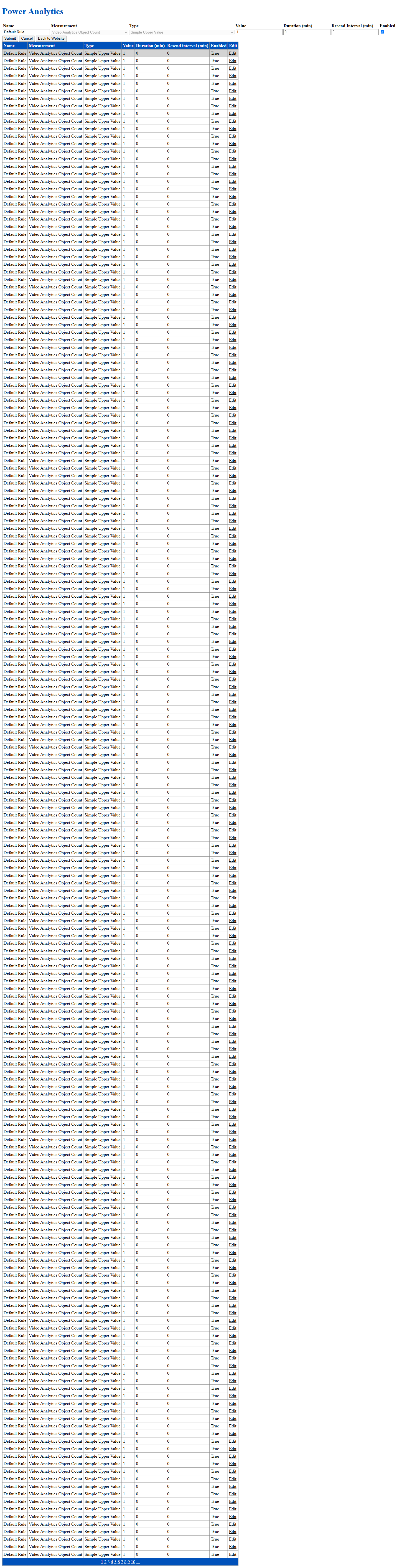
The Power Analytics screen lists and manages analytic thresholds and sampling rules used by BluSKY to evaluate device and video metrics. Administrators can filter the list, enable or disable analytics, and edit threshold values, durations, and record intervals. This screen centralizes configuration that other rules, notifications, and dashboards reference.
Field Definitions
| Field Label | Definition | Notes |
|---|---|---|
| Name | The descriptive name of the analytic or rule. | Typically system-defined; may repeat across devices or locations. |
| Measurement | The source metric being evaluated (e.g., Video Analytics Object Count). | Read-only; determines what is being sampled. |
| Type | The comparison method applied to the measurement (e.g., Sample Upper Value). | Drives how Value is interpreted (upper/lower, sample/average, etc.). |
| Value | Threshold against which the measurement is evaluated. | Numeric. Combined with Type to determine trigger conditions. |
| Duration (min) | Time window, in minutes, over which the measurement is evaluated. | 0 means instantaneous/sample-at-time-of-check. |
| Record Interval (min) | Frequency, in minutes, that data points are recorded for the measurement. | Must be a non-negative integer; affects storage and evaluation cadence. |
| Enabled | Indicates whether the analytic is active. | True = evaluated; False = ignored by engines using this list. |
| Edit | Opens the edit form for the selected analytic. | Use to modify Value, Duration, Record Interval, and enable/disable. |
Screen Actions and Functions
- Filter/Search – Use the filter row beneath each column header to narrow by Name, Measurement, Type, or numeric ranges.
- In Use – Toggles the grid to display only analytics that are currently enabled or referenced.
- Used Where? – Opens a reference view showing where the selected analytic is referenced elsewhere in BluSKY.
- Enable/Disable – Toggle the Enabled value directly in the grid (where supported) or via Edit.
- Edit – Opens the detail form to change Value, Duration, Record Interval, and Enabled.
Usage Instructions & Examples
-
Locate an Analytic
- In the filter row, type part of the Name or select a Measurement.
- Optionally filter Type (e.g., Sample Upper Value) to narrow results.
- Review matching rows in the grid.
-
Change a Threshold
- Click Edit on the target row.
- Update Value to the desired threshold.
- Adjust Duration (min) and Record Interval (min) as needed.
- Set Enabled = True to activate.
- Save. The new settings take effect immediately for dependent rules.
-
View Only Active Analytics
- Click In Use.
- The grid refreshes to show enabled/referenced analytics only.
-
Check Dependencies
- Select a row, then click Used Where?
- Review the list of rules, notifications, or dashboards that reference the analytic before making changes.
System Behaviors and Edge Cases
- Changes to Value, Duration, or Record Interval take effect immediately and impact any rule or workflow that references the analytic.
- Duration = 0 evaluates the instantaneous sample; any non-zero Duration applies a time window for evaluation.
- Record Interval controls how often samples are stored; lower intervals increase data granularity and storage use.
- Some analytics are system-provisioned and cannot be renamed or deleted; only thresholds and enablement can be changed.
- Identical Names may appear for different sources (e.g., multiple cameras); use Measurement and context to distinguish.
- If Enabled = False, the analytic is ignored by dependent engines even if referenced.
- Large result sets are paginated; filters apply to the entire dataset, not just the current page.
Permissions
- Available to Global Administrators and Tenant Administrators with configuration rights.
- Edit, enable, or disable actions require a role with permission to manage analytics configuration.
- Users without edit rights can view analytics and apply filters but cannot save changes.
Linked Workflows
- Rules Engine – Thresholds are often referenced by automation and alerting rules.
- Notifications/Alarms – Exceeding thresholds can trigger emails, SMS, or on-screen alarms.
- Dashboards/Reports – Aggregated analytics appear in performance and health reports.
- Device/Video Analytics – Measurements originate from connected devices and video analytics engines.
Reference Image Links