Commands
Mercury Command List
Screen Overview
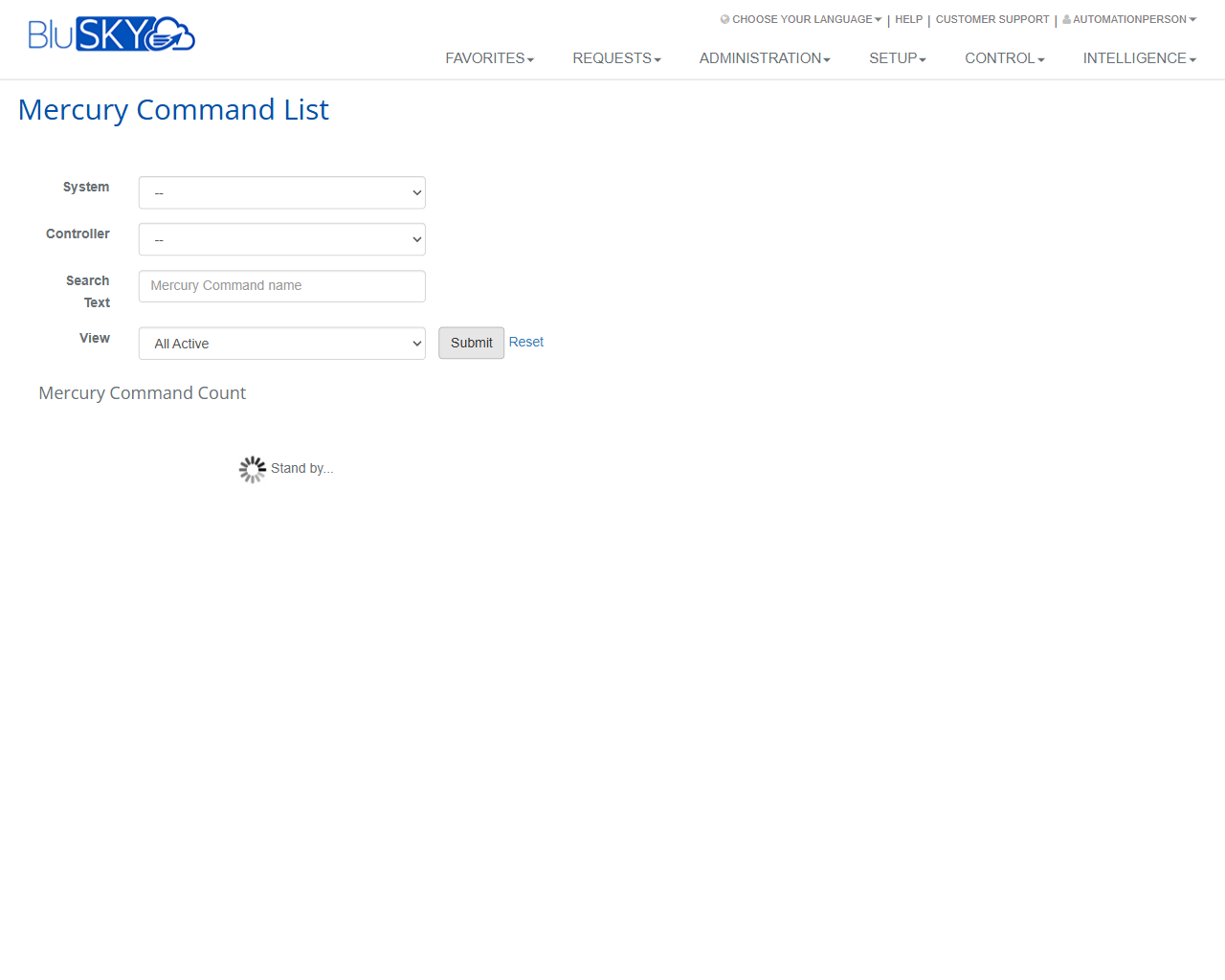
The Mercury Command List screen provides a searchable, filterable list of Mercury commands available within your BluSKY environment. Administrators can narrow results by System and Controller, filter by status, and quickly locate commands by name for review or follow‑up actions elsewhere in the platform.
Field Definitions
| Field Label | Definition | Notes |
|---|---|---|
| System | Limits results to commands associated with the selected system. | Dropdown; selecting a system constrains the Controller list. Default is “--” (no filter). |
| Controller | Filters commands to a specific Mercury controller. | Dropdown; options are filtered by the selected System. Default is “--” (no filter). |
| Search Text | Free‑text search on the Mercury command name. | Placeholder shows “Mercury Command name.” Leave blank to return all commands within other filters. |
| View | Status filter for the list (e.g., active items). | Default shown is “All Active.” Other statuses may be available per site configuration. |
| Submit | Executes the search with the current filters. | Triggers loading state and refreshes results and count. |
| Reset | Clears all filters back to their defaults. | Shortcut to return to the default view (e.g., All Active with no System/Controller selected). |
| Mercury Command Count | Displays the number of commands that match current filters. | Updates after Submit; shows 0 if no matches are found. |
Screen Actions and Functions
- Select a System to scope available controllers and commands.
- Select a Controller to further narrow results.
- Enter Search Text to find commands by name.
- Change View to filter by status (e.g., All Active).
- Submit to apply filters and refresh the list and count.
- Reset to clear all filters and return to defaults.
Usage Instructions & Examples
How to locate commands for a specific controller
- Open the System dropdown and select the desired system.
- Open the Controller dropdown and choose the target controller.
- Leave Search Text blank to see all commands for that controller.
- Ensure View is set to All Active (or your preferred status).
- Click Submit and review the Mercury Command Count and results.
How to find a command by name across systems
- In Search Text, type part or all of the command’s name.
- Leave System and Controller as “--” to search broadly.
- Set View as needed (e.g., All Active).
- Click Submit to display matching commands.
How to review inactive or archived commands
- Change the View dropdown to include non‑active statuses (if available).
- Optionally set System/Controller filters.
- Click Submit to refresh the list.
System Behaviors and Edge Cases
- Controller options are filtered by the selected System; changing System will refresh the Controller list.
- After clicking Submit, a “Stand by…” indicator appears while results load; the count and list update when complete.
- If filters return no results, Mercury Command Count displays 0 and no items appear in the list.
- Reset returns all fields to default values (e.g., System/Controller “--” and View = All Active).
- Visible Systems/Controllers are limited by the user’s permissions and scope; some options may not appear for all users.
Permissions
- Screen access is typically limited to users with Setup permissions (e.g., Global Administrators, System/Tenant Administrators).
- Visibility of Systems and Controllers is constrained by the user’s assigned sites and roles.
- Edit or execution of commands (if linked from details elsewhere) may require additional control/operations permissions.
Linked Workflows
- Controller configuration and diagnostics: identify a command here, then navigate to the Controller or Control modules to execute or troubleshoot as permitted.
- System setup and maintenance: use this list to verify available commands tied to specific systems and controllers before applying configuration changes.
Reference Image Links