Ai Controller
AI Controller
Screen Overview
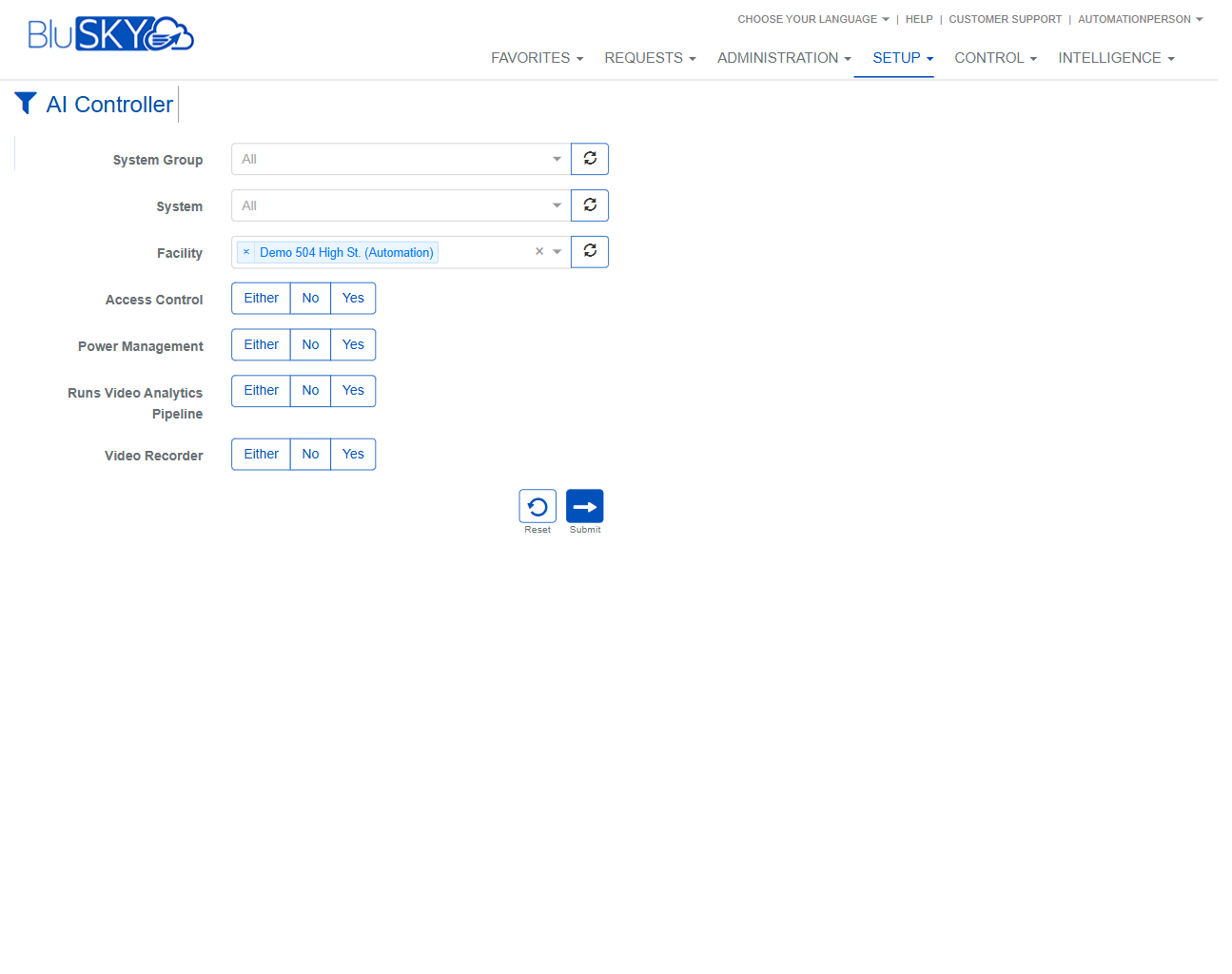
The AI Controller screen lists and manages BluSKY AI Controller nodes and their functional roles across facilities and systems. Administrators can filter by hierarchy (System Group, System, Facility) and by capabilities (Access Control, Power Management, Video Analytics Pipeline, Video Recorder), then create, edit, or delete controller records. The grid displays capability status at a glance (Enabled / Not Enabled) and supports sorting.
Field Definitions
| Field Label | Definition | Notes |
|---|---|---|
| Name | Display name of the AI Controller. | Appears in the grid; used to identify the controller when editing or deleting. |
| System | The BluSKY System the controller belongs to. | Read-only in the grid; used for hierarchical filtering and reporting. |
| Facility | Facility associated with the controller. | In filters, this is a multi-select chip list; remove a chip to exclude a facility. |
| Access Controller | Indicates if the controller is functioning as an access controller. | Grid status shows Enabled or Not Enabled. Sortable column. |
| Power Management | Indicates if the controller provides power management functions. | Grid status shows Enabled or Not Enabled. Sortable column. |
| Video Analytics Proc | Status of the controller’s video analytics processing capability. | Grid status shows Enabled or Not Enabled. Sortable column. |
| Video Recorder | Indicates if the controller operates as a video recorder. | Grid status shows Enabled or Not Enabled. Sortable column. |
| System Group | Top-level grouping used to filter available Systems and Facilities. | Filter drop-down; refresh icon reloads options. |
| System (filter) | Filters the grid to controllers within a selected System. | Filter drop-down; refresh icon reloads options based on System Group. |
| Facility (filter) | Filters the grid to controllers at one or more Facilities. | Filter multi-select; refresh icon reloads options based on System selection. |
| Access Control (filter) | Tri-state filter for the Access Controller capability. | Options: Either, No, Yes. Default is Either. |
| Power Management (filter) | Tri-state filter for the Power Management capability. | Options: Either, No, Yes. Default is Either. |
| Runs Video Analytics Pipeline | Tri-state filter for the Video Analytics capability. | Options: Either, No, Yes. Default is Either. |
| Video Recorder (filter) | Tri-state filter for the Video Recorder capability. | Options: Either, No, Yes. Default is Either. |
Screen Actions and Functions
- Filter panel (funnel icon) – Opens capability and hierarchy filters.
- Submit – Applies current filter selections to the grid.
- Reset – Clears filters back to defaults (hierarchy = All, capabilities = Either).
- Create – Opens a form to add a new AI Controller.
- Edit – Opens the selected controller for modification.
- Delete – Removes the selected controller record (subject to permissions).
- Sort – Click any column header to sort ascending/descending.
- Horizontal scroll – View additional columns when the grid exceeds screen width.
Usage Instructions & Examples
How to find controllers that run Access Control in a specific facility
- Click the filter (funnel) icon.
- In Facility, select the desired facility (e.g., Demo 504 High St. (Automation)).
- Set Access Control to Yes; leave other capabilities as Either if not needed.
- Click Submit to refresh results.
How to list controllers with Video Analytics but not Video Recorder
- Open the filter panel.
- Set Runs Video Analytics Pipeline to Yes.
- Set Video Recorder to No.
- Click Submit.
How to create a new AI Controller
- Click Create.
- Complete the required controller details in the form (name, system/facility assignment, and any capabilities as appropriate).
- Save. The new controller appears in the grid based on current filters.
How to modify controller capabilities
- Select a controller in the grid.
- Click Edit.
- Adjust capability settings (e.g., enable Power Management).
- Save. Confirm the status updates in the grid (Enabled/Not Enabled).
How to remove a controller
- Select the controller row.
- Click Delete.
- Confirm the deletion when prompted.
System Behaviors and Edge Cases
- Capability indicators display as Enabled (green) or Not Enabled (red) in the grid.
- Filters default to Either for all capabilities; this returns controllers regardless of state.
- The refresh icon beside hierarchy fields reloads dependent options (e.g., System list updates after changing System Group).
- If no facility is selected, results include all facilities permitted by the user’s scope.
- Edit and Delete are disabled until exactly one row is selected.
- Sorting a column cycles between ascending, descending, and default order.
- When no results match the filters, the grid shows an empty list; clear or adjust filters and resubmit.
- Additional columns may be off-screen; use the horizontal scrollbar to view them.
- Filter selections persist on the page until Reset is used or the user navigates away.
Permissions
- Screen access typically granted to Global Administrators, System Administrators, or Facility Administrators.
- Create requires permission to add controllers (e.g., CreateAIController).
- Edit requires permission to modify controllers (e.g., EditAIController).
- Delete requires elevated permission to remove controllers (e.g., DeleteAIController).
- Users with view-only rights can open the screen and apply filters but cannot Create/Edit/Delete.
Linked Workflows
- Systems – Define and maintain the System that AI Controllers belong to.
- Facilities – Assign controllers to the correct facility context.
- Access Control configuration – Map doors/readers to controllers functioning as Access Controllers.
- Power Management – Associate managed power devices and schedules.
- Video Analytics Pipeline – Configure analytics models and streams.
- Video Recorder – Link cameras and storage policies to controllers acting as recorders.
Reference Image Links