Mobile Credential Pools
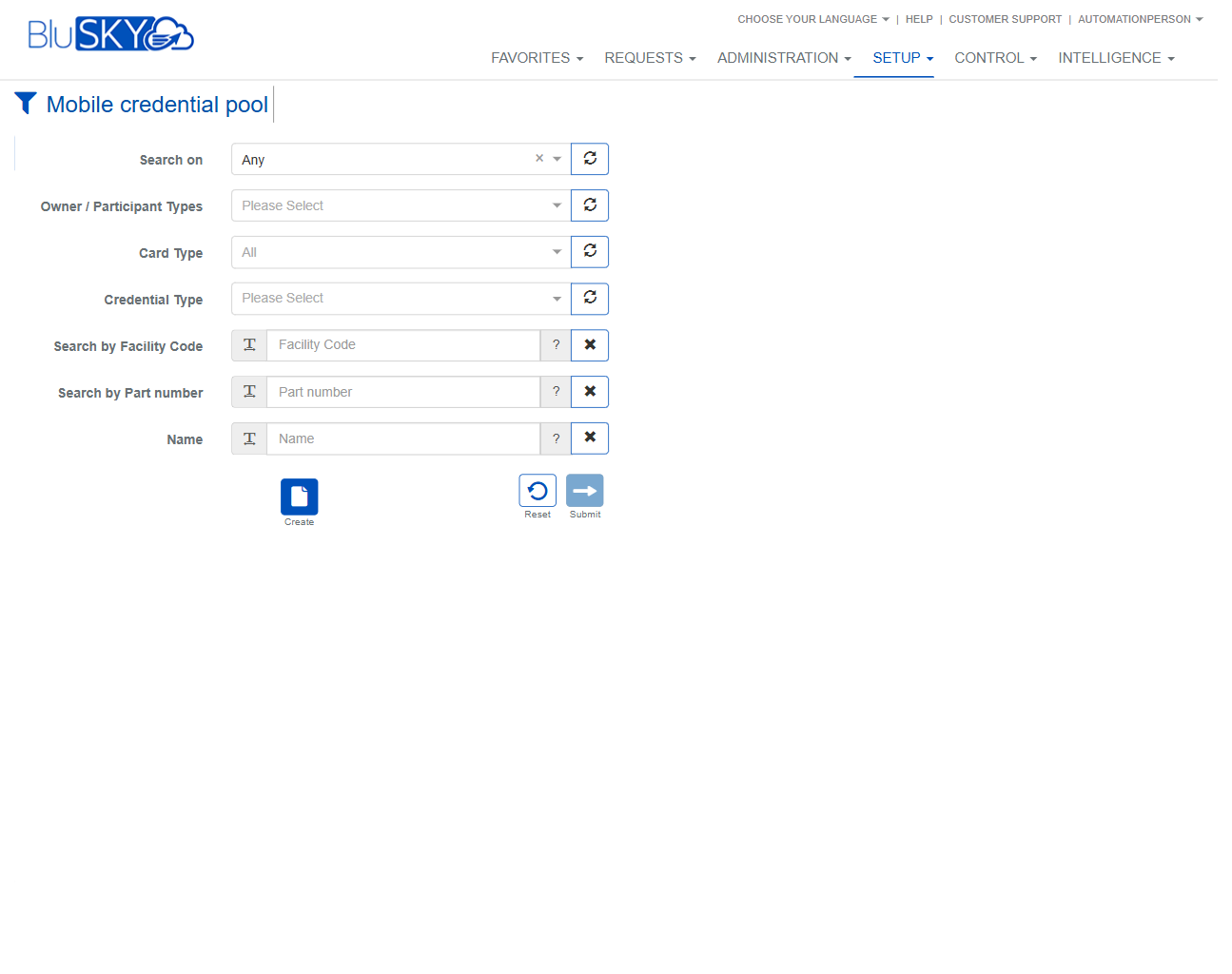
Mobile Credential Pool Screen
Screen Overview
The Mobile Credential Pool screen lets administrators search for, review, and create credential pools used for issuing mobile or other credential media. It provides scoped search filters (by ownership/participant type, media and credential technology, facility code, part number, and name) and actions to create new pools or reset/submit the query.
Field Definitions
| Field Label | Definition | Notes |
|---|---|---|
| Search on | Defines the data scope for the query (e.g., search across any accessible records or limit to entities you manage). | Default is Any. Changing scope can alter available results and filter options. |
| Owner / Participant Types | Filters pools by the organizational role associated with them (such as Owner, Manager, Tenant, Vendor/Participant). | Multi-select drop-down. Use the refresh icon to reload available roles. |
| Card Type | Narrows results by the credential media category (e.g., mobile, card, fob). | Default is All. Use when you need to separate mobile from physical media. |
| Credential Type | Filters by the specific credential technology or provider (e.g., Prox, MIFARE, BLE/mobile brand). | Use the refresh icon to sync the list with the latest configured credential types. |
| Search by Facility Code | Searches for pools that include credentials with a matching facility/site code. | Text entry. Partial match supported. Not all mobile technologies use facility codes. |
| Search by Part number | Finds pools that reference a specific manufacturer part number or SKU. | Text entry. Partial match supported. Useful for vendor-specific pools. |
| Name | Filters by the credential pool’s name. | Text entry. Partial match supported for quick lookups. |
Screen Actions and Functions
- Create – Opens the form to add a new Mobile Credential Pool.
- Submit – Executes the search with the selected filters and displays matching pools.
- Reset – Clears all filters back to their defaults.
- Field clear (X) – Clears the current field’s value.
- Field help (?) – Displays field-level guidance where available.
- Field refresh (circular arrows) – Reloads the drop-down list values from the server.
Usage Instructions & Examples
-
Find a pool by name
- Enter part of the pool name in Name.
- Leave Search on = Any (or choose a narrower scope if needed).
- Click Submit to view results.
-
Locate mobile-only pools of a specific technology
- Set Card Type to the appropriate media (e.g., Mobile).
- Select a Credential Type (e.g., a mobile technology/provider).
- Optionally, choose Owner / Participant Types to limit by organization role.
- Click Submit.
-
Search by manufacturer details
- Enter a value in Search by Part number (full or partial).
- Optionally, add a Facility Code if applicable.
- Click Submit to return matching pools.
-
Create a new mobile credential pool
- Click Create.
- Complete the required fields on the creation form (system will prompt for mandatory data).
- Save. The new pool becomes available for search and issuing.
System Behaviors and Edge Cases
- Submitting with no filters returns all pools within the selected Search on scope and your permissions; very large result sets may be paginated.
- If a selected Credential Type or Card Type has no configured values, the results may be empty until configuration is updated.
- Facility Code and Part number fields support partial, case-insensitive matches; non-numeric characters in Facility Code may yield no results if the format is strictly numeric for your deployment.
- Changing Search on or Owner / Participant Types can alter the available choices in Card Type and Credential Type after a refresh.
- Reset returns filters to defaults (e.g., Search on = Any, Card Type = All, blank text fields).
- Create is available only if you have the necessary permissions; otherwise, the button may be hidden or disabled.
Permissions
- Access generally available to users with Setup permissions for credential management (e.g., Global Administrators, Owner/Property Administrators, or delegated Tenant Administrators).
- Creating pools requires create rights for Mobile Credential Pools.
- Editing/deleting pools (from subsequent detail screens) require manage rights for Mobile Credential Pools.
- Users without manage permissions can search and view results but cannot create new pools.
Linked Workflows
- Issue Mobile Credentials to People: After locating a pool, open it to allocate or issue credentials to person records.
- Credential and Card Type Configuration: Maintain available Card Type and Credential Type values used by this search.
- Participant/Company Management: Ensure Owner and Participant roles are correctly defined so pools can be scoped and reported accurately.
- Audit and Reporting: Use reporting screens to review pool utilization and issuance history after searching/selecting a pool.
Reference Image Links