Destination Keypads
DDE Keypad List
Screen Overview
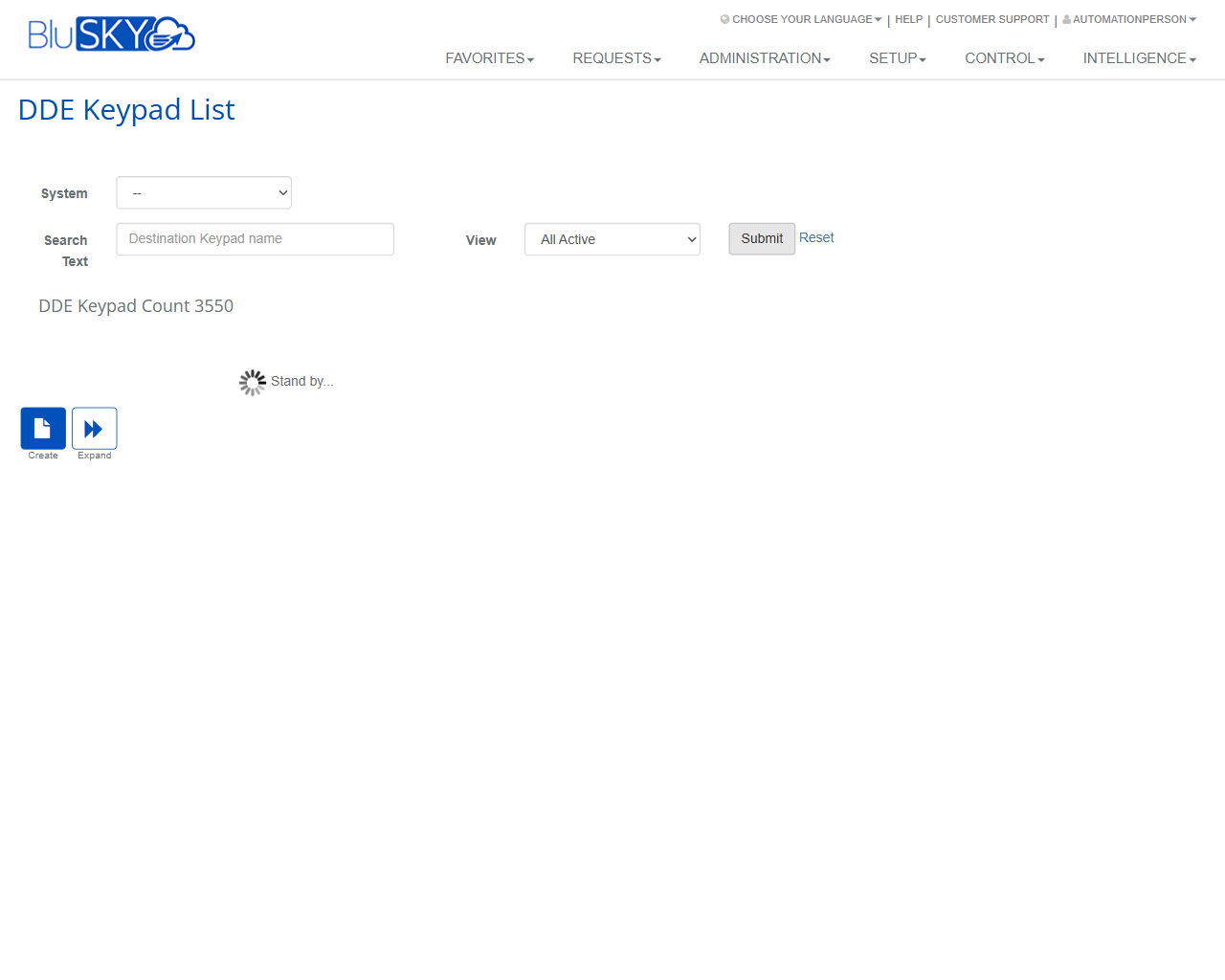
The DDE Keypad List screen provides tools to search, view, and create Destination Dispatch Elevator (DDE) keypad records within BluSKY. Administrators can filter by system, search by keypad name, review the total count returned, and launch the create workflow. A dedicated Create DDE Keypad form is used to add new keypads and associate them to a facility within a selected system.
Field Definitions
| Field Label | Definition | Notes |
|---|---|---|
| System (List) | Dropdown used to scope the list to a specific BluSKY system. | Optional filter on the list page. |
| Search Text | Free-text search box to find keypads by name. | Placeholder shows “Destination Keypad name”. Partial matches supported. |
| View | Status filter for the list. | Options include “All Active” (others may be available per configuration). |
| DDE Keypad Count | Read-only indicator showing how many keypad records match the current filters. | Updates after Submit. |
| System (Create) | Required selector for the system in which the new keypad will be created. | Appears on the Create DDE Keypad form. Must be chosen before Facility is available. |
| Retain (System) | Checkbox to keep the selected System value for subsequent creates. | Create form only. Helpful for bulk entry. |
| Facility | Facility within the chosen System to associate the keypad to. | Create form only. Disabled until a System is selected. |
| Retain (Facility) | Checkbox to keep the selected Facility value for subsequent creates. | Create form only. |
Screen Actions and Functions
- Submit – Applies the selected filters and refreshes results and the DDE Keypad Count.
- Reset – Clears filters to their defaults.
- Create – Opens the Create DDE Keypad form.
- Expand – Expands the results area for wider viewing of list content.
Usage Instructions & Examples
How to find an existing DDE Keypad
- Optionally choose a System (List).
- Enter a name or partial name in Search Text.
- Select a View option (e.g., All Active).
- Click Submit. Review the DDE Keypad Count and results.
How to clear filters and start a new search
- Click Reset.
- Reapply desired filters and click Submit.
How to create a new DDE Keypad
- Click Create.
- On the Create DDE Keypad form, select System (Create).
- Select Facility. Use Retain checkboxes if entering multiple keypads in the same context.
- Save (follow on-screen prompts, if any). The keypad becomes available in the DDE Keypad List.
Example: Bulk creating several keypads for the same facility
- Click Create.
- Select the target System and check Retain (System).
- Select the target Facility and check Retain (Facility).
- Enter keypad-specific details as prompted and save.
- Use the retained values to quickly add the next keypad.
System Behaviors and Edge Cases
- The list displays “Stand by…” with a spinner while results load after Submit.
- DDE Keypad Count updates only after filters are applied via Submit.
- If no records match the filters, the count shows 0 and the results area is empty.
- Facility is a dependent field; it remains unavailable until a System is selected on the Create form.
- Retain checkboxes persist only for the current create session/browser tab; they do not change default system settings.
- Users without create permission will not see the Create button.
- Very large result sets may require Expand to comfortably view columns on smaller displays.
Permissions
- Accessible to users with DDE keypad administration rights, typically:
- Global Administrators
- System Administrators/Installers for the selected system
- Create, edit, or delete operations require elevated write permissions; users with read-only access can filter and view but cannot create.
- Access is further restricted by system/facility scope assigned to the user’s role.
Linked Workflows
- DDE System Setup – Configure destination dispatch controllers and devices for the selected system.
- Facility Management – Ensure facilities are defined and associated to the correct system before creating keypads.
- Elevator Banks/Groups – Associate created keypads with the appropriate elevator banks/groups as required by site design.
- Access Configuration – Map keypad usage to access rules and schedules as needed.
Reference Image Links