Dde Diagnostics
DDE Diagnostics
Screen Overview
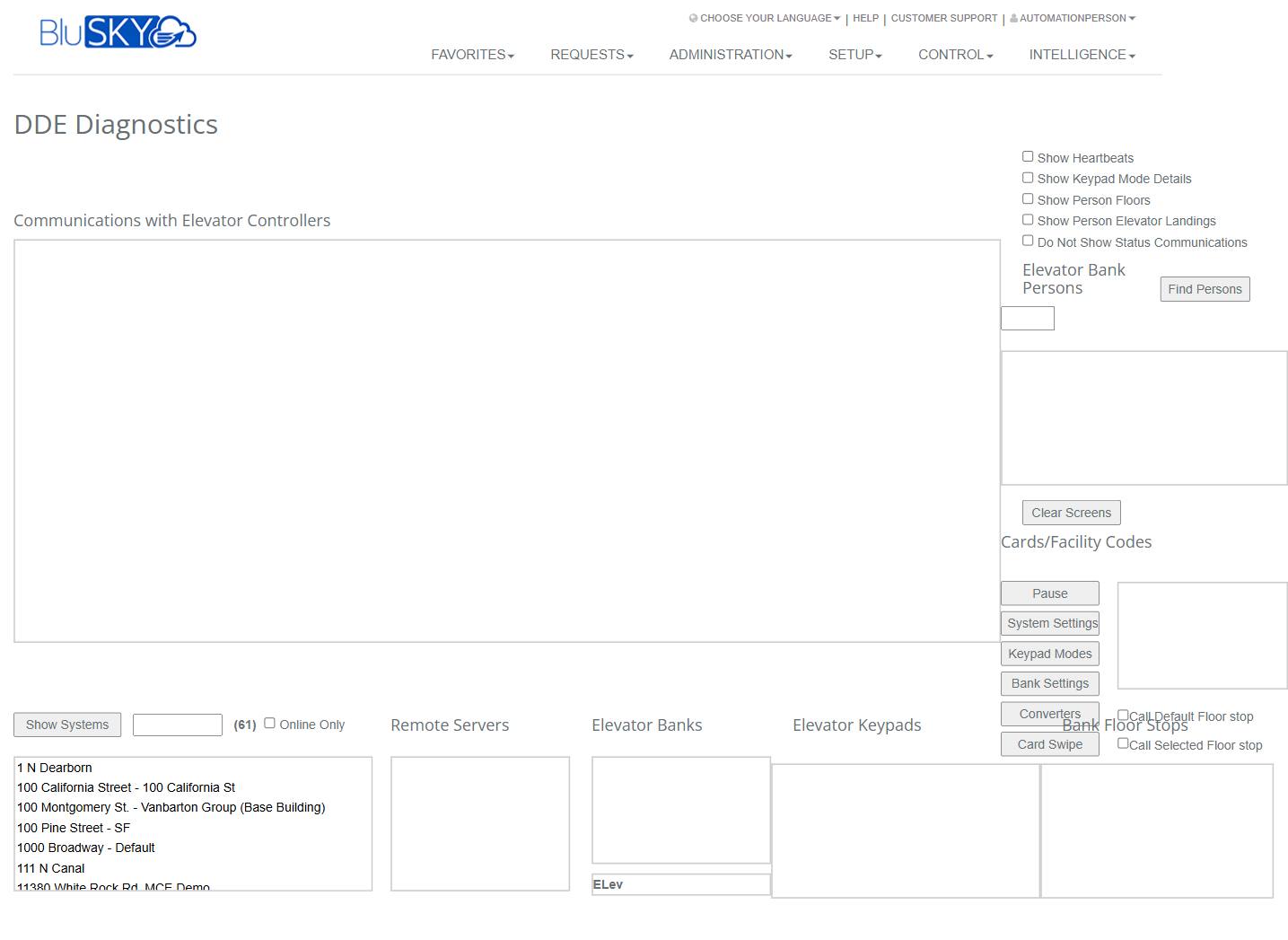
The DDE Diagnostics screen provides live, read-only diagnostics for Destination Dispatch Elevator (DDE) integrations. It streams controller communications, lets you narrow what events are shown, and offers quick tools to inspect banks, keypads, persons, and credential data. Use this screen to verify connectivity, review keypad modes, validate card/facility codes, and troubleshoot elevator-bank behavior.
Field Definitions
| Field Label | Definition | Notes |
|---|---|---|
| Communications with Elevator Controllers | Main live log window streaming events to and from elevator controllers. | Auto-scrolls while streaming; can be paused. |
| Show Heartbeats | Checkbox to include periodic heartbeat messages in the log. | Helpful for link-health verification; can add noise. |
| Show Keypad Mode Details | Checkbox to display additional keypad mode state/details. | Applies to selected bank/keypad context. |
| Show Person Floors | Checkbox to include a person’s authorized floors in relevant events. | May increase event verbosity. |
| Show Person Elevator Landings | Checkbox to include a person’s authorized elevator landings. | May increase event verbosity. |
| Do Not Show Status Communications | Checkbox to suppress generic status messages in the log. | Overrides other “Show …” options for status-type events. |
| Elevator Bank Persons Search | Text box used to search for persons associated with the selected elevator bank. | Enter a name, badge, or identifier. |
| Find Persons | Button to execute the Elevator Bank Persons search. | Requires an elevator bank selection. |
| Elevator Bank Persons Results | List showing persons returned by the search for the selected bank. | Read-only. |
| Clear Screens | Button that clears/empties all visible log/result panes. | Does not affect devices or server-side logs. |
| Cards/Facility Codes Viewer | Panel that displays detected card numbers and facility codes. | Populates after “Card Swipe” capture or live reads. |
| Pause | Button that toggles live streaming on/off. | When paused, the log stops updating and auto-scrolling. |
| System Settings | Button to open DDE-related system settings for the current selection. | Requires elevated permissions. Opens in a separate view/modal. |
| Keypad Modes | Button to open keypad mode diagnostics for the selected bank/keypad. | Read-only or editable based on permissions. |
| Bank Settings | Button to open configuration of the selected elevator bank. | Requires elevated permissions. |
| Converters | Button to open diagnostics for protocol converters used by DDE. | Used to verify converter connectivity/state. |
| Card Swipe | Button to start a capture session for a card read; results appear in Cards/Facility Codes. | Times out after inactivity; follow on-screen prompts if shown. |
| Bank Floor Stops: Default Floor stop | Checkbox option to show/test default floor stop behavior for the selected bank. | For diagnostic display only. |
| Bank Floor Stops: Call Selected Floor stop | Checkbox option to show/test floor-stop behavior for a specifically selected floor. | For diagnostic display only. |
| Show Systems | Button that loads/refreshes the systems list based on the search/filter. | Use before selecting systems. |
| System Search | Text box to filter systems by name/ID. | Apply then press Show Systems. |
| System Count | Label showing the number of systems available (e.g., “(61)”). | Read-only indicator. |
| Online Only | Checkbox to limit the systems list to online/connected systems. | If none are online, the list may be empty. |
| Systems List | List panel of available BluSKY systems. | Selecting a system populates downstream lists. |
| Remote Servers List | List panel of available remote servers for the selected system. | Select to scope diagnostics to a server. |
| Elevator Banks List | List panel of elevator banks under the selected server/system. | Must be selected to run bank-specific diagnostics. |
| Elevator Bank Filter | Text box to filter the Elevator Banks list. | Enter partial bank name/ID. |
| Elevator Keypads List | List panel of keypads that belong to the selected bank. | Selection scopes keypad-specific diagnostics. |
Screen Actions and Functions
- Show Systems – Load or refresh the Systems List using the current search and Online Only filter.
- Find Persons – Search for persons associated with the selected Elevator Bank and display results.
- Pause – Temporarily stop live streaming and auto-scrolling of the log.
- Clear Screens – Clear contents of all visible log/result panes.
- Card Swipe – Start a capture to display recent card/facility codes in the viewer.
- System Settings – Open system-level DDE settings for review or configuration.
- Keypad Modes – Open keypad mode diagnostics for the selected bank/keypad.
- Bank Settings – Open settings for the selected elevator bank.
- Converters – Open diagnostics for protocol converters involved in DDE.
- Toggle display filters – Use Show Heartbeats, Show Keypad Mode Details, Show Person Floors, Show Person Elevator Landings, and Do Not Show Status Communications to tailor what appears in the log.
- Bank Floor Stops options – Switch between Default Floor stop and Call Selected Floor stop to review stop behavior in diagnostics.
- List selection – Choose a System, then a Remote Server, then an Elevator Bank, and optionally a Keypad to scope diagnostics.
Usage Instructions & Examples
How to view live controller communications for a specific bank
- In System Search, type part of the system name and click Show Systems.
- Check Online Only if you want to hide offline systems.
- Select a System, then select a Remote Server.
- Select an Elevator Bank.
- (Optional) Select an Elevator Keypad.
- Use the display filters (e.g., Show Heartbeats) as needed. Watch Communications with Elevator Controllers for live events.
How to locate persons associated with a bank
- Select the target System, Remote Server, and Elevator Bank.
- In Elevator Bank Persons Search, enter a name or badge number.
- Click Find Persons.
- Review Elevator Bank Persons Results for matching entries.
How to verify a credential’s card/facility code
- Select the appropriate System and Elevator Bank.
- Click Card Swipe to begin capture.
- Present/swipe a credential at a reader associated with the selected bank.
- Confirm the card number and facility code in the Cards/Facility Codes Viewer.
How to analyze keypad mode changes with reduced noise
- Select the System, Remote Server, Bank, and Keypad (if applicable).
- Enable Show Keypad Mode Details.
- Disable Show Heartbeats and enable Do Not Show Status Communications to reduce chatter.
- Observe mode transitions in the Communications window.
How to freeze and export visible diagnostics (manual copy)
- Click Pause to stop the log from updating.
- Select and copy the relevant text from Communications with Elevator Controllers.
- Paste into a support ticket or text file.
- Click Pause again to resume streaming.
System Behaviors and Edge Cases
- Streaming scope follows your selections. Changing System/Server/Bank immediately changes what is streamed and may clear context-specific panes.
- Pause halts new messages from rendering and stops auto-scroll; messages may queue server-side and appear after resuming.
- Clear Screens removes only what is currently displayed in the browser; it does not delete historical/device logs.
- Display filters apply immediately and only affect visibility, not underlying events.
- Do Not Show Status Communications suppresses generic status lines even if other “Show …” options are enabled.
- Find Persons requires a selected Elevator Bank; without one, the results will be empty or the action may be disabled.
- Online Only may result in an empty Systems List when no systems are currently connected.
- Card Swipe capture can time out; if no credential is read in time, nothing appears in the Cards/Facility Codes Viewer.
- High-traffic environments can fill the log rapidly. Use Pause and Clear Screens to manage readability.
- Permissions can hide or disable settings actions (System Settings, Bank Settings, Keypad Modes, Converters) for users without configuration rights.
Permissions
- Access: Typically available to Global Administrators, Integrators/Installers, and Building/Elevator Administrators.
- View diagnostics: Requires read access to the selected System and Elevator Banks.
- Card Swipe capture: Requires permission to view credential data.
- Configuration actions (System Settings, Bank Settings, Keypad Modes, Converters): Require elevated setup/configuration permissions for elevators/DDE.
- Some tenants may restrict visibility to only their assigned systems and banks.
Linked Workflows
- Elevator Banks setup – create or modify bank configuration used by diagnostics.
- Keypad Modes configuration – manage keypad mode policies and behavior.
- System/Remote Server management – maintain connectivity and routing for DDE traffic.
- Persons and Credentials – manage people and badges that appear in searches and card/facility code checks.
- Access Levels and Floor Permissions – adjust floor/landing access that appears when Show Person Floors/Landings is enabled.
Reference Image Links