March 2026
Video Player 2.0
a. WebRTC Live Streaming (Needs BBNVR 3.3.x.x or later)
i. Live camera feeds now utilize WebRTC streaming technology, delivering significantly lower latency. ii. Operators experience a near real-time live view, providing faster response and improved situational awareness compared to previous streaming methods.
b. Redesigned Video Player
The Video Player has been completely redesigned to deliver a more intuitive, efficient, and operator-focused experience.
i. Modernized Interface: Cleaner layout with logically grouped controls for easier navigation and faster access to key functions.
ii. Enhanced Playback Controls:
- Simplified playback speed selector for quick switching between slow-motion review and accelerated scanning.

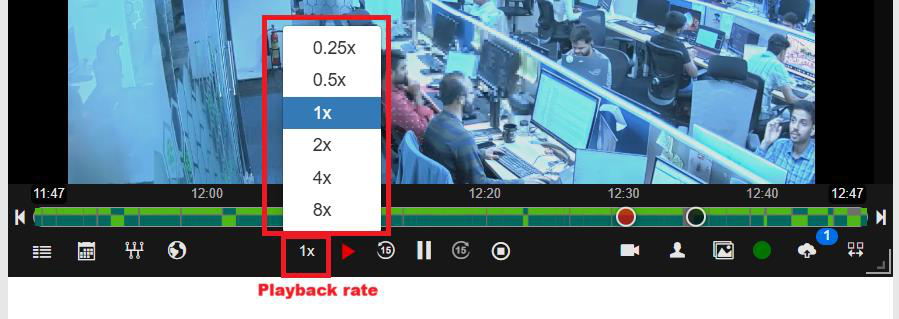
- Dedicated quick backward and forward buttons allow instant fixed-step jumps without dragging the timeline.


iii. Camera Information Panel
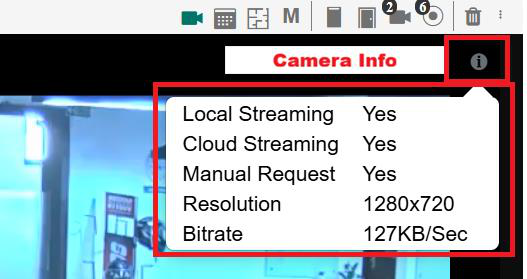
- A new Camera Info tooltip panel has been added, accessible via the information icon in the player header.
- This allows operators to quickly verify streaming health and configuration without navigating away from the video view.
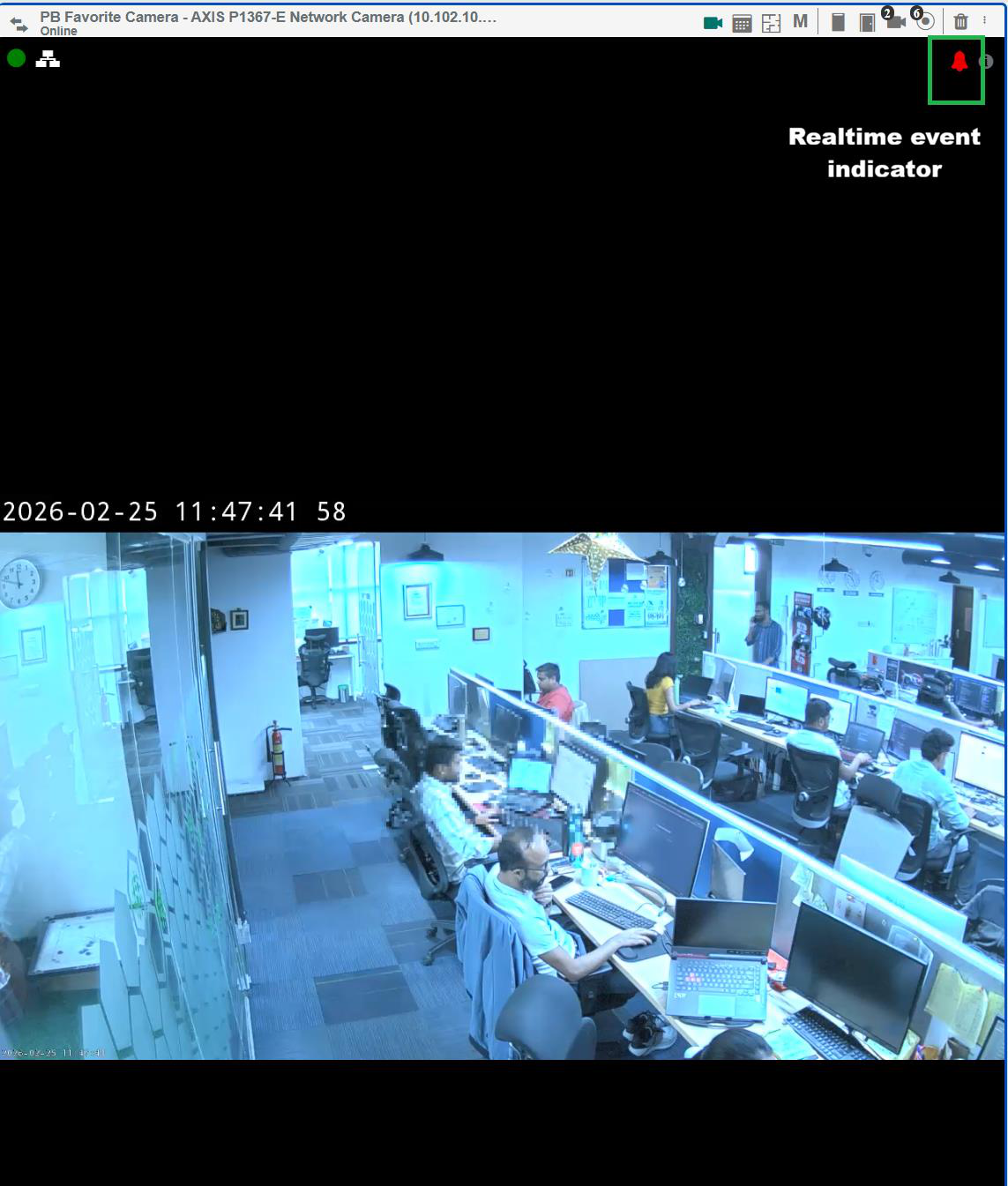
iv. Realtime Event Indicator: A visual event indicator appears directly on the video player whenever a camera event occurs, ensuring operators remain informed without switching views.
c. Redesigned Events Timeline
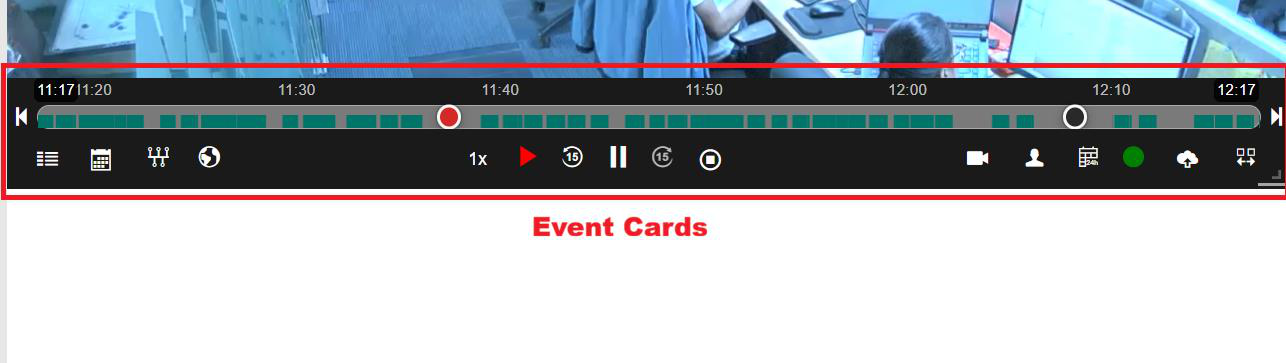
i. The timeline has been rebuilt from the ground up with improved performance, rendering speed, and usability across all event volumes.
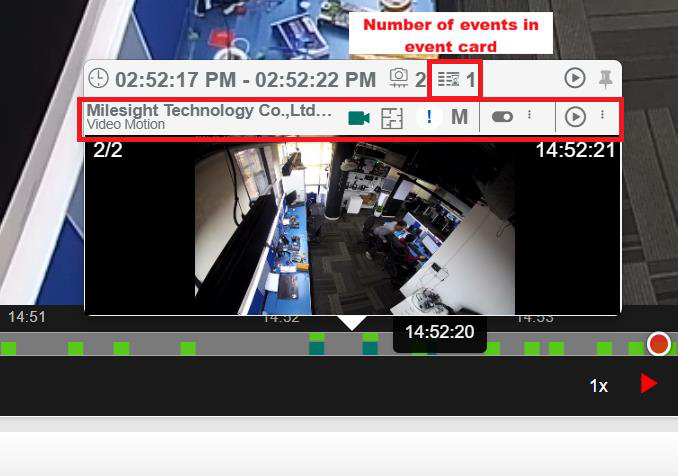
ii. Hover Preview Card: Hovering over any point on the timeline surfaces a combined preview card showing the camera snapshot and any security events that occurred at that moment.
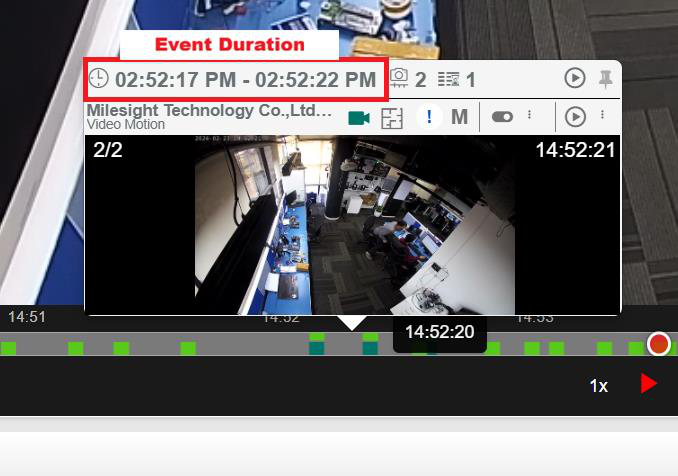
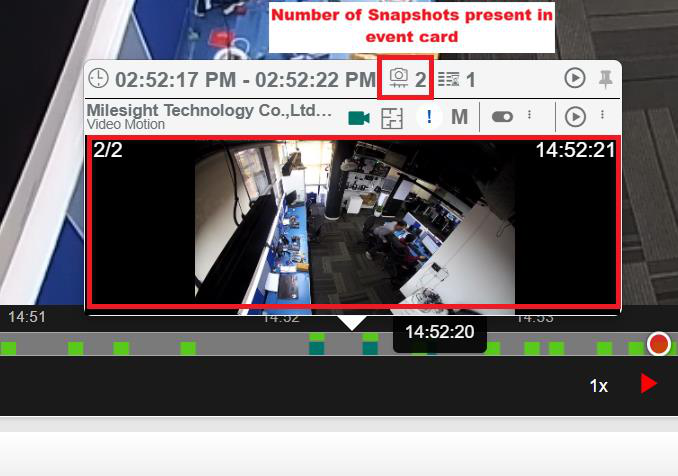
iii. Realtime Cursor Tooltip: A dynamic tooltip follows the cursor, displaying the exact timestamp for precise seeking.

iv. Clear Time Markers: Quick time indicators along the timeline axis provide strong visual reference points for confident navigation.

v. Visible Timeline Boundaries
- Start and end time boundaries always remain visible for full context of the playback range.
vi. Persistent "Switch to Live" Button
- The Switch to Live button is always persistently available, allowing operators to instantly jump back to the live stream from any point in playback.
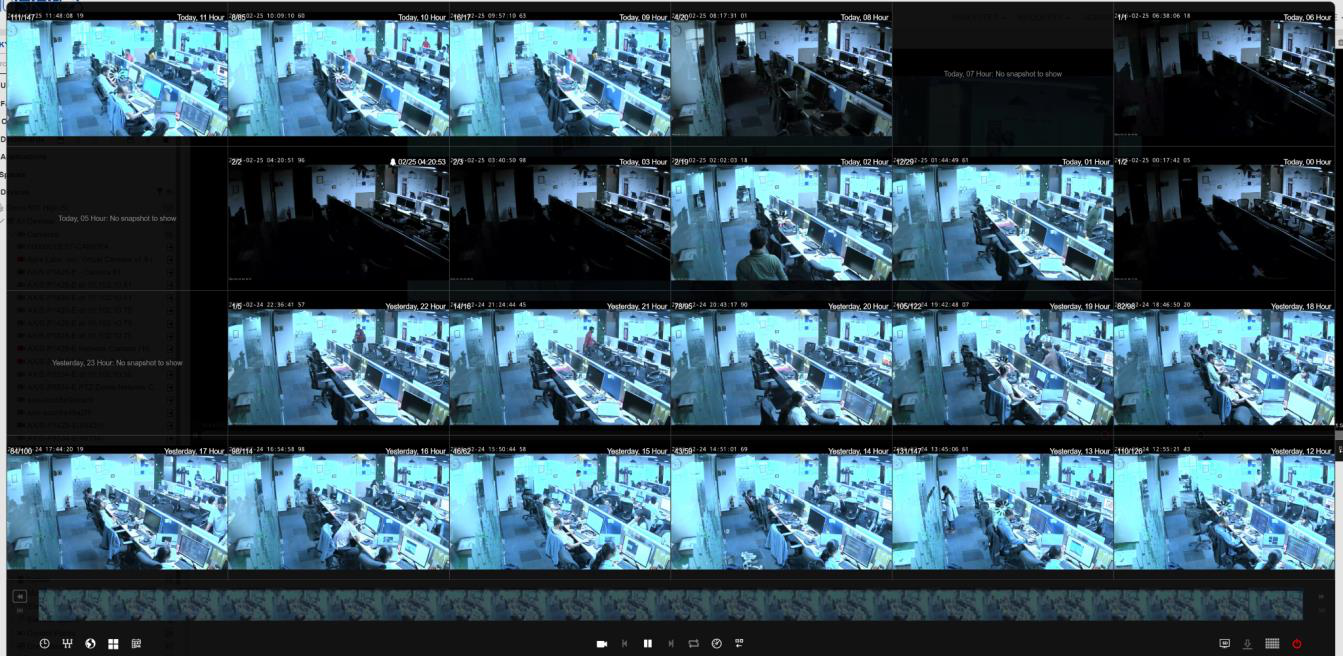
vii. One click Snap24
- A Snap24 shortcut gives operators a one-click option to jump to the last 24 hours of camera snapshots for quick visual review.


- Hovering over the timeline now displays a larger snapshot preview along with the exact timestamp, allowing precise visual scrubbing before seeking.
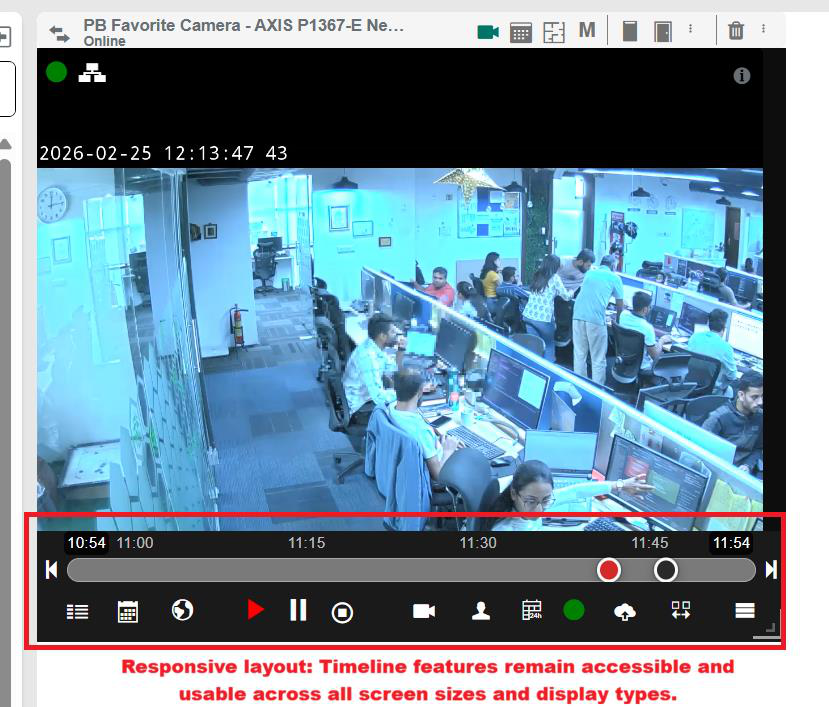
viii. Fully Responsive Timeline: Timeline features remain accessible and usable across all screen sizes and display types.
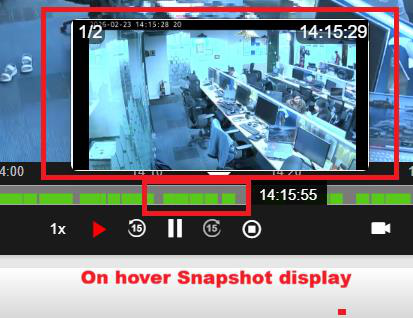
ix. Start and End Jockey Indicators: Clear visual indicators for the start and end jockey positions help operators understand playback boundaries instantly.

d. Event Cards on Video
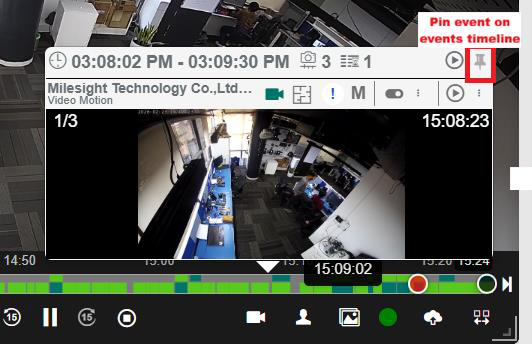
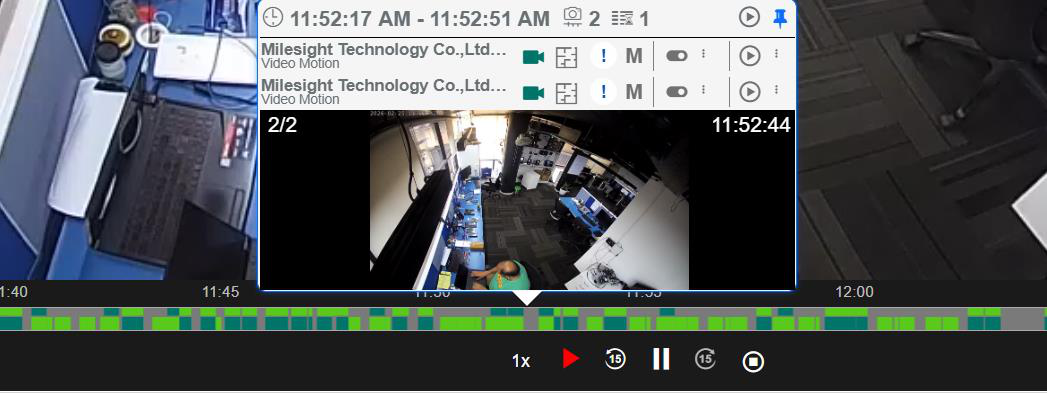
i. Security and access events appear as live cards directly on the video feed as they happen, so operators can see what is occurring without switching between views.
ii. Event cards can be pinned to remain visible while continuing to monitor live video — ideal for tracking ongoing incidents.
e. Recording & Clip Export Enhancements
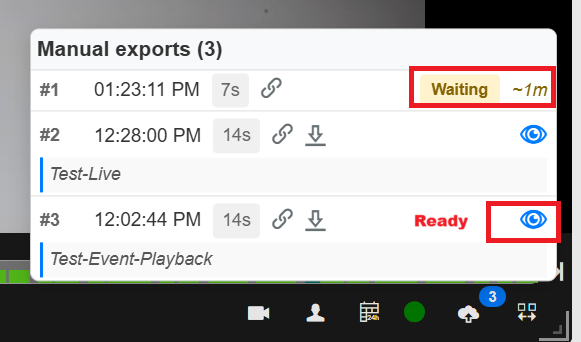
i. Redesigned Clip Recording Interface: The record clip interface has been redesigned for a better experience, now supporting multiple simultaneous clip exports from the same session.
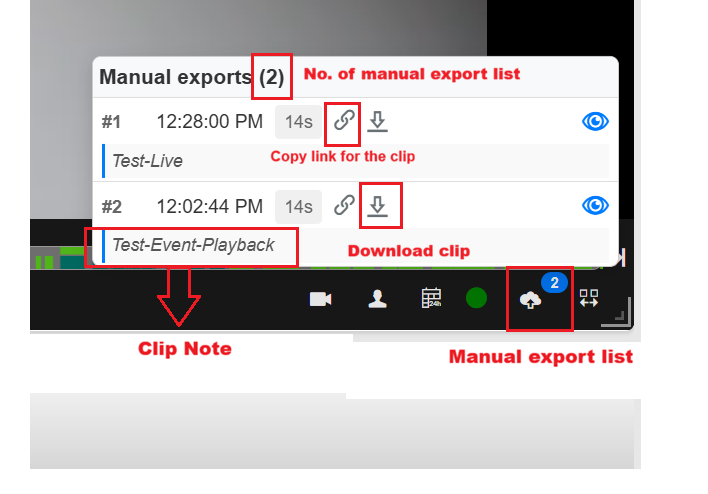
ii. Clip Export Tracking Panel: A dedicated clip export panel tracks all manually exported clips within the session, showing status — in progress, ready, or timed out — so operators never lose track of a requested clip.
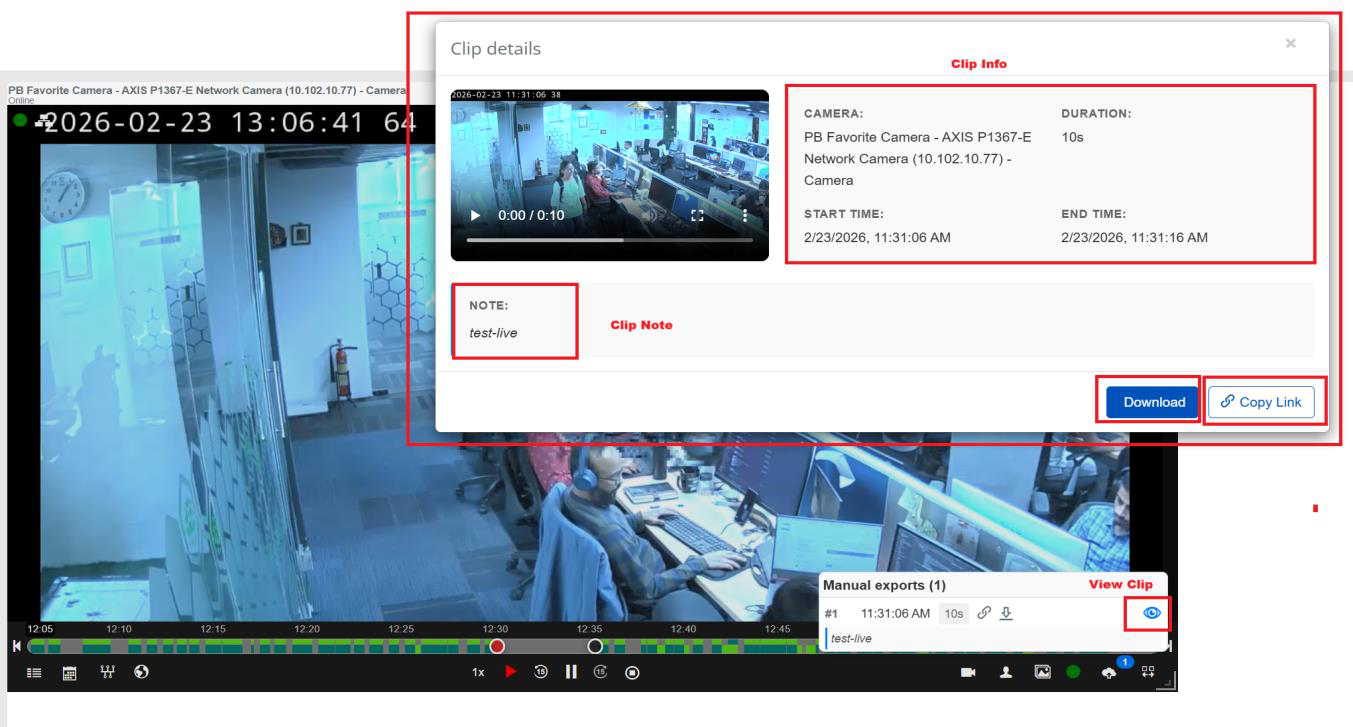
iii. Improved Export Modal: The clip export modal has been redesigned for a cleaner, more intuitive experience when reviewing and downloading exported clips.
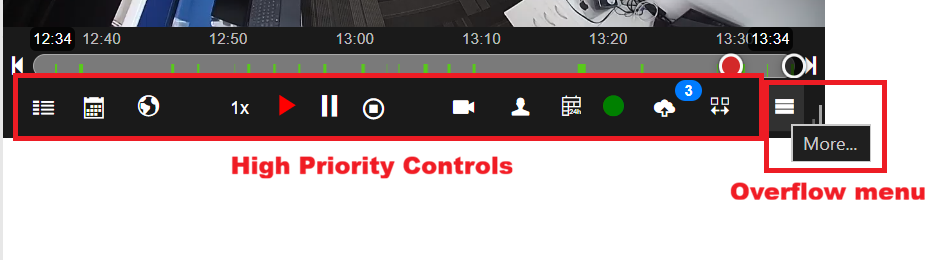
f. Responsive Video Toolbar
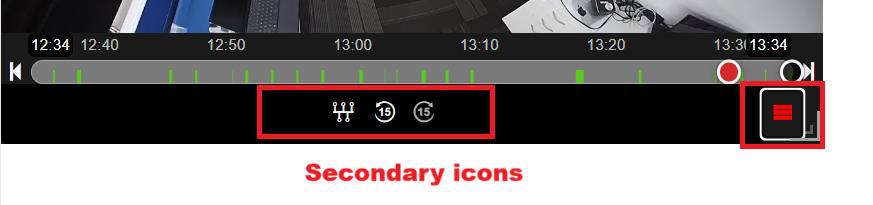
i. The video toolbar dynamically adapts to screen size. ii. High-priority controls remain visible, while secondary controls move into an overflow menu — ensuring a clean interface at any resolution.
g. Associated Devices Display in UDC Header
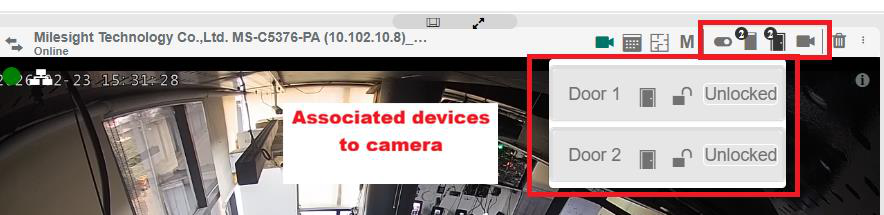
i. Associated cameras are now displayed directly in the UDC header, providing immediate visibility into linked camera relationships. ii. This enhancement allows operators to quickly identify and navigate between related camera feeds without leaving the current view.
h. Configuration Enhancements
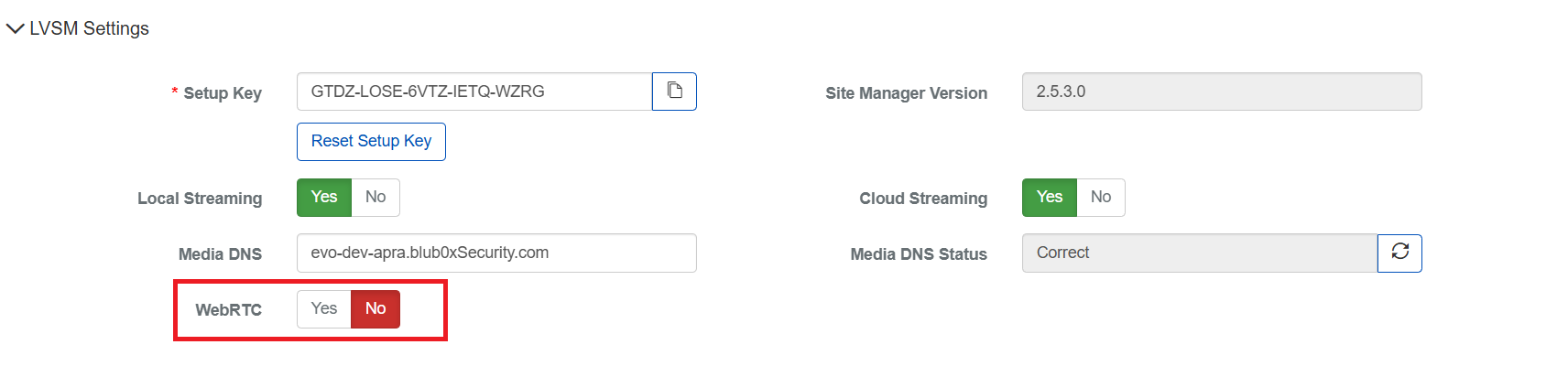
i. Recording Server Configuration: A new WebRTC option is available on the recording server configuration page and viewlist, allowing administrators to enable WebRTC streaming per recorder.

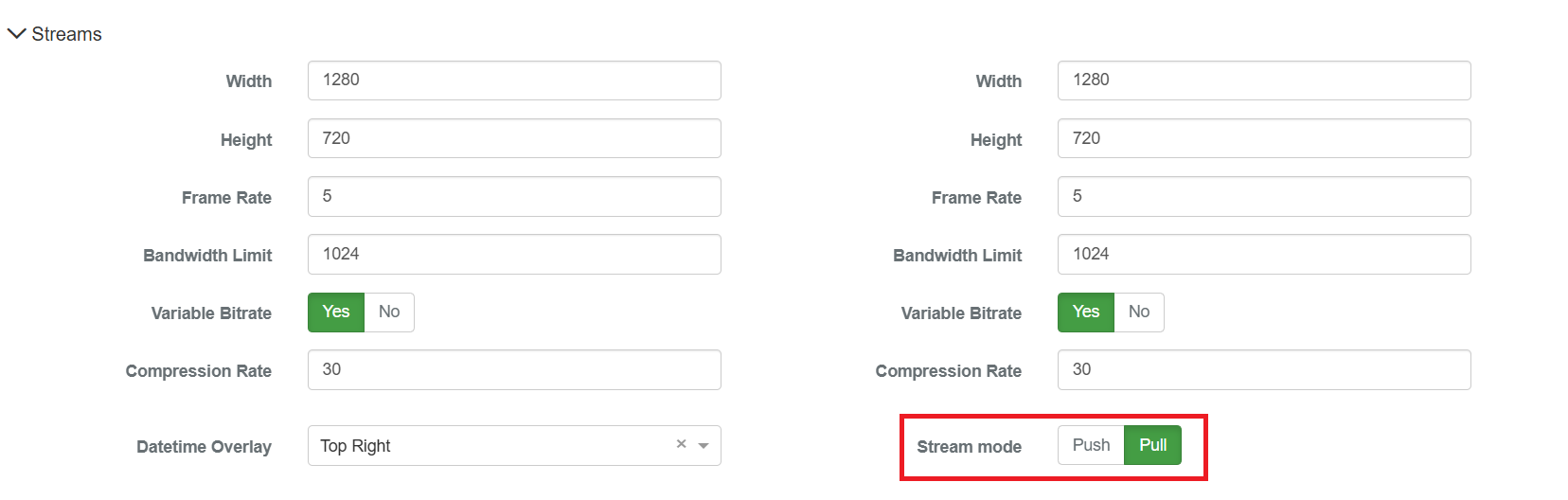
ii. Camera Configuration: A new Push / Pull stream mode switch has been added to camera configuration, enabling seamless support for older cameras without any additional workarounds.
AI Ticketing Beta
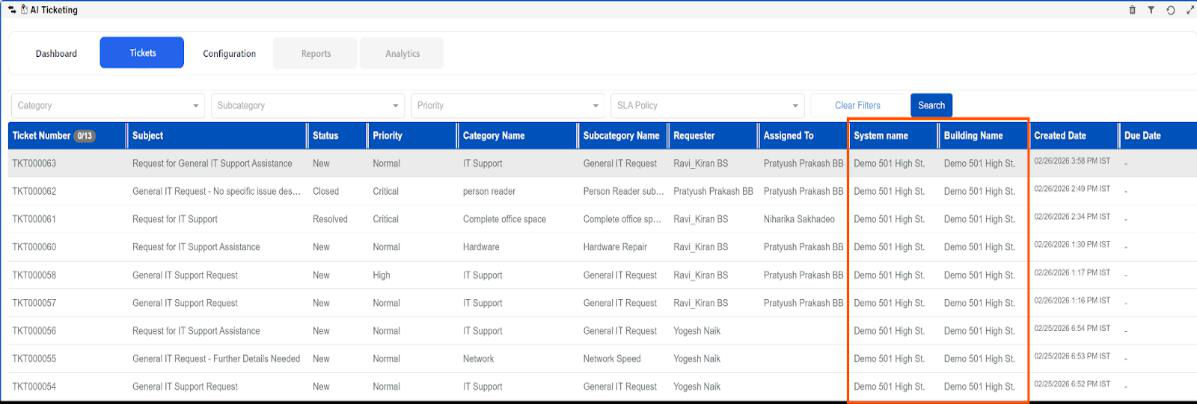
a. List Page Enhancement
i. The AI Ticket List page has been enhanced to display System and Facility columns, providing better visibility into the organizational context of each ticket directly from the list view.
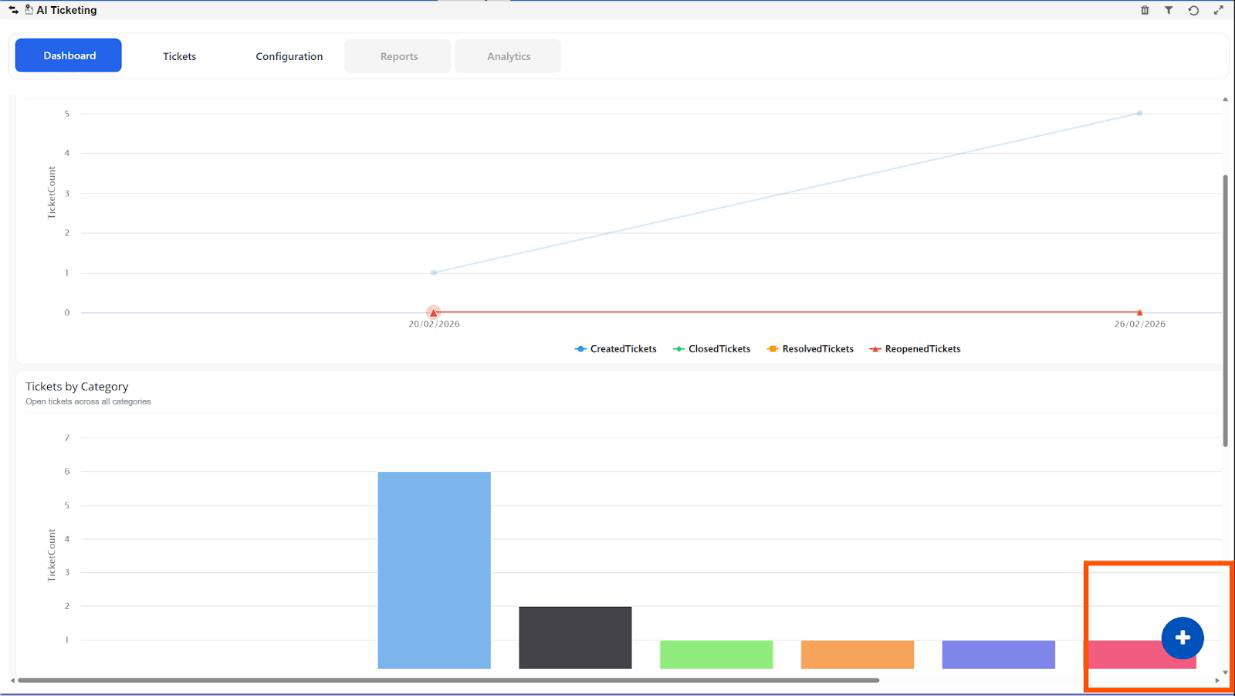
b. Quick Ticket Creation from Dashboard
i. Users can now create tickets directly from the Dashboard using a dedicated "+" (Quick Create) button. This enhancement enables faster action-taking without requiring navigation to the Tickets module.
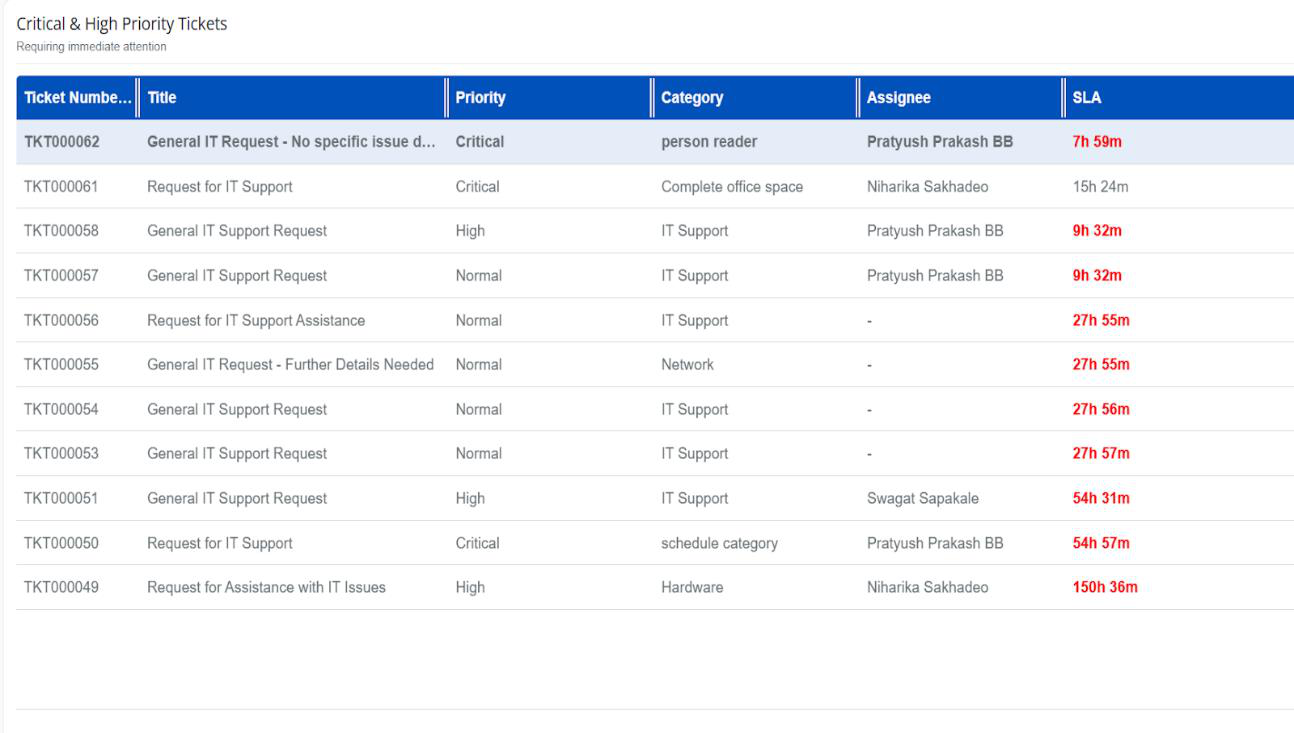
c. Critical & High Priority Tickets on Dashboard
i. A new Critical & High Priority Tickets section has been added to the Dashboard to display urgent tickets open. ii. The grid shows only tickets with High, Critical priority and tickets near to SLA breach. iii. The following columns are displayed: Ticket Number, Title, Priority, Category, Assignee, and SLA Remaining Time. iv. SLA Remaining Time helps users quickly identify time-sensitive and at-risk tickets. v. The list dynamically updates on dashboard load to reflect the latest ticket data.
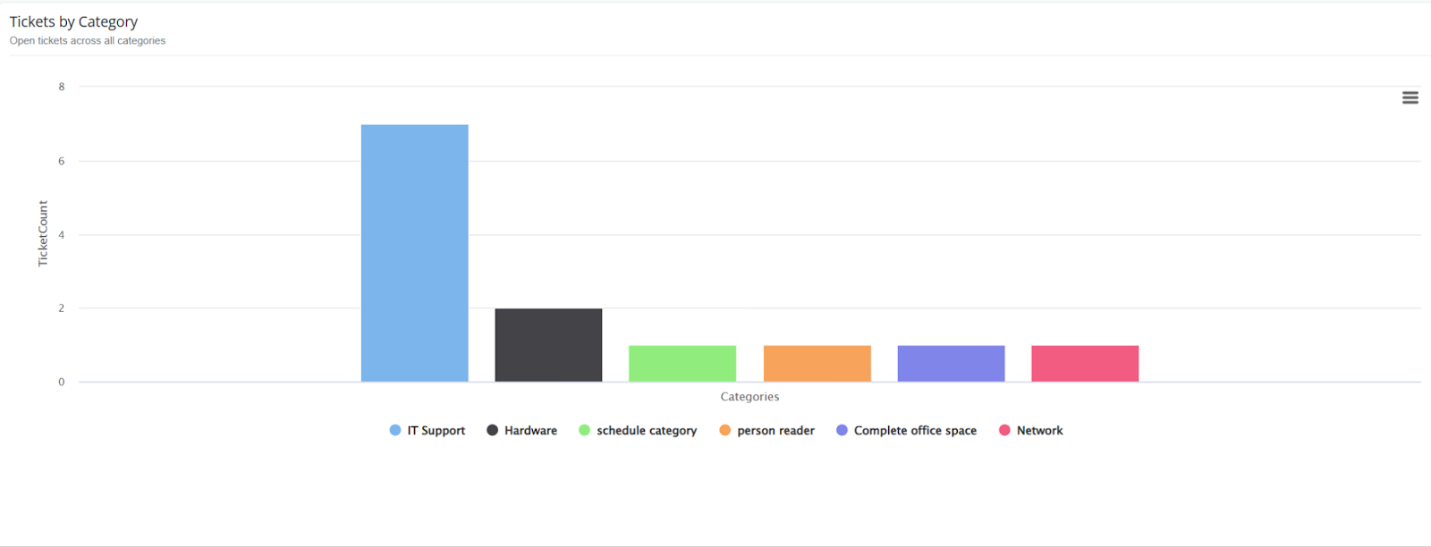
d. Category-Based Ticket Overview
i. A new Tickets by Category graph has been added to the Dashboard to display the distribution of open tickets across all categories. ii. The graph visually represents ticket counts per category, helping users quickly identify issue areas. iii. The chart automatically loads when the dashboard is accessed, based on available category summary data. iv. This feature improves operational visibility and supports data-driven decision-making.
e. Dashboard KPI Summary Cards
i. Added new KPI summary cards on the Dashboard to provide quick visibility into key ticket metrics. ii. Displays Total Open Tickets, Critical/High Priority Tickets, SLA Breach Count. iii. Metrics update dynamically based on real-time ticket data.

LogBook
Introducing a redesigned LogBook experience aimed at faster entry creation, improved usability, and smarter data capture using AI.
a. Updated Design
i. The LogBook interface has been completely refreshed with a cleaner and more intuitive layout, making navigation and daily operations easier for operators.
b. View Existing Entries & Summaries
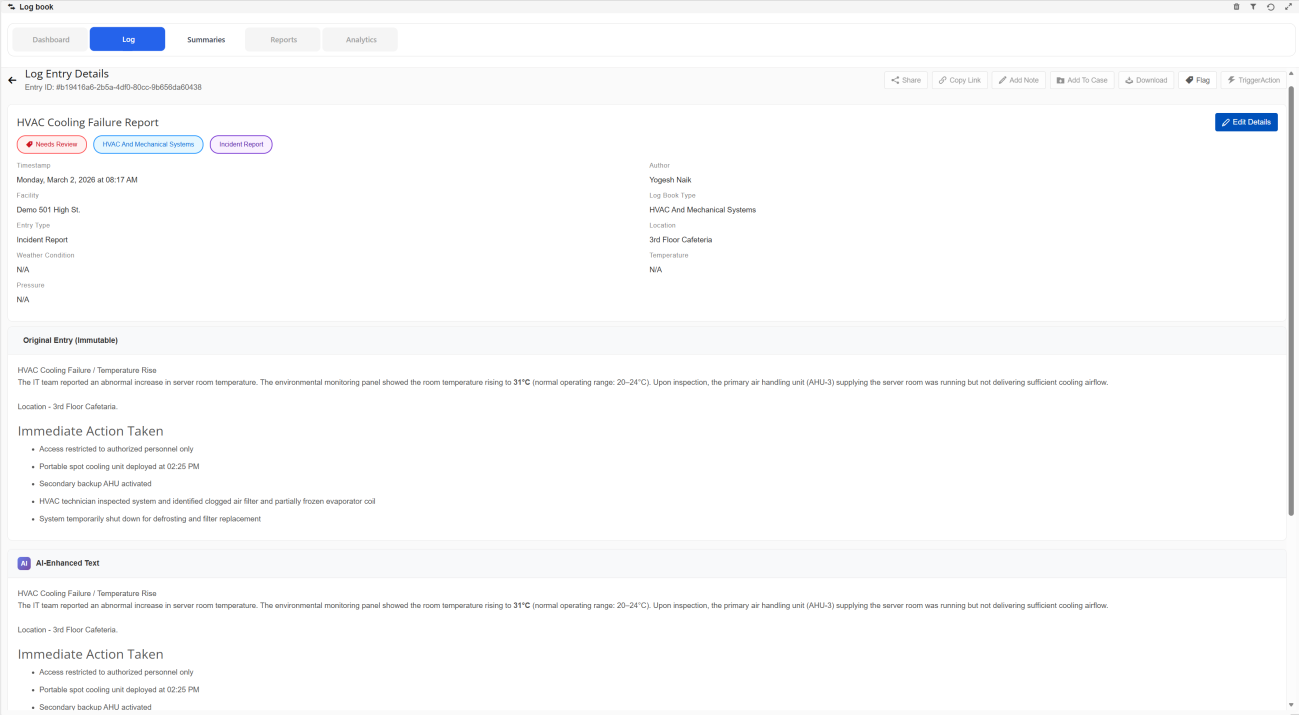
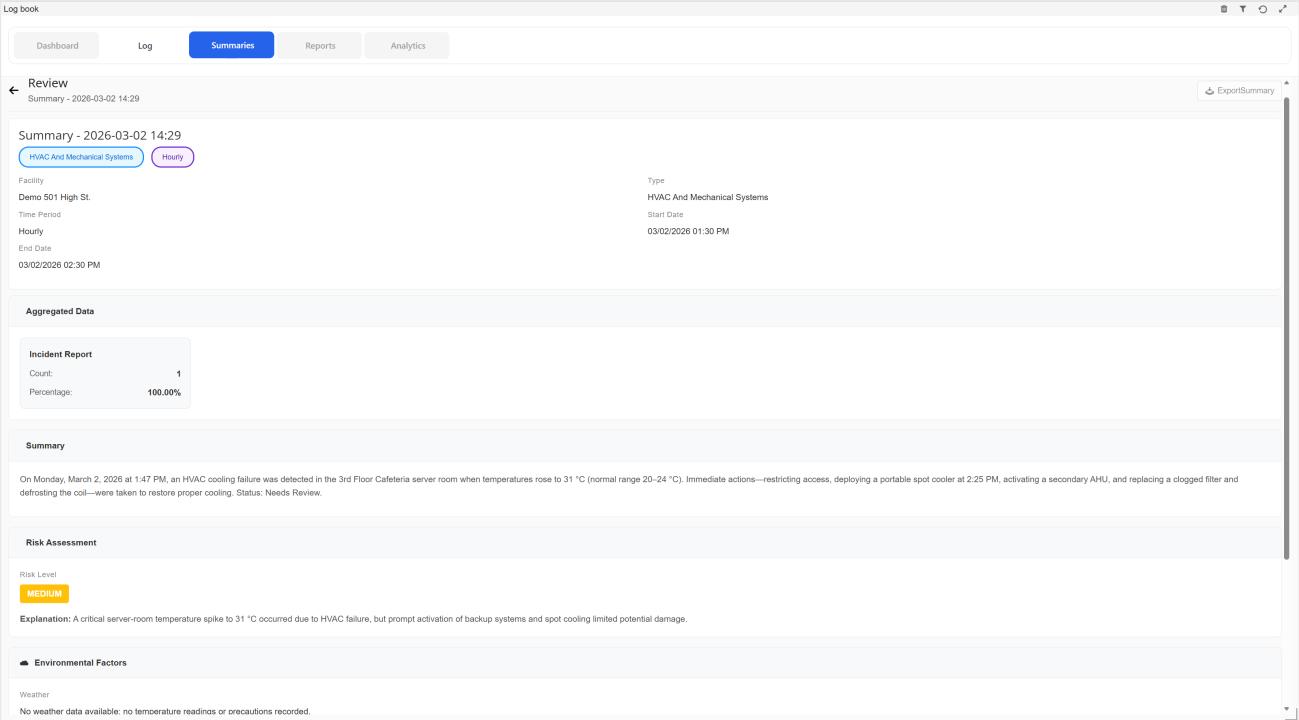
i. Users can now simply double-click any Log entries & Summaries to quickly open and view. ii. Reducing the number of clicks required and improving review efficiency.
c. Quick Entry – Whisper Enabled (Voice Log Creation)
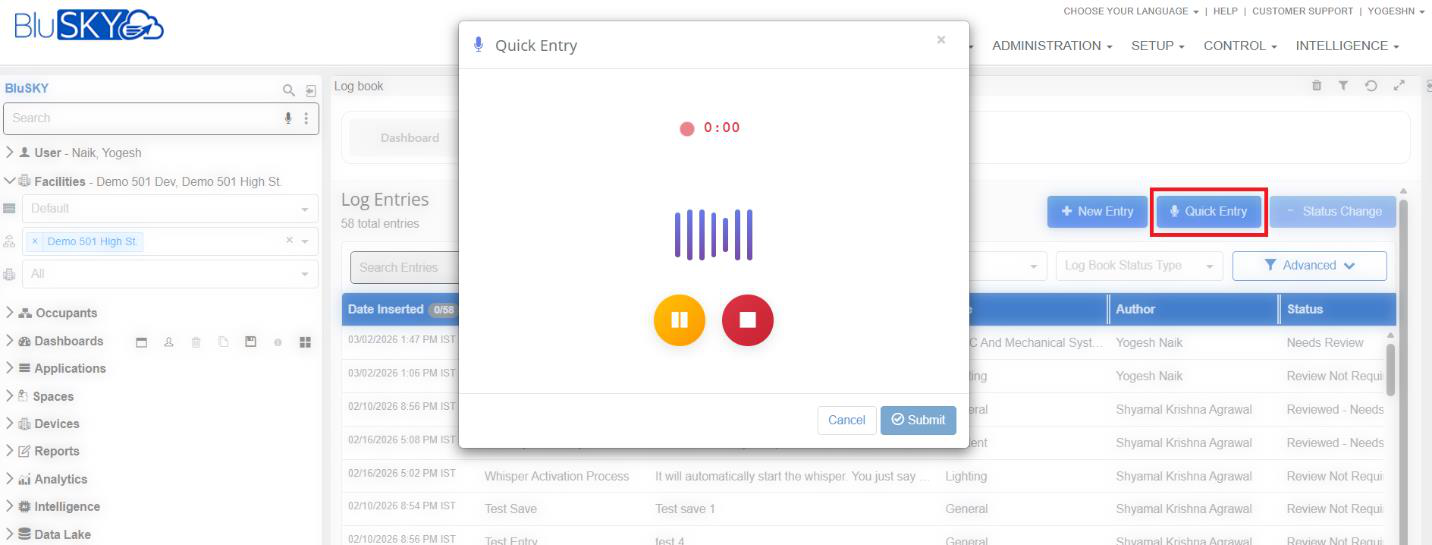
i. A new Quick Entry option allows users to create LogBook entries using voice input, enabling rapid hands-free reporting in operational environments.
- Click Quick Entry → voice recording starts automatically.
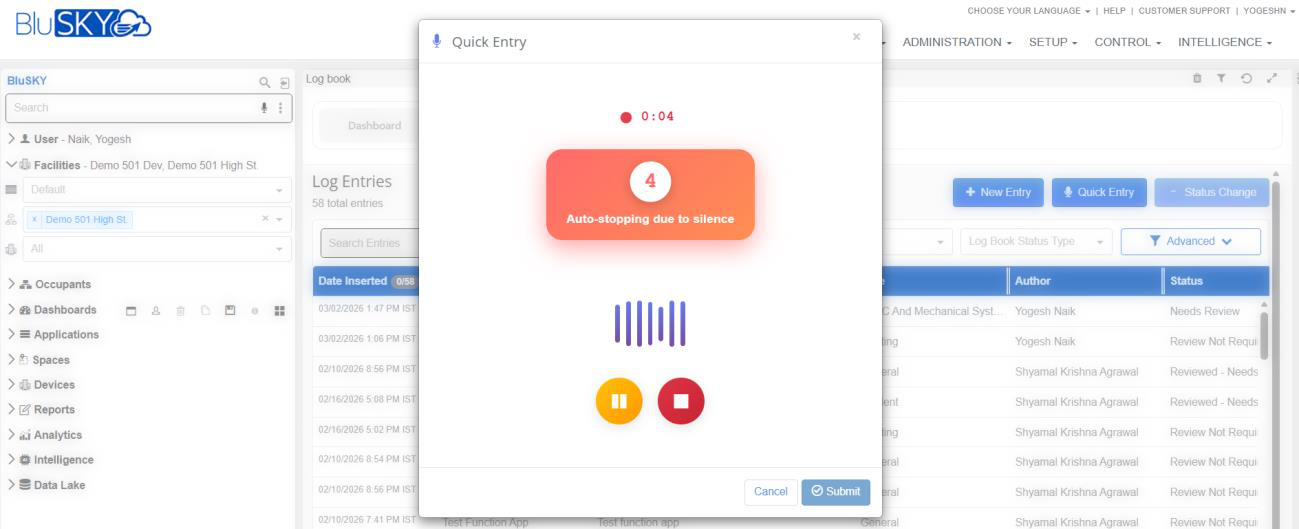
- Recording stops after 8 seconds of silence detection.
- On submit, a LogBook entry is automatically created.
d. AI Assisted Log Creation
i. While creating a LogBook entry, the system now auto-populates fields based on the user's description using AI analysis. ii. This significantly reduces manual effort and improves data consistency.
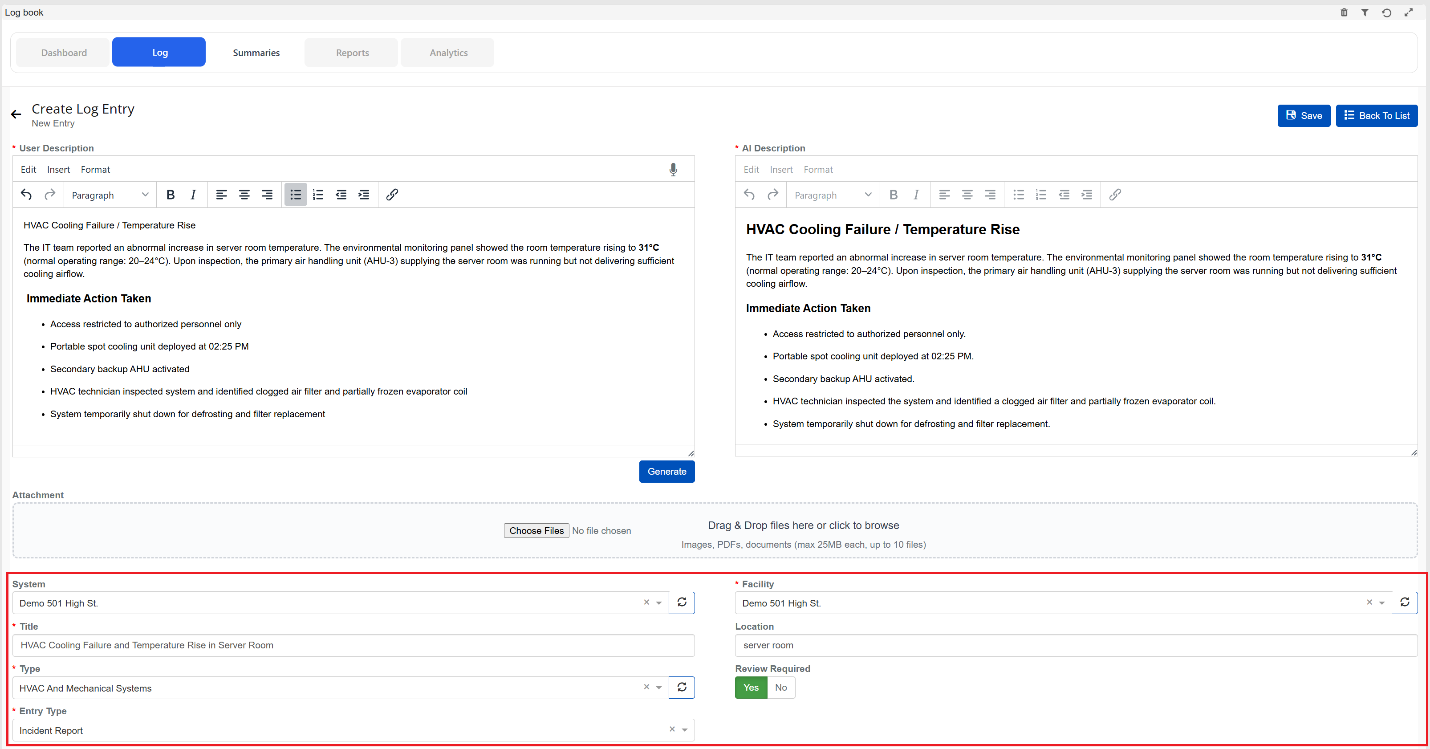
e. Enhanced Attachments
i. Supports Images, PDFs, and Documents. ii. Up to 10 files per entry. iii. Maximum 25 MB per file. iv. Added Retry option if upload fails.
