June 22, 2026
Portal Configuration Page Enhancements
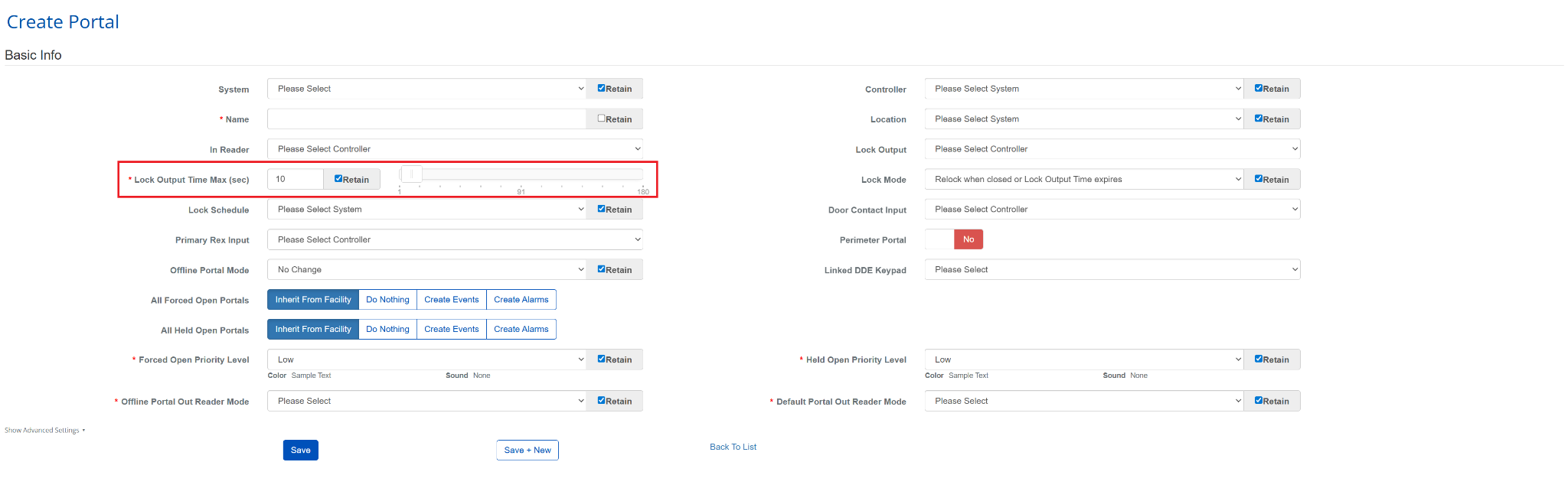
a. Retain Field Values for Portal Creation
i. Added Retain checkboxes to the Lock Output Time Max, Door Contact Held, and Lock Output Time Min fields on the Portal creation page.
ii. Enabled users to preserve selected field values across consecutive Save + New actions, reducing repetitive data entry when creating multiple portals.
iii. Allowed each field to be retained independently, with corresponding slider values remaining synchronized.
iv. Ensured retain selections and values persist across multiple Save + New operations.
v. Preserved existing validation and standard Save behavior with no impact to the Portal edit page.

UDC Performance and Reliability Improvements
a. Enhanced UDC components to improve responsiveness and reliability when processing real-time events and person photo overlays.
b. Improved event handling to ensure the most recent event is displayed accurately while preventing unnecessary visual updates and flickering.
c. Optimized UDC rendering to reduce unnecessary refreshes caused by unrelated device activity, improving overall performance.
d. Enhanced support across all device types to provide more consistent card behavior and reduce UI errors.
e. Improved refresh capabilities to ensure the latest device information is retrieved when requested.
f. Enhanced full-screen functionality for a smoother viewing experience.
g. Increased overall stability of UDC interactions, animations, and card lifecycle behavior.
Optimized Auto Label Region Updates
a. Enhanced the Auto Label pipeline to update BluSKY regions only for devices that have been added, removed, or modified, reducing unnecessary regeneration.
b. Preserved user-customized region names and unchanged regions during targeted updates.
c. Automatically created regions for newly added devices and removed regions associated with deleted devices.
d. Updated regions for moved or rotated devices without affecting other areas of the floor plan.
e. Improved pipeline performance by minimizing regeneration time while maintaining support for full floor regeneration when required.
f. Ensured region updates remain accurate with no duplicate or missing regions.
Improved Auto Label Regeneration for Device Changes
a. Enhanced the Auto Label pipeline to track exactly which devices have been added, moved, rotated, or removed on a map.
b. Improved regeneration performance by updating only the affected areas instead of reprocessing the entire floor.
c. Preserved manual region customizations for untouched areas of the map during regeneration.
d. Supported changes made from Interactive Maps, building maps, and device configuration pages with map previews.
e. Ensured multiple device updates are processed together while avoiding unnecessary regeneration when no changes have been made.
f. Continued to provide existing regeneration indicators and automatically refreshed map data after processing completes.
AI Ticketing
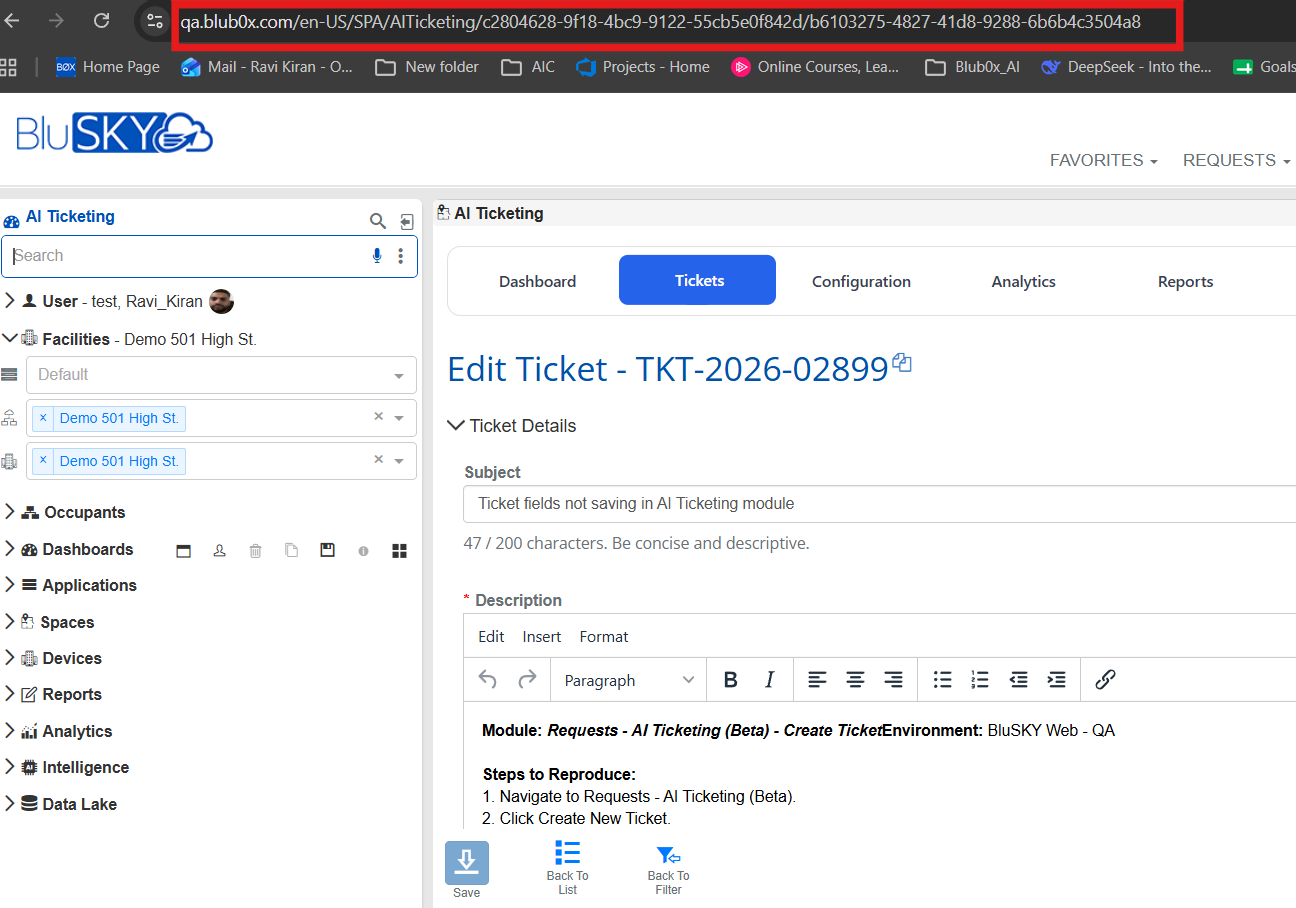
a. Direct Ticket URL Access
Users can now access and share individual AI Tickets using a unique URL.
- Quickly open a specific ticket without navigating through the ticket list.
- Easily share ticket links with team members for faster collaboration.
b. Reports Module
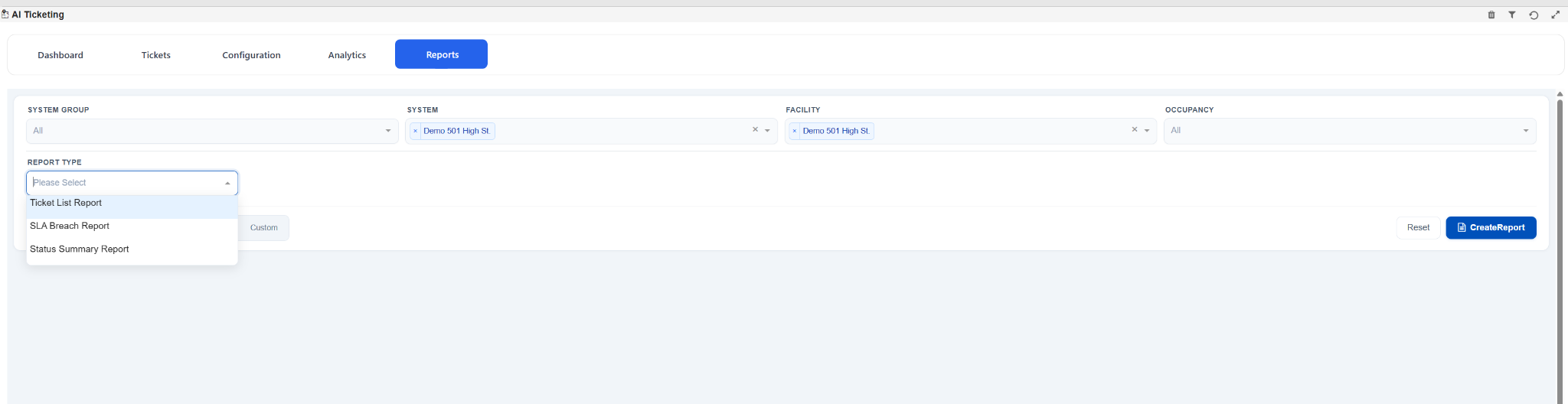
A new Reports section has been introduced in AI Ticketing, enabling users to generate and analyze ticket-related reports based on selected System, Facility, Occupancy, and date range filters.
Available Report Types:
- Ticket List Report -- Provides detailed ticket information, including ticket status, priority, category, assignee, building, creation date, due date, resolution date, SLA compliance, and reopen count.
- SLA Breach Report -- Identifies tickets that have breached response or resolution SLA targets, helping teams monitor compliance and prioritize overdue tickets.
- Ticket Status Summary Report -- Provides a summarized view of ticket counts grouped by status (New, Open, Resolved, Closed) for quick operational insights and workload tracking.
c. Requester and Assignee Filters
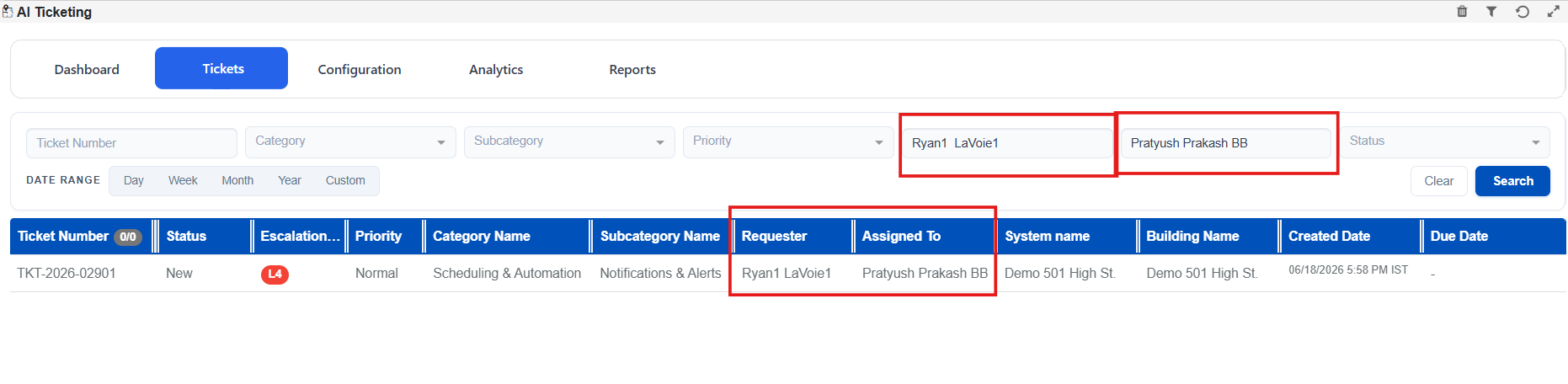
Enhanced the AI Ticketing search experience by adding dedicated Requester and Assigned To filters on the Tickets page.
- Quickly locate tickets created by a specific requester.
- Easily view tickets assigned to a particular user.
- Combine with existing filters (Category, Priority, Status, System, etc.) for more precise ticket searches.
- Improves ticket tracking, ownership visibility, and operational efficiency.
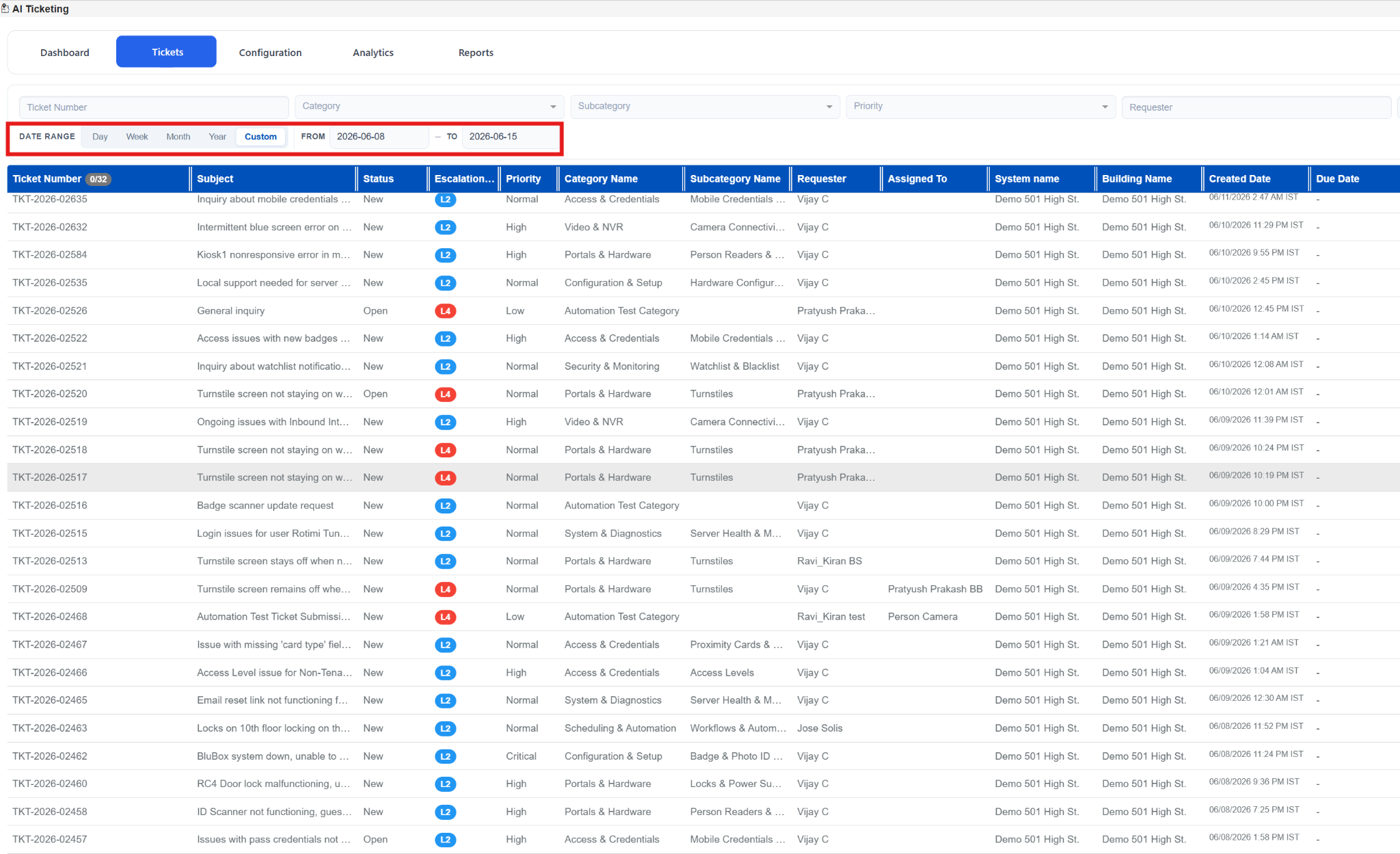
d. Custom Date Range Filter in Ticket List Page
Added support for a Custom Date Range filter on the AI Ticket list page, allowing users to search tickets within a specific date range.
- Search tickets created during a selected time period.
- Combine with existing filters for more precise ticket searches.
- Improves ticket visibility and historical data tracking.
Logbook & Summaries
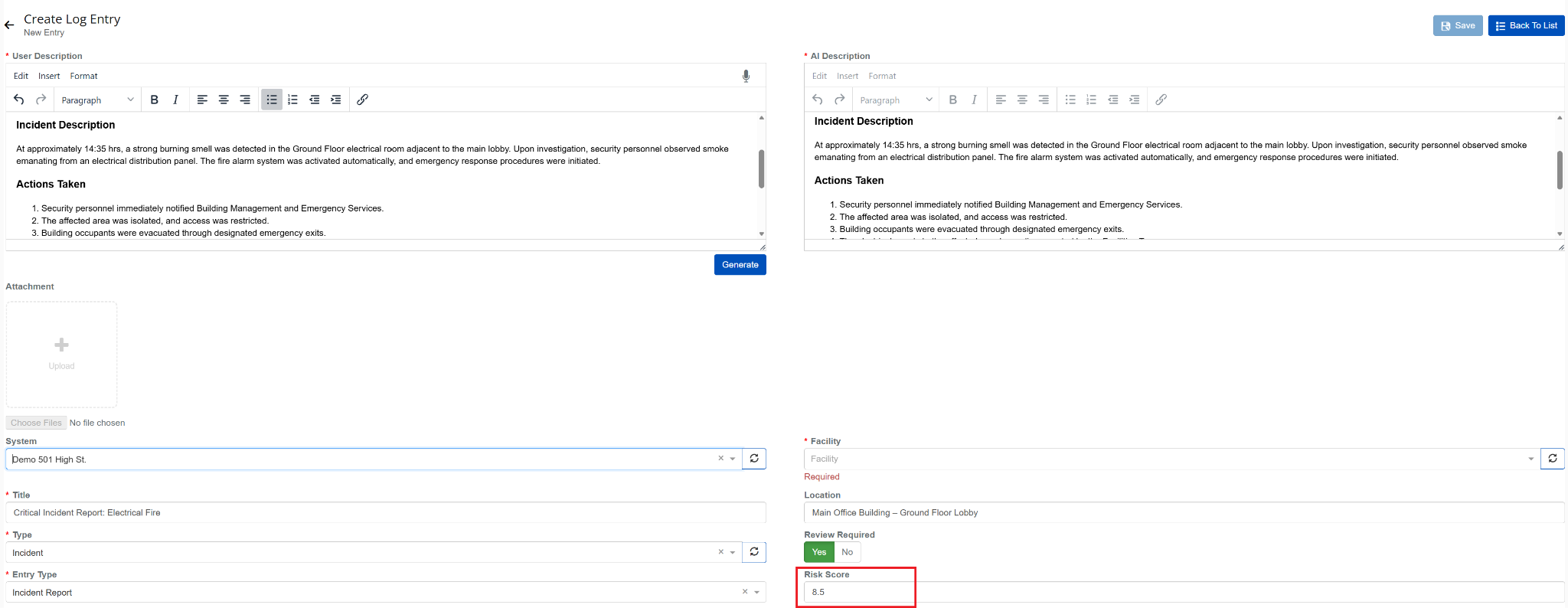
a. AI-Generated Risk Score on Logbook Entry Creation
i. When creating a logbook entry, generating an AI description automatically assigns a Risk Score based on the severity of the entry.
ii. The Risk Score field is editable, allowing users to review and adjust the value before saving the entry.
b. Minimum Risk Score Filter on List Tab
i. A Minimum Risk Score filter has been added to the Logbook & Summaries list tab, enabling users to filter entries to only those at or above a specified risk threshold.
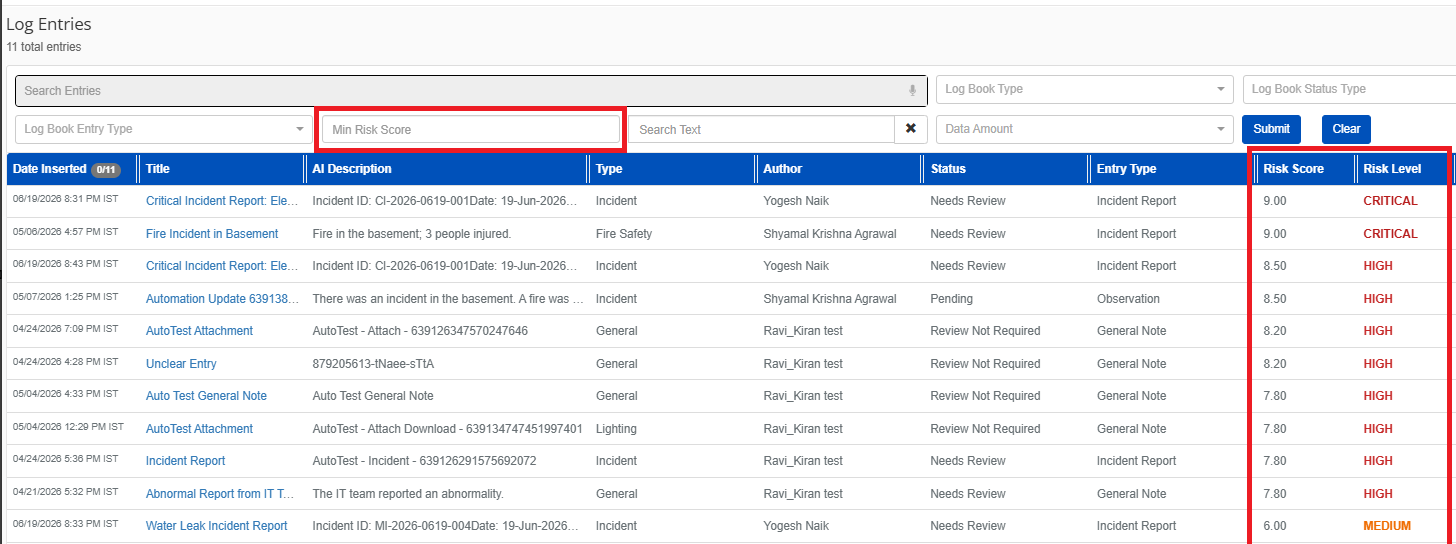
c. Risk Score & Risk Level Columns on List Tab
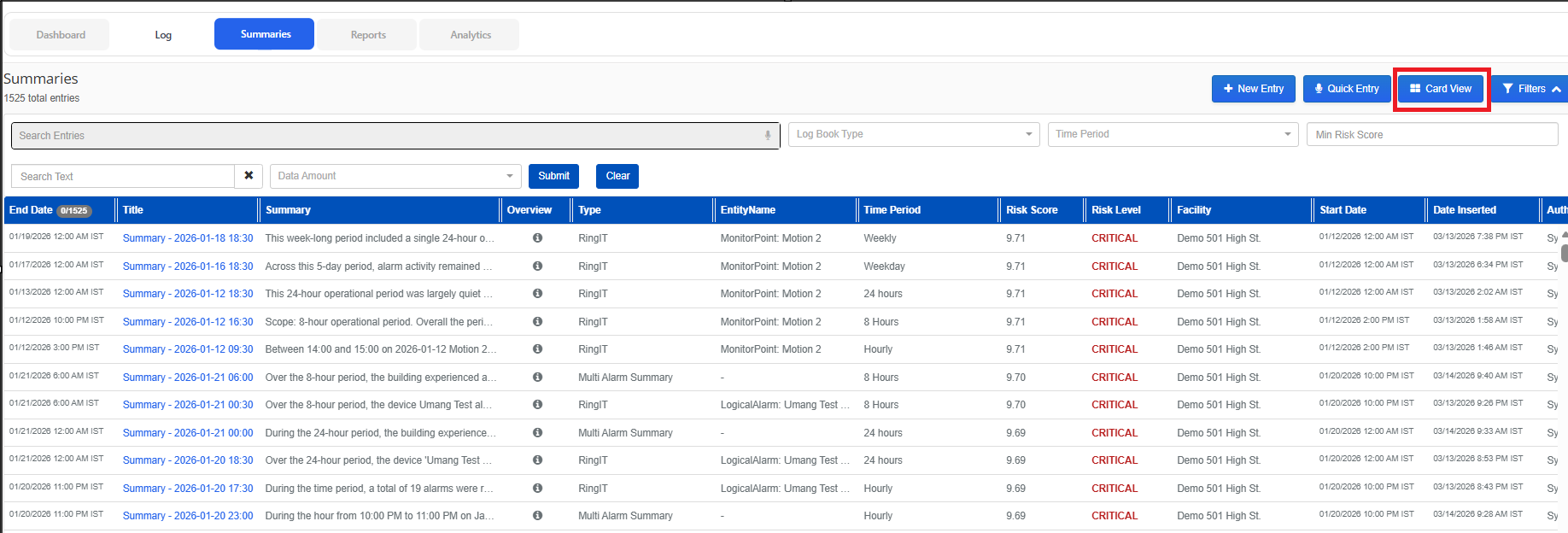
i. Risk Score and Risk Level columns are now displayed on the Logbook & Summaries list tab, providing at-a-glance risk visibility across all entries.
d. New Card View for Summaries List
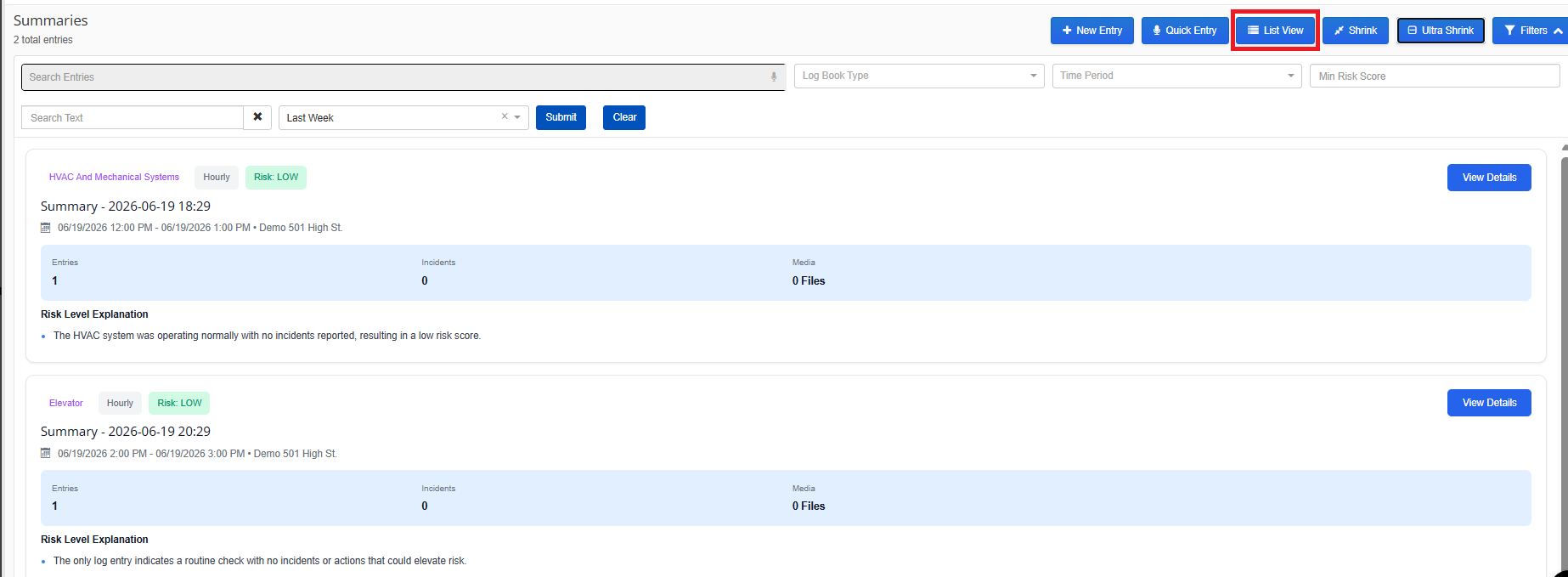
i. A Card View has been added to the Logbook Summaries list tab, displaying a rich preview of each summary's content directly from the list page.
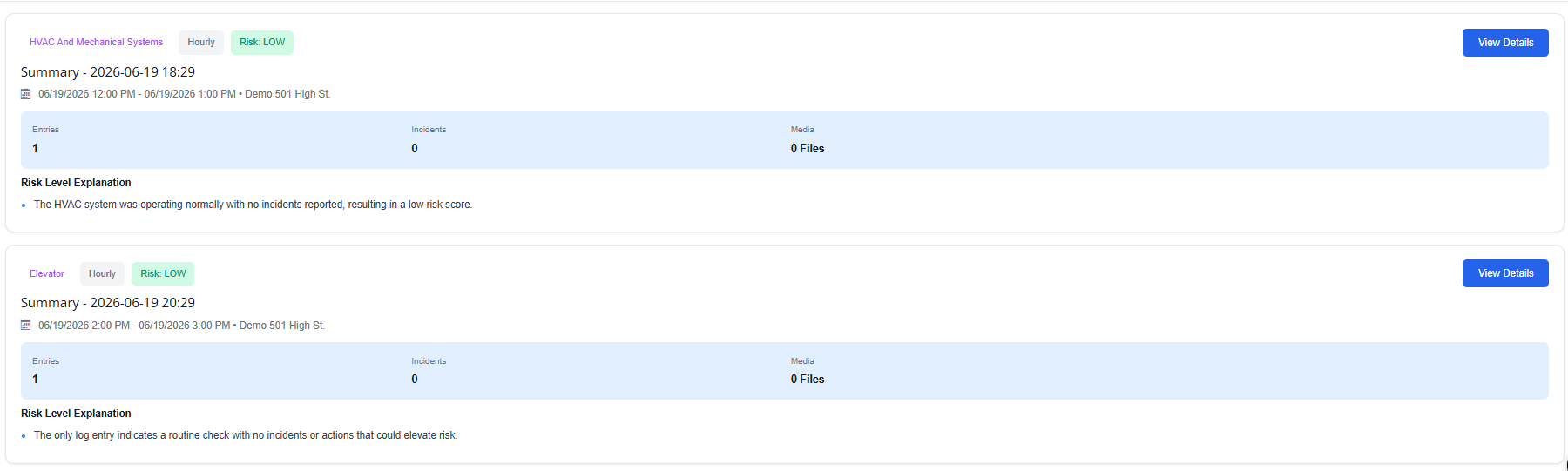
e. Card View / List View Toggle
i. A toggle button on the Summaries tab lets users switch between Card View and List View.
f. Card Density Controls -- Shrink / Expand & Ultra Shrink / Ultra Expand
i. Two density control buttons in Card View let users adjust how much detail is shown per card: Shrink / Expand for a moderate preview, and Ultra Shrink / Ultra Expand for the most compact or most detailed view.



