June 2026
Interactive Maps Enhancements
a. Improved Label Visibility During Zoom
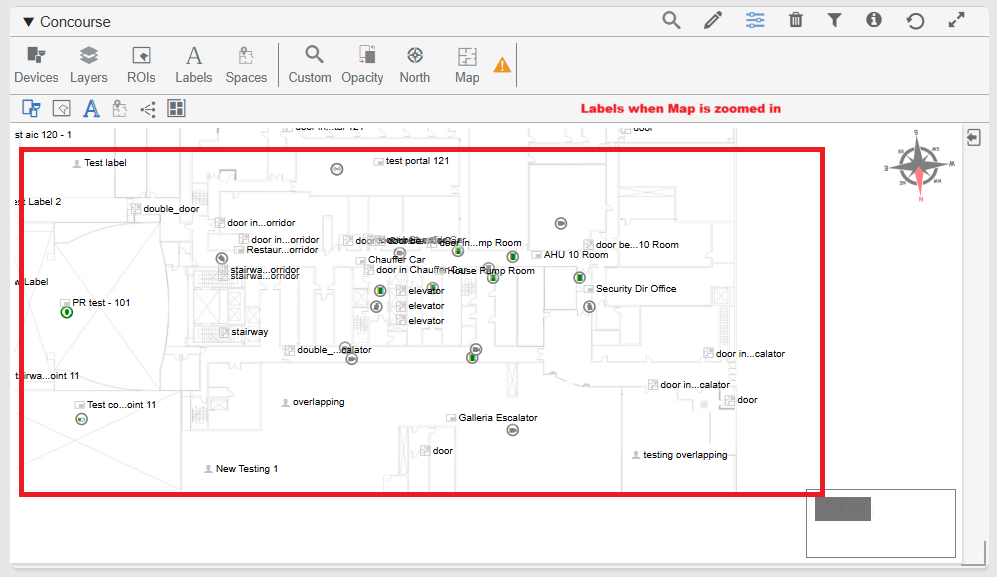
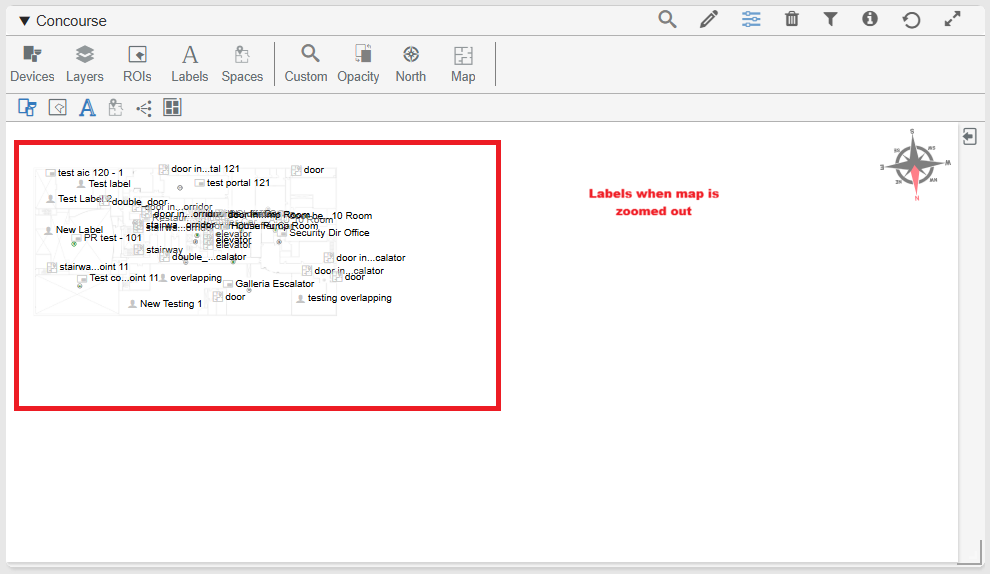
i. Enhanced label rendering on Interactive Maps to maintain a consistent and readable size while zooming in and out.
ii. Applied the same zoom behavior to both map labels and ROI labels, ensuring a consistent viewing experience.
iii. Improved map readability by keeping labels clear and easy to identify across all zoom levels.
iv. Existing label editing, selection, and movement workflows remain unchanged.
b. Detection Generation Control
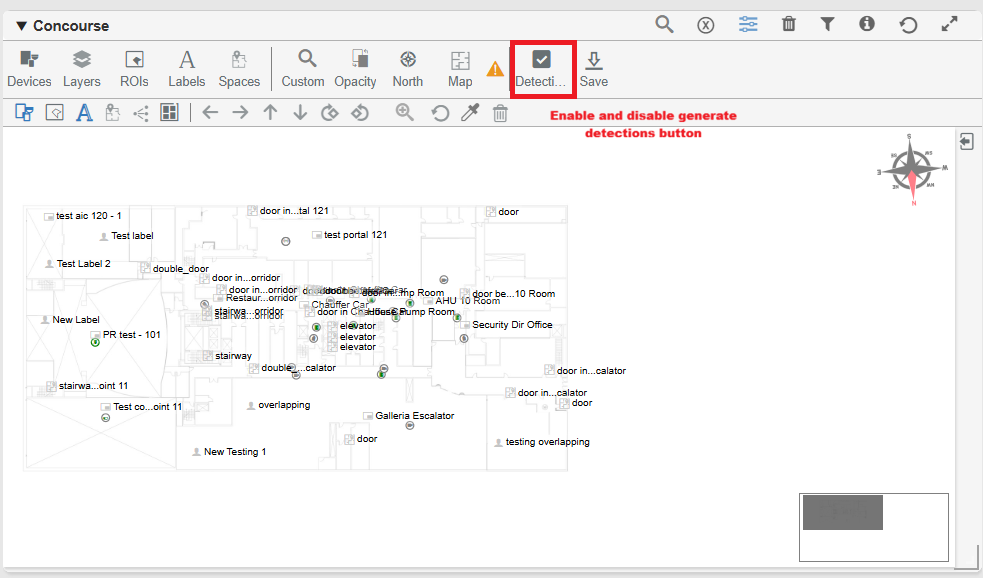
i. Added a new Detections option in Interactive Maps Edit Mode, allowing users to control whether detections should be regenerated when saving map changes.
ii. By default, saving a map updates devices, labels, and ROIs without regenerating existing detections.
iii. Users can enable the Detections option when updated detection results and mask images are required.
iv. User modifications to detection labels and ROIs are preserved when detections are regenerated.
v. New maps, or maps without existing detections, will continue to automatically generate detections during the initial save process.
c. Improved Label Hover Experience
i. Removed the floating tooltip previously displayed when hovering over labels, reducing visual clutter on the map.
ii. Labels now expand inline to display their full text when hovered, providing the same information in a cleaner and more intuitive manner.
d. Enhanced ROI Selection Highlighting
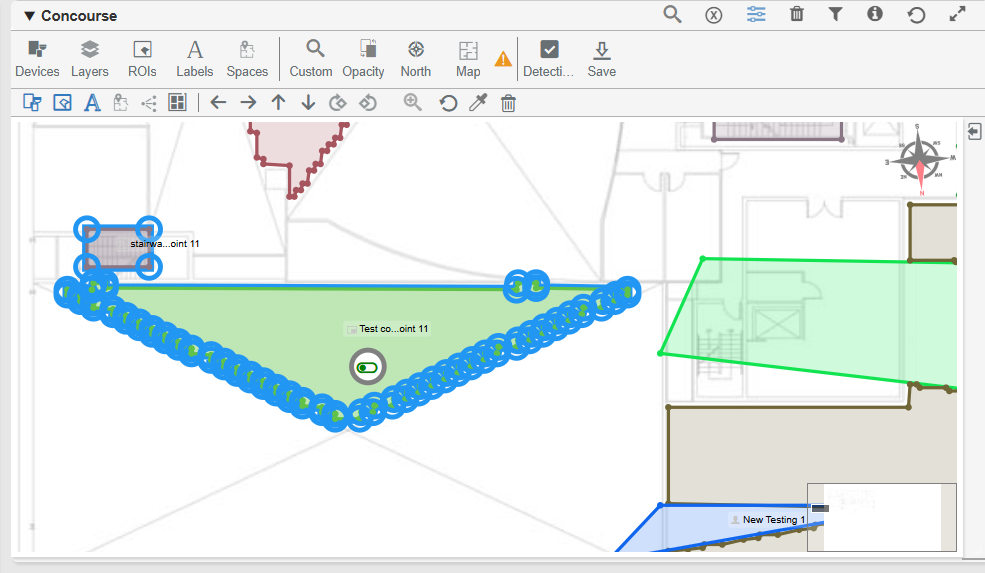
i. Refined ROI selection behavior to display a clean blue outline around the exterior of the selected ROI.
ii. Improved visual clarity by preventing selection highlights from overlapping the interior area of the ROI.
e. Auto-Generated Label Accuracy Improvements
i. Enhanced the Auto Label pipeline to automatically detect and merge duplicate or near-duplicate region labels generated from floor plans.
ii. Eliminated duplicate labels caused by naming variations such as prefixes, capitalization differences, and minor text inconsistencies.
iii. Improved map readability by ensuring each region is represented by a single, consistent label.
iv. Preserved all associated devices when duplicate labels are merged, preventing the loss of region associations.
v. Maintained user-edited and user-confirmed labels during pipeline execution.
vi. Improved consistency of auto-generated labels across repeated pipeline runs, reducing the need for manual label cleanup.
Dashboard Enhancements
a. Improved Dashlet Resize Experience
i. Increased the size of dashlet resize borders and drag handles to make dashboard resizing easier and more intuitive.
ii. Enhanced usability by providing a larger interaction area, improving accuracy when resizing dashlets.
Metadata and Event Visibility Enhancements
a. Enhanced Metadata Experience
i. Simplified metadata interactions by consolidating functionality into existing metadata icons, reducing UI clutter and improving accessibility.
ii. Delivered a more consistent metadata experience across:
- Events
- Alarms
- Event History
- UDC
- Real-Time Control
iii. Enhanced camera indicators to clearly display:
- Associated cameras
- Number of associated cameras
- Availability of recorded video in BluSKY
iv. Added new metadata indicators to provide quick access to:
- Related maps
- Analytics information
- Schedule information
v. Improved metadata interactions with simplified show/hide behavior and automatic dismissal when no longer needed.
Events Timeline Improvements
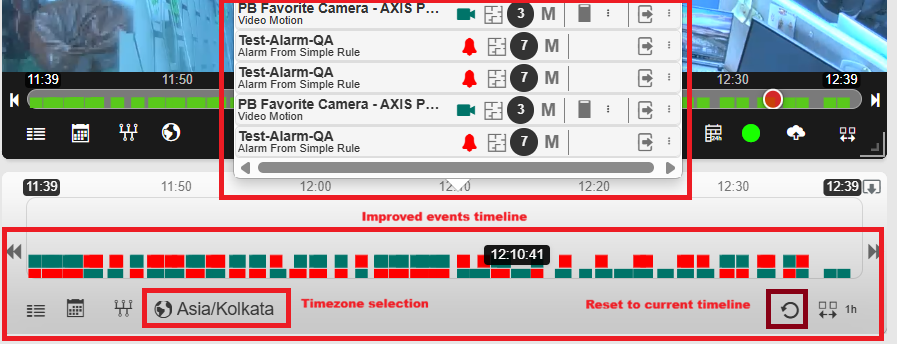
a. Increased the visible area of the Events panel, allowing users to view more events simultaneously and reducing the need for scrolling.
Recorder Enhancements
a. Recording Server Validation Improvements
i. Added validation to prevent the same Remote Server from being assigned to multiple active Recording Servers.
ii. Displayed clear warning messages when a Remote Server is already associated with another Recording Server.
iii. Added visual indicators in both the Recording Server list and edit pages to highlight duplicate Remote Server assignments.
iv. Excluded deleted Recording Servers from duplicate assignment validation checks.
v. Allowed Recording Servers without an assigned Remote Server to be saved without validation warnings.
vi. Enhanced the security token reset process to automatically restart LVSM when a Remote Server association exists.
AI Ticketing
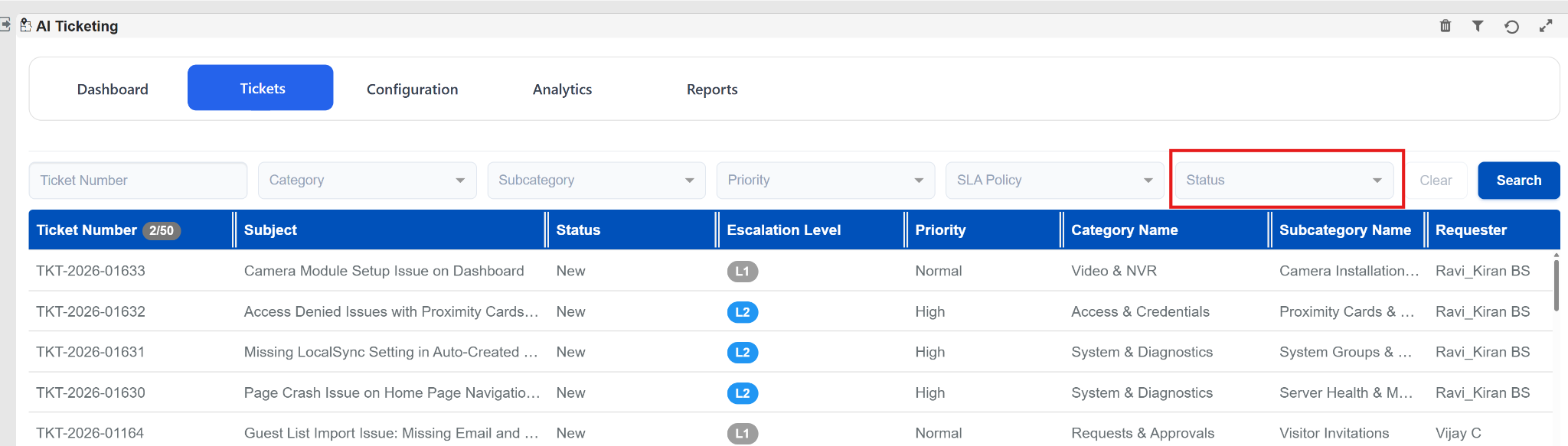
a. Status Filter in Ticket List
- Added Status filter to the Ticket List page.
- Users can now filter tickets based on ticket status (e.g., New, In Progress, Resolved, Closed).
- Improved ticket search and retrieval experience.
- Reduced time spent locating tickets in large datasets.
b. Adding Requestor Information in Ticket Creation
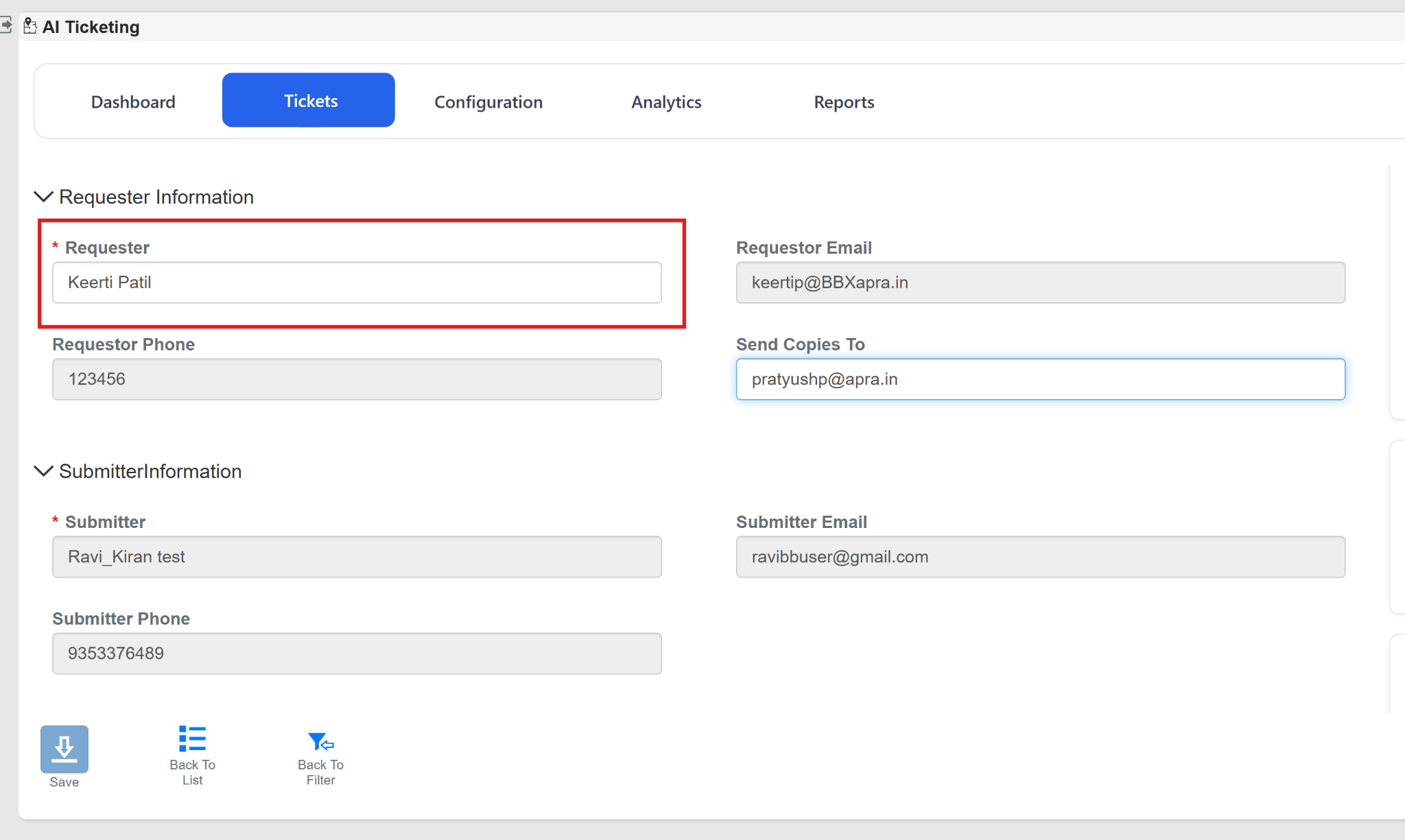
Introduced a dedicated Requestor Information section in AI Ticketing to identify the actual person requesting the work or service.
- Added Requestor field in Ticket Details.
- Captures Requestor Name, Email, and Phone information.
- Supports creating tickets on behalf of other users.
- Maintains clear ownership and accountability for requests.
- Requestor information is included in ticket records and notifications.
c. Send Copies To (CC Recipients)
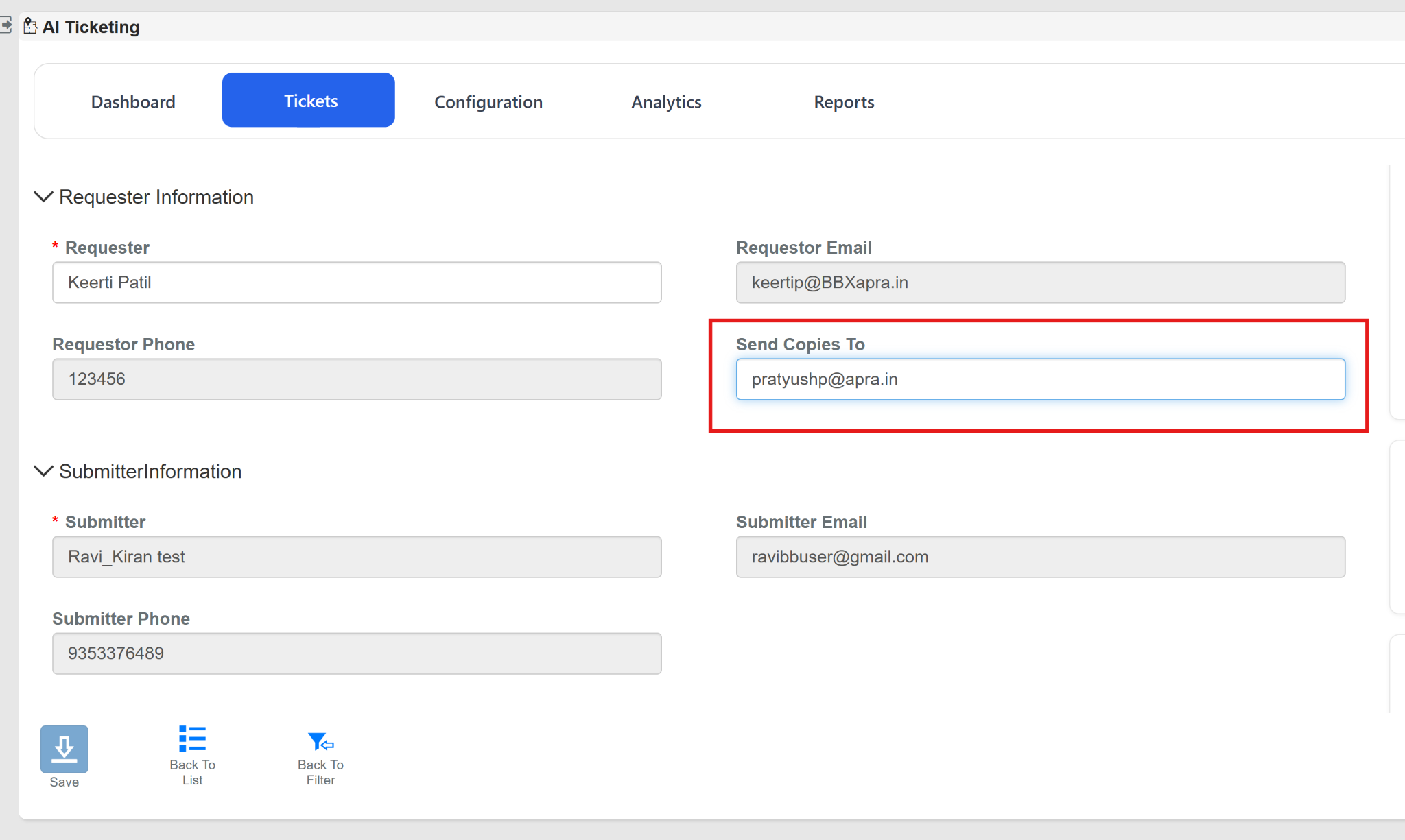
Introduced a Send Copies To field in AI Ticketing, allowing users to include additional recipients during ticket creation and updates.
- Added Send Copies To field in Ticket Details.
- Supports adding one or more email recipients.
- Included recipients receive ticket-related email notifications.
- Enables stakeholders to stay informed without being assigned to the ticket.
- Supports collaboration and visibility across teams.
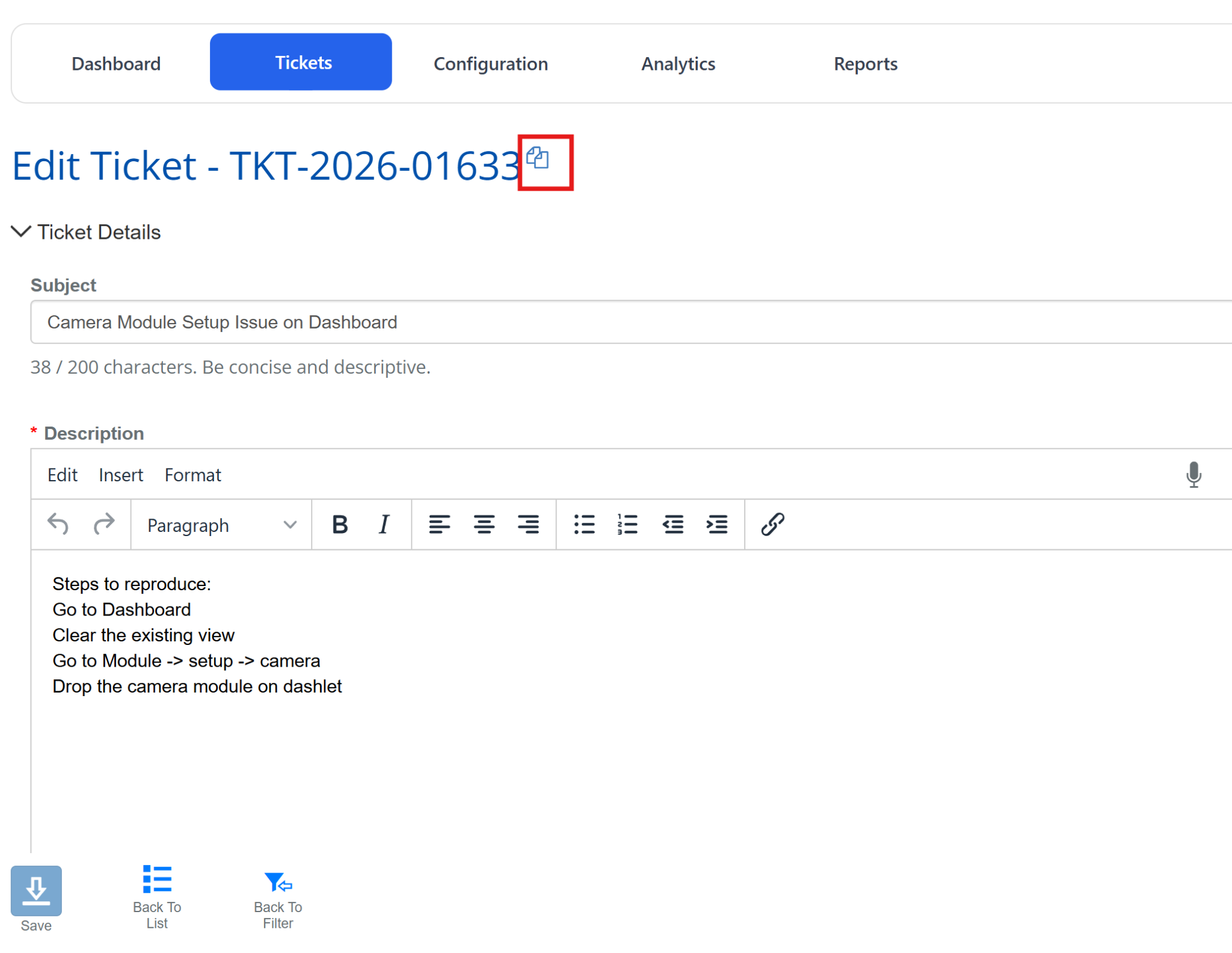
d. Copy Ticket Number
Introduced a Copy Ticket Number action on the Ticket Details page, allowing users to quickly copy the ticket number to the clipboard.
- Added Copy icon next to the Ticket Number.
- One-click copy of ticket number to clipboard.
- Simplifies sharing ticket references with other users.
- Makes it easier to search for tickets from the Ticket List page.
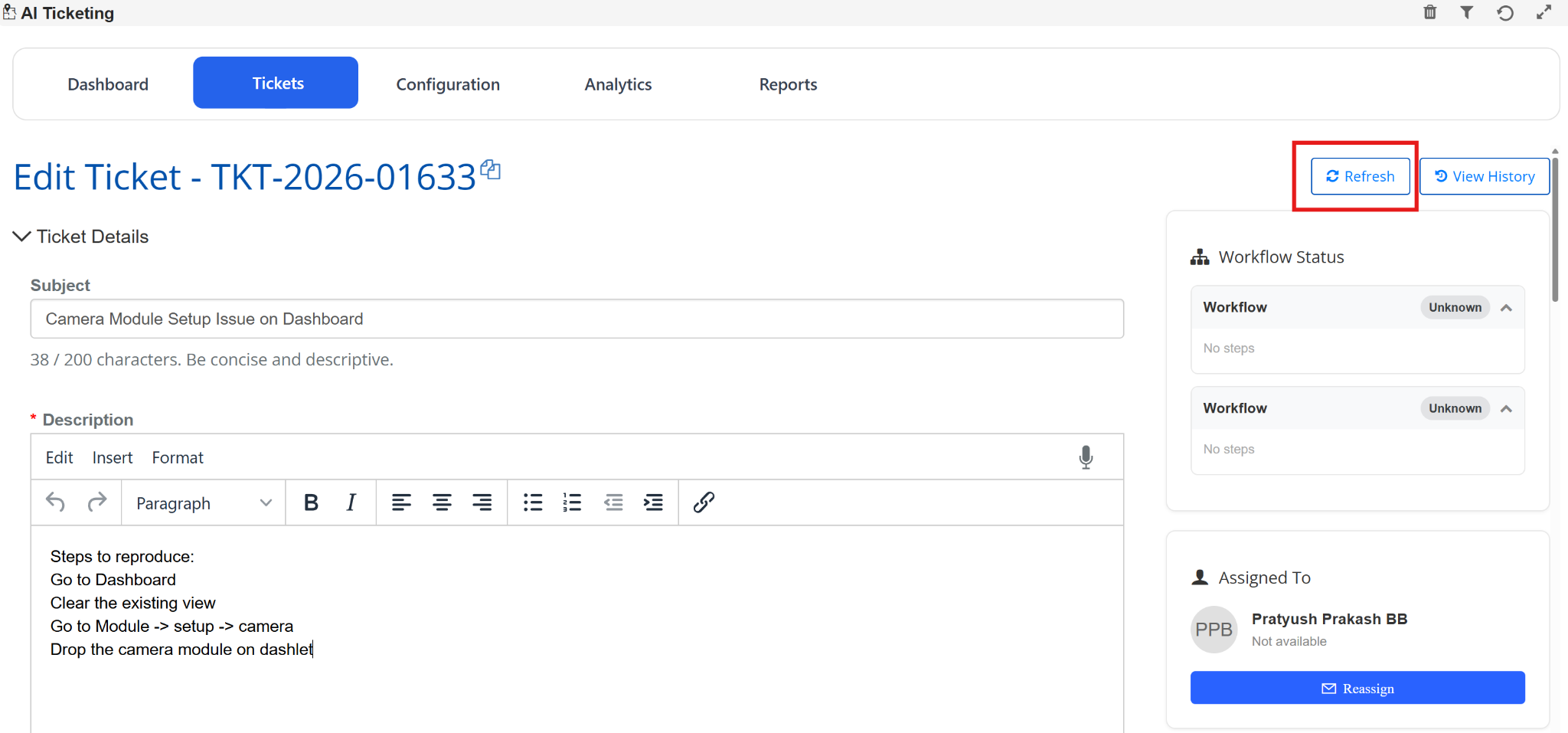
e. Ticket Refresh Action
Introduced a Refresh button on the Ticket Details page, allowing users to reload the latest ticket information without leaving or reopening the ticket.
- Added Refresh action on the Ticket Details page.
- Reloads the latest ticket data and status updates.
- Updates comments, assignments, workflow status, and ticket details in real time.
- Eliminates the need to navigate away and reopen the ticket.
Oracle
a. Floating Chat Window Enhancements
UI & Usability Improvements:
i. Updated Floating Chat Window color scheme to align with the BluB0X brand blue theme.
ii. Moved scope descriptions from the main content area to the header section.
iii. Added a collapsible component for scope descriptions to improve screen utilization.
iv. Floating Action Button (FAB) can now be repositioned anywhere on the screen.
v. Floating Chat Window can now be:
- Moved freely across the page
- Resized based on user preferences
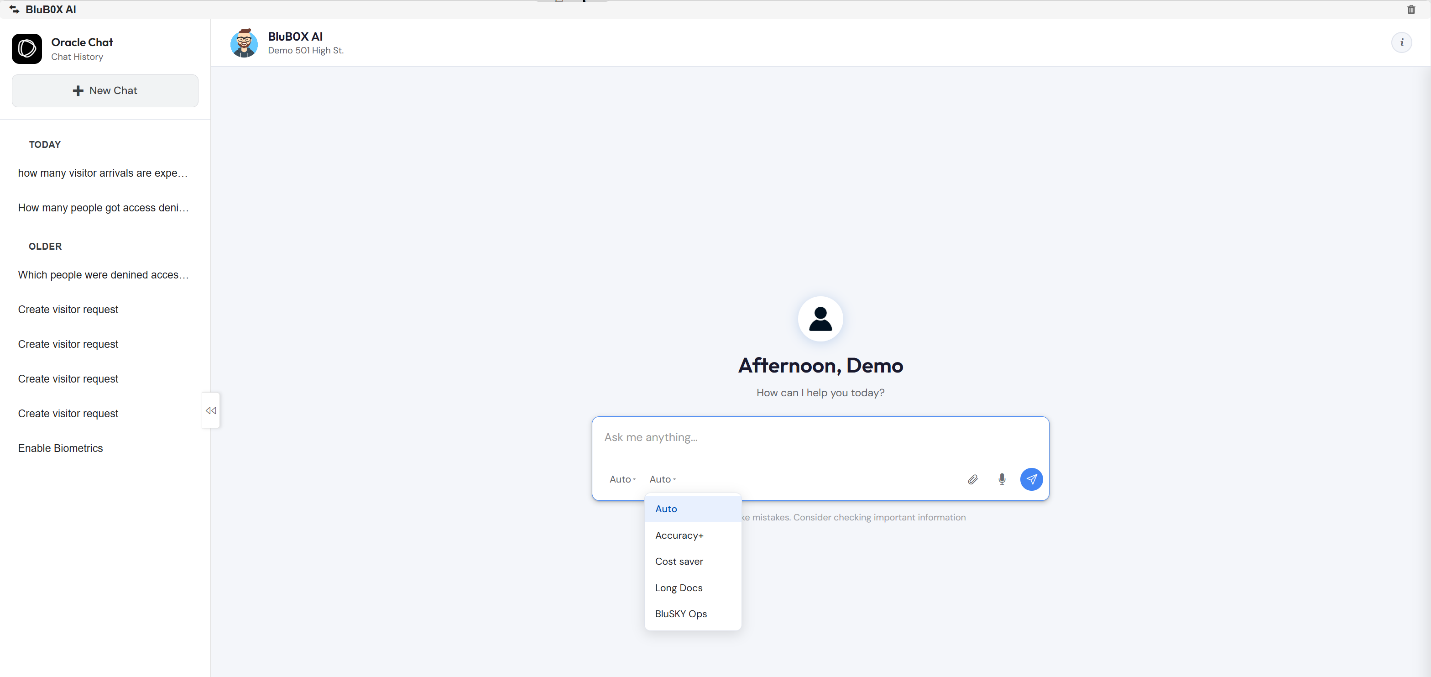
b. Oracle Chat UI Redesign
i. Modernized User Experience:
- Introduced a completely redesigned Oracle Chat interface focused on improved usability, readability, and navigation.
- Enhanced layout and visual hierarchy for a cleaner and more intuitive chat experience.
- Improved conversation history presentation and chat interaction workflow.
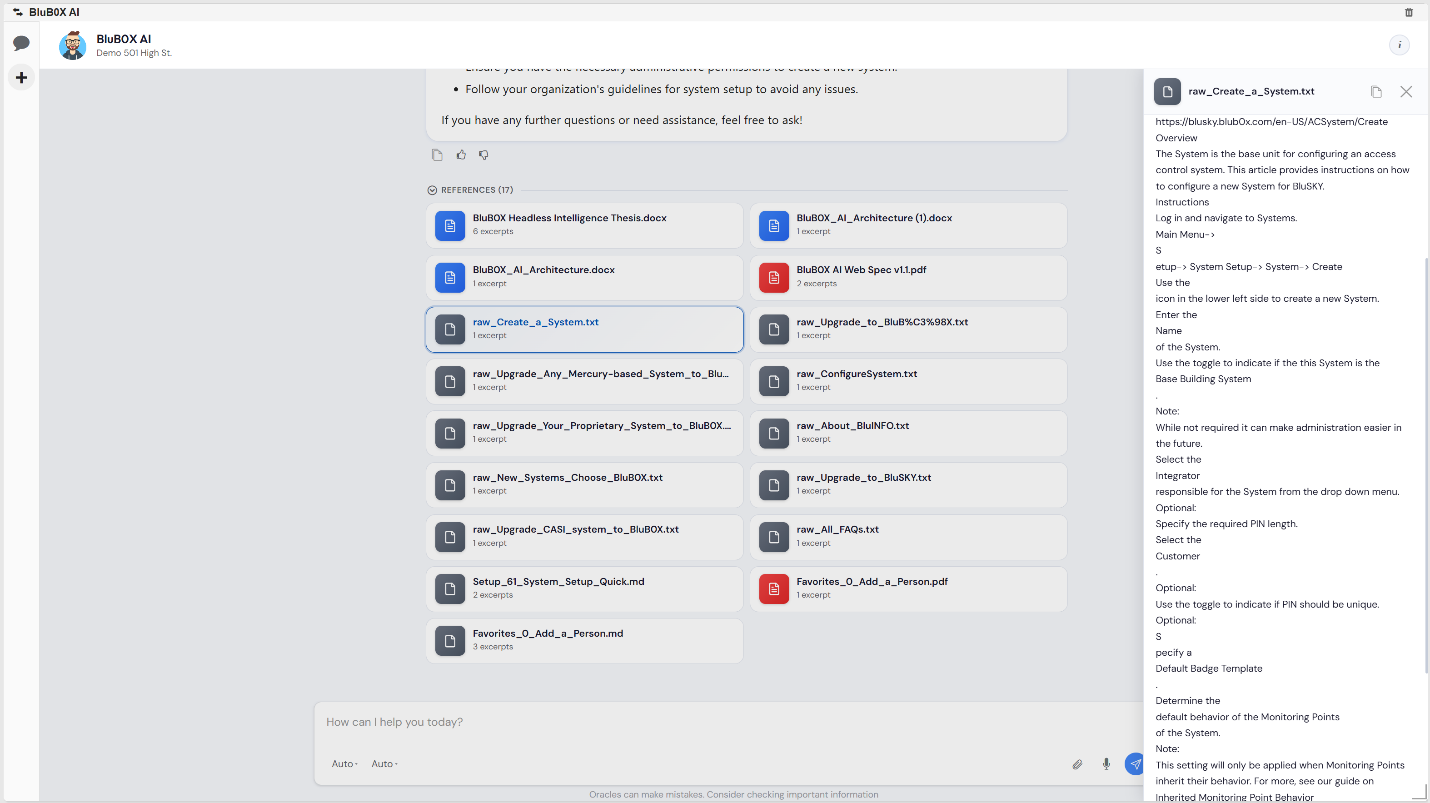
ii. Artifacts Panel:
- Added a dedicated Artifacts Panel to display resources and supporting materials used during response generation.
- Users can easily review referenced documents, files, and extracted content associated with responses.
- Improved transparency and traceability of Oracle-generated answers.
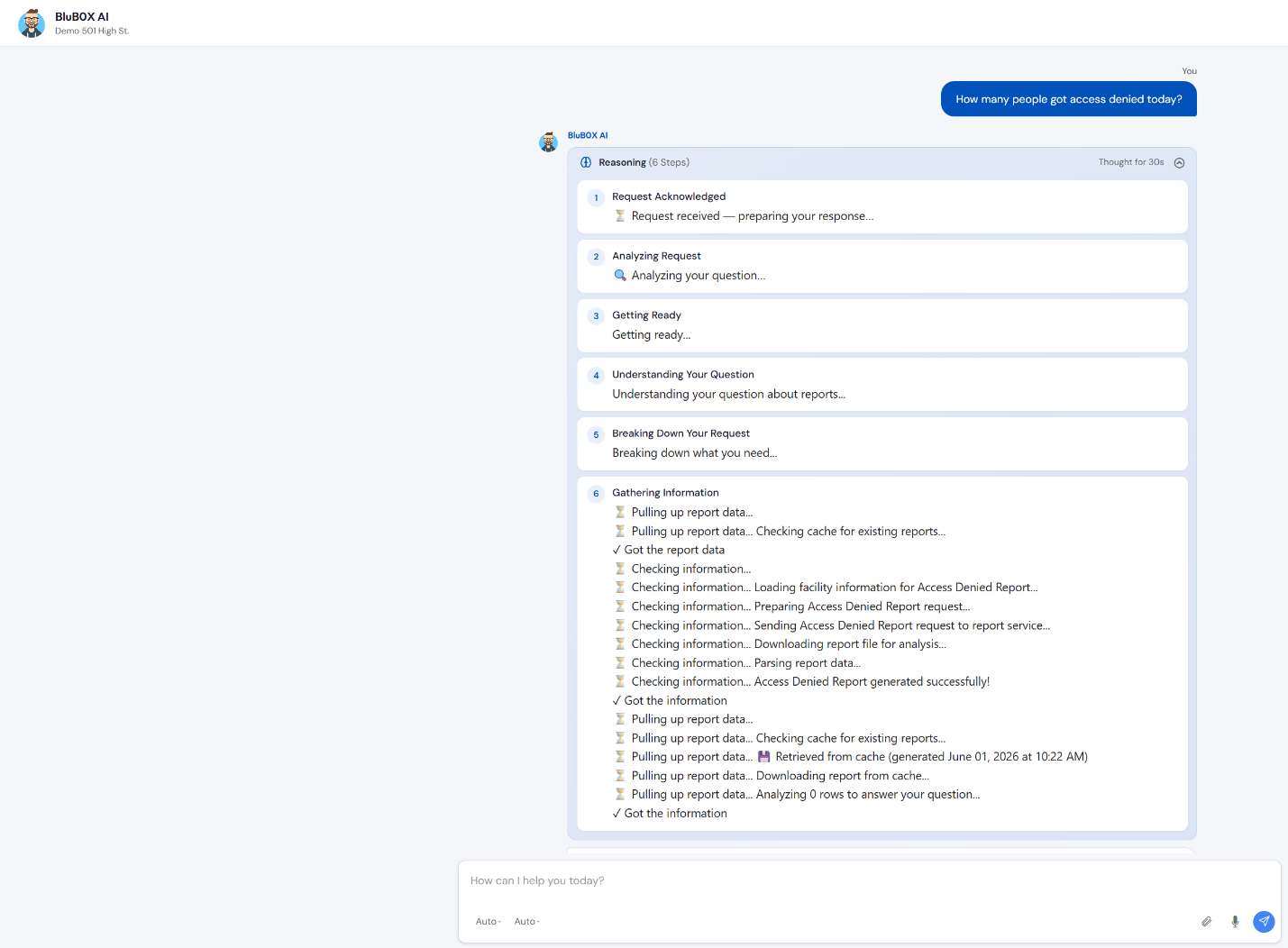
iii. Enhanced Reasoning Experience:
- Introduced a redesigned Reasoning View with improved presentation of AI processing steps.
- Enhanced reasoning content provides better visibility into:
- Request acknowledgment
- Query analysis
- Information gathering
- Processing stages
- Response generation workflow
- Improved readability and understanding of how Oracle arrives at its responses.
c. Image Upload Support
i. Image upload support for Oracle Chat UI & Oracle Floating chat window.
ii. Multiple Image Upload: Users can upload and submit multiple images within a single conversation.
iii. Image Preview Before Sending: Uploaded images are displayed in a preview panel before submission.
iv. Image-Aware Responses:
- Oracle can analyze uploaded image content and incorporate image-based insights into generated responses.
- Responses now consider both textual and visual inputs when applicable.
v. Unsupported File Type Validation: Non-image file formats (e.g., .exe, .zip, and other unsupported types) are automatically rejected. Users receive a clear validation message explaining the issue.
vi. Upload Failure Handling: Users receive an upload failure message when an upload cannot be completed.
vii. File Size Validation: Added image size validation with a maximum supported upload size of 10 MB per image. Images exceeding the size limit are blocked from upload.