Watchlists
Watchlists
Screen Overview
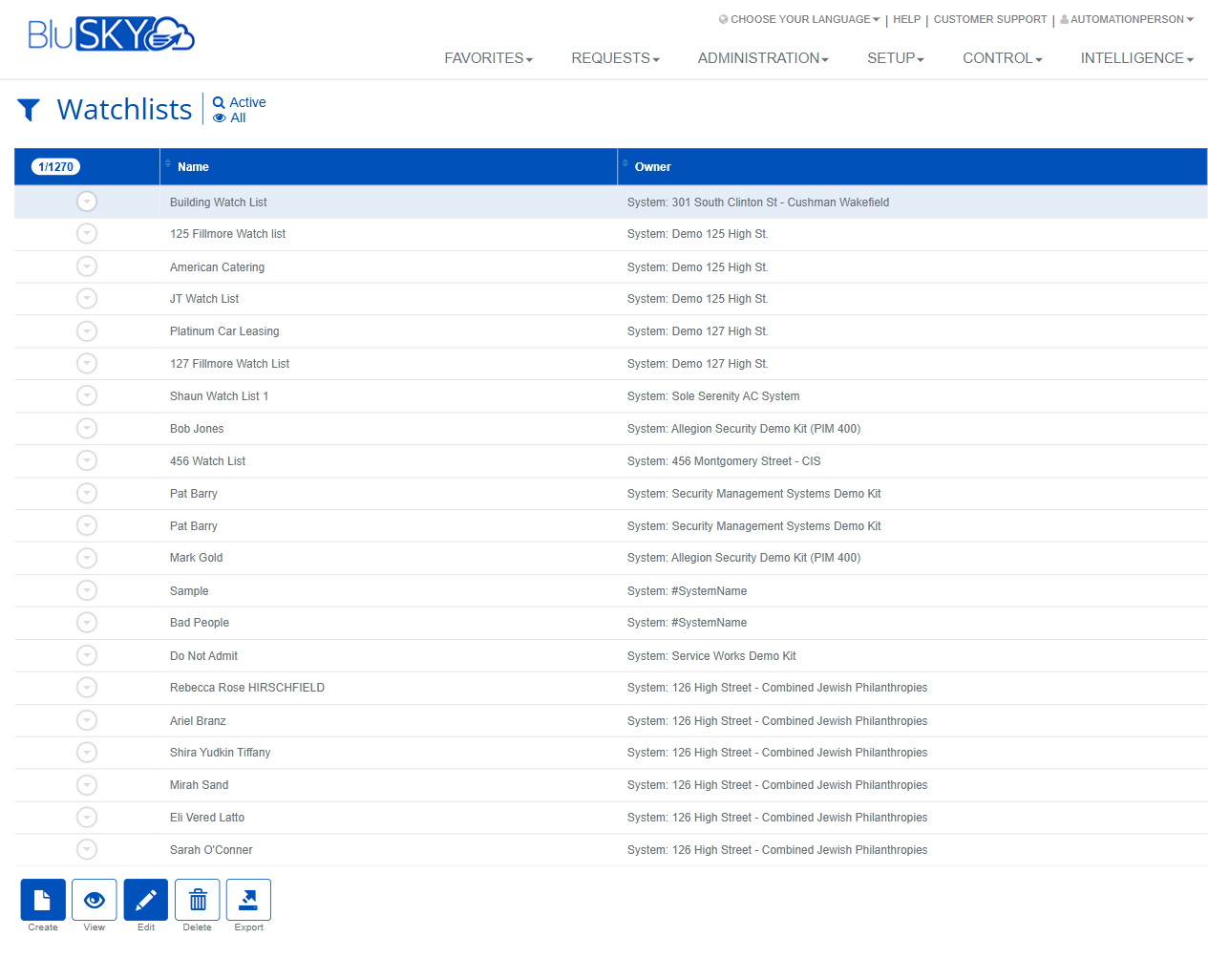
The Watchlists screen lets administrators and operators create and manage named watchlist records used to flag or track people or entities of interest across a system. It includes:
- A filter panel to search by system, status, and text.
- A results grid showing watchlists with their owner scope.
- A create form to define the watchlist name and notification recipients.
Field Definitions
| Field Label | Definition | Notes |
|---|---|---|
| Owner | Scope for the new watchlist record. Options: Company, Facility, Occupancy, Me, System. | Determines who can see and use the watchlist based on ownership scope and user permissions. |
| Name | Display name for the watchlist record. | Required. Use a clear, descriptive name (e.g., “Do Not Admit – Vendors”). |
| Notification Distribution List Id | Predefined distribution list to receive watchlist notifications. | Optional. Populated from configured Distribution Lists. If selected, all members will be notified. |
| Notification Emails | One or more email addresses to notify when the watchlist triggers. | Optional. Enter comma-separated addresses. Basic email format validation applies. Can be used with or without a Distribution List. |
| System (filter) | Limits the search to a specific system. | Default is “-- All --”. Affects the result set and export contents. |
| Search (filter) | Status filter for watchlists. | Common values include Active/Inactive/All. Defaults to Active. |
| View (filter) | Additional scope filter for which records to show. | Defaults to All. Exact options may vary by role/configuration. |
| Search Text | Free-text search input. | Searches by Name. Press Submit to apply. |
| Name (grid column) | The watchlist record’s name in the results list. | Click to select a row for actions (View/Edit/Delete). |
| Owner (grid column) | The owner scope of each watchlist in the grid. | Read-only. Indicates where the record resides (e.g., System: Demo 125 High St.). |
Screen Actions and Functions
- Create – Opens the Create Watchlists form.
- Submit – Applies the filter criteria and refreshes results.
- Reset – Clears all filters to their defaults.
- View – Opens the selected watchlist in read-only mode.
- Edit – Opens the selected watchlist for modification.
- Delete – Removes the selected watchlist record.
- Export – Exports the current filtered results to a file.
- Back To List – Returns from the create/edit view to the results list.
- Back To Filter – Returns from the create/edit view to the filter panel.
Usage Instructions & Examples
How to Create a Watchlist
- Click Create from either the filter or list page.
- Select the Owner scope (e.g., Facility or Company).
- Enter a Name. Example: “Do Not Admit – Contractors”.
- (Optional) Choose a Notification Distribution List Id.
- (Optional) Add Notification Emails as comma-separated addresses (e.g., security@site.com, manager@company.com).
- Click Create. You are returned to the list where the new record appears.
How to Find and Review a Watchlist
- Set System to the desired system or leave as -- All --.
- Ensure Search is set to the appropriate status (e.g., Active).
- Enter part of the watchlist name in Search Text and click Submit.
- Select the row and click View to open it.
How to Edit a Watchlist’s Notifications
- Filter and locate the record, then select the row.
- Click Edit.
- Adjust Notification Distribution List Id and/or Notification Emails.
- Save your changes.
How to Delete a Watchlist
- Search and select the target row.
- Click Delete and confirm. The record is removed from the list view (subject to status/archiving rules).
How to Export Watchlists
- Apply any filters (System, Search, View, Search Text).
- Click Export to download the filtered results.
System Behaviors and Edge Cases
- Required fields: Name must be provided to create a record; the system prevents save if missing.
- Row actions: View/Edit/Delete buttons appear only after a row is selected.
- Notifications:
- If both a Distribution List and Notification Emails are supplied, all recipients are notified.
- If neither is supplied, the watchlist can still be created; however, no email notifications will be sent.
- Email inputs expect comma-separated formatting; invalid addresses are rejected or ignored based on validation rules.
- Filters and export: Export includes only the records matching the current filters.
- Ownership scope: The Owner selection controls visibility and manageability of the record. Users may see only owner scopes allowed by their permissions.
- Status filtering: The Search filter (e.g., Active) controls what appears in the grid; switching to All reveals inactive records if permitted.
Permissions
- View Watchlists: Required to access the screen and run searches.
- Create Watchlists: Required to create new records.
- Edit Watchlists: Required to modify existing records.
- Delete Watchlists: Required to remove records.
- Export Watchlists: Required to export results.
- Owner scope access (Company/Facility/Occupancy/System/Me) is constrained by the user’s role and assigned security context.
Linked Workflows
- Distribution Lists: Configure recipient groups used by Notification Distribution List Id.
- Visitor/Identity Management: Watchlists can be referenced by check-in or identity verification workflows for alerting.
- Event/Alarm Monitoring: Alerts generated by watchlist matches can feed operator consoles and email notifications.
- Reporting: Use exports for audits and compliance reviews.
Reference Image Links