Scim Configuration
SCIM Configuration
Screen Overview
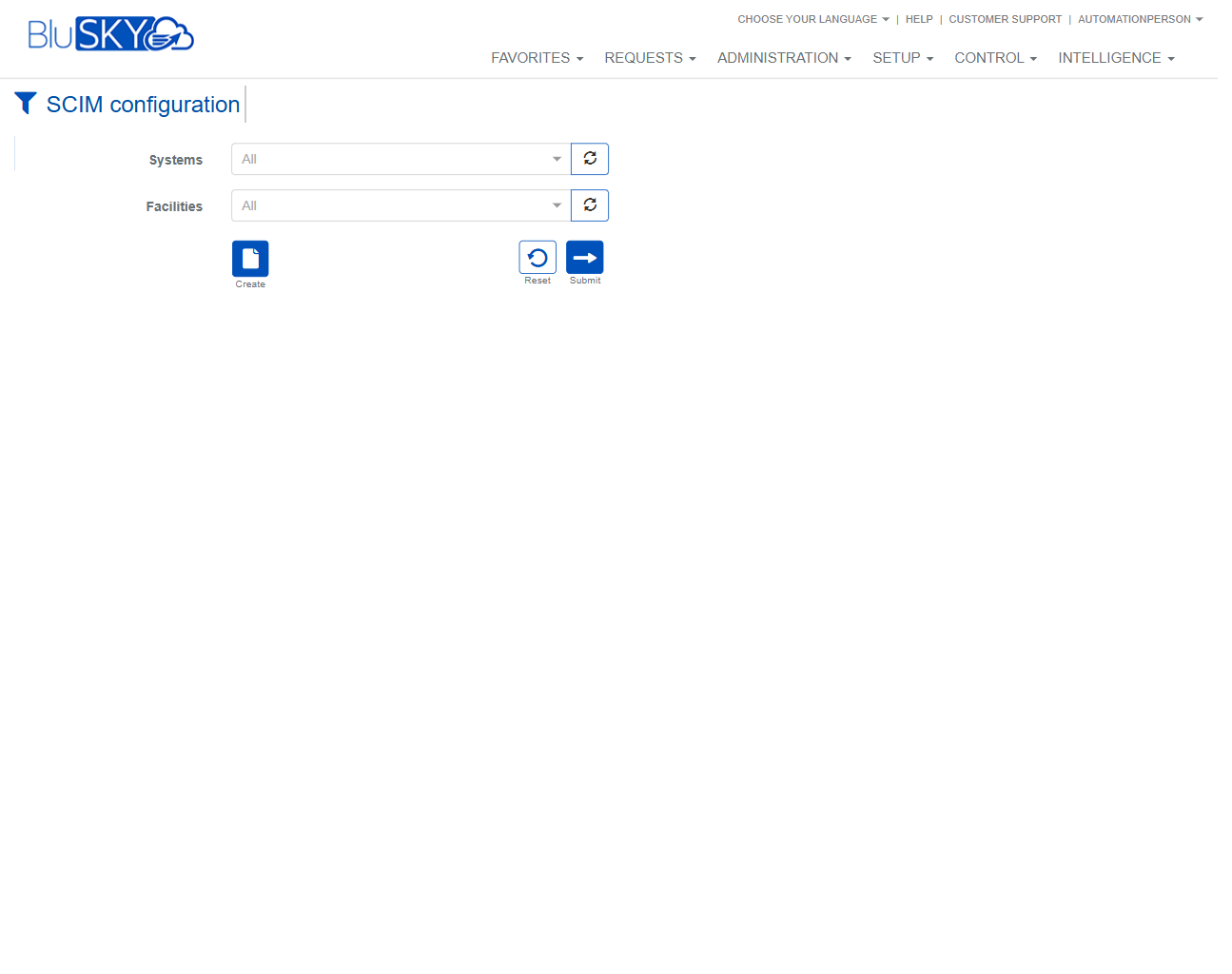
The SCIM Configuration screen is used to create and manage SCIM (System for Cross‑domain Identity Management) integrations that provision people and groups from an external identity provider into BluSKY. Administrators can filter by System and Facility, review existing configurations, and create or delete configurations for the desired scope.
Field Definitions
| Field Label | Definition | Notes |
|---|---|---|
| Systems | Filter that limits results to a selected hardware/system integration. | Defaults to All. Use the circular refresh icon to reload the list. |
| Facilities | Filter that limits results to a selected facility within the chosen system. | Defaults to All. Use the circular refresh icon to reload the list. |
| Entity | The BluSKY entity the configuration applies to (e.g., system/facility/tenant). | Display column in the results grid. Read‑only. |
| Scope | The provisioning scope for this configuration (what objects are synchronized). | Display column. Read‑only. Exact behavior depends on your connector settings. |
| Group mode | How SCIM groups are handled for this configuration. | Display column. Read‑only. Examples include syncing groups or ignoring them. |
| DefOccupantId | The default occupant/company assigned to people created by this configuration. | Display column. Read‑only. Used when the incoming SCIM payload does not specify a company. |
| InsertedByPersonName | Name of the user who created the configuration. | Display column. System‑generated. |
| Date Inserted | Timestamp when the configuration was created. | Display column. System‑generated; read‑only. |
| Updated | Indicates the last update time or state of the configuration. | Display column. System‑generated. |
| Entity (count pill) | A small counter next to the Entity header showing record counts (e.g., 0/0). | Read‑only indicator of list totals after filtering. |
Screen Actions and Functions
- Create – Opens the SCIM Configuration form to define a new integration.
- Delete – Removes the selected configuration(s) from the system after confirmation.
- Submit – Applies the selected Systems/Facilities filters and refreshes the list.
- Reset – Clears all filters back to their defaults.
- Refresh picklists – The circular icons beside Systems and Facilities reload available options.
- Column sort – Click a column header to sort ascending/descending.
Usage Instructions & Examples
- Filter the list by System and Facility
- Open the Systems dropdown and choose the target system.
- Open the Facilities dropdown and choose a facility (or leave as All).
- Click Submit to load matching SCIM configurations.
- Create a new SCIM configuration
- Optionally set Systems and Facilities to the scope you want to configure.
- Click Create.
- Complete the configuration form (provider connection, scope, group handling, default occupant/company, and any required credentials).
- Save. The new configuration will appear in the results grid.
- Delete an existing configuration
- Filter and locate the configuration in the grid.
- Select the row you want to remove.
- Click Delete and confirm. The configuration is removed and SCIM provisioning for that scope stops.
System Behaviors and Edge Cases
- If no results match the selected filters, the list displays empty with a 0/0 counter.
- Changing Systems may alter the available Facilities list; use the refresh icons if newly added items do not appear.
- Create is available regardless of current results; it opens a blank configuration form for the selected scope.
- Deleting a configuration immediately disables SCIM syncing for that scope; any further updates from the identity provider will be ignored until a new configuration is created.
- Grid columns are read‑only; edits are made from the configuration form, not inline.
- If required values are missing in the creation form (e.g., credentials or scope), saving will be blocked and validation messages will identify the fields to correct.
Permissions
- Accessible to Global Administrators and Tenant/Facility Administrators with rights to manage integrations.
- The Delete action is restricted to users granted SCIM configuration delete privileges.
- Users without edit rights can view configurations but cannot create or delete them.
Linked Workflows
- People provisioning: SCIM configurations create and update People records and can assign them to a default occupant/company.
- Group synchronization: When Group mode is enabled, SCIM groups can be mapped to access constructs in BluSKY.
- Audit and monitoring: Use Intelligence or system logs to verify synchronization activity after configuration.
Reference Image Links