Delegate Points
Delegates – Delegate List and Manage Delegates
Screen Overview
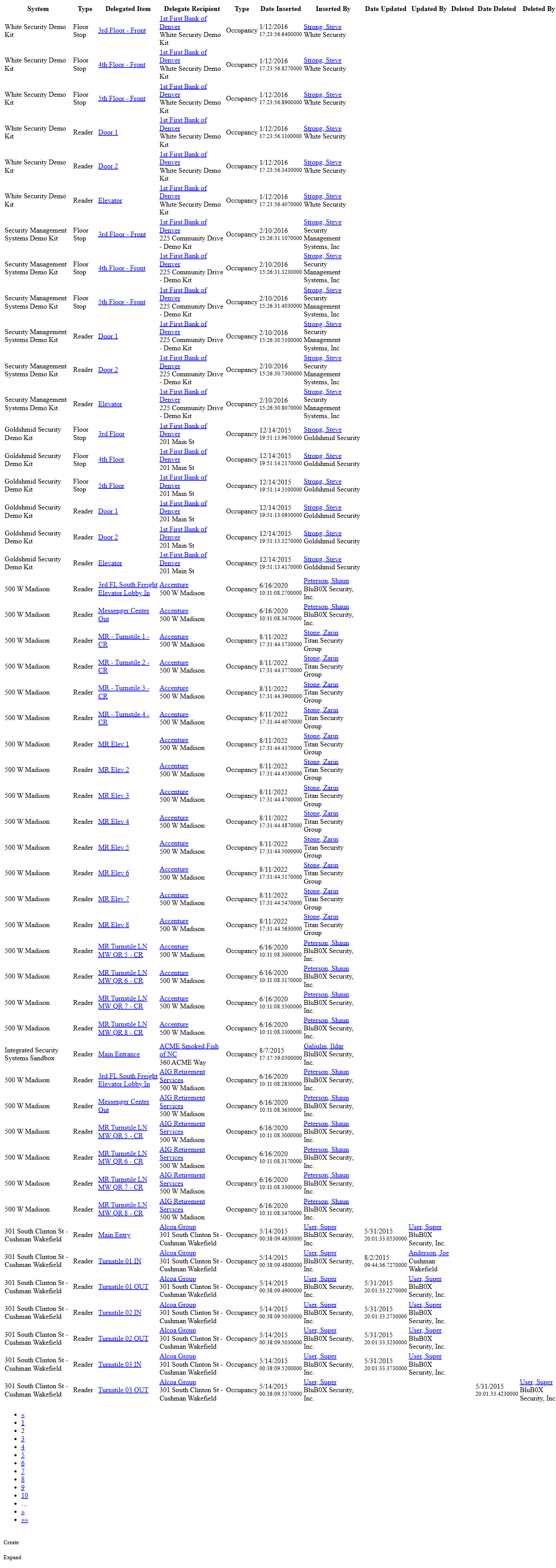
The Delegates feature lets administrators delegate specific access control points (readers and elevator floor stops) to designated recipients who will assign access to cardholders. It includes:
- Delegate List: a searchable list of all existing delegations across systems and facilities, with quick access to create or review delegations.
- Manage Delegates: a detail screen to add or remove delegated points and assign one or more delegate recipients.
Field Definitions
| Field Label | Definition | Notes |
|---|---|---|
| System (Filter) | Dropdown used on Delegate List to limit results to a single access control system. | Optional. Defaults to all systems. |
| Search Text | Free-text search on Delegate List for point, recipient, or system names. | Supports partial matches. |
| View | Controls Delegate List layout/aggregation (e.g., Group By Delegate Recipient). | Affects only presentation, not data. |
| Submit | Executes the current Delegate List filters. | Keyboard Enter also submits. |
| Reset | Clears applied Delegate List filters and restores defaults. | Use when switching to a new search. |
| Delegate Count | Header area showing the list section on Delegate List. | Informational only. |
| System (Column) | Column on Delegate List showing the source system of the delegated point. | Clickable in some configurations to open the system record. |
| Type (Column) | Column on Delegate List indicating the point type. | Values: Reader, Floor Stop. |
| Delegated Item | The specific point that has been delegated (e.g., Door 2 – Reader, 3rd Floor – Front). | Click the link to open Manage Delegates for that item. |
| Delegate Recipient (Column) | The organization or entity that receives delegation authority. | Examples: Occupancy, Vendor, Company, Global Company instances. |
| Type (Recipient Column) | The classification of the recipient listed on Delegate List. | Common values: Occupancy, Vendor, Company, Global Company. |
| Date Inserted | Date and time the delegation was created. | System-generated, read-only. |
| Inserted By | User who created the delegation. | Appears in Expanded view. Read-only. |
| Date Updated | Most recent modification timestamp for the delegation. | Appears in Expanded view. Read-only. |
| Updated By | User who last modified the delegation. | Appears in Expanded view. Read-only. |
| Deleted | Indicates if a delegation has been deleted. | Appears in Expanded view; read-only. |
| Date Deleted | Timestamp for when the delegation was deleted. | Appears in Expanded view; read-only. |
| Deleted By | User who deleted the delegation. | Appears in Expanded view; read-only. |
| Currently Delegated Points | List on Manage Delegates showing all points already delegated for the current context. | Use Include/Remove to mark a point for removal or add additional points. |
| Include/Remove | Toggle icon on Manage Delegates tables to include or remove a row from the save operation. | Changes are pending until Save is clicked. |
| System (Manage Delegates) | Column showing the system that hosts the delegated point or recipient context. | Read-only. |
| Type (Manage Delegates – Points) | Column indicating the point type in Currently Delegated Points. | Values: Reader, Floor Stop. |
| Name | The friendly name of the delegated point in Currently Delegated Points. | Clickable in some deployments to open the point record. |
| Add Reader(s) | Action to select additional reader points to delegate. | Opens a selector. Multiple selections allowed. |
| Add Floor Stop(s) | Action to select additional elevator floor stop points to delegate. | Opens a selector. Multiple selections allowed. |
| Delegate Recipient(s) | Section on Manage Delegates to add or review who will manage access for the delegated points. | You can add one or many recipients. |
| Type (Manage Delegates – Recipient) | The type of delegate recipient being added. | Values include Occupancy, Vendor, Company, Global Company. Scope varies by type. |
| Facility | The facility context for the recipient when scope is limited (e.g., Occupancy/Vendor). | Required for non-global types. Read-only after selection in some flows. |
| Delegate Recipient | Specific recipient instance (e.g., 1st Bank of Boston). | Required. |
| Add More Delegate Recipient(s) | Numeric control plus Add button to insert one or more blank recipient rows. | Default value is 1. |
| Save | Commits all pending additions and removals on Manage Delegates. | Validates required fields. |
| Back To List | Returns to the Delegate List without saving changes. | Unsaved changes are discarded. |
| Create | Button on Delegate List to start a new delegation. | Opens the Manage Delegates flow. |
| Expand | Toggles Delegate List between summary and expanded columns. | Expanded view shows audit fields. |
Screen Actions and Functions
- Create (Delegate List) – Start a new delegation.
- Expand (Delegate List) – Show/hide audit and deletion columns.
- System, Search Text, View, Submit, Reset (Delegate List) – Filter, format, and refresh the list of delegations.
- Click Delegated Item (Delegate List) – Open Manage Delegates for that point.
- Add Reader(s) / Add Floor Stop(s) (Manage Delegates) – Add additional points to delegate.
- Add More Delegate Recipient(s) (Manage Delegates) – Insert one or more recipient rows.
- Include/Remove toggle (Manage Delegates) – Mark a point or recipient to be included or removed on save.
- Save (Manage Delegates) – Persist all changes.
- Back To List (Manage Delegates) – Cancel changes and return to the list.
Usage Instructions & Examples
How to find an existing delegation
- Open Delegate List.
- Optionally select a System and enter Search Text (e.g., “Door 2” or “Bank”).
- Choose a View (e.g., Group By Delegate Recipient) and click Submit.
- Click the Delegated Item link to view or edit the delegation.
How to create a new delegation for a reader
- From Delegate List, click Create.
- On Manage Delegates, click Add Reader(s) and select one or more readers; Apply/OK to add them to Currently Delegated Points.
- In Delegate Recipient(s), click Add to insert a row. Select Type (e.g., Occupancy), confirm the Facility if prompted, and choose the Delegate Recipient.
- Repeat Step 3 to add additional recipients as needed.
- Click Save. The new delegations appear on the Delegate List.
How to delegate elevator floor stops to a tenant
- From Delegate List, open the relevant elevator or floor stop Delegated Item or click Create and then Add Floor Stop(s).
- In Delegate Recipient(s), set Type = Occupancy, choose the tenant’s Facility, and select the tenant Occupancy.
- Save to enable the tenant to assign access for those floors.
How to remove a delegation
- Open the Delegated Item from the Delegate List.
- In Manage Delegates, toggle Include/Remove on the recipient row (or on the point row to remove the point entirely).
- Click Save to confirm removal.
How to view audit details
- On Delegate List, click Expand.
- Review Inserted By, Date Updated, Updated By, and any Deletion columns.
System Behaviors and Edge Cases
- Include/Remove is non-destructive until Save; leaving the page without saving discards pending changes.
- Global Company recipients receive delegation across every instance worldwide; saving may create multiple records and can take longer.
- Occupancy and Vendor recipient types are scoped to the selected Facility only.
- Attempting to add a duplicate point–recipient pair is prevented; the row will not save and a validation message is shown.
- Removing a delegated point removes all of its associated recipients after Save.
- Delegated Item and some names are hyperlinks to their respective records when the user has permission.
- Date Inserted/Updated and audit fields are system-generated and read-only.
- Pagination appears on long lists; filters apply to the entire dataset, not only the current page.
- If required fields (Type, Delegate Recipient) are missing, Save is blocked and fields are highlighted.
Permissions
- Visible to users with administrative roles such as Global Administrator, Tenant/Facility Administrator, or custom roles with ManageDelegates permission.
- Creating, adding points, or assigning recipients requires the ManageDelegates (Create/Update) permission on the target System/Facility.
- Deleting/removing delegations requires ManageDelegates (Delete).
- Users without edit rights can view the Delegate List but cannot access Manage Delegates or Save changes.
- Access to specific Systems/Facilities restricts which points and recipients appear in selectors.
Linked Workflows
- After delegation, recipients can assign Access Rights to people via People, Credentials, and Access Levels workflows.
- Reader and Floor Stop configuration originates in the Devices/Points setup screens.
- Tenant/Occupancy and Vendor records are created and maintained in the Occupancies/Companies management screens.
- Audit and reporting for changes can be reviewed in system audit logs and the expanded Delegate List view.
Reference Image Links